Travel connectivity guide
Samsung Galaxy Z Flip3 5G eSIM: compatibility
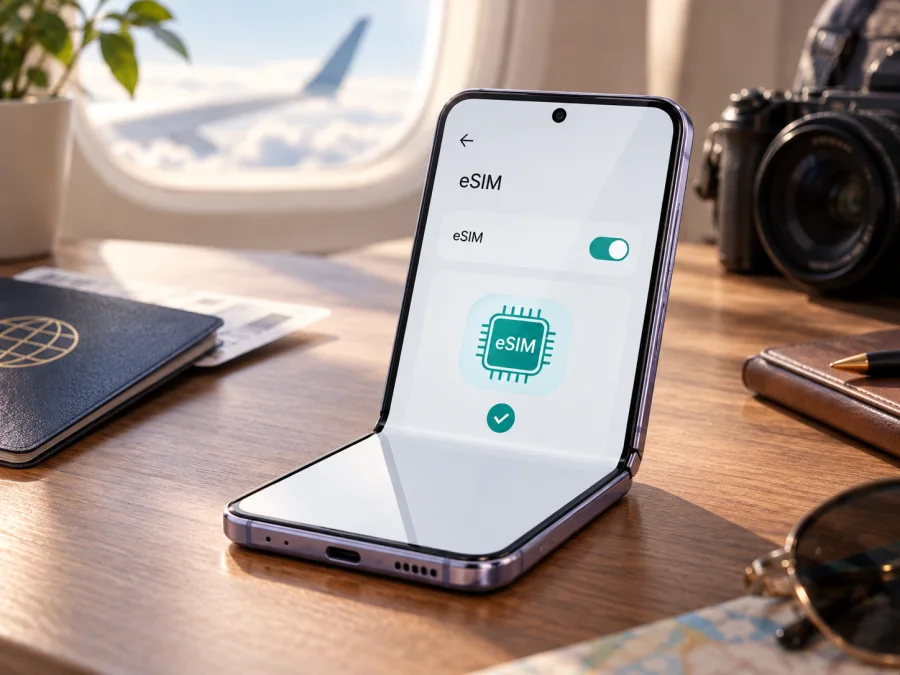
Samsung Galaxy Z Flip3 5G eSIM: compatibility, setup and travel use
The Samsung Galaxy Z Flip3 5G can use an eSIM, or embedded SIM, in supported regional and carrier configurations. Samsung’s specifications for the model describe it as eSIM capable, and Samsung’s current support information includes the Galaxy Z Flip3 and Galaxy Z Flip 5G among Galaxy devices with hybrid eSIM support. The important qualification is that eSIM functionality depends on the exact sales region, carrier firmware and operator. In other words, the name Samsung Galaxy Z Flip3 5G alone is not enough to guarantee that every individual phone will show an eSIM option.
Quick answer for this exact model
Yes, Samsung Galaxy Z Flip3 5G is a model family with eSIM support, but compatibility is not universal across every market variant. Samsung’s official business specifications list a single Nano-SIM slot and eSIM capability, with functionality dependent on the carrier. Samsung’s support guidance also notes that eSIM may not be supported depending on the country of origin and that available screens can vary by carrier, software version and device model.
That distinction matters with a phone purchased second-hand, imported from another country or sold by a mobile operator. A US carrier version, an unlocked international version and a phone originally sold in another region may not expose exactly the same SIM features. A later software update can also change the wording or placement of the menu without adding hardware that was never included. The model name and 5G radio support do not by themselves prove eSIM availability.
What the manufacturer information means
Samsung’s published information supports the following practical conclusion:
| Item | What applies to Samsung Galaxy Z Flip3 5G |
|---|---|
| Device family | Galaxy Z Flip3 5G |
| eSIM | Supported on compatible regional and carrier variants |
| Physical SIM | Nano-SIM slot is listed in Samsung specifications |
| Dual-SIM arrangement | Physical SIM plus eSIM can be available as a hybrid configuration |
| Main limitation | Carrier, country of origin, model variant and software can affect availability |
| Best pre-purchase proof | An EID and an Add eSIM option in the phone’s own settings |
| Travel use | A compatible data eSIM can be selected for mobile data while the primary line is managed separately |
Why regional and carrier versions can differ
Samsung produces the Galaxy Z Flip3 5G for several markets and network partners. The same retail name can cover different model codes, firmware packages and provisioning policies. An operator-branded phone may hide the option or require carrier provisioning, while an imported or refurbished phone may have a different firmware build or be network-locked. The carrier behind the travel plan may also limit activation by device or market.
For this reason, “supports eSIM” is a conditional compatibility statement, not a promise that every Galaxy Z Flip3 5G will activate every eSIM. Before paying, match the phone’s model code, sales region, software, lock status and the plan’s conditions. A 5G connection symbol cannot prove eSIM availability.
How to check eSIM compatibility before purchase
Use the following check on the exact Samsung Galaxy Z Flip3 5G that will travel with you. Menu names can vary slightly with One UI version and language, but the signs are consistent.
1. Look in SIM manager
- Open Settings.
- Tap Connections.
- Open SIM manager.
- Look for Add eSIM, Add mobile plan, Download a SIM instead? or a comparable option.
If the option is visible, the software recognises an eSIM function, but the travel plan and local network still need to be compatible. If SIM manager only shows the physical Nano-SIM, treat the device as unverified.
2. Find the EID
Open Settings > About phone > Status information and look for EID. It identifies the embedded SIM component and is different from the IMEI, which identifies the cellular device. Some software versions place the EID elsewhere in the phone-information panel. Share it only with a trusted provider or carrier. An absent EID or Add eSIM option is a reason to pause and ask for confirmation.
3. Check the model and lock status
In Settings > About phone, note the model number and software information. Compare the model number with the purchase record or the seller’s description. Do not rely on a listing that says only “Galaxy Z Flip3” without the 5G and regional details. Then confirm that the handset is unlocked for the network you plan to use. A network lock can prevent activation even when eSIM menus are present.
4. Check the installation conditions
The phone needs internet while the profile downloads. Use stable Wi-Fi, keep the battery charged and display the QR code on another screen. Check destination coverage, the validity start condition and any profile limit.
Check your Samsung Galaxy Z Flip3 5G before choosing a plan, especially if the phone was imported, bought from a carrier or restored from another owner.
Compatibility checklist: decide before ordering
Use this short checklist immediately before selecting a travel eSIM:
- [ ] The phone is exactly Samsung Galaxy Z Flip3 5G, not a different Galaxy Z Flip generation.
- [ ] Settings > Connections > SIM manager shows Add eSIM or an equivalent option.
- [ ] An EID is visible under the phone’s status information.
- [ ] The handset is unlocked or the carrier has confirmed that the intended eSIM can be used.
- [ ] The software is up to date enough to show the current SIM manager options.
- [ ] The eSIM provider accepts this model and destination combination.
- [ ] The phone will have Wi-Fi or another internet connection during installation.
- [ ] The plan’s coverage, data allowance, validity and start condition fit the journey.
- [ ] You understand whether the plan is data-only and whether voice calls or SMS are excluded.
If one of the first four checks fails, stop before purchase and ask for confirmation. A QR code cannot add eSIM hardware, and a 5G symbol cannot compensate for a missing eSIM function.
How to install an eSIM on Samsung Galaxy Z Flip3 5G
Install the profile over reliable Wi-Fi with the QR code or manual details ready. Do not delete a working physical SIM or reset the phone until the new profile is confirmed.
- Complete the pre-check. Confirm Add eSIM, EID, unlocked status and destination coverage.
- Open SIM manager. Go to Settings > Connections > SIM manager > Add eSIM. Choose the comparable mobile-plan option if the wording differs.
- Scan the QR code. Select Scan QR code and use a code shown on another screen or printed page. Keep it private.
- Enter details manually if needed. Use a manual activation address or confirmation code only when the plan provides one.
- Download the profile. Accept the prompt, keep Wi-Fi connected and wait for the activation service to finish.
- Name and select the line. Label it “Travel data” or the destination, then choose it for mobile data when you are ready to use the plan.
- Set roaming and restart. Enable data roaming for the travel profile only when the plan requires it. Restart if Samsung asks, then confirm that the eSIM is enabled.
- Test the connection. Turn off Wi-Fi briefly, check mobile data and keep the test small before the trip.
For Android-specific screen guidance, see the Android eSIM installation instructions. The iOS eSIM installation instructions are provided for people managing another device in the same trip; the menus on Samsung Galaxy Z Flip3 5G remain the Android menus described above.
How to use the eSIM for mobile internet while travelling
The simplest arrangement is usually to keep the everyday physical SIM available but assign mobile data to the travel eSIM. In Settings > Connections > SIM manager, review the data line before departure. Ask your home carrier about roaming and consider disabling data roaming for the home SIM; leave the travel eSIM’s setting as required by its plan.
Scenario 1: install before departure
Install at home over Wi-Fi, but check whether validity starts at installation or first connection. Label the line and keep it disabled if the plan says to wait. On arrival, enable it, select it for mobile data and allow connection to a supported partner network.
Scenario 2: install after arrival
If the plan starts on first use, connect to airport, hotel or another trusted Wi-Fi network after arrival. Install the profile, select it for mobile data and enable the required roaming option. Leave Wi-Fi when mobile data works.
Scenario 3: keep your home number active
The eSIM may provide data without replacing your everyday number. Keep the physical SIM for calls or messages only if roaming terms are acceptable, select the travel eSIM for data and disable automatic switching if available. Many travel plans are data-only, so use internet messaging unless voice and SMS are explicitly included.
Scenario 4: moving between countries
Check whether the plan covers the whole route or only one country. If service stops at a border, verify coverage, selected data line, roaming toggle and network selection before assuming failure.
Kaspersky eSIM Store is an app and website where you can choose, arrange and activate an eSIM with a mobile-data plan for a foreign trip. It helps you review the destination, data allowance and validity before installation. It is not the mobile operator, network owner or mobile-internet provider; the connection depends on the selected plan, its local network partners, your device variant and conditions in the destination.
Troubleshooting Samsung Galaxy Z Flip3 5G eSIM
“Add eSIM” is missing
Recheck the model number, software version and country of origin. Install updates, restart and look again under Settings > Connections > SIM manager. If the EID is absent, contact Samsung or the original carrier. If an EID is present but the menu is missing, a carrier or regional firmware restriction may be responsible.
The QR code will not scan
Display the code on another screen, increase brightness and make sure the full code is visible. Use manual activation only when the provider supplies the details. Do not reuse an already activated QR code unless the plan allows it.
The profile will not download
Connect to stable Wi-Fi, check automatic date and time, and confirm that the profile is not installed on another phone and the plan has not expired. If the code is invalid, contact plan support instead of repeatedly scanning it.
The eSIM is installed but there is no signal
Confirm in SIM manager that the profile is enabled and selected for mobile data. Turn on its data roaming if required, check destination coverage and restart. Automatic network selection is the safest first setting; manual selection should match the supported network list.
Mobile data is still using the home SIM
Set the travel eSIM as the preferred data line and turn off automatic data switching if you do not want fallback to the home SIM. Test with Wi-Fi disabled; if the home SIM is still used, disable its mobile data or ask the carrier about roaming controls.
The phone is locked or the plan is not accepted
An operator lock can block an otherwise compatible profile. Ask the original carrier whether the Samsung Galaxy Z Flip3 5G is unlocked and whether eSIM activation is allowed. A plan can also be declined because its destination, activation window or network requirements do not match the phone’s regional variant.
Frequently asked questions
Does every Samsung Galaxy Z Flip3 5G support eSIM?
No. The family is eSIM-capable in supported configurations, but Samsung says availability can depend on carrier and country of origin. Check the EID and SIM manager on the handset.
Is 5G the same as eSIM support?
No. 5G describes a mobile-network technology. eSIM describes how a subscriber profile is stored and activated. A phone can support 5G and still lack eSIM in a particular market version.
Can I use a physical SIM and eSIM together?
A compatible Galaxy Z Flip3 5G can use a physical Nano-SIM plus eSIM as a hybrid arrangement, subject to variant, carrier and software. Check SIM manager first.
Will an eSIM give me a second phone number?
Not necessarily. Many travel eSIMs are data-only and do not include a number, voice calling or SMS. Confirm the plan terms.
Can I move the travel eSIM to another phone?
Often it is tied to activation and cannot simply be copied. Follow the plan’s transfer or reissue terms and do not delete a working profile until you know how to restore it.
Final device check before a trip
Before choosing a travel eSIM for Samsung Galaxy Z Flip3 5G, open Settings > Connections > SIM manager and confirm that Add eSIM is available. Then check Settings > About phone > Status information for an EID, verify the model number and confirm that the phone is not carrier-locked. Review the destination, validity, data allowance, roaming requirement and whether the plan is data-only. Keep the QR code accessible, install over reliable Wi-Fi and test the correct data line before leaving.
If all checks pass, Kaspersky eSIM Store can help you choose and arrange an eSIM plan for mobile internet during a foreign trip through its app or website. If any check fails, pause and confirm the regional or carrier status first. This verifies that the plan matches the exact Samsung Galaxy Z Flip3 5G in your hand and the journey ahead.


