Travel connectivity guide
Samsung Galaxy Z Flip4 256GB eSIM Guide
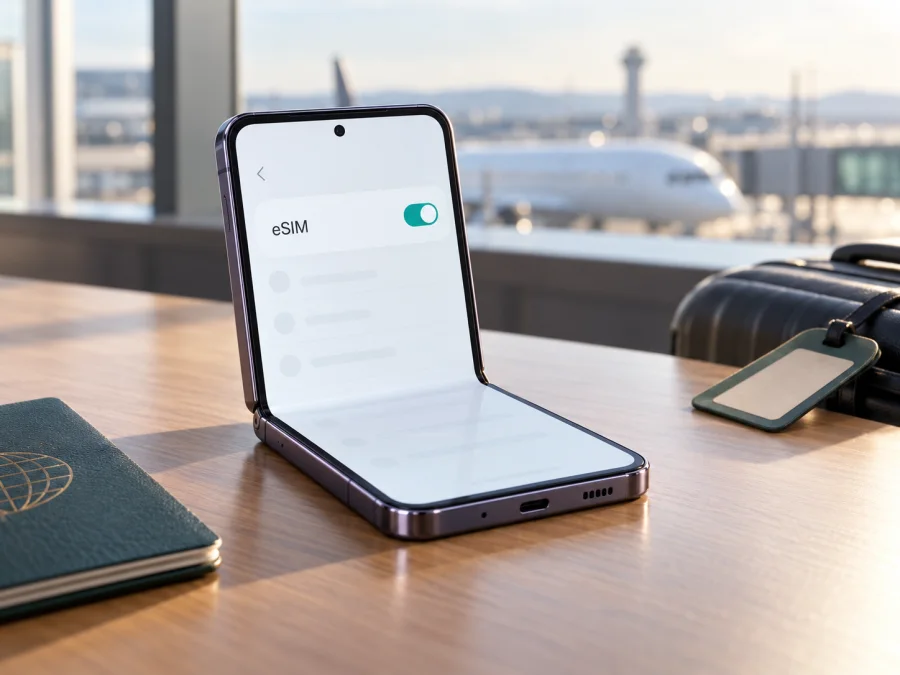
Samsung Galaxy Z Flip4 256GB eSIM: compatibility and setup guide
Short answer: Samsung lists the Galaxy Z Flip4 among Galaxy phones that support eSIM, and Samsung’s regional product pages for 256 GB versions show an embedded SIM. That is strong evidence that a Galaxy Z Flip4 256GB can use eSIM, but the storage size alone does not identify its country variant. Samsung says eSIM availability may depend on the country of origin, software, and carrier. Check the actual phone before choosing a plan: look for an EID or an Add eSIM option in Settings, and confirm that the device is unlocked.
The name Samsung Galaxy Z Flip4 256GB identifies the model family and storage capacity, not the complete regional model code. Two phones with that name can have different software, network bands, carrier configurations, or eSIM availability. This guide explains what the official information establishes, what it does not establish for an unknown regional unit, and how to verify and set up the phone safely.
Does the Samsung Galaxy Z Flip4 256GB support eSIM?
In general, yes: Samsung includes Galaxy Z Flip4 in its eSIM-compatible device list. Samsung’s product specifications for some 256 GB regional configurations also identify the SIM arrangement as a physical SIM plus eSIM. For example, Samsung’s European product listing for a 256 GB Galaxy Z Flip4 specifies SIM 1 + eSIM. This confirms eSIM support for that listed regional configuration; it does not prove that every handset sold in every market has the same feature enabled.
Samsung’s own caveat matters. It says eSIM service varies by country and carrier, and notes that a device can lack eSIM support depending on its country of origin even when its model family appears on the compatibility list. A carrier-branded phone can also have restrictions, and a software update or regional firmware can change which menu options are shown. Do not infer eSIM support from the words “Galaxy Z Flip4,” “256GB,” a dual-SIM label, 5G connectivity, or the presence of a SIM tray alone.
| What you are checking | What the available information says | What to confirm on your phone |
|---|---|---|
| Device family | Samsung lists Galaxy Z Flip4 as eSIM-capable. | Confirm that the device is actually a Z Flip4 and inspect its settings. |
| 256 GB configuration | Samsung regional specifications for some 256 GB models list one physical SIM and one eSIM. | Check the full model code and the country where the handset was originally sold. |
| Regional availability | Samsung warns that country of origin can affect support. | Look for an EID and an Add eSIM menu on this specific handset. |
| Carrier and plan | Availability and activation depend on the carrier or eSIM plan. | Confirm the phone is unlocked and that the plan supports this device and destination. |
| Memory size | 256GB describes storage, not cellular configuration. | Do not use the storage label by itself as a compatibility test. |
Check the EID and eSIM menu
An EID is the identifier associated with the phone’s embedded SIM hardware. On a compatible phone, it may appear in the status or SIM information screens. Menu labels can vary with Android and One UI versions, language, and carrier customisation, so use both checks below:
- Open Settings and tap About phone.
- Tap Status information or Status, then look for EID. Some software versions show the EID directly on the About phone screen.
- Return to Settings, open Connections, and tap SIM manager.
- Look for Add eSIM. If it appears, open it only far enough to confirm the phone offers an eSIM setup flow; you do not need to scan a code or install a profile yet.
- If the EID or menu is missing, install available official software updates, restart the phone, and check again. Then ask the seller or carrier to verify the model code and country variant.
An EID or an Add eSIM control is a strong indication that eSIM is available on that particular phone. If both are missing after an update, treat compatibility as unconfirmed rather than assuming that the family-wide specification applies. A reset is rarely the right first diagnostic step: confirm the region and exact model number first, and back up your data before considering any reset advised by the manufacturer or carrier.
What to check before choosing an eSIM plan
Run through this checklist before paying for a travel plan. A few minutes of checking can prevent a frustrating setup attempt after arrival.
- Confirm eSIM in Settings. Look for an EID and Settings → Connections → SIM manager → Add eSIM. The exact wording can differ slightly.
- Identify the regional model. Open Settings → About phone and note the model number, such as an SM-F721-series code. Compare the full code with the seller’s documentation or Samsung’s product information for the market where it was sold. Do not rely on “256GB” alone.
- Check the carrier lock. A phone restricted to its original carrier may reject a travel eSIM from another provider. Ask the original carrier to confirm that the device is unlocked; seeing an eSIM menu does not prove it is unlocked.
- Check software and account access. Install available system updates while on a trusted connection. Make sure you can access the email, app, or account containing the eSIM installation details.
- Read the plan’s conditions. Confirm the destination or regional coverage, data allowance, validity period, activation timing, supported network, and whether tethering is allowed if you need it. Do not assume that a plan for one country covers a neighbouring country.
- Plan how to get online during installation. Downloading an eSIM profile normally requires an internet connection. Use Wi‑Fi or another working data connection, and keep the installation instructions available on a second screen if the QR code is displayed on the phone itself.
- Keep the original SIM available. A travel data eSIM usually does not replace your existing number. Leave the primary SIM enabled if you need it for calls or verification messages, and check its roaming settings and charges separately.
Check your device before selecting a travel eSIM. This is especially important for an imported or carrier-supplied handset, since regional labels and retail names do not always expose the full cellular configuration.
The Kaspersky eSIM Store website and app let travellers choose, arrange, and activate an eSIM plan for mobile data on an international trip. The available destinations and plan conditions can change, so check the current details for your own route before purchase. Browse current eSIM plans.
Install an eSIM on the Samsung Galaxy Z Flip4 256GB
Samsung describes QR-code scanning and manual activation details as setup options for Galaxy devices. A plan may use a different supported flow, so follow the instructions supplied with that specific eSIM. Keep the phone connected to Wi‑Fi until the profile has downloaded. Do not scan the same one-time QR code repeatedly: some codes can only be used once or have a limited number of attempts.
Before you start
Have the plan’s QR code or activation details ready, check that you selected the correct destination and plan, and make sure the phone has battery charge. If the QR code is in an email on the Galaxy Z Flip4 itself, open it on another device or use the provider’s manual activation option if one is supplied. Avoid sharing a QR code or activation details: they can be used to download the eSIM profile.
Add the profile with a QR code
- Connect the Galaxy Z Flip4 to Wi‑Fi or another reliable internet connection.
- Open Settings → Connections → SIM manager.
- Tap Add eSIM.
- Choose the QR-code scanning option. Depending on the software version, it may be labelled Scan QR code or appear after selecting Add using QR code.
- Point the camera at the QR code supplied for your plan and follow the on-screen prompts.
- Wait while the phone downloads and adds the mobile plan. Keep the Settings screen open until it confirms the profile has been added.
- Give the new line a clear label, such as Travel data, so it is easy to distinguish from your personal SIM.
- If you want to use it later, leave the profile installed but switch it off until you are ready. Check the plan’s activation rules first; some plans begin their validity when installed, while others begin on first connection or at a selected time.
Enter details manually, if offered
- Go to Settings → Connections → SIM manager → Add eSIM.
- Select the option to scan a QR code, then choose Enter activation code or the equivalent manual setup option if it is shown.
- Carefully enter the activation information provided for your plan. Do not type a QR code’s web address or a random number in place of an activation code.
- Follow the prompts and wait for the profile to download.
- Label the line and confirm that it appears in SIM manager.
If there is no manual entry option, the plan may not support it or the software may use another setup flow. Use the plan’s own instructions rather than trying unrelated activation values.
For a visual walkthrough, see the Android eSIM installation instructions. The iOS installation instructions are intended for Apple devices, but can help if you are moving from an iPhone or comparing the general steps. The Galaxy-specific labels and controls are in Android Settings.
Choose which SIM uses mobile data
After the eSIM profile is installed, the phone may ask which line should handle calls, messages, and mobile data. You can usually change these choices later in Settings → Connections → SIM manager:
- Turn on the travel eSIM when you are ready to use it.
- Under Preferred SIMs or similar controls, choose the travel eSIM for Mobile data.
- Keep your usual SIM selected for calls and messages if you still need your regular number. Confirm any roaming charges with that SIM’s carrier.
- If your plan’s setup instructions require it, enable Data roaming for the travel eSIM. This setting is separate for each line on many phones. Check which line is selected before enabling roaming.
- Turn mobile data on, then wait for the phone to register with a supported network. The first connection can take several minutes.
Do not enable data roaming on your main SIM by habit. First confirm that mobile data is assigned to the travel profile. If you are unsure, turn off mobile data briefly, review both SIM settings, and then turn it back on with the intended data line selected.
Using the eSIM for mobile data on a trip
A practical setup is to install the profile before departure over Wi‑Fi, then select it for mobile data when you arrive in a covered destination. Before travelling, check whether the plan’s validity starts on installation, on first network connection, or at a scheduled activation time. If installation itself starts the validity period, wait until closer to departure if the plan permits. Save the setup instructions offline and keep access to the account where the plan is shown.
After landing, turn on the travel eSIM and select it as the mobile-data line. If the plan requires roaming, enable data roaming for that line only. Leave your primary number available for the services you need, but review its roaming choices to avoid unexpected charges. Where the handset allows it, disable automatic switching of mobile data between SIMs if you want to keep data on the travel plan. The exact control name can vary by software version.
The travel eSIM is commonly a data line. Unless the plan conditions explicitly say otherwise, do not expect it to provide a conventional phone number, regular voice calls, or SMS. Internet calling and messaging apps can work over mobile data, subject to the app, account, and local service conditions. Keep your existing number active for calls or verification messages when needed, and understand how your usual carrier bills roaming.
Common problems and what to check
“Add eSIM” is missing
Check for an EID, install any available Samsung software update, and restart the handset. Confirm its full model number and original sales market. If the option is still missing, ask Samsung support or the seller whether that regional configuration supports eSIM. Do not buy a plan on the assumption that all Z Flip4 phones behave identically.
The QR code will not scan
Increase screen brightness, clean the camera lens, and hold the phone steady at a distance where the code is in focus. Make sure the code is for eSIM installation and has not expired or already been used. If the code is open on the same phone, display it on another device or use manual setup only if the plan provider supplied those details. Never post the QR code publicly or send it to someone you do not trust.
The profile cannot be downloaded
Check that Wi‑Fi works, disable any captive portal that is blocking access by completing its sign-in page, and verify that the phone is not in airplane mode. Recheck the code and plan instructions. If a one-time code may already have been consumed, contact the plan’s support channel before deleting the profile or requesting a replacement.
The eSIM installs but has no service
Confirm that the plan is valid for the country you are in and that its activation time has started. Turn the travel line on, select it for mobile data, and check the plan-specific roaming instruction. Toggle airplane mode off and on, then restart the phone if needed. If automatic network selection fails, use the network-selection steps provided with the plan; do not guess an access point name or carrier setting.
Mobile data uses the wrong SIM
Open Settings → Connections → SIM manager and check the preferred mobile-data line. Also review any automatic data-switching option. If the main SIM is selected, the phone may use its roaming data even though the travel profile is installed and active.
Data does not seem to work or is used up quickly
Check the remaining allowance and validity in the plan account, then test a simple webpage with Wi‑Fi turned off. Look at app background usage, automatic photo backup, operating-system updates, and hotspot sharing. These can consume data without an obvious prompt. Restore Wi‑Fi when you finish troubleshooting.
The phone reports that the plan is not supported
Check for a carrier lock, a regional restriction, a mismatch between the plan’s supported network and the phone’s configuration, or an activation code intended for another device. Record the full model code and the exact on-screen message. Ask the seller or carrier to verify unlock status and regional eSIM support, and ask the plan provider to confirm that the plan can be installed on that model.
Frequently asked questions
Does Samsung Galaxy Z Flip4 256GB have eSIM?
Samsung lists the Galaxy Z Flip4 family as eSIM-capable, and official specifications for some regional 256 GB versions show an embedded SIM. Because country of origin, carrier, and software can affect availability, confirm the EID or Add eSIM option on your specific handset before buying a plan.
Is every Samsung Galaxy Z Flip4 256GB compatible?
That cannot be guaranteed from the storage and marketing name alone. The original sales market and exact model code matter. If the phone has an EID and an eSIM setup option, it is a strong sign of support; also make sure it is unlocked and that the plan is valid for your destination.
Can I keep my regular SIM and add a travel eSIM?
Often, yes. The phone can manage a physical SIM and eSIM, but available combinations and active-line behaviour depend on the model configuration and software. Select the travel eSIM for mobile data and check your regular carrier’s roaming charges before travel.
Does a travel eSIM include calls and text messages?
Usually it is intended for data unless the plan explicitly includes voice or SMS. Check the specific plan conditions. Internet calling and messaging apps can use the data connection, while your regular number remains subject to your usual carrier’s terms.
Should I install the eSIM before leaving?
Usually, installing it while you have reliable Wi‑Fi is convenient. First read when the plan starts: installation, first connection, or a scheduled activation time. If the validity begins on installation, follow the plan’s timing guidance so you do not start it too early.
What if I cannot find an EID?
Check About phone and Status information, then look for Add eSIM in SIM manager. Update the software and restart once. If both checks remain unavailable, ask Samsung support or the seller to identify the regional configuration. Treat the phone as unconfirmed until you get a clear answer.
Final check before your trip
For Samsung Galaxy Z Flip4 256GB, the model family and several official regional 256 GB specifications support eSIM use, but regional differences mean the exact handset still needs a check. Confirm an EID or Add eSIM in Settings, verify the phone is unlocked, and make sure the plan covers every destination on your route. Install the profile over a reliable connection, choose the correct mobile-data SIM, and enable data roaming only when the travel plan requires it. Once those checks are complete, use the Kaspersky eSIM Store app or website to review current destinations and choose an eSIM plan that matches your trip.


