Travel connectivity guide
Samsung Galaxy Z Flip4 eSIM: compatibility
Samsung Galaxy Z Flip4 eSIM: compatibility and setup
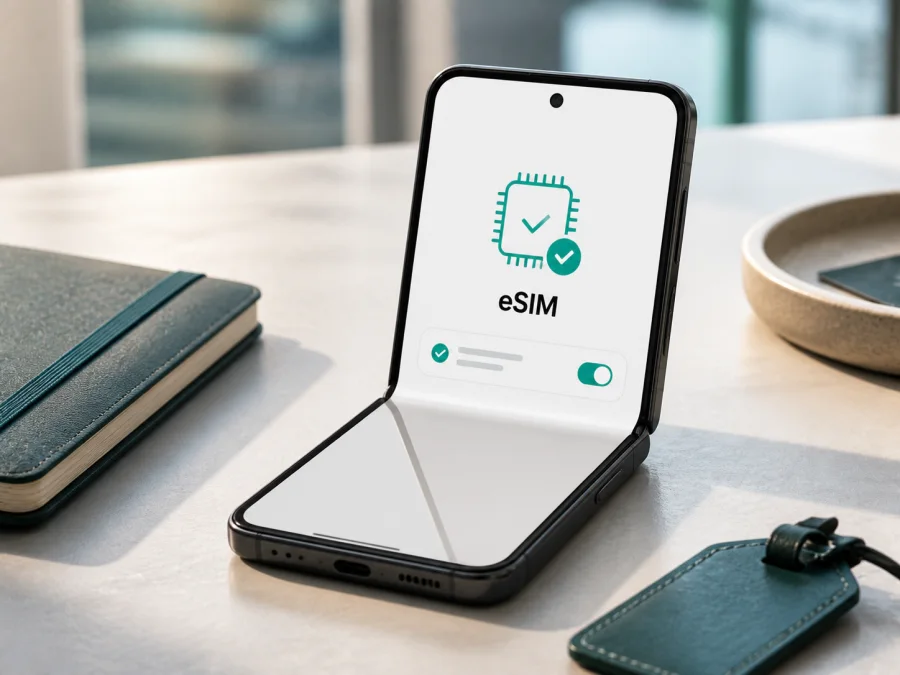
The answer is yes: Samsung Galaxy Z Flip4 is designed to support eSIM. Samsung’s official specifications describe one nano-SIM and one eSIM, and its support information includes Galaxy Z Flip4 among Galaxy phones with eSIM features. Samsung also warns that eSIM availability depends on software version, region, and carrier. That means the exact phone in your hand, rather than the model name alone, must be checked before you buy a travel tariff.
For a reliable answer, look for Add eSIM in the phone settings and an EID in status information. Also confirm that the handset is unlocked and that the plan covers your destination.
Quick answer: does Samsung Galaxy Z Flip4 support eSIM?
Yes, Samsung Galaxy Z Flip4 can use eSIM, but support is not identical on every regional or operator version. Samsung lists the phone with one physical nano-SIM and one embedded SIM. A United States Samsung specification also lists eSIM as a feature, while regional Samsung product pages show SIM 1 + Embedded SIM for supported variants. The manufacturer’s launch information qualifies this by saying that eSIM availability may vary with the software version, region, and carrier.
Therefore, use this practical rule for your own Samsung Galaxy Z Flip4:
- Add eSIM under Settings → Connections → SIM manager means the phone exposes the eSIM function.
- An EID under Settings → About phone → Status information is a strong sign that the embedded SIM subsystem is present.
- If both are missing, do not assume that a QR code, a 5G connection, or a factory reset will make eSIM available. Confirm the exact model code and market with the seller or carrier first.
5G and eSIM are different capabilities. A handset can support 5G while a particular market or carrier version does not expose eSIM.
What can differ by market or carrier
The name “Samsung Galaxy Z Flip4” does not identify every detail of a retail unit. Regional versions can have different model codes, bands, software packages, and SIM policies. An imported or carrier-branded phone may look identical to local stock but expose a different SIM manager.
The following table is an orientation, not a promise that every unit behaves identically.
| Item | What a supported Samsung Galaxy Z Flip4 may show | Why to check it |
|---|---|---|
| Physical SIM | A nano-SIM slot | Keep your usual line available if needed. |
| Embedded SIM | eSIM or Add eSIM | Needed to download a travel profile. |
| EID | An identifier in Status information | Confirms an eSIM identity for provisioning. |
| Mobile data | A selectable SIM or eSIM | You must choose the data line. |
| Network access | Working Wi-Fi or mobile data | Needed to download the profile. |
| Lock status | No restriction to the original operator | A lock can stop another profile connecting. |
Firmware updates can change menu wording, and an operator can determine which activation paths appear. If Add eSIM is not obvious, search Settings for “eSIM” or “SIM manager,” then check the EID separately.
Verify eSIM compatibility before buying a tariff
<a id="kesim-device-compatibility"></a>
1. Find Add eSIM
Open Settings, tap Connections, and open SIM manager. Look for Add eSIM. On some One UI versions, a similar option may be called Add mobile plan. You only need to confirm that the entry exists; do not scan a QR code until you have selected the correct tariff.
If the entry is missing, connect to Wi-Fi, update, restart, and check again. If it remains absent, ask the seller or carrier about the exact model code, region, and eSIM policy. Do not reset the phone or delete an existing profile as a first test.
2. Find the EID
Open Settings → About phone → Status information and look for EID. The location or label may vary slightly with software. Samsung also indicates that the EID can be found on the original packaging. Keep it private: it may be needed by activation support, but it should not be posted publicly or sent to an unknown contact.
An EID is useful evidence, not a complete service guarantee. The plan still has to support eSIM provisioning, cover the destination, and work on an unlocked handset. If Add eSIM and EID are both unavailable, treat the phone as uncertain.
3. Check for an operator lock
If the phone came from an operator, verify that it accepts another provider’s SIM or eSIM using the carrier’s procedure. A profile can download and still fail to register when the handset is restricted. “5G,” “dual SIM,” or “international” does not prove travel eSIM compatibility.
4. Check the travel plan
Before payment, read the plan’s destination, data allowance, validity, activation rule, supported networks, and tethering conditions. A travel eSIM is commonly data-only and may not include a number, calls, or SMS. Your home operator may charge roaming fees if its line is used abroad.
For the final pre-purchase check, Check your device and confirm four signals: Add eSIM, an EID, an unlocked handset, and a plan that matches the route. If one is unclear, pause before buying.
Choosing a travel eSIM after compatibility is confirmed
Kaspersky eSIM Store is an app and website where you can choose, arrange, and activate an eSIM with a tariff for mobile internet during a foreign trip. After checking your Samsung Galaxy Z Flip4, compare the destination, data volume, validity, and conditions shown for the selected tariff. It is not a mobile operator, network owner, or supplier of mobile internet.
Choose the allowance according to the trip. Maps, messaging, and email usually need less data than video calls, backups, or streaming.
Check when validity starts. Some plans begin only when they connect in the destination; others begin at activation or first connection. If the timing is unclear, ask support before scanning the QR code.
How to install and activate eSIM on Samsung Galaxy Z Flip4
Prepare the phone first:
- Connect to stable Wi-Fi.
- Keep the QR code or activation details on another screen; the same phone cannot normally scan its own displayed QR code.
- Confirm that the tariff and destination are correct.
- Leave the physical SIM in place if you need your usual number.
Samsung’s standard path is Settings → Connections → SIM manager → Add eSIM.
Option A: scan a QR code
- Open Settings.
- Tap Connections.
- Tap SIM manager.
- Tap Add eSIM.
- Choose Scan QR code.
- Scan the code supplied with the eSIM purchase.
- Review the plan details shown on screen.
- Confirm the download and wait for the profile to install.
- Give the profile a clear label such as “Travel data.”
- Restart the phone if the setup screen requests it.
If the code will not scan, increase the other screen’s brightness, remove glare, and hold the phone steady. Use manual details only when supplied.
Option B: enter activation information manually
Some plans provide an activation code instead of a QR code. Open Settings → Connections → SIM manager → Add eSIM → Scan QR code, then look for Enter activation code. Enter the information exactly; do not add spaces or substitute letters and numbers. If manual fields are unavailable, contact support.
Option C: download a discovered plan
On some carrier configurations, Add eSIM can search for a plan and download it after a carrier is selected. This path is not universal. Follow the plan’s instructions, enable the profile in SIM manager, and restart if requested.
For platform guidance, see the Android eSIM installation instructions or the iOS eSIM installation instructions. Android is the relevant guide for Samsung Galaxy Z Flip4; the iOS guide is useful when helping someone prepare a compatible iPhone.
Select the eSIM for mobile data
After installation, open Settings → Connections → SIM manager and identify the new profile. Enable it if necessary. Under Preferred SIMs or Mobile data, choose the travel eSIM for internet data. Keep calls and messages on your usual line only if that is what you want and you understand its roaming charges.
When you arrive, turn on mobile data and enable Data roaming for the travel eSIM if the plan requires it. This may allow the profile to use a partner network; it does not automatically mean that your primary line must roam. Check the selected line first.
Disable automatic data switching for a simple test. Otherwise, the phone may move data to the physical SIM when the preferred line cannot connect. Turn Wi-Fi off and open a webpage to confirm the active profile.
Practical travel scenarios
Short city break
Verify EID and Add eSIM, then install over home Wi-Fi if allowed. On arrival, select the travel eSIM for data, enable the required roaming setting, and test it with Wi-Fi off.
Work trip
Keep the primary SIM for calls and the travel eSIM for data. Internet calling and messaging apps can use that connection, but the travel profile does not normally replace your number. Turn off home-line data roaming.
Multi-country route
Compare every country on the itinerary with the plan’s coverage. A regional tariff can be convenient, but its conditions decide whether it fits. If service drops at a border, check the data line, network selection, and coverage before deleting the profile.
Common problems and practical checks
“Add eSIM” is missing
Check Settings → Connections → SIM manager after updating and restarting. Look for EID under About phone → Status information. If both are missing, verify the model code, region, and carrier configuration. A physical SIM slot or 5G support is not enough.
The QR code will not scan
Display the code on another device, increase brightness, remove reflections, and hold the camera steady. Confirm that it belongs to the selected plan and has not already been used. Try manual activation only when supplied.
The profile will not download
Use reliable Wi-Fi, confirm that the phone is unlocked, and check that the profile has not been installed elsewhere. If interrupted, check recovery instructions before deleting a partial profile.
The profile is installed but there is no signal
In SIM manager, make sure the eSIM is enabled and selected for data. Turn on mobile data, enable the required roaming setting, and restart. Check destination coverage and network-selection guidance. Installation alone cannot create service where the plan has no partner network.
Data is coming from the wrong SIM
Turn Wi-Fi off and check Mobile data in SIM manager. Disable automatic data switching and review APN settings only when the plan supplies exact instructions.
Calls or SMS behave unexpectedly
Travel eSIMs are commonly data-only and may not include a number, calls, or SMS. Keep the main SIM for those functions if appropriate, and ask your home operator about roaming costs.
FAQ
Can Samsung Galaxy Z Flip4 use a physical SIM and an eSIM together?
Supported versions can usually use one nano-SIM and one eSIM, but combinations depend on region and firmware. Confirm your own SIM manager before relying on dual-SIM travel use.
Does every Samsung Galaxy Z Flip4 support eSIM?
No. Samsung documents eSIM for the Galaxy Z Flip4 family while warning that availability varies by software version, region, and carrier. Check Add eSIM and EID on the individual unit.
Is an EID the same as an IMEI?
No. An IMEI identifies the device radio; an EID identifies the embedded SIM. Look specifically for EID under About phone → Status information.
Can I install the eSIM before flying?
Often, yes, if the plan permits advance installation and you have Wi-Fi. Read the activation conditions first because validity can begin at different points.
Will the travel eSIM replace my home SIM?
No. It is an additional profile. Keep the physical SIM for your number and select the travel eSIM for data. Disable data roaming for the home line if you want to avoid unintended charges.
Does Kaspersky eSIM Store provide the mobile network?
No. Kaspersky eSIM Store is an app and website that helps you choose, arrange, and activate an eSIM tariff for mobile internet during a foreign trip. Network and coverage depend on local carrier arrangements.
What if setup still fails?
Note the error, whether Add eSIM and EID are visible, which SIM is selected for data, and whether the phone is unlocked. Then contact support. Do not share your QR code or EID publicly.
Final device check before your trip
Before paying for a travel eSIM, complete this checklist on your own Samsung Galaxy Z Flip4:
- [ ] Add eSIM is visible in Settings → Connections → SIM manager.
- [ ] An EID is visible in Settings → About phone → Status information, or the seller has confirmed the exact eSIM-capable variant.
- [ ] The phone is not restricted to its original operator.
- [ ] The software is current enough for the available SIM manager options.
- [ ] The chosen tariff covers every country or region on your route.
- [ ] Its data allowance, validity, activation moment, and tethering rules suit the trip.
- [ ] You know which line will handle data and which line, if any, will handle calls and SMS.
- [ ] You have Wi-Fi and the QR code or activation details ready.
If every item is clear, use Kaspersky eSIM Store on the app or site to select, order, and activate a suitable eSIM tariff. Install it when the conditions fit your departure, then test it with Wi-Fi briefly disabled. This final check helps ensure that your exact Samsung Galaxy Z Flip4 can use the plan.


