Travel connectivity guide
Samsung Galaxy Z Flip5 5G 128GB eSIM Guide
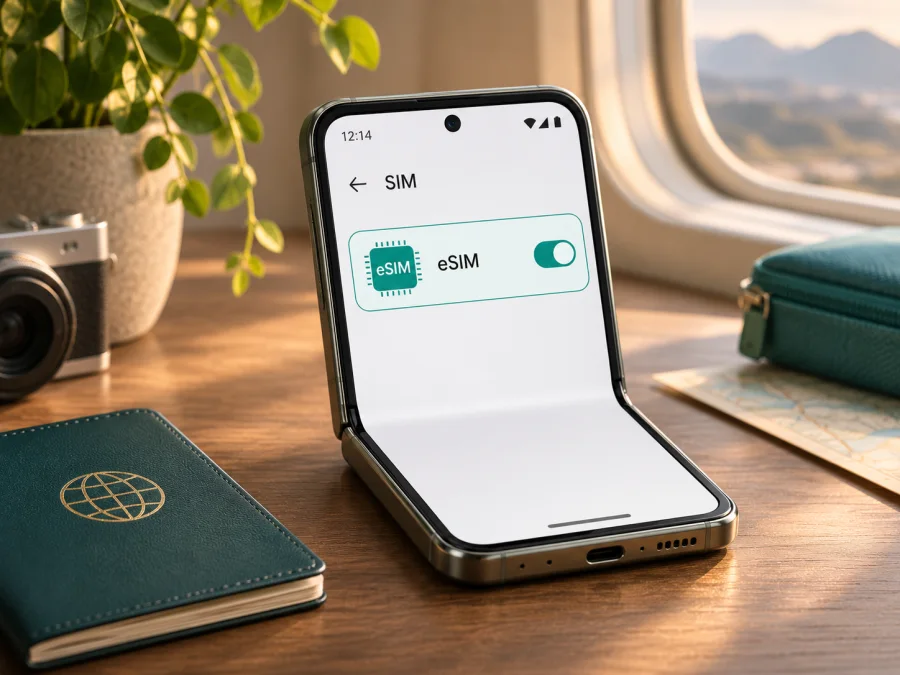
Samsung Galaxy Z Flip5 5G 128GB eSIM: compatibility and setup
Short answer: Samsung lists the Galaxy Z Flip5 among Galaxy phones that support eSIM. That makes eSIM support likely for a Samsung Galaxy Z Flip5 5G 128GB sold in a market where the feature is enabled, but the retail name and 128GB storage capacity do not identify the exact regional or carrier configuration. Samsung cautions that eSIM may not be available depending on the phone’s country of origin. Check the handset itself before choosing a plan.
An eSIM is a digital SIM profile stored in a phone. When the device, software and service are compatible, you can add a travel data profile without inserting another physical SIM card. The Galaxy Z Flip5 can keep a physical SIM and an eSIM profile available for dual-SIM use, subject to the exact version and carrier settings. For a trip, a separate data profile can let you use mobile data abroad while keeping your usual number available, but it does not by itself guarantee network access in every destination.
At a glance
| Item | What to know |
|---|---|
| Exact device covered | Samsung Galaxy Z Flip5 5G 128GB |
| eSIM family support | Samsung includes Galaxy Z Flip5 in its eSIM-capable Galaxy list |
| Important qualification | Availability can depend on country of origin, regional model, software and carrier |
| Fastest on-device check | Settings → Connections → SIM manager; look for Add eSIM or Add mobile plan |
| Identifier check | Settings → About phone → Status information; check for EID if that page is available |
| Typical travel use | Select the travel eSIM for mobile data and follow its instructions about data roaming and APN |
| Before paying | Confirm this exact phone can add an eSIM and is not carrier-locked |
Does Samsung Galaxy Z Flip5 5G 128GB support eSIM?
Samsung’s current support information names Galaxy Z Flip5 as a model with eSIM capability. The direct answer is therefore yes for supported configurations. The qualification matters: Samsung also says that a listed Galaxy device may lack eSIM depending on its country of origin. The 128GB label describes storage; it does not tell you whether the phone’s regional firmware and hardware expose eSIM, nor does it prove that a particular operator has enabled the feature.
A model name can cover products sold in different markets, and a seller’s stock description may omit the detailed model code. Carrier-sold phones may also have software restrictions or remain locked to a particular operator. These are separate questions: eSIM hardware support, menu availability, device unlock status and the travel provider’s supported network must all line up. A phone can be capable in principle but still fail to add a profile because of its region, software build, network lock or the way the profile is issued.
Do not infer compatibility from “5G,” the storage capacity, a SIM tray, another owner’s phone, or a generic online model list alone. A physical SIM slot does not rule out eSIM, and seeing two SIM indicators on a different Galaxy does not establish the configuration of yours. Use the settings on the actual handset and, if anything is unclear, ask the seller or original carrier to confirm the model code and eSIM status in writing.
Regional and carrier versions
Availability can vary by sales region, software and carrier policy. Samsung advises checking the country of origin, and a carrier may not support every eSIM function. There is no reliable country list that guarantees every Galaxy Z Flip5 unit has identical behavior.
For an imported, second-hand or carrier-sold phone, check Settings → About phone for its model code. Ask Samsung or the original seller whether this exact unit can add a third-party eSIM and whether it is network-unlocked. Carrier market and destination plan terms also affect profile download and network registration. A travel plan may be data-only, without a regular number, calls or SMS, so check its terms rather than assuming domestic service carries over.
Check compatibility before buying
Use these checks on the Galaxy Z Flip5 5G 128GB you intend to travel with. A plan should be purchased only after the menu or the seller confirms that this exact unit can add eSIM.
- [ ] Open Settings → Connections → SIM manager. Look for Add eSIM, Add mobile plan or a similarly worded option. Labels can differ by software version.
- [ ] Open Settings → About phone → Status information and look for an EID. EID is an identifier associated with the embedded SIM capability. Menu placement can vary; its presence is useful evidence, but check the add-profile menu too.
- [ ] If neither item appears, update the phone using its normal software update screen, restart it and check again. An update can change menus or resolve a temporary software issue, but it cannot add missing regional support.
- [ ] Check that the phone is not locked to the original operator. Ask that operator or the seller to verify the unlock status; a working physical SIM is not proof that a different eSIM can be used.
- [ ] Confirm the eSIM provider supports Samsung Galaxy devices and the phone’s destination market. Ask what network selection and APN settings, if any, are required.
- [ ] Make sure you can connect to Wi-Fi during installation and that you have access to the QR code or in-app installation method after purchase.
- [ ] Read the plan’s destination, data allowance, validity, activation timing, tethering rules and support terms. Do not assume all plans have the same conditions.
What the EID check can and cannot tell you
The EID is an embedded-SIM identifier, not an activation code. Look under Settings → About phone → Status information; menu names can vary. Share the EID only privately if Samsung support or a provider requests it. Its presence is useful, but it does not confirm destination coverage or guarantee a plan will connect.
The practical check is whether Add eSIM appears in SIM manager. If it is missing, install available official updates and restart, then check the EID and ask Samsung or the seller about the exact model code. If the option opens a QR scanner, the phone exposes an installation route, although an operator lock, provider restriction or used code can still prevent activation.
Check your device compatibility before checkout. If the phone is an import or carrier variant and the EID or add-eSIM menu is missing, verify it with the seller or Samsung support rather than buying a profile in the hope it will appear later.
How to install and activate an eSIM
Install with reliable Wi-Fi, sufficient battery and the purchase confirmation at hand. Use the provider’s in-app flow or scan its QR code. Some codes are single-use, so do not delete a profile just to retry; keep the confirmation until the line works.
- Check first. Confirm Add eSIM is present, the phone is unlocked and the plan covers your destination. Check when installation, activation and validity begin.
- Open SIM manager. Go to Settings → Connections → SIM manager and select Add eSIM. Menu wording may vary slightly with One UI or Android version.
- Choose the provider’s method. Scan the supplied QR code from another screen, or follow the provider’s activation-code or in-app instructions. Treat the code as private.
- Confirm the profile. Allow the phone to download it over Wi-Fi and follow any on-screen prompts.
- Name the line. Give it a clear label such as “Travel data” so you can distinguish it from your home SIM in SIM manager.
- Set mobile data deliberately. Keep your home line for calls or messages if needed, and select the travel eSIM for mobile data at the right time. Installation alone does not prove that service has started.
- Follow the plan’s activation instructions. Some services begin when installed, while others begin on first connection or at a selected time. Do not enable the line early until you have checked the provider’s terms.
- At the destination, turn on the travel line. In SIM manager, enable the eSIM and set it as the mobile-data SIM. Turn on data roaming for that eSIM only if the plan’s instructions require it. Data roaming here can be necessary for a travel profile to connect, even though you should avoid using roaming on your home line unless you intend to.
- Test with Wi-Fi off. Check mobile data with a webpage or messaging app before relying on it for maps or transport.
The Store’s Android guide has Samsung-specific screens and notes that setup can vary with Android device and operating-system version: see the Android installation guide. The iOS guide is for Apple devices rather than this Samsung phone, but is available for readers setting up another device: see the iOS installation guide.
Activation, validity and data are different
Installation saves the profile; enabling it allows the phone to use it; connection means the phone has registered on a supported network. Plan activation and validity timing depend on provider terms. Check those details before scanning, particularly if the trip starts later. Enable data roaming only on the travel line when its instructions require it, and review your home SIM settings and carrier charges separately.
Use the eSIM for travel data
Choose a plan for the full route. A country plan may suit one destination; a regional plan may include several, but check the exact country list and network terms rather than relying on a broad name such as “Europe.” Estimate usage: navigation and messaging use less data than video, streaming or cloud photo backup. Check allowance, validity, top-ups, speed limits and tethering rules. Android’s data-usage screen can help identify background consumption.
You can install the profile over Wi-Fi before departure, label it and leave it off until its activation rules say to enable it. At your destination, select it for mobile data. If available, disable automatic switching between data SIMs to avoid unintended use of your home line; settings vary by software version.
Kaspersky eSIM Store is an app and website where you can choose, arrange and activate an eSIM plan for mobile data on an international trip. Select your destination and compare the current plan terms before checkout. The English Store page is a general place to check current destinations and options; it is not a country-specific tariff: browse the Kaspersky eSIM Store.
Three travel situations
One destination, short stay. Confirm the country is listed and choose an allowance that fits your use. Install over Wi-Fi. Leave the profile off until arrival only if the plan’s validity begins on first connection; follow its terms if the clock starts earlier.
Several countries. Check every destination and stopover. A regional option may avoid switching profiles, but the exact plan determines inclusion and networks. Allow time to register after crossing a border and follow provider directions if manual network selection is needed.
Keep your main number. Set the travel profile for data and keep the home SIM enabled only if you want its calls or messages and accept possible charges. A data-only eSIM does not replace your number or provide ordinary voice/SMS unless the plan explicitly includes them; internet calling apps can use its data.
Troubleshooting: when eSIM does not work
There is no Add eSIM option
Check Settings → Connections → SIM manager, install available official software updates and restart. Then check for an EID under About phone. If both are absent, confirm the model code and sales market with Samsung or the seller. The handset may be a regional configuration without eSIM enabled, or a carrier restriction may apply. Do not assume that a factory reset will add support; contact support before erasing a device or buying another profile.
The QR code will not scan or the profile will not download
Increase screen brightness on the device displaying the QR code, clean the camera lens and keep the code flat and fully visible. If the code is on the same phone, use the provider’s manual entry or in-app installation option if offered; the phone cannot normally scan its own display with its rear camera. Confirm Wi-Fi works, disable any network filter that blocks the download if appropriate, and check that the QR code has not already been used or expired. If installation reports an error, save the wording and contact the provider before requesting a replacement.
The eSIM is installed but shows no service
Check that the eSIM is enabled, the travel dates and destination match the plan, and the phone is not in Airplane mode. Restart once, wait a few minutes and check the signal again. Confirm with the plan instructions whether data roaming must be on for the travel profile. If there is still no connection, verify the selected data SIM, network selection and APN with the provider. Manual network selection can help in some locations, but use only networks the plan supports; repeatedly switching networks can interrupt registration.
Signal is present but apps have no internet
Confirm mobile data is assigned to the travel eSIM and that the data allowance is not exhausted. Check whether the plan requires a specific APN, then enter the value exactly as supplied and save/select it. Turn off Wi-Fi briefly to test cellular data. Check Android’s data-saver and app-data settings if only some applications fail. A network icon alone does not confirm that the profile has working data service.
The home SIM is being used for data
Open SIM manager and select the travel eSIM under mobile data. Turn off automatic data switching if that option is available and check the home SIM’s roaming/data settings. Be careful: setting the travel eSIM as the data line does not necessarily disable calls, texts or charges on the home line. Review the home carrier’s terms for any service you leave active while abroad.
The plan seems to start too early or data is disappearing
Check the provider account for remaining allowance and validity, then compare it with the activation rules shown at purchase. Turn off background downloads, cloud backup and automatic app updates over mobile data. Avoid deleting and reinstalling a working profile; removal can be permanent, and the same QR code may not be reusable. Ask the provider to check activation and usage records if the phone’s counter and account balance disagree.
Frequently asked questions
Is Samsung Galaxy Z Flip5 5G 128GB eSIM compatible?
Samsung lists Galaxy Z Flip5 as eSIM-capable. The specific 128GB phone should be checked in Settings because country of origin, regional configuration, software and carrier restrictions can affect availability.
Can I use an eSIM and a physical SIM at the same time?
Samsung describes supported Galaxy devices as able to use physical SIM and eSIM dual-SIM features. The exact active-SIM combinations and functions can depend on the model version and carrier. Review SIM manager on your own phone and decide which line handles mobile data, calls and messages.
Is an EID enough to confirm compatibility?
An EID is a useful clue, but also look for Add eSIM in SIM manager and verify that the device is unlocked and accepted by the provider. An EID does not confirm destination coverage or guarantee that a particular plan will connect.
Should I install the eSIM before travelling?
Often it is convenient to install while reliable Wi-Fi is available, but activation timing varies. Read the plan instructions before scanning or enabling the profile. If validity begins on installation, install only when you are ready; if the plan can be installed earlier and starts on arrival, follow the provider’s directions.
Do I need to turn on data roaming?
Some travel eSIM plans require data roaming on for that eSIM to connect. Follow the plan instructions and check that roaming on your home SIM is configured as you intend. Keep the selected mobile-data line clear to reduce the chance of accidental home-carrier data use.
Will a travel eSIM provide calls and text messages?
Do not assume so. Many travel eSIM plans are designed for mobile data and do not include a regular phone number, voice calls or SMS unless the plan says otherwise. Internet-based calling and messaging apps can use the data connection.
What if eSIM support is still unclear?
Ask Samsung support or the original seller to check the model code and country of sale, and ask the travel eSIM provider whether it accepts that exact device. If the Add eSIM option is absent and the EID cannot be found, get confirmation before purchasing a plan.
Before your trip: verify, then choose
For Samsung Galaxy Z Flip5 5G 128GB, the model family is listed by Samsung as supporting eSIM, but a regional or carrier-specific unit still needs to pass the on-device check. Confirm Add eSIM in SIM manager, look for the EID, verify the phone is unlocked, and make sure the destination and required network are supported by the selected plan. Check activation timing, validity, data allowance and roaming instructions before you install or enable anything.
Once compatibility is clear, choose an eSIM plan for the countries on your itinerary and the amount of data you expect to use. Kaspersky eSIM Store lets you review options on its app and website and arrange an eSIM for mobile data during an international trip. Check the current destination details, install the profile over a dependable connection and set the right SIM for mobile data. A few checks before departure can make your first connection abroad much easier to diagnose.


