Travel connectivity guide
Samsung Galaxy Z Flip5 5G 256GB eSIM
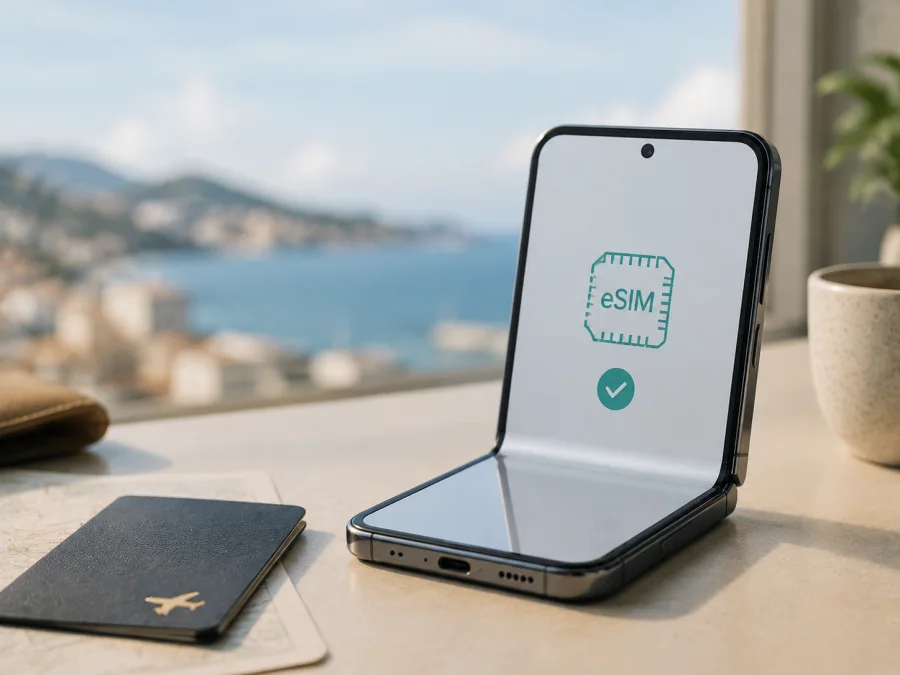
Samsung Galaxy Z Flip5 5G 256GB eSIM compatibility and setup
If you have a Samsung Galaxy Z Flip5 5G 256GB and need mobile data abroad, the short answer is: eSIM is supported on compatible regional versions of this phone. Samsung lists the Galaxy Z Flip5 with one Nano-SIM and one eSIM, and its current support information includes the Z Flip5 among Galaxy devices that can use eSIM. The qualification matters. Availability can vary by software version, region, country of origin and carrier, so verify the exact handset before choosing a travel plan.
The complete name is Samsung Galaxy Z Flip5 5G 256GB. Samsung’s regional specifications commonly pair the 256GB option with 8GB of memory, but the menu on your phone is the final practical check.
Quick answer: does Samsung Galaxy Z Flip5 5G 256GB support eSIM?
Yes, a supported regional version of Samsung Galaxy Z Flip5 5G 256GB can use an eSIM alongside a physical Nano-SIM. A useful travel arrangement is to keep the home SIM available for calls or messages and select the travel eSIM for mobile data. The phone’s 5G label does not prove eSIM availability; eSIM depends on device configuration, firmware and carrier.
Treat the answer as “supported, subject to verification,” not as a promise for every imported or operator-branded handset. One regional specification can show “SIM 1 + eSIM” while another firmware build exposes a different menu, and a carrier can restrict activation. If the phone has no EID and no Add eSIM control after an update and restart, do not buy a travel eSIM based on the product name alone.
Key specifications for the exact variant
| Item | What to expect | Why it matters |
|---|---|---|
| Device | Samsung Galaxy Z Flip5 5G 256GB | Full name retained for this guide. |
| Storage | 256GB | Storage capacity does not determine eSIM support. |
| Memory | Common regional specification: 8GB | Check SIM Manager rather than inferring compatibility from memory. |
| Networks | 5G and LTE, depending on market and carrier | A travel plan uses networks available at the destination. |
| SIM arrangement | One Nano-SIM plus one eSIM on supported versions | Lets you keep a home SIM while using travel data. |
| Main condition | Software, region, country of origin and carrier matter | Verify the phone and the plan before purchase. |
The table describes the documented configuration, not an unverified handset. A retailer may omit the model code, so ask for a SIM Manager screenshot and confirm the country version when buying second-hand or importing.
What eSIM changes on this phone
An eSIM is a digital SIM profile downloaded into the phone’s embedded SIM component. It is not a second physical card or Wi-Fi service. After installation, the profile registers with the network associated with the selected plan. The plan’s destination, allowance, validity and activation rules still apply.
On Samsung Galaxy Z Flip5 5G 256GB, the typical travel setup is straightforward: leave your normal Nano-SIM enabled if you need it, and make the travel eSIM the preferred line for mobile data. A travel eSIM is commonly intended for internet access rather than a replacement phone number. Unless the plan says otherwise, do not expect ordinary voice service or SMS. Internet messaging and calling apps can work through the data connection.
An eSIM does not remove carrier locking. A phone restricted to one operator may reject another provider’s profile, so check unlock status and plan conditions. For a multi-country route, confirm every country instead of assuming that 5G guarantees service everywhere.
<a id="kesim-device-compatibility"></a>
Check device compatibility before purchase
The safest check uses the phone itself and takes a few minutes. Do it before paying for a travel eSIM, especially if the handset was imported, refurbished, bought from a carrier or received as a gift.
On-device compatibility checklist
- [ ] Connect the phone to Wi-Fi and install any available stable software update.
- [ ] Open Settings > Connections > SIM manager and look for Add eSIM.
- [ ] Open Settings > About phone > Status information and look for an EID. Menu wording can vary with One UI and region.
- [ ] Confirm that the normal Nano-SIM is visible and that SIM Manager can display profiles.
- [ ] Check that the device is not carrier-locked or restricted by an unpaid account.
- [ ] Confirm that the travel plan supports Samsung Galaxy devices and your destination.
- [ ] Keep Wi-Fi available for installation and activation.
For this specific handset, complete this final pre-purchase compatibility check before paying for it today: check your device compatibility again if the phone changes hands or receives an update. The evidence is an EID and working eSIM entry, not only a listing that says “Galaxy Z Flip5.” If the option is hidden, search Settings, restart and check again; a missing menu can reflect regional firmware.
EID, model code and carrier checks
The EID identifies the embedded SIM component; it is not the IMEI, serial number or phone number. Treat the value as private information and share it only through trusted support when required.
Record the model code shown in About phone. Two phones marketed as Samsung Galaxy Z Flip5 5G 256GB can carry different regional codes. Compare it with the seller’s documentation and ask whether the handset is unlocked. Carrier-branded phones can depend on carrier software and activation policy.
How to install and activate an eSIM
Before starting, prepare a compatible Samsung Galaxy Z Flip5 5G 256GB, stable Wi-Fi, the travel eSIM profile or QR code, and enough time to finish. Keep the QR code private because it may allow a download by anyone who uses it.
1. Confirm the profile and destination
Check the destination, data allowance, validity, activation window and transfer or refund conditions. If validity starts on installation, install close to departure; if it starts on first network connection, advance installation may be possible.
2. Open SIM Manager
Unlock the phone, open Settings, select Connections, then SIM manager, and tap Add eSIM. If the control is missing, stop and complete the compatibility checks. Do not force installation with a random QR code or delete the working physical SIM.
3. Scan the QR code or enter details
Choose the QR-code option and scan a code displayed on another screen or printed for the installation. If the code is on the Flip5, open it on a laptop or another trusted device. If the provider gives an activation code, choose manual entry and type it exactly. Keep Wi-Fi connected while the profile downloads.
4. Wait for the profile to download
Review the confirmation screen and allow the profile to install. The phone may take several minutes to contact the carrier. When it appears, label it “Travel” or with the destination so it is not confused with the home line.
5. Choose the mobile-data line
Return to SIM manager and set the travel eSIM as the preferred line for Mobile data. Leave the physical SIM as the call or message line if needed. Review automatic data switching carefully: it can move data to the home SIM and cause roaming charges. Check the data line again after a restart or profile change.
6. Configure roaming only where required
Some travel eSIM profiles require Data roaming because they connect through a partner network. Others have different instructions. In Settings > Connections > Mobile networks, select the travel profile and follow the plan’s guidance. Turning on roaming for the wrong line can create charges, so verify the selected SIM first.
See the Android eSIM installation instructions. The iOS eSIM installation instructions can help when a companion device is an iPhone; the menu path above is for Samsung Galaxy Z Flip5 5G 256GB.
Using the eSIM for mobile internet while travelling
Install the profile before departure if allowed, but keep the travel line off until needed if installation does not activate service. At the airport or after crossing the border, confirm in SIM Manager that it is enabled and selected for mobile data.
Scenario 1: keep your home SIM for calls
Keep the home Nano-SIM enabled for calls or SMS if your operator allows it. Select the travel eSIM for data and disable roaming on the home SIM unless needed. Calls or messages on the home line can still incur charges.
Scenario 2: data-only trip
For maps, translation, transport apps, messaging and bookings, leave the home line without data roaming and use the travel eSIM for data. Check background updates and video autoplay. A data-only eSIM does not create a normal voice number.
Scenario 3: multi-country itinerary
Review the plan’s destination list before each border crossing. A regional profile may cover several countries, while another may be limited to one. If another eSIM is needed, confirm multiple-profile rules and the phone’s configuration; stored profiles and active lines are different limits.
Scenario 4: weak signal or no automatic connection
Move to an open area, toggle Airplane mode briefly and give the phone time to register. If permitted, try the recommended network manually. Do not delete the profile or reset network settings immediately. 5G depends on the destination network and plan; 4G/LTE can still provide usable data.
Once compatibility is confirmed, Kaspersky eSIM Store can help you choose and activate an eSIM with a suitable mobile-data plan for an overseas trip through its app or website. Review the destination, data amount and validity, then install the profile. The service manages selection and activation; it is not the operator, network owner or provider of the underlying coverage.
Troubleshooting common problems
“Add eSIM” is missing
Check the model code, country of origin and software. Update, restart and search Settings for “eSIM.” If EID is absent too, treat the handset as unverified and ask Samsung or the carrier. Do not infer support from 5G or storage size.
The QR code will not scan
Increase screen brightness, clean the camera lens and hold the phone far enough away for the whole code to fit. Use a second screen or printout if needed. Check that the code belongs to this plan and has not been used; enter manual details if supplied.
The profile will not download
Reconnect to reliable Wi-Fi and retry once. Check free storage and automatic date and time. If the plan has a one-time code or deadline, contact support. Avoid deleting an installed profile unless it can be reissued.
The eSIM is installed but there is no data
Verify in SIM Manager that the travel profile is enabled and selected under Mobile data. Make sure the home SIM is not selected, then check whether roaming is required. Toggle Airplane mode and restart. Review APN guidance before changing values manually.
Data uses the wrong line
Return to Settings > Connections > SIM manager and set the travel profile as the data SIM. Turn off automatic data switching if it is not needed. The call line and data line can be different.
The network is unavailable
Check destination coverage, eligible networks and outages. Try automatic, then manual selection if permitted. Check signal elsewhere and verify that the phone is unlocked. If the profile cannot register, contact support with the model code and status; never post a full EID or QR code publicly.
Can the eSIM be moved to another phone?
Not automatically. Profiles can be tied to one installation or have transfer rules. Ask support before removing one. A new phone must pass its own EID, regional and carrier checks.
FAQ
Is eSIM supported on Samsung Galaxy Z Flip5 5G 256GB?
Yes, supported regional versions are listed with eSIM capability, normally alongside one Nano-SIM. Availability is not universal across every country, carrier edition or firmware build, so check EID and Add eSIM on the exact handset.
Does 256GB storage guarantee eSIM?
No. Storage is a capacity choice; eSIM depends on regional hardware and software. The complete name Samsung Galaxy Z Flip5 5G 256GB identifies this guide’s variant, but the settings check remains necessary.
Can I use the physical SIM and travel eSIM together?
Usually, when the regional version and carrier support the Nano-SIM plus eSIM arrangement. Use SIM Manager to select data and review roaming for each SIM.
Will a travel eSIM give me a phone number?
Usually not. A plan intended for mobile internet does not automatically include a number, calls or SMS. Check the plan conditions and use internet messaging or calling when data is active.
Should I install before flying?
Often, if the plan allows advance installation. Read when validity begins and remember that installation and activation may differ.
What if the menu language is different?
Search Settings for “eSIM,” “SIM manager” or “Add eSIM.” Wording changes with language, region and One UI version. The path generally remains within Settings > Connections; ask support if EID or the control is missing.
Final device check and trip eSIM
Before choosing a plan, confirm that your Samsung Galaxy Z Flip5 5G 256GB shows an EID and an eSIM-add option, is unlocked, has current software and can connect to Wi-Fi. Check destination, allowance, validity, activation timing and roaming instructions. After installation, set the travel eSIM as the data line, protect the home SIM from unintended roaming and test data before leaving Wi-Fi.
When those checks are complete, use Kaspersky eSIM Store’s app or website to choose and activate an eSIM with a suitable mobile-data plan for the overseas trip. Follow the exact phone settings and plan terms, not only the device name.


