Travel connectivity guide
Samsung Galaxy Z Flip5 5G eSIM Guide
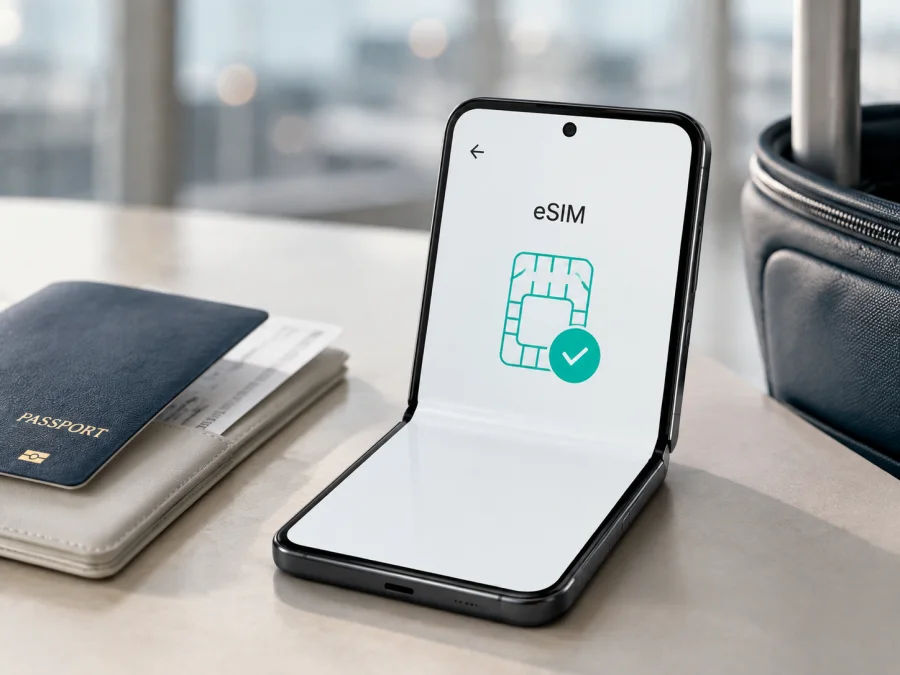
Samsung Galaxy Z Flip5 5G eSIM compatibility and setup guide
If you want mobile data abroad without changing a physical SIM, eSIM is worth checking on your Samsung Galaxy Z Flip5 5G. Samsung’s official product specifications and support information list the Galaxy Z Flip5 family as eSIM-capable, with a supported configuration combining one Nano-SIM and one embedded SIM. The direct answer is therefore yes: a supported Samsung Galaxy Z Flip5 5G can use an eSIM.
There is a necessary qualification. Samsung says eSIM availability can vary by software version, region and carrier. The name Samsung Galaxy Z Flip5 5G does not identify every sales code or country configuration. Verify the controls on your own phone before purchasing.
Quick answer
Most unlocked international versions support eSIM. You can often keep a physical Nano-SIM for your usual number while using an eSIM for travel data, subject to the carrier and software. An imported, carrier-customised or region-specific phone may expose different SIM options. The 5G label alone is not proof of eSIM support.
| Item | What applies to Samsung Galaxy Z Flip5 5G |
|---|---|
| Exact device | Samsung Galaxy Z Flip5 5G |
| Type | Foldable Android smartphone |
| Network generation | 5G-capable; bands and service depend on market and carrier |
| Physical SIM | Commonly one Nano-SIM |
| Embedded SIM | Supported on listed Galaxy Z Flip5 configurations |
| Dual-SIM use | May combine Nano-SIM and eSIM; active-line rules vary |
| Travel use | A compatible eSIM can be selected for mobile data |
| Important condition | Region, firmware, carrier and plan must all allow activation |
This describes the platform, not an unverified handset. Storage, colour and a 5G icon cannot replace an EID or Add eSIM in Settings.
What Samsung’s information confirms
Samsung’s specifications describe the Galaxy Z Flip5 with a SIM 1 plus embedded SIM arrangement in supported markets. Current Samsung support material also includes Galaxy Z Flip5 among Galaxy devices that support eSIM. A phone still needs software that exposes the feature, an unlocked status when required, and a carrier-issued profile valid for the intended service.
For Samsung Galaxy Z Flip5 5G, the accurate conclusion is “the family supports eSIM; verify the individual unit.” This is vital for second-hand, imported or carrier-branded phones. Check the precise model code on the phone itself.
Regional, carrier and software differences
The Galaxy Z Flip5 was released across many markets. Regional firmware can affect whether an eSIM download, carrier discovery or manual activation option appears. A carrier can support eSIM on its own version but restrict a travel profile on a locked device. A phone can be unlocked and still have a regional limitation, so these are separate checks.
- Unlocked international unit: often the simplest setup, provided the eSIM menu and EID are visible and the plan covers the destination.
- Carrier-sold unit: the original carrier may require account verification, its own activation method or an unlock before another profile can be used.
- Imported or refurbished unit: the model code and firmware can differ from the familiar name; a reset cannot add eSIM hardware. Inspect SIM manager on the actual phone.
One UI may call the function Add eSIM, Add mobile plan or Add mobile network plan. 5G is separate: a compatible travel eSIM can use 4G/LTE, while speed depends on destination coverage, bands, congestion, the plan and its network partners.
How to check the exact phone before purchase
Use Wi-Fi and a charged battery. If buying remotely, request an unedited photo of the settings screen and model information. Do not publish the full EID or IMEI.
Check the eSIM menu
- Open Settings.
- Tap Connections.
- Open SIM manager. Some versions say SIM card manager.
- Look for Add eSIM, Add mobile plan or equivalent wording.
If the option opens a QR scanner, manual code entry or carrier discovery screen, the installed software is exposing eSIM support. If only physical-SIM controls appear, restart the phone, install the available stable update and check again. If the add option is still absent, treat that unit as unverified and ask Samsung or the original carrier about its exact product code.
Find the EID
Depending on One UI, the EID may be listed under Settings → About phone → Status information or on the device-information screen opened by entering *#06# in the dialler. It may appear alongside IMEI values. Menu wording varies by region and software.
An EID is strong evidence of an embedded-SIM identity, but it does not guarantee that a particular carrier will activate a profile. If you cannot find either an EID or an eSIM-add option, pause before payment and obtain confirmation for that handset.
Compatibility checklist
- [ ] The phone is specifically Samsung Galaxy Z Flip5 5G, not another Galaxy Z Flip generation.
- [ ] Settings → Connections → SIM manager has an eSIM or mobile-plan add option.
- [ ] An EID is visible in device or status information.
- [ ] The phone is unlocked for the intended eSIM plan.
- [ ] Software is current enough for the available activation method.
- [ ] The plan covers every country or region on the itinerary.
- [ ] You understand whether the plan is data-only; ordinary calls and SMS may not be included.
- [ ] You have Wi-Fi and a QR code or activation details ready.
Once the phone passes the device check, Check your device before selecting a travel plan. This avoids buying a profile that the particular regional build cannot add.
Installation and activation
Install over stable Wi-Fi. Keep the QR code on another screen, on paper or in a secure account. If it is on the Galaxy itself, use manual entry or a supported in-app flow.
For general walkthroughs, see the Android installation instructions and the iOS installation instructions. On this phone, use the Android path; the iOS page is useful when preparing another device for the same trip.
Before adding the profile
- Confirm the destination, countries, data allowance and validity period.
- Check when validity begins: installation and first network connection are not always the same trigger.
- Make sure the phone is charged, connected to Wi-Fi and updated.
- Keep the physical SIM if you need your usual number for calls or messages.
- Save the activation details privately. A QR code may be single-use.
Add by QR code
- Open Settings → Connections → SIM manager → Add eSIM.
- Choose Scan QR code or Add using QR code.
- Scan the code supplied for the plan and approve the download.
- Give the line a clear name such as Travel data.
- Turn the line on after the profile finishes downloading. Restart if Android requests it.
If a QR code reports that it has already been used, do not repeatedly delete and reinstall the profile. Contact support for a replacement or reissue, and do not share the code publicly.
Add manually
Some plans provide an activation code or server information. On the same Add eSIM screen, choose Enter activation code, Enter code manually or the closest option. Copy the details exactly, including punctuation. A typo in the server address or code can look like a compatibility problem. Wait for the download to complete before leaving the screen.
Select mobile data
Return to SIM manager, enable the travel line and select it under Mobile data. If the home physical SIM stays active, choose deliberately which line handles calls, texts and data.
If the plan requires it, open Connections → Mobile networks and enable Data roaming for the travel eSIM. Do not automatically enable roaming on the home line: it may create charges. Check the selected data SIM before changing any roaming setting.
Activation is confirmed when the eSIM is enabled, a network or signal appears and a simple page or messaging app loads with Wi-Fi off. The first connection may take a few minutes; check the line, coverage and APN instructions before deleting a profile.
Using the phone during a trip
The foldable form factor does not change the eSIM process. The Android controls are available with the phone open, and the travel line can be enabled when needed.
Prepare before departure
Verify the EID and add-eSIM menu, select a plan for the destination and install it over Wi-Fi if permitted. Label the profile, read its validity trigger and leave it off if installation starts validity. Keep activation details secure.
After landing, turn off Airplane mode, enable the travel eSIM and select it for mobile data. Turn on data roaming for that eSIM only if required, then test maps, browsing or messaging with Wi-Fi off. Keep home-line data roaming off unless chosen knowingly.
Install after arrival
Use trusted airport or accommodation Wi-Fi if you prefer the plan to begin later. Confirm coverage, add the profile, set it as the data line and test the connection.
Travel across several countries
Check whether the plan is regional or limited to one country. Coverage and partner networks still vary, so monitor data and validity. Do not delete a profile simply to switch lines: some cannot be installed again.
Manage data and expectations
Video, navigation, backups and social feeds can use more data than expected. Disable automatic updates and photo backup over mobile data if necessary, use Android data warnings and check plan information in the Kaspersky eSIM Store app or website when provided.
Kaspersky eSIM Store is the application and website where you can choose, arrange and activate an eSIM with a mobile-data plan for an overseas trip. It is not the operator, network owner or mobile-internet provider. A data-only eSIM generally does not replace your phone number or include ordinary calls and SMS unless the individual plan says otherwise. Internet calling and messaging apps can work over the selected data line.
Troubleshooting
The eSIM option is missing
Open the full SIM manager, check the exact model code, restart and apply the available update. If both the EID and add option are missing, the phone may be a regional or carrier configuration without an exposed eSIM function. Contact Samsung or the original carrier rather than trusting a generic listing.
The QR code fails
Raise the brightness on the source screen, clean the lens and hold the Galaxy steady. Confirm that the code belongs to this plan and has not been used. If it is on the phone itself, use manual entry. A scan error alone does not show incompatibility.
The profile downloads but there is no service
In SIM manager, confirm that the travel line is on and selected for data. Turn Wi-Fi off, enable data roaming for the travel line if required, and check destination coverage, APN instructions and validity. Toggle Airplane mode briefly and restart if instructed. Record the error message and line status before contacting support.
The home SIM uses the data
Return to SIM manager → Mobile data and explicitly select the travel eSIM. Disable automatic data switching if present. Keep home-line data roaming off if you want to avoid accidental charges.
Calls and SMS do not work
Read the plan description. A data-only eSIM normally cannot receive messages sent to your usual number or provide ordinary voice service. Keep the physical SIM active for essential communication if its roaming conditions are acceptable, or use internet calling and messaging apps.
The connection is slow
Speed depends on location, partner network, congestion, bands and plan conditions. Try a window or outdoor location, return network selection to automatic, and remember that 4G/LTE can be normal.
You want to remove the profile
Disable it first and read the plan terms. Removing an eSIM from the phone may not cancel an account or create a refund, and some profiles cannot be downloaded again. If you may need it later, switch it off instead of deleting it.
FAQ
Does Samsung Galaxy Z Flip5 5G support eSIM?
Yes, Samsung’s official information lists the Galaxy Z Flip5 family as supporting an embedded SIM, and supported specifications show a Nano-SIM plus eSIM arrangement. Confirm the EID and Add eSIM menu on your own handset because region, carrier and software can change availability.
Can I keep my physical SIM and add travel eSIM?
Often yes. The supported configuration is intended to combine a Nano-SIM and an embedded SIM, while the carrier and One UI version determine which line handles calls, texts and mobile data.
Is Kaspersky eSIM Store an operator?
No. It is an app and website for selecting, arranging and activating an eSIM with a mobile-data plan for an overseas trip. Network service and coverage follow the selected plan and its partners.
Conclusion
The Samsung Galaxy Z Flip5 5G generally supports eSIM, but exact compatibility depends on region, carrier and software. Verify the EID and Add eSIM menu before purchase, then match the plan to destination, roaming requirements and validity.
Final device check and trip eSIM choice
Before payment, verify the exact device: Samsung Galaxy Z Flip5 5G. Confirm the EID, eSIM-add menu, current software and absence of an original-carrier restriction. Match the plan to every country, expected data use and travel dates. Install over Wi-Fi, select the travel eSIM for data, enable roaming only when required and test with Wi-Fi off. Kaspersky eSIM Store can help you choose, arrange and activate a suitable eSIM plan through its app or website for the trip. Repeating this check helps avoid paying for a profile that the regional version cannot use.


