Travel connectivity guide
Samsung Galaxy Z Flip6 5G eSIM: setup guide
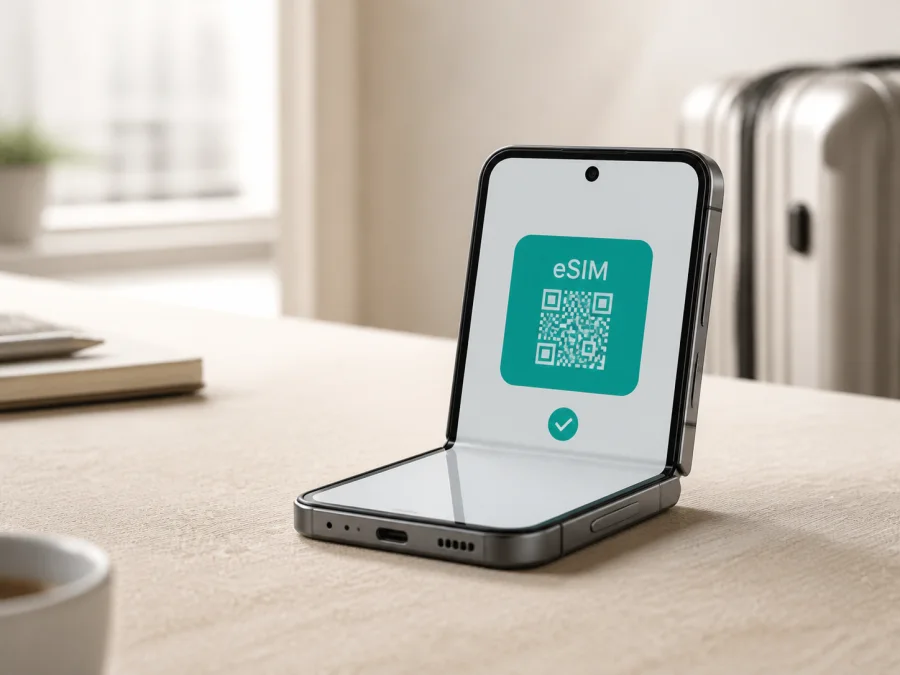
Samsung Galaxy Z Flip6 5G eSIM: compatibility and setup
If you want to use Samsung Galaxy Z Flip6 5G with a travel eSIM, the short answer is yes, this model family supports eSIM, subject to the exact unit. Samsung’s Galaxy Z Flip6 specifications list “SIM 1 + eSIM / Dual eSIM”. Samsung also states that eSIM availability may vary by software version, region and carrier. That qualification matters for imported phones, operator editions and regional firmware.
An eSIM is a digital SIM profile stored in the phone instead of on a removable card. During an overseas trip, it can provide a separate mobile-data line while your usual physical SIM stays available for calls or messages. The plan, local partner network, carrier restrictions and phone settings still determine whether service works. Confirm the phone in your hand before buying: the model name alone is not final proof for every market version.
Quick answer for Samsung Galaxy Z Flip6 5G
Samsung Galaxy Z Flip6 5G is a suitable candidate for a travel eSIM. Samsung’s product specifications identify eSIM in the SIM configuration, and Samsung support instructions describe adding an eSIM from the SIM manager by scanning a QR code or entering activation details. This confirms support for the model family. It does not promise that every retail or carrier version has the feature enabled.
Use these three checks for a reliable answer about your handset:
- Menu check: open Settings → Connections → SIM manager → Add eSIM. The wording can vary slightly after an update or between languages.
- EID check: look for the embedded-SIM identifier in Settings → About phone → Status. The EID may also be printed on the original box.
- Plan check: make sure the destination, plan rules and phone restrictions match. The device may need to be unlocked when the travel eSIM is from a different provider.
Device facts at a glance
| Item | What applies to Samsung Galaxy Z Flip6 5G |
|---|---|
| Exact device requested | Samsung Galaxy Z Flip6 5G |
| eSIM status | Listed as supported by Samsung for the Galaxy Z Flip6 family; verify the individual unit |
| SIM arrangement | SIM 1 + eSIM / Dual eSIM on relevant Samsung specifications |
| Mobile data | Select the travel eSIM as the preferred mobile-data line |
| 5G label | 5G capability does not prove eSIM is enabled in every market |
| Storage or RAM | Not specified in the supplied device name; verify the product label and About phone |
| Regional caveat | Availability can depend on software, region and carrier |
Regional and carrier differences
Two phones that look the same can expose different SIM controls. Samsung’s own availability note means that a product page is a starting point, not a substitute for checking the phone. A unit made for one market may have different carrier provisioning, firmware or network restrictions from an imported unit. An operator edition can support eSIM hardware but limit activation to that operator, or require the phone to be unlocked before another plan is added.
In practice, a retail version may show Add eSIM immediately, while a carrier version may require an unlocked status or supported account. An imported version can have a different software build, and a carrier may offer eSIM in one market or account type but not another. An update can also rename menu items, so check the live menus after updating.
The manufacturer-backed conclusion is: Galaxy Z Flip6 has listed eSIM capability, while service on a particular Samsung Galaxy Z Flip6 5G depends on version, market, software and carrier. Treat a missing EID or Add eSIM option as a reason to verify before purchase.
Check compatibility before buying a plan
Run this check with Wi-Fi available:
- Open Settings → Connections → SIM manager.
- Look for Add eSIM, Add mobile plan or similar wording.
- Open About phone → Status and look for EID. Share it only privately if a carrier or support agent asks; do not publish it.
- Check that the phone is online, reasonably up to date and not locked to a carrier that blocks another eSIM.
- If you will keep the home SIM active, confirm that both profiles appear in SIM manager and that you can choose the mobile-data line.
If Add eSIM and EID are both absent, stop before paying. Check the exact market version on the box, ask the seller about carrier lock, and request confirmation for that specific unit. Do not install test profiles or purchase multiple plans to discover whether the feature is available.
Compatibility checklist
- [ ] The phone is exactly Samsung Galaxy Z Flip6 5G, not a different or shortened model entry.
- [ ] SIM manager contains an eSIM-addition option.
- [ ] An EID appears in the phone or on its original packaging.
- [ ] The handset is unlocked or eligible for the intended plan.
- [ ] The plan covers every destination on the route and has suitable validity.
- [ ] Wi-Fi or another reliable connection is available for installation.
- [ ] You know whether the plan is data-only and whether it requires data roaming.
- [ ] You know which line will handle calls, SMS and mobile data.
- [ ] The profile has not already been installed elsewhere if the plan is single-use.
For a quick recap, check your device. If those checks pass, you can choose a plan based on the route and expected data use rather than relying on a generic listing.
Choose a travel eSIM
Kaspersky eSIM Store is an app and website where you can choose, arrange and activate an eSIM with a plan for mobile internet during an overseas trip. It helps you review the destination, data allowance and validity shown for an available plan. It is not a mobile operator, network owner or mobile-internet provider, and it cannot remove carrier restrictions from a phone.
Choose by actual use. Navigation, translation, messaging and occasional browsing generally need less data than video calls, hotspot use, cloud backups or streaming. A city break and a multi-country route may need different coverage and validity. Review the conditions shown at purchase time because destinations, allowances, activation rules and prices can change.
Many travel eSIMs are data-only: they do not include an ordinary phone number, voice calls or SMS unless the plan says otherwise. Messaging and calling apps can use the data connection. If you keep your home SIM for calls, understand that calls, voicemail, texts and background data may still be charged under your home operator’s roaming terms.
When ready, choose an eSIM plan for your trip. Select a destination or region that matches the route, then compare the displayed allowance and validity with your needs. A global or regional label does not automatically include every stop, so check the countries listed for the plan.
Install and activate eSIM on Samsung Galaxy Z Flip6 5G
Install before departure when possible. Charge the phone, connect it to Wi-Fi and keep the QR code or activation details on another screen or printed page.
Samsung describes three routes: carrier-assisted setup, QR-code scanning and manual activation. Availability depends on the carrier and region.
Option A: scan a QR code
- Open Settings → Connections → SIM manager.
- Tap Add eSIM or Add mobile plan.
- Choose Scan QR code from service provider and scan the private code supplied for the plan.
- Review the plan, approve the download and keep Wi-Fi connected.
- Label it “Travel” or with the destination; follow the plan’s rule for when to turn it on.
Option B: enter activation details manually
- Go to Settings → Connections → SIM manager → Add eSIM.
- Select Enter activation code or the equivalent manual option.
- Enter only the details supplied with this plan, approve the download and label the profile.
- If manual entry is unavailable, use QR activation or ask support whether it is offered.
Option C: simple setup
Some carriers can send a plan directly after account verification. In SIM manager, tap Add eSIM and follow the instructions if a plan is found. A travel plan will not necessarily appear automatically.
For platform-specific guidance, see the Android eSIM installation instructions and the iOS eSIM installation instructions. The Android guide applies to Samsung Galaxy Z Flip6 5G.
Finish activation
Adding a profile and using it for data are separate steps:
- In SIM manager, turn on the travel eSIM and select it for Mobile data.
- Keep the home SIM for calls or SMS if that is your plan.
- Enable Data roaming on the travel eSIM only when required; a travel profile may need it for a partner network abroad.
- Consider disabling Mobile data switching. On arrival, disable airplane mode, wait for registration and test a browser.
The profile is downloaded from the activation details. Service then depends on the plan, local network, signal, account status and configuration; installation does not guarantee signal everywhere.
Using the eSIM during a trip
Before departure and after landing
On Wi-Fi, install and label the profile before departure, but leave the home SIM as the data line. After landing, select the travel eSIM for data, enable roaming if required and confirm that the home SIM is not selected for data. If you wait, use reliable Wi-Fi; registration can take time, so do not delete the profile because it is slow.
Home calls and a multi-country route
Keep the physical SIM for calls or texts only if your home operator’s terms allow it, and disable data roaming on that line unless needed. The travel eSIM does not cancel charges for calls, voicemail or SMS. For several countries, compare every stop with the plan’s coverage; a country plan does not automatically follow you across a border.
Hotspot and heavy use
Hotspot use, video meetings, live maps and photo backup can consume data quickly. Review the balance when available and use trusted Wi-Fi for large updates.
Troubleshooting
Add eSIM is missing
Confirm that you opened Settings → Connections → SIM manager, not only the physical SIM tray settings. Search Settings for “eSIM” if the wording differs and check About phone → Status for EID. If both are missing, verify the market version, software build and carrier lock with the seller or carrier.
The QR code will not scan
Increase the brightness of the screen showing the code, remove glare, clean the lens and keep the whole code visible. Use manual entry only when the plan supplies it. A QR code may be single-use, so do not scan it on several devices without checking the rules.
The profile will not download
Reconnect to stable Wi-Fi, complete any browser login required by a captive network, restart and try again. Check space for another profile and automatic date and time. If it was installed elsewhere, ask support whether it can be downloaded again. Never publish the QR code.
The profile is installed but there is no data
Confirm that the travel eSIM is on and selected for mobile data. Check airplane mode, mobile data and roaming according to the plan instructions. Turn off the home SIM’s data or automatic switching temporarily. Restart and test in an open location.
Service works in one place but not another
Local partner networks, coverage, congestion, destination scope, signal and phone bands matter. Move to an open area, keep selection automatic and check that the country is included. If service should be available, contact support with the model, eSIM label, location and completed checks. Do not send the EID or QR code publicly.
FAQ
Does every Samsung Galaxy Z Flip6 5G support eSIM?
Samsung lists Galaxy Z Flip6 with eSIM support and a SIM 1 + eSIM / Dual eSIM configuration. Samsung also says availability can vary by software version, region and carrier. Check the EID and Add eSIM menu on the individual phone before purchase.
Can I use a physical SIM and eSIM together?
The listed dual-SIM configuration manages more than one profile, but the active combination can depend on market and carrier. If both lines appear, set one clearly as mobile data and review call, SMS and data preferences.
Is a travel eSIM a new phone number?
Not necessarily. Many travel profiles are data-only and do not include voice, SMS or a number. Calling and messaging apps can use the data connection, while the home line remains subject to its roaming terms.
Should data roaming be on?
Some travel eSIMs require it for a partner network; others may give different instructions. Enable it only on the travel profile when required, and make sure the home line is not the data line.
What if I cannot find the EID?
Check Settings → About phone → Status and the original box. If there is no EID and no eSIM option, verify the regional and carrier version before buying.
Final device check before choosing an eSIM for your trip
Before paying for a travel plan, verify Samsung Galaxy Z Flip6 5G on the phone in your hand: open SIM manager, find Add eSIM, locate the EID and confirm that the handset is unlocked or eligible for the intended plan. Compare the destination, validity and data conditions with your route. Decide which SIM handles mobile data, whether data roaming is needed for the travel profile and how to prevent accidental data use on the home line.
Samsung’s official specifications support eSIM for the Galaxy Z Flip6 family, while regional, software and carrier differences remain limits. If your unit passes the checks, use Kaspersky eSIM Store to choose and activate a trip eSIM plan for mobile internet. Verify first, then match it to your route.


