Travel connectivity guide
Samsung Galaxy Z Flip7 128GB eSIM Guide
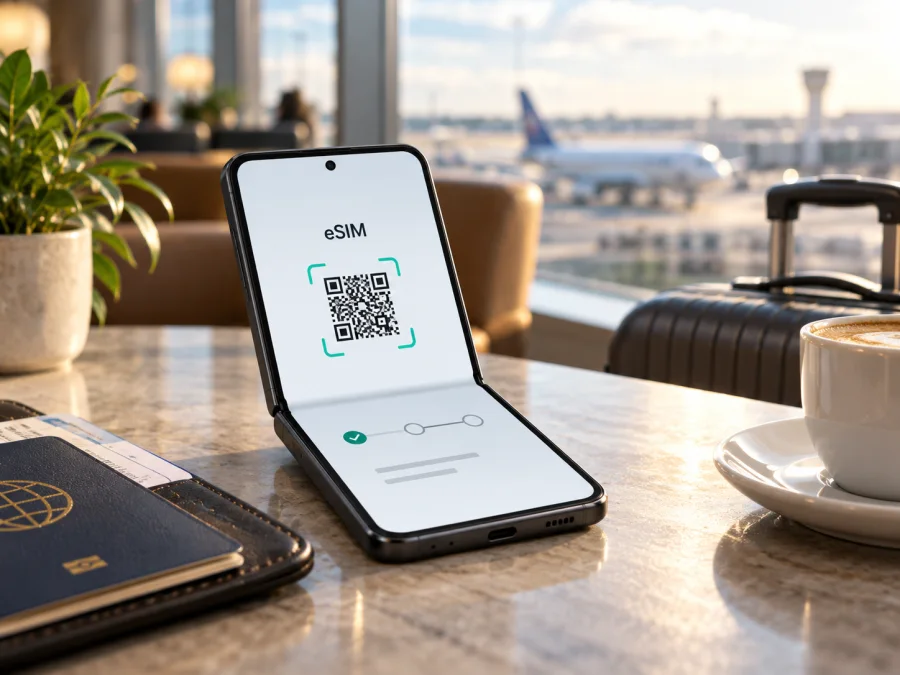
Samsung Galaxy Z Flip7 128GB eSIM: compatibility and setup
The Samsung Galaxy Z Flip7 supports eSIM in markets and versions where the feature is enabled. There is an important detail in the requested name, though: Samsung’s published comparison lists the Galaxy Z Flip7 with 256GB or 512GB of storage, while 128GB is listed for the separate Galaxy Z Flip7 FE. That means “Samsung Galaxy Z Flip7 128GB” does not identify a storage configuration that could be confirmed in Samsung’s current official materials. It may be a listing error, a mix-up with the FE model, or an informal name used by a seller. Do not infer the exact hardware or eSIM support from the listing title alone.
For a genuine Galaxy Z Flip7, Samsung identifies the model family as eSIM-capable and describes eSIM activation on the Z Flip7. Regional availability, carrier firmware, and operator support can still affect what appears on a particular handset. The quickest decision is to inspect the phone itself: look for an EID and for Settings → Connections → SIM manager → Add eSIM. If neither is present, confirm the exact model code and sales market with the seller before choosing a travel plan.
Does Samsung Galaxy Z Flip7 128GB support eSIM?
The direct answer is: the Galaxy Z Flip7 family supports eSIM, but Samsung’s official storage comparison does not list a 128GB Galaxy Z Flip7. Samsung distinguishes the standard Flip7 from the Flip7 FE and lists 128GB as an FE storage option. The 128GB wording should therefore be treated as unverified until the device model code and settings are checked. This article does not silently treat the phone as a Flip7 FE: those are separate product names and hardware variants.
For the standard Galaxy Z Flip7, Samsung’s setup guidance says it supports dual SIM functionality with an eSIM and a physical SIM. Its eSIM support page also includes Z Flip7 in the compatible Galaxy family. These statements establish support for the family, not a guarantee that every regional SKU, carrier-sold handset, or firmware build exposes the same features. Samsung notes that eSIM may not be supported depending on the country of origin and that carrier support can vary.
| Item | What can be confirmed | What to check on the actual phone |
|---|---|---|
| Requested name | Samsung Galaxy Z Flip7 128GB | Confirm the full model name; 128GB is not listed for the standard Flip7 in Samsung’s comparison. |
| eSIM in the Flip7 family | Samsung lists Galaxy Z Flip7 as eSIM-capable and documents eSIM setup. | Check EID and the Add eSIM control on the exact handset. |
| SIM arrangement | Samsung describes eSIM alongside a physical SIM for the family. | SIM features can depend on regional model and carrier software. |
| Storage variants in Samsung’s comparison | Flip7: 256GB / 512GB; Flip7 FE: 128GB / 256GB. | Check the model code in Settings and the retail box; do not rely only on a marketplace title. |
| Network access | A mobile plan and a supported network are required. | Confirm the eSIM provider supports the destination and that the phone is unlocked. |
Storage capacity itself does not determine eSIM compatibility. The key evidence is the exact device variant, its embedded identity (EID), the eSIM controls in the software, and whether the phone is carrier-unlocked. A 128GB label is a reason to verify whether the product is actually a Flip7 FE, not a reason to assume that the eSIM feature is absent or present.
Why the regional version matters
Manufacturers sell phones under the same family name in multiple markets. Model numbers, supported frequency bands, SIM trays, carrier configuration, and software can differ. An international version may have different band support from a handset intended for a particular country. eSIM can also be disabled or omitted in some country-specific configurations even when the family appears on a general compatibility list. Samsung’s own support guidance explicitly cautions that country of origin matters.
The mobile operator is a separate part of the check. A phone may contain eSIM hardware but still be locked to its original carrier, or the carrier may not support eSIM provisioning for that device. A travel eSIM profile can also be subject to destination-specific network availability and plan conditions. “eSIM supported” therefore answers only one part of the question; it does not promise that every operator, plan, or country will work.
Before buying a used or imported phone, ask the seller for the complete model code, country of sale, and confirmation that the phone is unlocked. Compare the model code in Settings → About phone with the box and invoice. If the settings show Galaxy Z Flip7 FE, use the FE’s exact identity when checking compatibility. If the phone reports Galaxy Z Flip7 but is advertised as 128GB, ask the seller to resolve the discrepancy rather than relying on an assumed correction.
Check compatibility before buying a plan
Run these checks while you still have access to Wi‑Fi and the seller or original carrier can help. The phone’s menus are stronger evidence than a generic online list because they reflect the specific unit and its software.
- Check the exact model name and code. Open Settings → About phone. Record the model name and model number exactly as shown. Check whether it says Galaxy Z Flip7 or Galaxy Z Flip7 FE.
- Look for the EID. Open Settings → About phone → Status information (menu labels can differ by software version), or open the phone information by dialing
*#06#. A compatible handset commonly displays an EID alongside IMEI identifiers. Do not publish or send the EID or IMEI to an unknown person; they are device identifiers. - Look for the eSIM menu. Go to Settings → Connections → SIM manager. Check for Add eSIM. Some software versions may use a slightly different label. Do not start installation simply to test the menu if you do not have a valid activation code.
- Check the carrier lock. Ask the original mobile provider or seller whether the device is unlocked for use with another provider. If uncertain, ask before you leave; a profile cannot remove a network lock.
- Confirm software and internet access. Install available official system updates and connect to reliable Wi‑Fi before adding the profile. Profile download and activation require an internet connection.
- Check the intended eSIM plan. Confirm the destination, validity period, data allowance, compatible network, and activation rules. Some plans begin their validity on installation or first connection; check the plan’s own terms.
An EID is a useful signal, but not a guarantee that a particular plan or carrier supports the device. If your checks conflict, confirm the model code and country variant with Samsung support, the seller, or the original carrier.
Check whether your device is compatible before choosing a travel eSIM. If the device does not show an EID or eSIM setup option, ask the seller or carrier to verify the regional SKU. A physical SIM or the existing carrier’s roaming service may be an alternative if eSIM is unavailable, but compare coverage and charges before travelling.
What to prepare before installation
Have the eSIM QR code or manual activation details ready, plus a reliable Wi‑Fi connection. Keep the QR code on another screen or printed so the phone can scan it. If the code is displayed on the Z Flip7 itself, use the provider’s manual entry option if one is available; a phone cannot scan a QR code displayed on its own screen with its rear camera. Follow the provider’s specific instructions because an activation code may be single-use, and some profiles cannot be transferred or reinstalled after removal.
Check the plan’s start condition before installation. Installing a profile and starting data use are separate events, but the exact policy depends on the plan. Some plans begin when the device first connects in the destination; others may start earlier or have a deadline for activation. Keep your primary SIM enabled for calls and texts if that is useful, and decide which line should handle mobile data. Confirm whether data roaming must be enabled for the travel eSIM and whether the primary line should have roaming disabled to avoid unintended charges.
How to install an eSIM on Galaxy Z Flip7
Menu wording may differ slightly across One UI versions or carrier firmware. These steps describe the usual Samsung path; use the activation details from the eSIM plan you selected.
- Connect the phone to Wi‑Fi. Update the system if an official update is available, then open the eSIM order or confirmation and locate its QR code or manual activation details.
- On the phone, open Settings → Connections → SIM manager. Tap Add eSIM. Depending on the software version, the option can appear as Add mobile plan or similar.
- Choose Scan QR code and point the camera at the activation QR code. If the provider supplied manual details and the screen offers manual entry, use those exact details instead. Do not scan a code from an untrusted source.
- Review the plan information shown by the phone and confirm the download. Keep the phone online and do not close Settings while the profile is being added. Wait for the confirmation that the eSIM profile has been downloaded.
- Give the profile a clear label, such as “Travel data” plus the destination, so you can distinguish it from your home SIM. Set your home SIM as the preferred line for calls and messages if you want to keep using its number.
- In SIM manager, enable the new eSIM and select it as the line for Mobile data when you are ready to use the travel plan. Keep the home SIM’s mobile data disabled if you want to avoid accidental roaming through that line.
- When you reach the covered destination, turn on mobile data for the travel eSIM. Enable Data roaming for that eSIM only if the provider’s instructions require it. If the plan specifies an APN, open Settings → Connections → Mobile networks → Access Point Names and enter the provided values exactly.
- Allow a few minutes for the profile to register on a local network. If service does not appear, check the troubleshooting steps below before removing the profile or scanning the QR code again.
Samsung’s Android instructions for Kaspersky eSIM Store are available in the Android eSIM installation guide. For an iPhone used to display or prepare the QR code, see the iOS eSIM installation guide. The iOS guide is for the iPhone that receives the profile; a Galaxy Z Flip7 uses Android’s SIM manager.
Using the eSIM for mobile data while travelling
After adding the profile, open Settings → Connections → SIM manager and verify which line is selected for mobile data. The phone may keep the home SIM for calls or messages while the travel eSIM handles data, subject to regional model and plan support. Check activation rules before enabling data so the validity period does not start earlier than intended.
When you arrive, select the travel eSIM for mobile data and leave the home SIM as the calling line if needed. A data-only travel plan usually does not provide a regular phone number, voice calls, or SMS; check the specific plan terms. Internet calls and messages in apps can still work over mobile data, subject to those apps’ requirements. If you need banking texts or calls to your regular number, confirm that the home SIM can remain enabled and understand its roaming charges.
A plan may require data roaming on the travel eSIM to connect to its partner network. Enabling roaming for that profile does not itself change the plan’s data allowance or make the phone’s other line part of the travel plan. To reduce unwanted charges, turn off data roaming for the home SIM, disable automatic data switching if your software provides that option, and ensure that mobile data is assigned to the eSIM. Monitor usage in the plan account or phone settings.
For a multi-country journey, check that every destination is included. Networks and signal availability vary by plan and location; a compatible handset cannot guarantee reception everywhere.
Kaspersky eSIM Store is an app and website where travellers can choose, arrange, and activate an eSIM data plan for an international trip. It is not the mobile operator or network owner. Review the destination, included data, validity, start conditions, and device requirements before confirming a plan. The live Kaspersky eSIM Store website is a general destination selector where you can check current options; it is not a country-specific tariff page.
Common problems and checks
“Add eSIM” is missing. Confirm the phone’s exact model code, country of origin, and software version. Search Settings for “eSIM” or “SIM manager,” then check whether an EID appears in the phone information. If neither appears, contact the seller or Samsung support about that specific unit. A generic Flip7 compatibility statement does not override a regional restriction.
The QR code will not scan. Increase the other screen’s brightness, remove glare, and keep the complete code in frame. Confirm it belongs to the selected plan and has not been used. Display it on another device or use manual entry if supported.
The profile download fails. Confirm Wi‑Fi, restart the phone, and retry only if the provider permits it. Check whether the code was already redeemed or has a device limit. Do not delete a partial profile without guidance; the QR may not work again.
The eSIM installs but shows no service. First verify that the eSIM is enabled in SIM manager and selected for mobile data. Check that you are in a supported destination, that the plan is active under its terms, and that airplane mode is off. Restart the phone, then allow it a few minutes to register. If network selection is manual, choose a supported network listed by the plan provider. A carrier lock or unsupported regional band can also prevent service.
There is a signal but no data. Check that mobile data is assigned to the travel eSIM, that the plan has remaining data and has not expired, and that data roaming is enabled if required. Review any APN details from the provider and enter them exactly; incorrect APN values can block data. Temporarily disable the home SIM’s data to confirm that traffic is not using the wrong line.
The phone appears locked. An eSIM profile cannot remove a carrier lock. Ask the carrier that originally supplied the handset to confirm its unlock status and requirements. Do this before travelling, because resolving a lock from abroad may be difficult.
Frequently asked questions
Is the 128GB version definitely a Galaxy Z Flip7?
That exact storage variant is not confirmed in Samsung’s official comparison. Samsung lists the Galaxy Z Flip7 as 256GB or 512GB, and the Galaxy Z Flip7 FE as 128GB or 256GB. Check the model name and code on the phone and box. A seller’s shortened title can contain an error, so do not assume that the standard Flip7 and Flip7 FE are interchangeable.
Should I install the travel eSIM before I leave?
You can often download a profile before departure using Wi‑Fi, but the plan’s rules determine when validity starts. Read the activation terms first. If installation triggers the plan, wait until you are ready; if activation begins at first connection in the destination, advance installation may help you get online sooner.
Will an eSIM give me a normal phone number?
A travel data eSIM may provide data only. Do not assume it includes voice minutes, SMS, or a regular number; verify the specific plan. You can usually keep your existing number on the physical SIM if the phone and carrier support the needed dual-SIM arrangement, but standard roaming charges may apply to that line.
Final check before your trip
The Galaxy Z Flip7 family is listed by Samsung as eSIM-capable, but the exact phrase Samsung Galaxy Z Flip7 128GB does not match Samsung’s documented standard Flip7 storage choices. Confirm whether the handset is actually a Galaxy Z Flip7 or Galaxy Z Flip7 FE, then verify its model code, EID, Add eSIM option, regional origin, and unlock status. These checks establish whether your particular phone can accept a profile; the plan’s destination and network terms establish where it can be used.
Once compatibility is confirmed, choose a plan for the countries on your route and check its data amount, duration, start condition, and roaming/APN guidance. Install the eSIM over Wi‑Fi, label it clearly, and set it as the mobile-data line only when appropriate. Before you travel, check your device’s eSIM compatibility and browse the current destination options on the Kaspersky eSIM Store website. Careful checks now can make the connection setup abroad much simpler.


