Travel connectivity guide
Samsung Galaxy Z Flip7 FE 128GB eSIM | Setup Guide
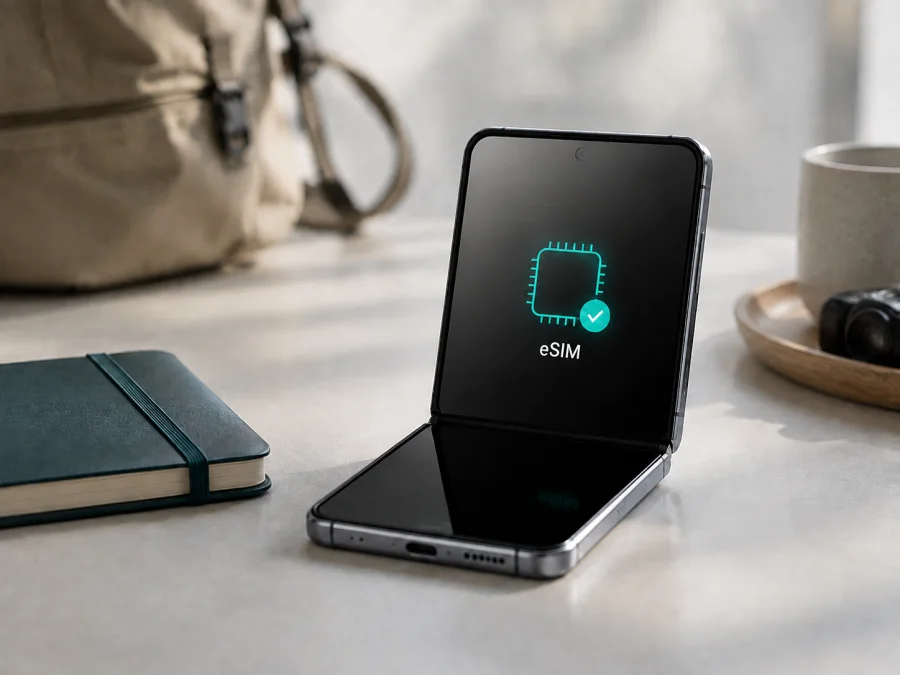
Samsung Galaxy Z Flip7 FE 128GB eSIM: compatibility and setup
If you are preparing for a trip and want mobile data without replacing your physical SIM, does your exact phone support eSIM? For Samsung Galaxy Z Flip7 FE 128GB, the short answer is yes according to Samsung's current official specifications: the SIM slot is listed as SIM 1 + eSIM / Dual eSIM. You can use an embedded digital SIM profile and, where allowed, keep a nano-SIM active as well.
The qualification is regional: Samsung says eSIM service can vary by country, carrier and device model. Imported stock, carrier firmware, a different model code or an operator lock can change what appears in Settings. Use the regional specification as a starting point, then verify the handset before purchase.
Quick answer: does Samsung Galaxy Z Flip7 FE 128GB support eSIM?
Yes. Samsung's official 128GB product specification lists an embedded SIM and SIM 1 + eSIM / Dual eSIM. Samsung's current support information also includes Galaxy Z Flip7 FE in its hybrid eSIM guidance. For an individual phone, check for both an EID and an Add eSIM control: open Settings > About phone > Status for the EID, then open Settings > Connections > SIM manager and look for Add eSIM.
These checks confirm the phone side, not every service. A provider may require an unlocked device, supported destination, account verification, Wi-Fi or a particular activation method. If EID or the add-eSIM option is missing, confirm model code, sales region and firmware before purchase.
What the 128GB variant includes
This page is specifically about Samsung Galaxy Z Flip7 FE 128GB, not the 256GB version, another Galaxy Z Flip generation or a shortened “Flip” model. Samsung's 128GB business specification lists 8GB of memory, a nano-SIM and an embedded SIM. Storage does not independently decide eSIM support; the important factors are the eSIM component, firmware and local service.
| Item | Published or practical detail |
|---|---|
| Exact device | Samsung Galaxy Z Flip7 FE 128GB |
| Storage | 128GB listed storage; usable space is lower after system software |
| Memory | 8GB listed on Samsung's 128GB specification |
| Physical SIM | Nano-SIM (4FF) |
| Digital SIM | Embedded SIM, subject to region and carrier availability |
| SIM arrangement | SIM 1 + eSIM; Samsung also lists Dual eSIM on the relevant page |
| Network support | Samsung's regional listings include 2G, 3G, 4G LTE and 5G Sub6; bands vary by market |
Samsung product pages are regional; keep the model number and sales region available when checking a listing.
What Samsung's eSIM information means in practice
An eSIM is a digital SIM profile stored in the phone. You download it with a QR code, activation code or carrier-assisted setup, after which it appears in SIM manager. A travel eSIM is normally for mobile internet, not automatically a replacement for your number, voice calls or SMS.
Samsung's support guidance says service varies by country and carrier. The same retail name can have different model codes, carrier software can restrict the feature, and an operator lock can block another service's profile. If buying used or importing, ask for model code, sales region and unlock status. Keep the EID private.
What to check before buying an eSIM plan
<a id="kesim-device-compatibility"></a>
Use this checklist before payment to distinguish an eSIM-ready Samsung Galaxy Z Flip7 FE 128GB from a phone with only a similar title.
On-device compatibility checklist
- [ ] Find the EID. Open Settings > About phone > Status and look for EID. Samsung also says it may be printed on the original box. Keep the full identifier private.
- [ ] Find the eSIM control. Open Settings > Connections > SIM manager and look for Add eSIM. Depending on One UI, it may be called Add mobile plan or be behind a plus sign.
- [ ] Confirm the model code. Compare About phone with the retailer listing and the Samsung page for the country where the phone was sold.
- [ ] Check unlock status. A SIM lock can block a travel profile even when EID is present.
- [ ] Update over Wi-Fi. Install pending system updates, then check the SIM manager again. Menu wording can vary after an update.
- [ ] Read plan conditions. Confirm destination, validity trigger, data allowance, supported networks, hotspot rules, roaming requirement and any reinstallation limit.
- [ ] Prepare an installation connection. Keep stable Wi-Fi and show the QR code on another screen or on paper.
An EID plus a visible Add eSIM option is strong device-level confirmation, but it is not a guarantee of service in every country. Check your device again if you are comparing an imported or second-hand listing. If either check fails, confirm the model with Samsung, the seller or the service provider before buying.
How to install and activate an eSIM on Samsung Galaxy Z Flip7 FE 128GB
The path follows Samsung's current Galaxy guidance; your software may say SIM manager or SIM card manager. For more detail, see the Android eSIM installation instructions. The iOS eSIM installation instructions are useful when a QR code is prepared on another Apple device; use the Android steps on this phone.
1. Prepare the phone and activation details
Charge the phone, connect to stable Wi-Fi and keep the QR code or activation details available. If they are in an email on the phone, open them on another screen; some services provide a manual code.
Keep your everyday physical SIM in place unless the plan says otherwise. It can remain available for calls while the travel eSIM handles data, subject to home-line roaming conditions. Do not repeatedly scan the same QR code or delete a profile casually; some profiles allow one installation.
2. Open SIM manager
Go to Settings > Connections > SIM manager and tap Add eSIM. If the phone shows Add mobile plan, choose that instead. If there is no digital-SIM option, stop and revisit the EID, model and regional checks rather than changing random network settings.
3. Choose a setup method
Use the method supplied with the plan:
- QR code: tap Scan QR code and scan the full code from another screen.
- Manual activation: choose Enter activation code and type the supplied details exactly.
- Automatic download: if a supported carrier pre-assigned the plan, choose the automatic option and follow the confirmation.
The profile must contact its issuing service, so Wi-Fi matters. A download message does not always mean activation is complete.
4. Name the line and select mobile data
Give the new line a clear label such as “Travel data”. In SIM manager, select the eSIM for Mobile data if it should carry internet traffic. If the phone asks about calls and messages, keep those on your usual line unless the selected plan explicitly includes them.
Turn off automatic data switching if you do not want the phone to fall back to the home SIM. Check the preferred data line after a restart or any SIM change.
5. Set data roaming only as required
Many travel eSIMs need Data roaming enabled for that eSIM because the profile connects through a partner network outside its home market. This setting is separate from roaming on your everyday SIM. Enable it for the travel line only when the plan instructions require it; if the plan says roaming must stay off, follow that condition.
6. Test the connection
After activation, wait several minutes, turn Wi-Fi off briefly and open a simple webpage. Confirm that the data indicator belongs to the travel eSIM and that the home SIM has not become the data line. Then turn Wi-Fi back on and save the plan details. Removing an eSIM from the phone does not necessarily cancel the plan and may make reinstallation difficult.
How to use the eSIM for mobile internet while travelling
The usual setup keeps the physical SIM for calls or messages and assigns mobile data to the travel eSIM. Results depend on the home operator, plan and local network.
Before departure
Install over Wi-Fi and check when validity begins: some plans start on installation, others on first connection. Review destination, allowance and network conditions. Label both lines, select the travel eSIM for data and disable home-line data roaming if needed. Review cloud backup, video autoplay and updates.
At the airport or on arrival
After landing, turn off airplane mode. If service does not appear, confirm that the eSIM is enabled, selected for data and using the required roaming setting. Leave network selection automatic first. Maps, translation, messaging and ride-booking apps can use the connection; a data-only plan may not include a number, voice calls or SMS.
On a multi-country route
Check the next country's coverage before crossing a border. For a regional plan, keep the eSIM selected and toggle airplane mode if registration lags. A single-country plan may stop outside its country.
When you return home
Switch Mobile data back to the usual line and disable the travel eSIM if no longer needed. Keep it installed until you understand the plan's end and transfer conditions.
Choose an eSIM plan for your trip
After the device checks pass, Kaspersky eSIM Store helps you choose, arrange and activate an eSIM with a suitable mobile-data plan for your destination or route through its app or website. Review country or region, allowance, validity and activation conditions before confirming. Kaspersky eSIM Store is not a mobile operator, network owner or direct provider of mobile internet; the underlying service depends on the plan's network partners, destination and compatible handset.
Common problems and checks
“Add eSIM” is missing
Confirm Settings > Connections > SIM manager, search Settings for “eSIM”, install updates and restart once. If the option and EID are absent, verify the imported or carrier model code with Samsung or the seller.
There is no EID
Check Settings > About phone > Status and the original box. If neither shows EID, treat eSIM as unconfirmed; a “dual SIM” listing is not enough. Do not share the identifier publicly.
The QR code will not scan
Increase brightness, remove glare, clean the lens and show the full code. Open an on-phone email elsewhere, use manual activation if offered, and do not reuse a profile marked as installed.
The profile downloads but will not activate
Reconnect to Wi-Fi, check unlock status and destination, set time automatically and read whether roaming is required. Compare any requested EID digits carefully; a download can still be rejected for service, destination, carrier or device eligibility.
The eSIM is active but there is no data
Verify that the eSIM is enabled and selected for Mobile data. Check supplied access-point instructions, use automatic network selection, toggle airplane mode and test with Wi-Fi off. Enable roaming only if required.
The phone uses the wrong line
Review preferred SIM settings after installation or restart and disable automatic data switching if needed. Two lines do not remove either service's billing rules.
Data stops during the trip
Check allowance, validity and destination coverage; move to a better-signal area, toggle airplane mode and try a named network manually. Do not erase the eSIM first.
Hotspot, calls or SMS do not work
Some plans restrict tethering, and many travel eSIMs are data-only. Check plan conditions; messaging or internet-calling apps may work over data while your usual number remains on the physical SIM.
Frequently asked questions
Is Samsung Galaxy Z Flip7 FE 128GB eSIM compatible?
Yes, Samsung's current official 128GB specification lists an embedded SIM and SIM 1 + eSIM / Dual eSIM. Confirm the phone's EID and Add eSIM menu because country, carrier and software can affect availability.
Can I use a physical SIM and an eSIM together?
Yes, the published hybrid arrangement is a nano-SIM plus eSIM. Choose the data line and check operator limitations.
Do I need to remove my usual SIM?
Usually no. Keep it if you need the number, select the travel eSIM for data and understand home-line roaming conditions.
Can a travel eSIM replace my phone number?
Usually not. It is for mobile internet, and ordinary calls or SMS are excluded unless the plan says otherwise. Messaging apps can use data.
Can I move the profile to another phone?
Do not assume so. Some profiles are limited to one installation or device; check transfer conditions before deleting or changing phones.
What if activation fails abroad?
Use Wi-Fi, recheck destination, activation method, SIM-manager selection and roaming, then restart. Keep the profile installed. If EID and the menu are present but the profile is rejected, contact service support because the issue may be provider or regional eligibility.
Final device check before your trip
For Samsung Galaxy Z Flip7 FE 128GB, Samsung's official specifications support eSIM in the listed configuration, including a hybrid nano-SIM and eSIM arrangement. Before purchase, verify the EID in Settings > About phone > Status, confirm Add eSIM under Settings > Connections > SIM manager, check the model code and sales region, and make sure the phone is not operator-locked. Then choose an eSIM plan that explicitly covers your destination, data needs, validity and activation conditions.
Install over Wi-Fi, set the travel eSIM as the data line, enable roaming only if required and test with Wi-Fi off. This final device-and-trip check helps you choose suitable mobile internet abroad. If EID or the eSIM menu is absent, confirm compatibility before purchase.


