Travel connectivity guide
Samsung Galaxy Z Flip7 FE eSIM: setup and compatibility
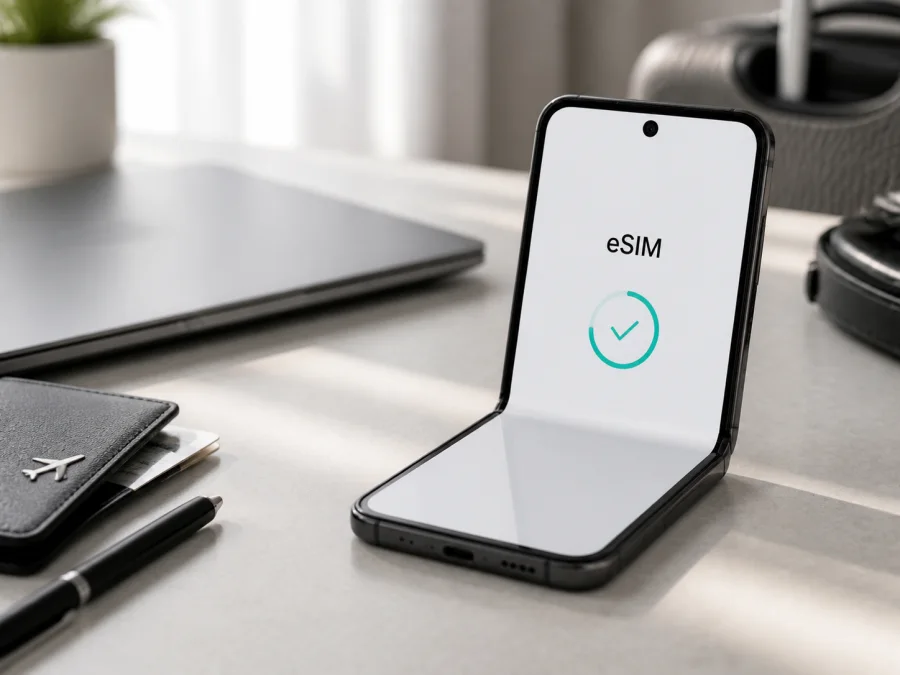
Samsung Galaxy Z Flip7 FE eSIM: compatibility, setup, and travel use
If you are preparing a trip and want mobile data without replacing your everyday physical SIM card, the Samsung Galaxy Z Flip7 FE is a strong eSIM candidate. The short answer is yes: Samsung’s current product specifications list “SIM 1 + eSIM / Dual eSIM,” and Samsung’s support guidance includes the Galaxy Z Flip7 FE among phones that support dual-SIM use with an eSIM and a physical SIM. A compatible travel eSIM can therefore be used alongside a nano-SIM, provided the exact regional model, software, and provider allow it.
The important qualification is the word “exact.” Samsung sells the Samsung Galaxy Z Flip7 FE in different markets, and eSIM service can depend on the country of origin, carrier, firmware, and plan. The full model name matters here: Samsung Galaxy Z Flip7 FE. This distinct FE model must not be treated as interchangeable with another foldable generation. Confirm the feature on the phone itself before buying a data plan.
Quick answer: does Samsung Galaxy Z Flip7 FE support eSIM?
Yes. Official Samsung specifications identify an embedded SIM and a dual-SIM arrangement using SIM 1 plus eSIM or, where supported, dual eSIM. Samsung’s US guidance also states that the Galaxy Z Flip7 FE supports dual-SIM functionality with one physical SIM and one eSIM. Regional Samsung pages show the same arrangement.
This is device-level support, not a promise that every plan or operator will work. A provider must issue a profile for your destination, and a carrier-branded or contract device may have restrictions. If Add eSIM and an EID are present, your handset shows the two most useful compatibility signals. If either is missing, pause the purchase and confirm the model with Samsung or the original carrier.
What the published specifications tell you
Samsung Galaxy Z Flip7 FE here refers to the model without a storage suffix or carrier code. Do not use another named variant as if it were the exact handset. Samsung regional pages list 128 GB and 256 GB versions in some markets; compare the box, invoice, About phone screen, and model code.
| Item | What to expect for Samsung Galaxy Z Flip7 FE |
|---|---|
| Device name | Samsung Galaxy Z Flip7 FE |
| eSIM | Supported in official Samsung specifications, subject to market and carrier availability |
| SIM arrangement | SIM 1 + eSIM; Samsung also lists Dual eSIM where available |
| Physical SIM | Nano-SIM, depending on the regional model |
| Network generation | 5G support is listed on official regional specification pages; bands vary by market |
| Storage | Market-dependent configurations include 128 GB and 256 GB; no capacity is specified for this page |
| RAM | Do not infer a RAM variant from the name alone; check the device page or About phone |
| Final compatibility test | Settings > Connections > SIM manager > Add eSIM, plus an EID in device status |
“Dual eSIM” may depend on the model and software. It does not mean every regional phone can keep every downloaded profile active at the same time. For travel, the minimum is a working eSIM slot, a valid profile, and the ability to select it for data.
Why region, carrier, and software matter
An eSIM is a secure embedded component, but service is controlled by the provider and device configuration. Samsung notes that service may vary by country and carrier, so a general model listing is not enough for a specific handset.
Check the country of origin, since imported phones can have different model codes and carrier settings. Compare the SIM section for the market where the phone was sold. Then check the carrier relationship: a carrier lock may reject another provider’s profile. Finally, check software; menu names can change after an Android or One UI update. Install available updates and use Wi-Fi for the initial download, but remember that an update cannot remove a regional hardware restriction.
Compatibility check before you buy
Use the phone in your possession as the final authority. This check helps prevent buying a data package before discovering that a regional or carrier version cannot install it.
- Confirm Samsung Galaxy Z Flip7 FE in Settings > About phone and compare the model code with the box or purchase record.
- Open Settings > Connections > SIM manager and look for Add eSIM, Add mobile plan, or similar wording.
- Open Settings > About phone > Status and look for EID. Samsung also says the EID may be printed on the box; do not post it publicly.
- Check that the phone is not locked to the original carrier, especially if it was bought on contract.
- Connect to stable Wi-Fi and install available software updates.
- Read the plan’s destination, validity period, data allowance, activation rule, and hotspot conditions.
- Confirm that it is a mobile-data plan. Unless stated otherwise, it does not include a normal phone number, traditional calls, or SMS.
For a compact decision guide, Check your device is the compatibility check to use on this page. The steps below explain what to do on an English-language phone.
What the EID does and does not prove
The EID identifies the eSIM component. Seeing it in Settings > About phone > Status is useful, but it does not prove carrier acceptance, destination coverage, or an unlocked device. Pair it with Add eSIM and the provider’s requirements.
If EID is visible but Add eSIM is absent, restart, update software, and check again. Then ask the original carrier or Samsung whether the market version has a limitation. If Add eSIM is present but EID is missing, record the model code and request confirmation before paying. Imported or refurbished phones need particular care.
How to install an eSIM on Samsung Galaxy Z Flip7 FE
Install over Wi-Fi while you can access the purchase email or account containing the QR code. Keep the physical SIM active if you need your usual number. The profile downloads to the embedded SIM and does not replace the nano-SIM.
1. Prepare the phone and plan
Charge the phone, connect to Wi-Fi, and confirm the destination and validity rule. If the plan starts at installation, wait until ready. Keep the QR code on another screen.
2. Open the SIM manager
Go to Settings > Connections > SIM manager and tap Add eSIM. Depending on software and provider, it may be called Add mobile plan. If the entry is absent, return to the compatibility check.
3. Choose a download method
Select Scan QR code when the provider supplied one. Show the complete code to the camera until the profile is recognized. If automatic discovery or carrier push is offered, select the plan shown. If an activation code was supplied, choose manual entry and type it exactly.
4. Review and download the profile
Read the plan name and destination before tapping Add or Download. A QR code is usually intended for one installation, so do not rescan repeatedly after an error. Let the download finish over Wi-Fi; a restart or short wait may be needed before registration.
5. Name and enable the eSIM
In SIM manager, give the profile a clear label such as Travel data or the destination. Turn it on when ready, unless the plan says installation must be followed by activation. If the physical SIM remains active, decide which line handles calls, messages, and data.
6. Select it for mobile data
In SIM manager, choose the new eSIM as the preferred SIM for mobile data. Turn off automatic data switching if you do not want the phone to fall back to the primary line and create roaming charges. Keep the regular line available only if you understand its roaming terms.
For device-specific Android steps, see the Android installation instructions. For comparison with Apple-device setup or moving between phones, see the iOS installation instructions. These guides do not change Samsung’s regional requirements.
Activate the eSIM and get online
Adding a profile and using it for data are separate steps. In SIM manager, enable the eSIM and select it for mobile data. If roaming is required, enable it for that eSIM only and keep it off on your everyday line.
If you installed before departure, follow the plan’s activation rule. Some plans begin on first connection, others at installation or a stated time. After arrival, turn off airplane mode, enable the travel eSIM, wait several minutes, and check for a network indicator. Restart if needed. Use automatic network selection first; change APN only with values supplied for the plan.
Using the eSIM for mobile internet while travelling
The cleanest setup is usually two lines: the everyday nano-SIM remains available while the travel eSIM becomes the data line. You can use maps, translation, messaging, ride-hailing, email, and work tools without removing the physical SIM. Coverage and performance still depend on the local network and plan.
Before takeoff, save the QR code securely, check EID and Add eSIM, and decide when to install. At the destination, activate the travel profile, select it for data, and test a webpage or map. Keep the main line’s data roaming off; its carrier may still charge for calls or SMS.
Choose by expected use, data allowance, validity, and route rather than price alone. For several countries, confirm every country is covered. At the end of the trip, disable or remove the profile only if the provider allows it; removal is not necessarily subscription cancellation.
Common problems and practical checks
Add eSIM is missing
Verify the model code and original sales region in About phone. Restart, update software, and check Settings > Connections > SIM manager again. If EID is also missing, do not buy yet. If EID is present but the menu is blocked, ask the original carrier about restrictions.
The QR code will not scan
Increase QR brightness and show the entire code without an email crop. If scanning fails, use manual activation if supplied. Do not edit or share the code. A used code may need reissue.
The profile will not download
Check Wi-Fi, storage, date and time, and plan details. Complete any captive-portal sign-in first. Retry only if the provider permits it. If the code is already used, contact the provider.
The eSIM is installed but there is no data
Open SIM manager and confirm that the travel profile is enabled and selected for Mobile data. Check airplane mode, destination coverage, and data roaming for that eSIM. Turn off automatic data switching, restart once, and test a simple site. If signal appears but data fails, verify the supplied APN and network-selection instructions.
Calls or texts use the wrong line
Open SIM manager and review Preferred SIMs for calls, messages, and mobile data. Choose the everyday line for voice and SMS and the travel eSIM for data if that is your intention. A data-only eSIM is not a replacement for your phone number.
The phone shows a carrier lock or activation restriction
This is a device or carrier issue, not something fixed by scanning again. Ask the original carrier about unlocking and keep the receipt and model code available. A travel eSIM cannot be guaranteed on a locked phone.
FAQ
Is Samsung Galaxy Z Flip7 FE eSIM compatible?
Yes. Samsung’s current specifications and support guidance list the Galaxy Z Flip7 FE with eSIM capability and dual-SIM use. Availability remains subject to market, carrier, software, and plan, so verify Add eSIM and EID before purchase.
Can I use a physical SIM and an eSIM together?
The listed SIM 1 + eSIM arrangement supports that scenario. Which combinations can be active, and whether Dual eSIM is available, depend on regional model and software. Use SIM manager to select the line for data, calls, and messages.
Does eSIM give me a second phone number?
It can when a carrier provides a voice-capable plan and the device and market support it. A travel eSIM arranged through Kaspersky eSIM Store is intended for mobile internet unless the selected plan says otherwise. Do not assume that a data plan includes a number, calls, or SMS.
Can I install the eSIM after arriving?
Usually, if the plan permits it and you have Wi-Fi or another working connection. Installing before departure can be convenient, but check when validity begins. If installation starts the plan, wait until the appropriate time.
Is Kaspersky eSIM Store a mobile operator?
No. Kaspersky eSIM Store is an app and website where you can choose, arrange, and activate an eSIM with a suitable tariff for mobile internet during an overseas trip. Connectivity depends on the selected plan and local network arrangements. Kaspersky eSIM Store does not own the network or replace the local carrier.
What if I need help during setup?
First confirm compatibility, Wi-Fi, selected data SIM, roaming settings, and destination. Then contact support with the exact device name, model code, error message, and failed step. Do not publish QR, activation, EID, or account details.
Final device check and travel eSIM
Before paying for a travel plan, complete this sequence on the exact Samsung Galaxy Z Flip7 FE you will carry: confirm the model in About phone; find EID in About phone > Status; open Settings > Connections > SIM manager and confirm Add eSIM; check that the phone is not carrier-locked; and match destination, data allowance, validity, activation rule, and hotspot conditions to your route. If a regional or operator version differs, treat the on-device result and written carrier confirmation as decisive.
When the checks pass, Kaspersky eSIM Store can help you choose a suitable eSIM tariff for the country, region, or route, complete the order, and follow activation in the app or website. Select the travel eSIM for data, control the everyday line’s roaming, and monitor allowance and validity.


