Travel connectivity guide
Samsung Galaxy Z Fold2 5G 128GB eSIM
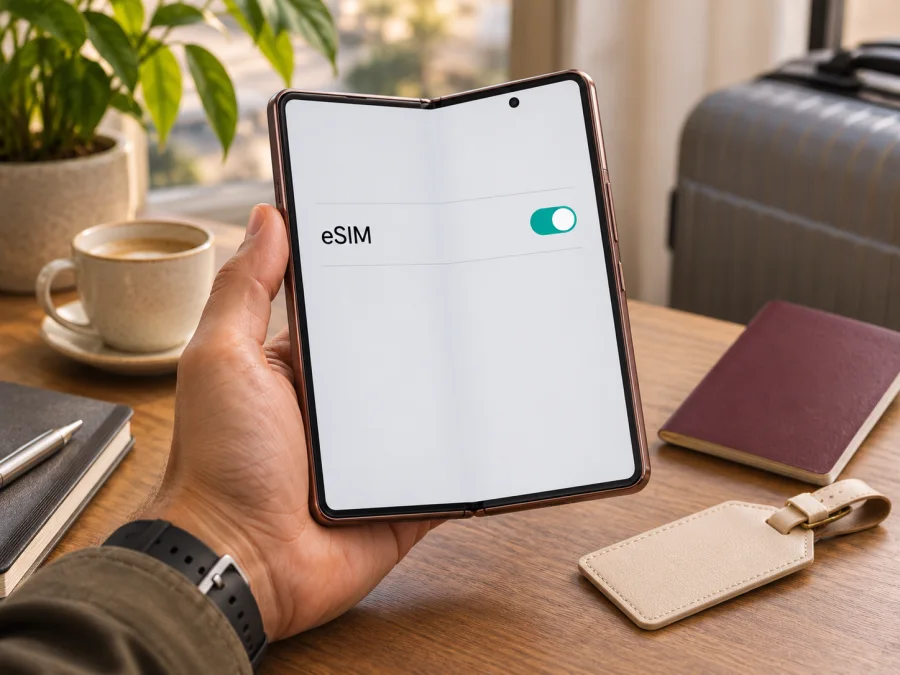
Samsung Galaxy Z Fold2 5G 128GB eSIM: compatibility and setup
Short answer: Samsung lists the Galaxy Z Fold2 among Galaxy devices that support eSIM, and its original product specifications describe one eSIM and one Nano-SIM. That is a strong indication that an eSIM-capable version of the Samsung Galaxy Z Fold2 5G 128GB exists. It is not a guarantee for every phone sold under a similar name: Samsung says eSIM availability can vary by software version, market, and carrier. Check the specific handset before choosing a plan.
The “128GB” part identifies the storage capacity stated in the device listing; it does not by itself identify the phone’s regional model number or confirm eSIM support. If you are buying a used or imported phone, use the model code, software, and settings on the actual device as your evidence. The practical check takes only a minute and can prevent a QR code or plan from being tied to a phone that cannot install it.
Samsung Galaxy Z Fold2 5G 128GB at a glance
| Item | What to know |
|---|---|
| Device named in this guide | Samsung Galaxy Z Fold2 5G 128GB |
| eSIM support | Listed by Samsung for Galaxy Z Fold2; verify the particular regional and carrier version |
| Physical SIM | Samsung’s original specifications describe a Nano-SIM alongside eSIM; tray and dual-SIM behavior can vary by version |
| What eSIM is useful for | A digital SIM profile for a compatible mobile plan, including mobile data while travelling |
| Storage capacity | 128GB is part of the supplied device name; storage does not establish eSIM capability |
| Best pre-purchase evidence | An EID in the phone’s information, or an “Add eSIM” entry in SIM manager, plus confirmation that the phone is unlocked |
The foldable design does not change the basic eSIM process. You use Android settings to add a mobile plan, then choose which SIM profile should provide mobile data. The main difference from a conventional phone is that the menu names and their location can depend on the installed One UI and Android version. Samsung’s current compatibility guidance includes the Z Fold2, while also warning that a device’s country of origin matters. Its original product announcement described an eSIM and a Nano-SIM, but expressly said availability could vary by software, market, and carrier.
That is why the most accurate answer for a specific Samsung Galaxy Z Fold2 5G 128GB is: the model family supports eSIM, but confirm that the exact handset has the feature enabled. A seller’s headline, a matching product photo, or the presence of a physical SIM tray is not enough on its own. A phone may look identical while using a different regional configuration or carrier firmware.
Does this exact version support eSIM?
Samsung’s published material identifies Galaxy Z Fold2 as an eSIM-capable model. This supports a positive answer for the device family, not an unconditional promise about every unit described as “Samsung Galaxy Z Fold2 5G 128GB.” The device name supplied here does not include a complete model code such as the code shown in Settings or on the box. Nor does “128GB” tell you which market the phone was made for. Treat the listing name as the exact subject of this guide, and inspect the handset itself before purchase.
Regional versions can differ in SIM configuration, supported mobile bands, available software features, and which carriers can provision an eSIM. Carrier-sold units may also have restrictions or customized software. Samsung’s guidance says that devices from some countries may not support eSIM even when the model family appears on its support list; its US SIM guidance also notes that carrier devices may not support certain dual-SIM features. This does not mean every carrier-sold Z Fold2 lacks eSIM. It means the carrier and regional variant need to be checked rather than inferred.
A firmware update can add or change eSIM menu availability on some devices, but an update cannot be assumed to turn every hardware or region variant into a supported model. Install available official updates, restart the phone, and check again. If the option is still missing, ask Samsung support or the seller to confirm the exact model code and original sales market. If a network provider must activate the profile, confirm that it supports eSIM for that specific device and plan.
The storage figure deserves its own small check. If the listing says 128GB but the box, About phone screen, or model code points to a different configuration, resolve that mismatch with the seller before paying. It may reflect a seller’s product naming, a refurbished unit, or a listing error; it is not evidence either for or against eSIM. Ask for a photograph of the About phone screen and SIM manager, with personal identifiers covered. The model code, “Add eSIM” menu, and EID are more useful than storage in deciding whether the phone can accept a digital SIM profile.
Check the phone before buying a plan
Use the actual handset when possible. Menu wording varies by One UI and Android version, but these checks are useful:
- Open Settings → Connections → SIM manager and look for Add eSIM. You can open the next screen to confirm availability without scanning or installing a plan.
- Open Settings → About phone → Status information and look for an EID. Samsung says it may also be printed on the original box. Keep this identifier private.
- Check the model code under About phone and compare it with the box and listing. If the EID or menu is absent, ask Samsung or the seller to confirm eSIM support for that exact model code and sales market.
- Confirm the phone is unlocked. A SIM lock can prevent a travel plan from registering even when eSIM hardware is present.
The best practical evidence is an EID and an available “Add eSIM” entry. A menu can differ or be hidden in some software, so one missing clue is not a final diagnosis. Install official updates and restart before checking again. If the seller cannot show the model code or SIM manager, treat compatibility as unresolved. Do not activate a test plan: a one-time code may bind a profile to the device.
Check whether your device is compatible before purchasing a plan. The handset must accept eSIM, be unlocked, and work with a network in your destination.
What to prepare before installation
Use reliable Wi-Fi or mobile data while downloading the profile. Keep the confirmation email or activation details available on a second screen, unless your plan provides an in-app install flow. A phone usually cannot scan a QR code displayed on its own screen.
Before starting, confirm that eSIM appears in the phone’s settings, the device is unlocked, and Android is up to date. Check that the plan covers your destination and that its data allowance, validity period, activation timing, and restrictions fit your dates. Decide which line should provide mobile data and whether you need to keep your regular SIM available for calls.
Kaspersky eSIM Store is an app and website where you can choose, arrange, and activate an eSIM plan for mobile internet on an overseas trip. Browse current travel eSIM plans on the general store homepage to select a destination and review current options.
How to install and activate an eSIM on Samsung Galaxy Z Fold2 5G 128GB
The steps follow Samsung’s Galaxy setup flow; wording may differ by software version. Keep your QR code or activation details ready. Do not delete an installed profile unless the plan provider confirms it can be reissued.
- Connect to the internet. Use reliable Wi-Fi or mobile data and keep the phone charged.
- Open SIM manager. Go to Settings → Connections → SIM manager.
- Add the profile. Tap Add eSIM. Choose QR scanning, automatic plan discovery, or manual entry according to the instructions for your plan. If “Add eSIM” is missing, recheck the regional model and EID instead of trying unofficial codes.
- Download the eSIM. Scan the provider’s code or enter its details exactly. Keep the connection active while the profile downloads and follow any on-screen confirmation.
- Name and select the line. Give the new profile a recognizable label, then choose it as Mobile data when you want to use the travel plan. Leave calls and texts on your usual line if desired and supported by your home plan.
- Set roaming and APN only as required. Enable data roaming for the eSIM if its instructions say to. Enter an APN only when the provider supplies one, and copy it exactly.
- Test at the right time. Some plans begin on arrival or first connection to an eligible network. At the destination, turn Wi-Fi off briefly, check the selected data line, and open a webpage.
See the Android eSIM installation instructions for Samsung-specific steps. For a person using an Apple device, see the iOS eSIM installation instructions; those steps are for iPhone or iPad, not this Samsung phone.
Installing a profile and starting a plan’s validity are not always the same event. Read activation and expiry conditions before scanning, especially if you plan to install before travelling. Keep the confirmation and QR code until service works, but treat them as sensitive activation material.
Using the eSIM for mobile data on a trip
In Settings → Connections → SIM manager, select the travel profile for mobile data. You can keep the home SIM available for calls and texts if you want, but check its roaming terms first. Turn off automatic data switching if you want to prevent the phone from changing lines unexpectedly. Make sure any roaming setting applies to the travel eSIM, not accidentally to the home SIM.
At your destination, give the phone a little time to register. Enable roaming for the eSIM if required by the plan. If automatic network selection does not connect, choose a network only if it is supported by the plan instructions. Coverage and performance depend on the local network, location, and plan conditions. A 5G-capable phone does not guarantee that the plan or local network offers 5G.
A travel eSIM can provide data for maps, tickets, messaging, and browsing. For a route across several countries, confirm that every destination is included; a single-country plan may not work across borders. Estimate data use for video calls, navigation, or hotspot sharing and check whether tethering is allowed.
Many travel plans are data-only and do not include a regular phone number, voice minutes, or SMS. Use your usual line for calls where available or internet-based calling and messaging apps. When home, switch mobile data back to your preferred line. Do not delete the travel profile until you no longer need it: some activation codes are single-use.
Compatibility checklist before purchase
Use this checklist for the actual handset, not just the product listing:
- [ ] The phone’s model code and sales region have been checked.
- [ ] Add eSIM appears in SIM manager, or Samsung/support confirms eSIM capability for this exact unit.
- [ ] An EID appears in About phone → Status information or is documented for the phone.
- [ ] The handset is unlocked for use with another provider’s eSIM.
- [ ] The operating system is current and the phone can access Wi-Fi or mobile data during installation.
- [ ] The plan covers the destination and its validity and activation rules fit the travel dates.
- [ ] You know which SIM will provide mobile data and whether eSIM data roaming must be enabled.
If the seller will not show the model code or SIM manager, consider that an unresolved compatibility question. A physical SIM working in the phone does not prove that eSIM is available. Likewise, “5G” identifies a network capability, not a guarantee that an embedded SIM menu is active. The EID, model code, and visible add-profile option are better checks.
Common problems and what to check
“Add eSIM” is missing
Check SIM manager, install official updates, restart, and look for an EID under About phone → Status information. If both are absent, the regional or carrier version may not expose eSIM. Ask Samsung or the seller to check the exact model code. A factory reset cannot be assumed to add the feature.
The QR code will not scan
Use a second screen, increase its brightness, and make sure the whole code is visible. Confirm that you selected QR scanning from Add eSIM, not the camera app. If the code may have been used already, contact the plan provider before retrying; do not post the QR image publicly.
Profile download fails
Check the internet connection, restart, and confirm the code belongs to your plan and is still valid. Note the exact error. If the code is rejected or marked expired, contact the provider rather than repeatedly scanning it.
The eSIM is installed but has no service
Confirm that the profile is on and selected for mobile data, and that you are in a covered destination and within the plan’s activation period. Enable roaming for the eSIM if instructed, toggle airplane mode, and restart. If needed, select a supported local network according to the provider’s directions.
The phone connects but data does not work
Turn Wi-Fi off to test cellular data. Check the remaining allowance and validity, verify that the eSIM is selected, and enter an APN only if the provider gave you one. A VPN or private DNS can be disabled briefly during troubleshooting and restored afterward.
The home SIM incurs roaming charges
Check which line is selected for mobile data and disable automatic data switching if available. Turn off data roaming for the home SIM if you do not want it to use data abroad. Calls, texts, voicemail, and data may have different rules under your home plan.
Calls or SMS are unavailable
The profile may be working normally: many travel eSIMs are data-only. Check the plan description for voice, number, and SMS features. Internet-based calls and messages can use the data connection.
For unresolved issues, give the plan provider the model code, Android version, destination, and error wording. Do not send a QR code or full EID in an unsecured public post. Contact Samsung or the seller for a missing eSIM menu; contact plan support for profile download or local network issues.
Frequently asked questions
Is eSIM supported on Samsung Galaxy Z Fold2 5G 128GB?
Samsung lists Galaxy Z Fold2 among eSIM-capable devices and originally specified one eSIM with one Nano-SIM. Verify the exact 128GB handset because its name does not identify its regional model code. Check for an EID and “Add eSIM,” and confirm the phone is unlocked.
Does 128GB storage change eSIM compatibility?
No. Storage is retained because it is part of the exact device name, but compatibility depends on the model variant, market, software, and carrier restrictions.
Can I keep my normal SIM while using a travel eSIM?
Samsung describes a Nano-SIM alongside eSIM for the Z Fold2, but active SIM behavior can depend on the regional version and software. Check SIM manager. Your home carrier may charge for roaming on its line.
Can I install before leaving, and when does validity start?
Installation before travel may be possible, but plan rules differ. Check whether validity starts at purchase, installation, a scheduled time, or first connection to an eligible network. Do not assume installing a profile delays expiry.
Can I move the profile to another phone?
Do not assume so. Transfer and reinstall rules depend on the plan; activation codes can be single-use. Check terms before installing, and ask the provider before deleting a profile after a reset or phone change.
What if I see an EID but no “Add eSIM” button?
Install official updates and restart, then check again. An EID is useful evidence, but a missing menu can reflect market, carrier firmware, or software restrictions. Ask Samsung or the seller to verify the exact model before purchase.
Final check: device first, destination second
For the Samsung Galaxy Z Fold2 5G 128GB, Samsung’s information supports eSIM at the model-family level, with clear market, carrier, and software caveats. Verify the actual handset by checking its model code, EID, and Add eSIM option. Confirm that it is unlocked and that its regional version can use another provider’s profile. The “128GB” label is part of the requested device name, not a substitute for those checks.
Once compatibility is clear, choose an eSIM plan for the country or region you will visit. Review its data amount, validity, activation timing, and service conditions; install the profile over a reliable connection; and select it for mobile data when you are ready to travel. If the exact handset or plan conditions remain uncertain, ask the seller, Samsung, or plan support before purchase. This simple order—verify the device, then choose the destination plan—helps avoid a last-minute installation problem abroad.


