Travel connectivity guide
Samsung Galaxy Z Fold2 5G 12GB RAM eSIM
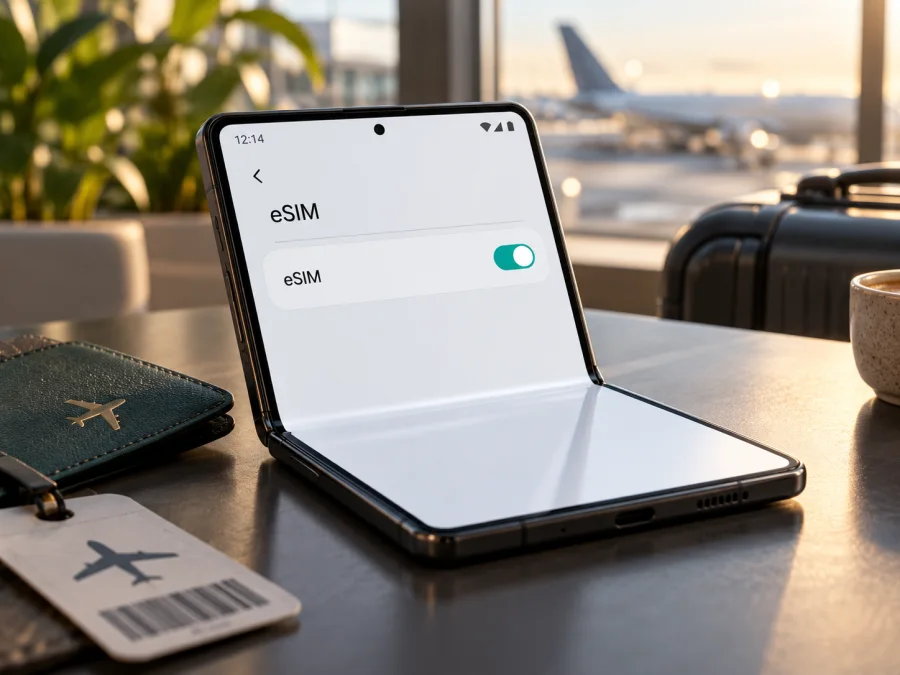
Samsung Galaxy Z Fold2 5G 12GB RAM eSIM compatibility and setup
The Samsung Galaxy Z Fold2 5G 12GB RAM can use eSIM on supported regional and software versions. Samsung’s specifications for the Galaxy Z Fold2 describe one eSIM alongside one nano-SIM, and its support page for the Galaxy Z Fold 2 explains how to add an eSIM. Samsung also cautions that eSIM availability depends on the software version, country or market, and carrier. The name and 12GB RAM specification alone do not prove that every individual phone has eSIM enabled.
For this device, compatibility is supported in principle, but conditional on the exact unit. Look for an EID or an “Add eSIM” option in Settings before buying a travel plan. An imported, carrier-supplied, or differently regionalized device may expose different SIM options. If neither check confirms eSIM, ask Samsung or the seller to verify the device’s exact model code and market before you proceed.
An eSIM is a digital SIM profile stored in the phone, letting you add a plan without inserting another physical SIM. For travel, a compatible Galaxy Z Fold2 can keep a primary nano-SIM available while using a separate eSIM profile for mobile data, subject to the phone’s dual-SIM settings and the plan’s terms. The eSIM plan discussed here is for mobile internet; it does not automatically provide a regular phone number, voice calls, or SMS.
Samsung Galaxy Z Fold2 5G 12GB RAM: eSIM at a glance
| Item | What to know |
|---|---|
| Exact device in this guide | Samsung Galaxy Z Fold2 5G 12GB RAM |
| eSIM answer | Supported on eligible versions; verify the individual phone before purchase |
| Physical SIM | Samsung’s published specifications list one nano-SIM together with one eSIM for supported versions |
| Memory variant | Samsung’s Russian product specification lists 12GB RAM and 256GB storage; the 12GB RAM configuration is also listed in Samsung regional specifications |
| What varies | Market, exact model code, carrier customization, software version and available mobile-network settings |
| First compatibility check | Open Settings and look for an EID or an option such as “Add eSIM” in SIM manager |
| Typical setup route | Settings → Connections → SIM manager → Add eSIM; menu labels can vary by software version |
| Travel use | Choose the installed eSIM for mobile data when you reach the destination, if the plan and local network support it |
The table describes the product family rather than certifying every used, refurbished, imported, or carrier-branded handset. The Galaxy Z Fold2 is a 5G device, but 5G capability and eSIM support are separate questions. A phone can support 5G and still lack an active eSIM menu in its particular regional configuration. Network bands, available 5G service, and carrier provisioning also depend on destination and operator.
Samsung’s Galaxy Z Fold2 specifications published by Samsung Newsroom Russia list 12GB RAM, 256GB storage, and “one eSIM and one Nano SIM”; Samsung’s South African launch specifications likewise list one eSIM and one nano-SIM with market and carrier caveats. The Samsung Latin America support article “How to activate the eSIM on my Galaxy Z Fold 2?”, last updated June 15, 2023, gives the device-specific route through Settings, Connections, SIM manager, and Add eSIM. These are manufacturer statements about supported configurations, not a guarantee that every national or carrier version has the same feature today. Check the actual handset’s software and identifiers.
What the 12GB RAM name tells you—and what it does not
“12GB RAM” identifies the memory configuration, not the sales country, carrier, or full model code. Samsung’s Russian product specification lists the Galaxy Z Fold2 with 12GB RAM and 256GB storage; Samsung’s South African launch specification lists 12GB RAM and storage options that vary by market. These official specifications confirm the memory variant, but neither RAM nor storage establishes whether a particular handset has eSIM enabled.
Check the model code in Settings → About phone and compare it with the original box and seller listing. The Fold2 family includes regional variants, and firmware or carrier customization can affect available SIM features. An unlocked phone may still lack an eSIM option, while an eSIM-capable phone may be locked to a carrier. Confirm both separately.
The “5G” label is another separate capability. Actual 5G access depends on the regional model’s bands, the plan, the local network, and coverage. A compatible Fold2 may connect over 4G/LTE while travelling even if the handset supports 5G at home.
Check eSIM on your own phone before buying
Check the handset in your possession. A product listing or a guide for another country cannot confirm which options your current software exposes.
Compatibility checklist
- [ ] The phone is the Samsung Galaxy Z Fold2 5G 12GB RAM you intend to use; record the full model code.
- [ ] It is not carrier-locked in a way that blocks another eligible plan.
- [ ] Settings shows an EID or an option such as “Add eSIM” in SIM manager.
- [ ] Available official software updates have been installed and the phone restarted.
- [ ] The plan covers your destination and supports a compatible installation method.
- [ ] You have checked data allowance, validity, and activation timing.
Find the EID
An EID is an identifier associated with an eSIM-capable device. On Samsung phones, look under Settings → About phone → Status information. The menu can vary by software version. You can also try entering *#06# in the Phone app; if supported, the screen may show an EID with the other device identifiers. Keep it private and share it only through a trusted support channel when required.
An EID is a strong indication that the phone has eSIM capability, but also confirm that profile installation is available and that the handset is not carrier-restricted. If no EID appears, check SIM manager, install any available official update, and restart. The absence may reflect the regional variant, carrier software, or a different menu; the name alone cannot explain it.
Find “Add eSIM” in Settings
On many Galaxy phones, go to Settings → Connections → SIM manager → Add eSIM. Samsung’s Fold 2 support article gives this route. Open the menu only to verify that the option is present; you do not need to install a plan during the check.
If the option is absent, confirm the model code and market with Samsung or the seller, and ask the carrier whether its software restricts eSIM. Do not flash another region’s firmware or reset the phone as a way to force the option. If neither an EID nor Add eSIM is available after these checks, do not buy a travel plan on the assumption that another regional Fold2 will behave identically. For another device, check whether it supports eSIM before ordering.
Install and activate an eSIM on the Galaxy Z Fold2
Before purchase, confirm the EID or Add eSIM option and check that the phone is unlocked. During setup you will normally need internet access and the QR code or manual activation details. Read the plan’s conditions first: profile download, enabling the eSIM, registering on a network, and the start of validity can be separate events.
For Android steps, see the Android eSIM installation guide. The iPhone installation guide is for Apple devices if you are preparing a second phone. Follow the instructions supplied with your selected plan.
Before installation
- Confirm that SIM manager shows Add eSIM and that the phone is not carrier-locked.
- Connect to Wi-Fi or another working internet connection.
- Open the plan’s QR code on a second screen or keep the manual activation details available.
- Check destination, data allowance, validity, activation timing, and whether data roaming is required.
- Keep the QR code private; it may contain information used to install the profile.
Add the profile
- Open Settings → Connections → SIM manager.
- Tap Add eSIM. If it is missing, stop and recheck compatibility.
- Choose the QR scan or manual-entry option provided with the plan.
- Scan the code or enter the activation details exactly as shown.
- Confirm the profile download and keep the internet connection active until setup finishes.
- Give the profile a clear label, such as “Travel data,” and finish the on-screen steps.
- If the plan instructions say to wait until arrival before enabling it, leave the profile off.
QR-code reuse rules vary. If a scan fails, do not repeatedly delete and reinstall the profile; a code may be limited to one installation. Check the plan instructions or contact support before removing an eSIM, since the original code may not work again.
Select data and activate at the right time
When ready to connect, open SIM manager and select the travel eSIM for Mobile data. Depending on the phone software, the nano-SIM can remain selected for calls or messages while the eSIM handles data. Check the data selection before using apps away from Wi-Fi.
Some plans require Data roaming for the travel profile. Enable it for that eSIM only when the plan instructions say so, and check that roaming is not inadvertently enabled for your home SIM if you want to avoid charges from your home carrier.
Installation does not always start a plan’s validity. The start rule depends on the plan: it may begin when the profile first connects to an eligible network or under another stated condition. You can install before departure over Wi-Fi when allowed, then enable the profile at the destination if instructed. Network registration can take several minutes; do not delete the profile just because it does not connect immediately.
Use the eSIM during a trip
A practical Fold2 setup is to keep profiles clearly labelled and select the travel eSIM for data when you need it. You may be able to keep a home nano-SIM active for calls or messages, depending on software and carrier settings. A data-only travel plan does not provide a regular phone number, and using it for data does not automatically prevent charges on the home line.
Install before departure
If the handset has passed the compatibility check, you can prepare the profile at home when the plan permits it. Choose a plan covering your destination, read when validity begins, and install over Wi-Fi. Save essential setup instructions offline. If the provider says to wait until arrival to enable the profile, leave it disabled. After landing, select it for mobile data and allow time to register on an eligible network.
Preparing in advance reduces setup steps after landing, but it cannot guarantee service everywhere. Coverage and available network technology depend on the local network, device variant, and plan. Keep important travel details accessible offline in case setup takes longer than expected.
Travelling across countries
Check whether the plan covers every country on your route or only one destination. A regional plan has its own list of included locations and network conditions; do not assume it automatically works across a border. At each stop, confirm that the eSIM is selected for data and that the phone has registered. If service drops, wait for automatic network selection before changing settings. Follow provider instructions if manual network selection is required.
Keep your home number available
Samsung lists one eSIM and one nano-SIM for supported Fold2 configurations, but dual-SIM behavior can vary. Check SIM manager to see which profiles can be enabled and assigned to mobile data, calls, and messages. Ask your home carrier about roaming charges for calls, SMS, and incoming service. Internet messaging apps can use the data connection, but app calls are not the same as ordinary cellular calls.
Choose a plan for the route
Kaspersky eSIM Store is an app and website where you can choose, arrange, and activate an eSIM with a suitable plan for mobile internet on an international trip. Review the destination, allowance, validity, price, and activation conditions shown for the plan. The underlying mobile service uses supported network arrangements; availability and performance depend on the destination and local network. Choose a plan that matches your route and likely use, and confirm whether it is data-only.
Troubleshooting: eSIM will not install or connect
Work through one check at a time and note any error message. This helps identify whether the problem involves compatibility, profile download, activation, or network registration.
“Add eSIM” is missing
Check Settings → Connections → SIM manager and look for an EID in About phone or Status information. Restart after installing any available official update. Confirm the model code and sales market with Samsung or the seller, and ask the carrier whether its software restricts eSIM. Samsung says availability can depend on region and provider. If the option is still missing, pause before purchasing and request confirmation for that exact handset.
The QR code cannot be scanned or the profile will not download
Raise the brightness on the screen showing the QR code, clean the Fold2 camera lens, and hold the code steady. If you only have one phone, use manual activation details if provided or show the code on another trusted screen. Check the internet connection and that the code belongs to the plan. Some codes are single-use, so ask the provider whether a failed attempt consumed it before trying repeatedly or deleting a profile.
The eSIM is installed but shows no service
Confirm that the profile is enabled, selected for mobile data, and that the plan has reached its activation point and covers your current country. Toggle Airplane mode briefly or restart, then wait for network registration. Move to an area with a stronger signal. Enable data roaming for the travel profile only if the plan instructions require it. Follow the provider’s directions if manual network selection is needed.
Data goes through the wrong SIM
Open SIM manager and confirm the travel eSIM is selected under Mobile data. Turn Wi-Fi off briefly and load a simple webpage to check the cellular connection. If the home SIM remains active, review data-switching settings so the phone does not route data through it unexpectedly.
The connection is slower than expected
A 5G device does not guarantee 5G service on every trip. The local network, plan, regional model bands, signal, congestion, and surroundings affect connection type and speed. Try another location and check network settings only as directed by the provider. Do not assume that slower data means the eSIM profile is faulty.
If the issue remains, contact the plan provider with the model code, software version, destination, setup time, and exact error. Samsung support can help check device settings and regional feature availability; the plan provider can check plan activation and network arrangements.
Frequently asked questions
Does Samsung Galaxy Z Fold2 5G 12GB RAM support eSIM?
Supported configurations do. Samsung lists one eSIM and one nano-SIM in its Galaxy Z Fold2 specifications and publishes a Fold 2 activation guide. Availability depends on market, software version, and carrier, so verify your individual phone for an EID or Add eSIM.
Does every 12GB RAM version have eSIM?
Not necessarily. RAM identifies a memory configuration, not the country or carrier variant. Check the full model code and the options in the phone’s current software.
Is eSIM the same as 5G support?
No. eSIM is a way to add a SIM profile; 5G is a network technology. Compatibility with one does not prove compatibility with the other.
Can I use a nano-SIM and eSIM together?
Samsung lists that combination for supported Fold2 versions. The available dual-SIM functions depend on software, carrier, and plan; check SIM manager to see how the profiles can be assigned.
Can a travel eSIM make ordinary calls or send SMS?
Only if the plan specifically includes those services. Travel plans in this context are intended for mobile internet and may be data-only. Internet messaging apps can work over data but do not provide a regular cellular number.
Should I install before flying?
You can prepare the profile in advance if the plan permits it. Check when validity begins and whether you should leave the profile disabled until arrival.
Can I reuse a QR code after deleting the profile?
Do not assume so. Reuse and replacement rules depend on the provider. Contact support before deleting a profile that is not working.
What if the phone has no EID?
Check SIM manager, install available official updates, restart, and confirm the model code and sales market. If there is still no EID or installation option, ask Samsung or the seller to verify the specific unit before you buy a plan.
Final check before your trip
The Samsung Galaxy Z Fold2 5G 12GB RAM is eSIM-capable in supported configurations, but compatibility for your handset depends on its regional variant, software, and carrier status. Confirm the EID or Add eSIM option, record the model code, and make sure the phone is unlocked for the plan you intend to use. Then choose a plan that covers your destination and matches your data needs, validity window, and activation timing.
Kaspersky eSIM Store helps you choose, arrange, and activate an eSIM with a suitable mobile-internet plan for an international trip. Complete the device check before selecting a plan, install the profile according to its instructions, and select the right SIM for mobile data when you are ready to connect. If any compatibility check is unclear, confirm it for your specific Fold2 unit before purchase.


