Travel connectivity guide
Samsung Galaxy Z Fold2 5G 512GB eSIM
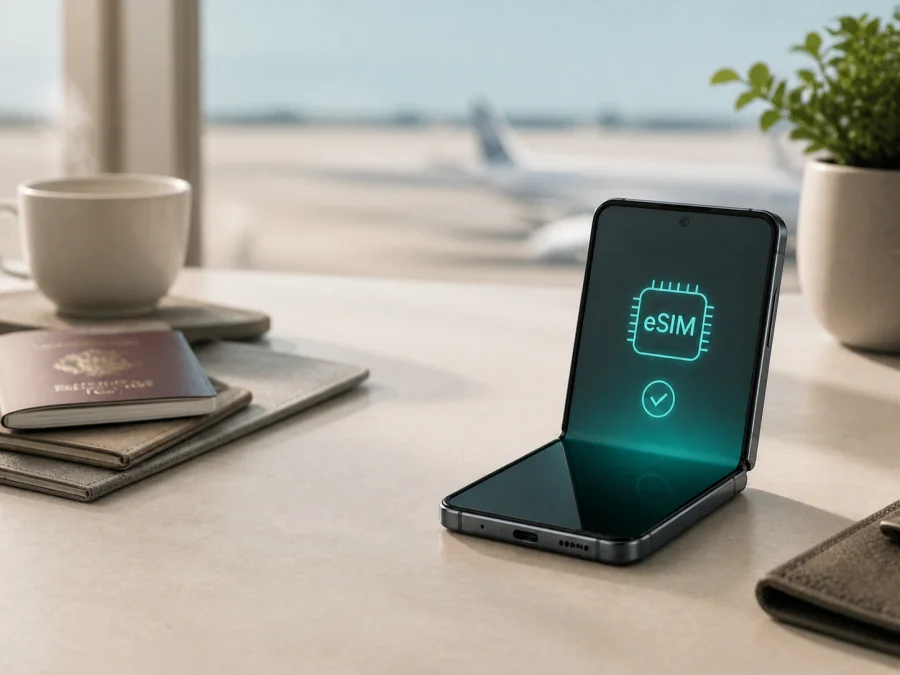
Samsung Galaxy Z Fold2 5G 512GB eSIM: compatibility and setup
If you are planning a trip and want mobile data without replacing your physical SIM card, the Samsung Galaxy Z Fold2 5G 512GB may be suitable for an eSIM travel plan. The storage label alone does not determine eSIM capability. Samsung’s official information for the Galaxy Z Fold2 5G lists one eSIM and one Nano-SIM, and Samsung states that eSIM availability can depend on the software version, country or market, and carrier. The exact phone sold in your region therefore needs to be checked before you purchase a plan.
For this exact device name, the practical answer is: eSIM is supported on compatible Galaxy Z Fold2 5G variants, but not every regional or carrier version described as “Samsung Galaxy Z Fold2 5G 512GB” is guaranteed to expose it. Look for an EID or Add eSIM in settings. If neither appears, confirm the exact model before buying.
At a glance
| Item | What to know |
|---|---|
| Exact device | Samsung Galaxy Z Fold2 5G 512GB |
| eSIM status | Available on supported Galaxy Z Fold2 5G variants; verify the individual phone |
| Physical SIM | Nano-SIM is listed alongside the eSIM on supported variants |
| Storage | 512GB is part of the requested device name; it does not by itself prove eSIM availability |
| Main checks | EID, Add eSIM in SIM manager, exact model number, carrier lock, software version |
| Before purchase | Confirm the phone is unlocked and the plan covers the destination and validity period |
What eSIM changes for a trip
An eSIM is a digital SIM profile built into the phone. You can install a compatible profile using a QR code or another activation method supplied after choosing a plan. On a supported Galaxy Z Fold2 5G, it can sit alongside the Nano-SIM, so you can keep your usual number available while using the travel profile for mobile data.
You can normally keep the physical SIM selected for calls or messages and choose the travel eSIM as the mobile-data line. The exact combination depends on the phone variant, software and network. Unless a plan says otherwise, a travel eSIM is for mobile internet rather than a normal phone number, voice calling or SMS.
Does Samsung Galaxy Z Fold2 5G 512GB support eSIM?
The hardware family is eSIM-capable in supported versions. Samsung’s official Galaxy Z Fold2 5G product information describes one eSIM and one Nano-SIM, and Samsung support includes the Galaxy Z Fold2 among Galaxy devices that support eSIM. This confirms that the function exists for the family; it is not an assumption based only on the phone’s age or 5G label.
Verify the individual phone for three reasons:
- Market and region. Model codes and network configurations differ by country, so a feature documented for one market may be unavailable in another.
- Carrier version. A carrier-sold or customised phone can have different eSIM provisioning rules or restrict which plans can be added.
- Software version. Samsung notes that eSIM availability may vary with software. A missing menu can indicate regional firmware or a carrier restriction, not simply a bad QR code.
The “512GB” part of the name remains part of your purchase check, but it is not an eSIM identifier. Storage is not the model code, CSC or carrier configuration. Request the exact model number when it is absent from a listing, compare it with the phone, and take extra care with imported devices.
What to check on the eSIM plan
After the phone passes its device check, compare plans with the trip in mind. Select the destination or region, then read the allowance, validity, start conditions, supported networks and hotspot limits. A regional plan may suit a multi-country itinerary, while a country plan may be enough for one destination. Choose based on the route and expected data use.
Make sure the plan is intended for mobile data if that is your goal. Many travel eSIMs do not include a regular number, incoming SMS or conventional voice service. You can keep your physical SIM for important calls or one-time codes, but check its roaming settings and charges with your normal carrier. Internet messaging and calling apps may work over the travel data connection when their own requirements are met.
Check the activation window too. Some plans begin when the eSIM connects to a supported network; others may begin at installation. Keep the QR code accessible, but do not scan it repeatedly: an activation code may be limited to one installation, and deleting a profile can make reinstallation difficult.
Compatibility check before purchase
<a id="kesim-device-compatibility"></a>
The device check is especially important for this listing because “512GB” describes storage, not the modem or regional firmware. Before you treat the model name as proof, compare the phone’s model number with the seller’s record, identify the original market, and confirm whether the software exposes the eSIM controls. If a seller only repeats the storage description, ask for a settings screenshot showing the model number and EID instead.
If the phone has been repaired, refurbished or imported, perform the check again after any reset or software change. A physical Nano-SIM slot, 5G signal or dual-SIM label does not replace the EID check. The goal is to establish that this individual phone can download an eSIM profile and that your chosen plan can be provisioned on it.
Use this checklist before you choose a plan. Check your device first, then confirm the travel details.
- [ ] The About phone screen identifies the expected Samsung Galaxy Z Fold2 5G variant, and its model number matches the seller’s information.
- [ ] An EID is visible in device information or SIM manager. An EID is the identifier associated with the embedded SIM and is a strong sign that eSIM is available.
- [ ] Settings includes Add eSIM, Add mobile plan or similarly named control under SIM manager. Menu wording can differ after updates.
- [ ] The phone is not locked to a carrier, or the carrier has confirmed that another eSIM profile can be used.
- [ ] The phone can connect to Wi-Fi during installation.
- [ ] The plan covers every country or region on your route.
- [ ] You know when validity starts and what happens if you install before departure. Installation and activation can be separate events.
- [ ] The allowance suits your use of maps, messaging, work tools, video and hotspot features.
How to find the EID
Menu names vary slightly by One UI release. Start with Settings, open About phone, and look for Status information, SIM card status or EID. You can also open Settings > Connections > SIM manager and look for the option to add a mobile plan or eSIM. On some builds, dialling *#06# opens device identifiers, but the code screen is not available on every phone. Use the settings route first and avoid sharing the EID publicly.
An EID indicates that the phone has an embedded-SIM identifier, but it does not guarantee that every travel plan or carrier will provision it. Carrier lock, local network compatibility and plan conditions still matter. If the EID and Add eSIM controls are absent, pause the purchase and confirm the exact model code and regional firmware with Samsung, the seller or the carrier.
How to install an eSIM on Samsung Galaxy Z Fold2 5G 512GB
Charge the phone, connect to reliable Wi-Fi, keep the QR code on another screen, and confirm the destination plan. If you install at home, you may be able to leave the travel line disabled until needed; the plan’s activation rules take priority.
1. Confirm compatibility
Confirm that EID or Add eSIM is present. If the option is missing, resolve the model or regional question first.
2. Open SIM manager
Go to Settings > Connections > SIM manager and select Add eSIM or Add mobile plan. Look for the control that adds a plan without a physical card.
3. Scan the activation QR code
Choose the QR-code option and scan the code supplied with your order. Hold the other screen steady and keep the full code inside the frame. If it is on the same phone, use manual activation or another device if the plan allows it.
4. Download the plan
Review the plan name and destination, approve the download, and keep Wi-Fi active while the profile is added. Do not restart repeatedly if it pauses.
5. Name the eSIM
Give the new line a label such as Travel data or the destination name so it is easy to identify beside the physical SIM.
6. Choose default lines
When Android asks which line to use, select your preferred line for calls and messages and the travel eSIM for mobile data when ready. You can change this later in SIM manager.
7. Set data controls
Open the travel eSIM settings and enable the line when needed. If required, enable data roaming for that eSIM only; keep it disabled on your everyday line to avoid unintended charges.
For a detailed Android walkthrough, see the Android eSIM installation instructions. If you are helping someone with an iPhone, the iOS eSIM installation instructions use a different menu flow.
Activation and first connection
Installation places the profile on the device; activation and data use depend on the plan and local network. At your destination, enable the travel eSIM, set it as the data line and wait for registration, which may take several minutes. If the plan activates on connection, do not enable it early unless that timing suits you. In Settings > Connections > Mobile networks or SIM manager, confirm mobile data, required roaming and airplane mode. If a network appears but apps do not load, test a browser and recheck the plan’s APN instructions before deleting the eSIM.
Keep the physical SIM active only if you understand which line handles data and which line may incur roaming fees.
Using the eSIM while travelling
Before takeoff, save the order details, verify that the profile has installed, and decide whether it should remain disabled until arrival. If the plan allows, install at home over Wi-Fi, leave the line off, then enable it at the destination as the data line.
For a single-country trip, use the travel eSIM for data and your normal SIM for calls or messages if needed. On a multi-country route, confirm coverage for the next country before crossing a border. A partner network may take time to select; signal bars do not show remaining data or validity.
Use the travel line for navigation, ride-hailing, translation, reservations and work messages. Video calls, backups, uploads and streaming consume data quickly, so review Android data-usage controls. Check plan and network support before using a hotspot.
Troubleshooting: common problems
Add eSIM is missing
Check Settings > About phone for the model code and EID, then check for updates. If no EID or eSIM control appears, the phone may be a regional or carrier version without the feature. Contact the seller or carrier with the model code.
The QR code will not scan or the profile will not download
Increase the other screen’s brightness, clean the lens, and keep the full code visible. Use manual activation details only as described in the plan instructions. Reconnect to stable Wi-Fi, verify the details and check that the phone is not carrier-locked. A carrier or region error may indicate plan eligibility rather than a handset fault. A used QR code may not be reusable, so do not delete a partially installed profile until support advises it.
The eSIM is installed but there is no service
Check that the eSIM is on, selected for data and allowed to use roaming when required. Toggle airplane mode or restart once. Confirm country coverage and validity, and return network selection to automatic unless instructed otherwise.
Signal bars appear but there is no internet
Confirm the mobile-data toggle and selected data SIM. Check the APN only against the plan’s instructions and temporarily disable data on the everyday SIM. If it still fails, check your Kaspersky eSIM Store profile and contact support with the order and error details.
The phone uses the wrong line or you want to move the eSIM
Open SIM manager and set the travel eSIM as the preferred data line. Review automatic data switching and keep normal-SIM roaming off when appropriate. Do not delete the profile to test another phone: transfer depends on the plan conditions, and the 512GB label does not make a profile transferable.
FAQ
Is the exact Samsung Galaxy Z Fold2 5G 512GB guaranteed to support eSIM?
No storage label can guarantee it. Samsung identifies eSIM support for the Galaxy Z Fold2 5G family, but availability depends on software, market and carrier. Confirm EID and Add eSIM before buying.
Does a travel eSIM replace my phone number?
Usually not. A mobile-data plan may not include a standard number, voice calls or SMS. Keep your regular line for those services and use internet-based apps over travel data.
Final check before your trip
Before purchasing, verify the exact Samsung Galaxy Z Fold2 5G 512GB in your hand: note its model code, find the EID, and confirm that SIM manager offers Add eSIM. Then confirm that the phone is unlocked, the software exposes the feature on that regional version, and the plan covers your route. After installation, choose the travel eSIM for data, apply roaming only where required, and test a small amount of traffic.
Once those checks pass, Kaspersky eSIM Store can help you choose, arrange and activate an eSIM with a suitable mobile-data plan for your foreign trip through the app or site. Compare destination, allowance and validity, control your physical SIM settings, and make the purchase decision after the device check—not simply from the model name or 512GB storage description.


