Travel connectivity guide
Samsung Galaxy Z Fold2 5G 8GB RAM eSIM Guide
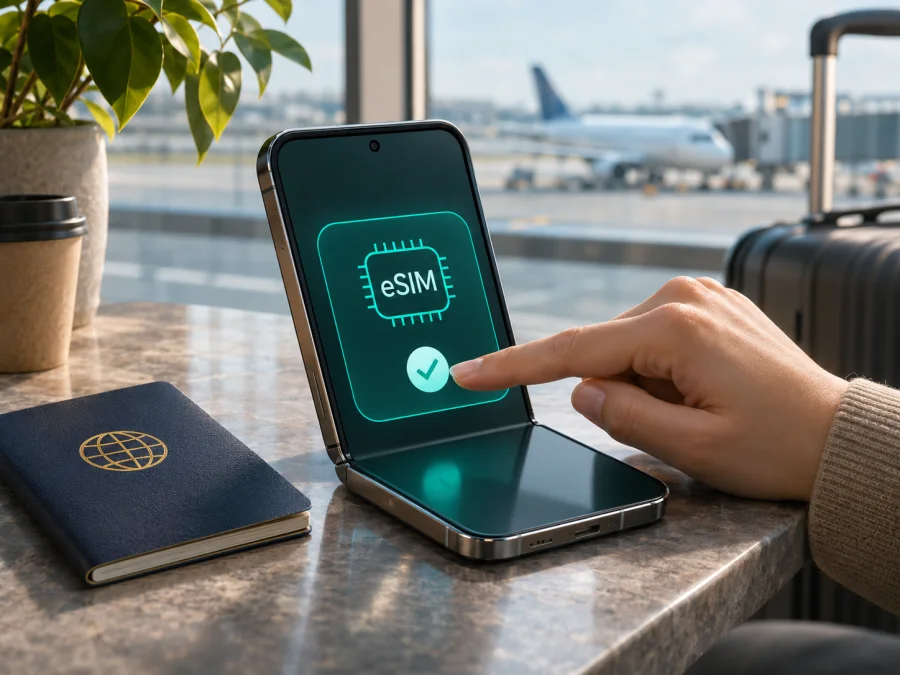
Samsung Galaxy Z Fold2 5G 8GB RAM eSIM: compatibility and setup
The short answer is conditional: Samsung’s current Galaxy eSIM compatibility guidance includes Galaxy Z Fold2, and Samsung specifications for several regional Fold2 5G models show an embedded SIM option. However, eSIM availability can vary by the phone’s country of origin, exact model code, carrier customization and software. There is a second detail to check: the specific “8GB RAM” configuration in this search name could not be confirmed in Samsung’s model records. Samsung’s published Fold2 5G specifications for the versions checked list 12GB RAM. Keep the exact name when identifying your device, but use its model number and the checks below to establish what hardware you actually have.
If the phone has an EID and Settings offers Add eSIM, it is equipped to add an eSIM profile. If either check is missing, do not assume that an eSIM plan will work just because another Galaxy Z Fold2 5G variant supports it. Confirm the model and regional software with Samsung or the seller before paying for a plan.
Does Samsung Galaxy Z Fold2 5G 8GB RAM support eSIM?
Samsung lists Galaxy Z Fold2 among Galaxy devices with eSIM support in its current support guidance, and device specifications for some Fold2 5G variants identify “SIM 1 + Embedded SIM.” That is evidence that eSIM is available on supported Fold2 versions. It is not a guarantee for every handset sold under a similar retail name. Samsung also cautions that a listed device may not support eSIM in every country of origin, and that the available screens can differ by model, software version and wireless provider.
The wording “Samsung Galaxy Z Fold2 5G 8GB RAM” therefore needs a little care. Samsung’s official product and support specifications reviewed for Fold2 5G show 12GB RAM on the documented versions, not 8GB. The 8GB label might reflect a seller’s listing, a memory display that includes virtual RAM, a different device, or an error; available evidence does not establish which. Do not infer eSIM support or the true RAM amount from a marketplace title. Check Settings → About phone for the model name and model number, then compare that code with Samsung’s regional specifications. If the physical phone or seller cannot provide a matching model code, treat its exact variant as unverified.
| Check | What can be confirmed | What still depends on your phone |
|---|---|---|
| Device family | Samsung’s current compatibility pages include Galaxy Z Fold2. | A family listing does not confirm every imported or carrier-specific unit. |
| Embedded SIM | Samsung specifications for some Galaxy Z Fold2 5G regional versions list an embedded SIM. | The exact model code, sales region, firmware and carrier build matter. |
| “8GB RAM” label | Samsung specifications checked for Fold2 5G list 12GB RAM. | The 8GB variant name has not been verified; inspect the device and seller documentation. |
| 5G | The device family was sold as a 5G model. | Supported 5G bands and network access vary by regional variant and destination carrier. |
| Travel eSIM | It may be usable if the phone exposes eSIM functions and is unlocked. | Confirm EID, Add eSIM, network compatibility and plan conditions before purchase. |
Regional and carrier versions
A phone’s marketing name does not always identify its cellular configuration. Samsung has sold Fold2 versions for different regions and carriers. Hardware support, available cellular bands, SIM tray configuration, eSIM software and carrier restrictions can differ. Some carrier-branded phones may also be locked to their original network. An eSIM feature can be present while a particular plan cannot be installed or used because of a carrier restriction, an unsupported destination network, or the device’s lock status.
Software matters as well. A model may have received eSIM functionality through a regional firmware release or later software update, while another build with the same broad family name may not show it. A menu can also be hidden or unavailable when carrier software disables the feature. Do not install unofficial firmware to make an eSIM option appear: that can affect security, reliability and service eligibility. Ask Samsung support or the original carrier about the exact model code and current software build if the checks below disagree.
Check compatibility before buying
Use the actual phone rather than relying only on a product listing. Complete each check while connected to Wi‑Fi or another reliable internet connection:
- [ ] Open Settings → About phone and note the model name and model number. Preserve the full code, including letters that identify a region or carrier.
- [ ] Open Settings → About phone → Status information and look for an EID. Menu wording may differ by One UI version. You can also dial
*#06#; on compatible software, the device information screen may show an EID alongside other identifiers. - [ ] Open Settings → Connections → SIM manager and look for Add eSIM. On some software versions the label may differ, such as adding a mobile plan.
- [ ] Check whether the phone is network-unlocked. Ask the carrier that supplied it if you are unsure; an eSIM menu alone does not prove that the handset is unlocked.
- [ ] Match the model number against Samsung’s specification page for the phone’s actual sales region. In Samsung’s device specification pages, look for an embedded SIM entry under SIM or Network/Bearer details.
- [ ] Confirm that the intended travel plan covers your destination and supports mobile data on your device. Read its validity, activation and roaming requirements.
An EID is a unique identifier associated with an eSIM-capable device. Seeing it is a strong practical indication that the handset has an eSIM component, but the number alone does not prove that your carrier has enabled it or that the phone is unlocked. Conversely, if there is no EID and no Add eSIM control after checking the software and model code, pause before purchase and get the specific phone verified. You can also check your device before choosing an eSIM plan.
Using an eSIM on a Fold2 for a trip
A travel eSIM is useful when you need mobile data for maps, messaging, bookings, translation, work and transport after arrival. It does not automatically replace your usual phone line. A data-only plan may not include a regular phone number, standard voice calls or SMS unless its own terms explicitly say otherwise. You can generally keep a physical SIM active for calls or texts and select the eSIM for mobile data, subject to the phone’s dual-SIM behavior and local carrier rules.
Before selecting a plan, check the country or regional coverage, the amount of data, validity period, supported network access, when the validity clock begins, and whether data roaming must be enabled for the eSIM. If your journey crosses borders, confirm that the plan covers each stop rather than assuming a single-country plan will roam throughout the route. Also consider how you use data: navigation and messaging are relatively light compared with video calls, cloud photo uploads, hotspot use or streaming.
Kaspersky eSIM Store is an app and website where you can choose, arrange and activate an eSIM with a suitable mobile data plan for an international trip. It is not a mobile operator or network owner. Before choosing a plan, confirm that your particular Fold2 has EID and Add eSIM, is unlocked, and meets the plan’s device and destination conditions. You can browse current destinations and plan details on the Kaspersky eSIM Store website; that page is a general place to check current options, not a guarantee of a specific country tariff.
Install and activate the eSIM
Install the profile when you have reliable Wi‑Fi, enough battery and the QR code or manual activation details provided after your plan order. Keep the QR code available on another screen or printed page if you intend to scan it with the phone. A QR code is usually intended for one installation; do not delete an installed profile or scan it repeatedly unless the plan instructions say that you can reinstall it.
- Check the phone first. Confirm that EID and Add eSIM appear, and that the device is not carrier-locked. Update through the normal software updater if an update is available, then check the menu again.
- Open the SIM settings. On the Fold2, go to Settings → Connections → SIM manager. Choose Add eSIM. The exact wording may vary with software and carrier version.
- Choose the installation method. Select Scan QR code and scan the code supplied for your eSIM. If QR installation is unavailable, use manual activation details only when the plan’s instructions offer that method.
- Review and add the plan. Follow the on-screen prompts to download and install the profile. Keep the internet connection active and do not close the setup flow while the profile is being downloaded.
- Name the profile. Give it a clear label such as “Travel data” so you can distinguish it from your primary SIM. Labels help with selection but do not change the plan itself.
- Choose when to enable it. If you want to avoid using the plan before the trip, leave it switched off until the plan’s activation rules and your travel timing are clear. Installation and plan activation are not always the same event; read the plan terms to learn what starts the validity period.
- Set the data line. In SIM manager, enable the eSIM when you are ready and select it for Mobile data. Keep your home line enabled only if you need it and understand any roaming charges from that carrier.
- Configure roaming if required. When you reach the destination, open Settings → Connections → Mobile networks and enable Data roaming for the travel eSIM if its instructions require it. Roaming on the eSIM is distinct from allowing your primary line to roam; verify which profile is selected.
- Allow the phone to register. Give the device a few minutes to connect. If it does not, follow the plan’s APN and network-selection instructions. Restarting once can help the phone apply a newly installed profile.
For more detail, see the Android eSIM installation instructions. The iOS eSIM installation instructions are for Apple devices and do not describe Fold2 menus; they are included for readers who may be setting up a second device for the same trip. Use the activation details and APN shown for your own plan rather than copying settings from another eSIM.
Practical travel setups
A multi-country itinerary. Make a list of every country and territory on the route. Check the plan’s coverage for each one and compare a regional option with separate destination options if both are available. Do not assume that a plan covering a neighboring country also covers an airport transit or island stop. For each plan, note when activation starts and whether it needs manual network selection.
A work trip with a home SIM. Decide which line should handle mobile data and which should handle calls or SMS. If you leave your home SIM active, check with that carrier about roaming charges, voicemail and background data. Turn off mobile data switching if your software offers it and you want to prevent the phone from changing data lines automatically. Messaging apps can use the eSIM’s data connection, but a data-only eSIM does not create a conventional phone number.
Troubleshooting: when setup or data does not work
There is no EID or Add eSIM option
Recheck the exact model number and country of origin. Search for the embedded SIM entry in Samsung’s regional specifications and ask Samsung or the original carrier whether eSIM is available on that model’s current software. Install an official update if one is offered, restart and check SIM manager again. If the option remains absent, treat that handset as not confirmed for eSIM and do not purchase a plan on the assumption that the family name guarantees support.
The QR code will not scan or the profile will not download
Increase screen brightness on the device showing the QR code, clean the Fold2 camera lens and hold the phone steady. Confirm that the QR code belongs to the plan and has not already been used. Check Wi‑Fi and try manual entry only if the plan instructions provide an activation code. If the profile reports that it is already installed, ask plan support before deleting anything; QR codes may have limited installation attempts.
The eSIM is installed but there is no service
In SIM manager, confirm that the travel profile is switched on and that the eSIM—not the physical SIM—is selected for mobile data. Check that you are in a destination included in the plan and that the plan is within its validity period. Turn airplane mode on briefly and off, then restart if needed. If the phone remains disconnected, choose automatic network selection first; use manual selection only if the plan instructions identify a supported network. Check whether data roaming is required for the travel profile.
The phone connects but apps cannot reach the internet
Confirm that mobile data is enabled and assigned to the eSIM. If the plan requires an APN, enter it exactly as supplied and save it before selecting it. Check for a data limit or low-data mode that might pause use. Do not invent an APN value based on another provider’s instructions.
Data is using the wrong SIM or roaming costs appear
Return to SIM manager and review the default data line and automatic data switching setting. If you do not need mobile service from the home SIM, switch that line off while travelling; this can also prevent incoming calls or SMS on that line. If you keep it enabled, check roaming charges with your home carrier. A travel eSIM’s roaming setting does not control charges from a separate physical SIM.
The listing says 8GB RAM but the phone shows something else
Compare Settings → About phone with the model code on the box, receipt or device label, and check Samsung’s specification for that exact regional code. Do not treat a memory expansion feature or seller description as proof of physical RAM. Since the official Fold2 5G records checked list 12GB RAM, an 8GB listing needs independent confirmation. This discrepancy does not by itself prove that eSIM is absent, but it makes model identification especially important.
If the phone continues to show an error, note the model code, software version, EID status and exact message. Contact Samsung or the original carrier for device and lock questions, and plan support for QR or activation issues. Do not share the full EID publicly.
Frequently asked questions
Does Samsung Galaxy Z Fold2 5G 8GB RAM definitely support eSIM?
Not as an exact 8GB configuration based on the available official model records. Samsung’s current compatibility guidance includes Galaxy Z Fold2, and specifications for some Fold2 5G versions list an embedded SIM, but the documented Fold2 5G models reviewed show 12GB RAM. Verify your phone’s model code, EID and Add eSIM menu before relying on eSIM support.
Is the eSIM feature available on every regional Galaxy Z Fold2?
No universal guarantee applies. Samsung notes that eSIM availability can depend on the device’s country of origin. Regional hardware, carrier software, firmware and network locks can also affect the available options. Check the phone itself and its exact model code.
How do I find the EID?
On compatible software, open Settings → About phone → Status information and look for EID. You can also try *#06# in the phone dialer. Menu paths and displayed fields vary. If neither route shows an EID, check SIM manager and Samsung’s specifications for the exact model before concluding that the device supports eSIM.
Does a travel eSIM include calls and text messages?
Not necessarily. A data-only plan generally provides mobile data rather than a regular phone number, conventional calls or SMS. Review the selected plan’s terms. Internet-based messaging and voice apps can work over data, subject to the app and destination network.
Should I install the eSIM before travelling?
You can install it in advance if you have stable internet, but check when the plan’s validity begins. Some plans start when installed, while others begin on first network connection or another defined event. If activation timing is unclear, consult the plan instructions before installation and avoid deleting a profile once added.
Before you choose an eSIM for your trip
For Samsung Galaxy Z Fold2 5G 8GB RAM, the family-level answer is promising but the exact configuration needs verification: Samsung lists Galaxy Z Fold2 as eSIM-capable in current guidance, while regional notes and model records show why the name alone is not enough. The 8GB RAM modifier could not be matched to the official Fold2 5G specifications checked, which list 12GB RAM for documented variants.
Before ordering, confirm the exact model code, EID, Add eSIM option, carrier-unlock status and destination compatibility. Then compare the plan’s coverage, data allowance, validity and activation rules with your itinerary. Kaspersky eSIM Store’s app and website can help you choose, arrange and activate an eSIM plan for mobile data on an international trip once you have confirmed that the device supports it. If any phone-level check fails, ask Samsung or the original carrier to identify your specific version before selecting a plan.


