Travel connectivity guide
Samsung Galaxy Z Fold2 5G eSIM Guide
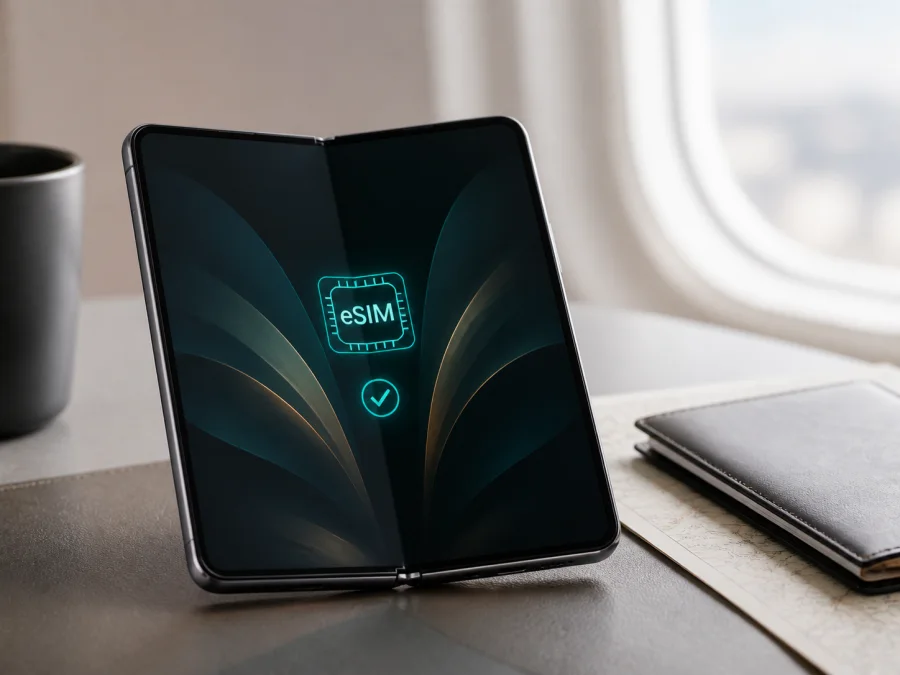
Samsung Galaxy Z Fold2 5G eSIM: compatibility, setup, and travel use
Yes, the Samsung Galaxy Z Fold2 5G can support eSIM. Samsung’s official product information describes one embedded SIM and one nano-SIM, but also says that eSIM availability can vary by software version, country, and carrier. This model family therefore has eSIM capability without guaranteeing that every regional or carrier version exposes the function.
This page is specifically about Samsung Galaxy Z Fold2 5G, not another Z-series model or storage-specific variant. The 5G label describes network capability; it does not prove that eSIM is enabled on an individual phone. Check the phone itself before buying a travel tariff.
What eSIM does on Samsung Galaxy Z Fold2 5G
An eSIM is a digital SIM profile stored in the phone. Instead of inserting another plastic card, you download a mobile plan, commonly by scanning a QR code. This can leave the nano-SIM available for your usual number while the eSIM handles travel data, when the phone version and service allow it.
The eSIM profile is not the same thing as the tariff. A plan can be restricted by destination, validity, data amount, activation rules, or carrier policy, so check both the device and tariff.
Compatibility facts
| Item | What applies |
|---|---|
| Exact device | Samsung Galaxy Z Fold2 5G |
| Embedded SIM | Samsung documents one eSIM in the supported dual-SIM arrangement |
| Physical SIM | One nano-SIM can be used with the eSIM where the regional version permits it |
| Network label | 5G; actual bands, speed, and coverage depend on the local network and tariff |
| Software interface | Android with Samsung One UI; names can change after updates |
| Decisive checks | An EID and an Add eSIM/Add mobile plan control on the actual phone |
| Purchase rule | Confirm compatibility before paying for a travel eSIM |
Why eSIM availability differs by region and carrier
The same family may be sold as an international unlocked phone, a country-specific version, or a carrier-branded unit. Samsung explicitly warns that eSIM availability may vary with software version, country, and carrier. On an older phone, the current firmware, sales region, and carrier policy may all affect the menu.
Look for these possible differences:
- Regional configuration: an international version may show eSIM controls while a similar-looking unit from another market does not.
- Carrier policy: a carrier version may be SIM-locked, require carrier approval, or restrict which mobile plans can be added. “Unlocked” is helpful but still does not replace the device checks.
- Software build: Samsung’s wording may appear as Add eSIM, Add mobile plan, or a similar option. A missing option can indicate firmware or regional availability, not a QR-code problem.
- Service rules: a travel eSIM may be data-only, limited to listed destinations, or limited to one installation. The phone’s capability cannot override those rules.
Do not rely on a product photo, marketplace title, or another owner’s experience. Ask for the exact model and market, confirm that it is not carrier-locked, and inspect the settings. If the seller cannot show an EID or add-eSIM control, treat it as unverified.
Check compatibility before purchase
Use this checklist on the actual Samsung Galaxy Z Fold2 5G:
- [ ] Open Settings > About phone > Status information (or a similarly named status page) and look for an EID.
- [ ] Open Settings > Connections > SIM card manager and look for Add eSIM, Add mobile plan, or an equivalent control.
- [ ] Confirm the phone is not locked to a carrier that rejects the intended service.
- [ ] Check that the software is updated and the phone can connect to Wi-Fi.
- [ ] Confirm that the tariff covers every destination on the itinerary.
- [ ] Read the data amount, validity, activation, hotspot, voice, SMS, and refund conditions.
- [ ] Decide whether the regular nano-SIM should remain active for calls or messages.
The EID is a long embedded-SIM identifier, not the IMEI, phone number, or QR activation code. Keep it private. If the EID is present but the add option is absent, ask Samsung or the carrier about regional firmware. If neither is present, pause.
This check matters because a model-family specification cannot override an individual phone’s regional firmware or carrier policy. Confirm the screen and EID before committing money to a tariff.
An imported or used phone deserves extra care: its original sales market may not match your current country, and a carrier policy may remain after a reset. Confirm the EID and menu on the phone in hand, not only in a listing. For a quick final check, check your device for eSIM compatibility. Do this before selecting a tariff: a model-family specification cannot override the configuration of your individual phone.
Prepare for installation
Install before departure when possible, with reliable Wi-Fi and the QR code on another screen. If it is displayed on the phone, use manual activation if the provider supplies it.
- Charge the phone and connect it to stable Wi-Fi for the download.
- Install pending official software updates and note your current nano-SIM defaults.
- Check when the tariff starts: installation may start validity for some plans, while others start when the eSIM first registers in the destination.
- Keep the physical SIM installed if you need your usual number or account verification.
- Do not delete an existing eSIM just to test compatibility.
Samsung’s model-specific path is Settings > Connections > SIM card manager > Add mobile plan. Newer One UI versions may say Add eSIM. For additional walkthroughs, see the Android eSIM installation instructions and the iOS eSIM installation instructions. The iOS steps are for Apple devices; the Samsung phone uses the Android path.
Step-by-step installation and activation
1. Open SIM card manager
Open Settings, tap Connections, and select SIM card manager. Choose Add eSIM or Add mobile plan. If you cannot find it, use Settings search for “eSIM,” “SIM manager,” or “mobile plan,” then confirm that the result provides an actual add or download action.
2. Scan the activation code
Choose Add using QR code or Scan QR code and allow camera access if requested. Show the complete code without glare or cropping. Samsung’s documented sequence is Settings > Connections > SIM card manager > Add mobile plan > Add using QR code. If the service supplies an activation code instead, enter it in the manual field. An EID must never be entered where an activation code is requested.
3. Download the profile
Review the destination and plan name, then confirm the download over Wi-Fi. Keep the screen open until the process completes. Do not repeatedly scan a single-use QR code, restart mid-download, or delete the profile after an unclear message. If the phone says the code is expired or already used, contact the relevant support channel.
4. Name the line and choose its role
Give the new line a clear label such as “Travel data.” In SIM card manager, set the travel eSIM as the preferred Mobile data line. Keep your regular nano-SIM selected for calls and messages if you want to receive them on your usual number.
Many travel eSIMs provide mobile internet only. They may not include an ordinary phone number, voice calls, or SMS. Internet calling and messaging apps can work over the data line, subject to their own accounts and settings.
5. Activate at the correct time
Enable the travel eSIM when its activation conditions are satisfied. If you installed it at home, you may be able to leave the line off until arrival; follow the tariff’s rule. At the destination, select the travel line for mobile data and turn on Data roaming for that line if required. Do not switch on roaming for the primary SIM by mistake.
Check the line indicator after every change. If both SIMs are active, Android may ask which one should provide data. Turn off automatic data switching if available, so the phone does not silently use the everyday SIM.
6. Test service
With Wi-Fi off, wait for the travel line to register. Open a simple webpage and confirm that the correct line shows mobile-data activity. A test in the destination is more meaningful than a test at home because many travel profiles are restricted to the countries listed in the tariff. If you test before departure, make sure that doing so will not start the validity period unexpectedly.
Travel scenarios
Everyday number plus travel data
Keep the regular nano-SIM enabled for calls and SMS, but select the travel eSIM for data. This arrangement supports maps, translation, tickets, ride-hailing, messaging, and other apps without requiring a second physical card. Check the primary SIM’s roaming terms if you need it for calls. Watch the selected data line after landing, restarting, and crossing a border.
Multi-country route
Choose a tariff whose country list covers the entire itinerary, or use separate destination options where appropriate. A label such as “regional” does not replace the country list. Before crossing a border, confirm that the active eSIM covers the next destination and that its validity remains active.
Heavy data or hotspot use
The large foldable display is useful for documents and navigation, but streaming, uploads, and video calls consume data quickly. Download maps over Wi-Fi, monitor usage, and check the tariff before using hotspot.
5G on the phone does not guarantee 5G on the travel eSIM. Local coverage, partner networks, bands, congestion, and plan rules determine the connection; 4G/LTE may be more stable.
Troubleshooting
The add-eSIM option is missing. Check the model number, market, and EID. Update and restart the phone. If an EID exists but the menu does not, ask Samsung or the carrier whether the regional firmware enables eSIM. If both are absent, pause the purchase.
The QR code will not scan. Increase screen brightness, remove glare, clean the lens, and keep the whole code in frame. Confirm it is the activation code, not an account or payment code. Use manual activation if supplied and do not share it publicly.
The profile downloads but does not activate. Check Wi-Fi, destination, activation period, and carrier lock. “Expired” or “already used” can mean single-use. Do not delete and reinstall until support confirms it is safe.
The eSIM is on but there is no data. In SIM card manager, select it for mobile data. Enable its data roaming only if the tariff requires it. Check airplane mode, signal, destination coverage, remaining traffic, and any provider-supplied APN. Enter an APN only when the service gives you the exact value; do not invent one.
The wrong SIM is using data. Set the travel eSIM as the data line, disable automatic data switching, and turn off primary-SIM data roaming unless you deliberately need it. Test again with Wi-Fi disabled.
Calls or SMS do not work. A data-only travel eSIM will not replace the phone number on the nano-SIM. Keep the primary line enabled for that number, and use internet calling or messaging apps over the travel connection. Voice and SMS are included only when the tariff says so.
The connection is slow. Check speed or fair-use conditions, move to an open area, toggle airplane mode briefly, and try LTE/4G. If it works in one listed country but not another, contact support with the country and selected line.
FAQ
Does Samsung Galaxy Z Fold2 5G support eSIM?
Samsung lists Samsung Galaxy Z Fold2 5G with one eSIM and one nano-SIM in its supported dual-SIM arrangement. The precise answer for your phone is yes only if its EID and eSIM/mobile-plan control are present and the regional, carrier, and software conditions allow activation.
Can eSIM and nano-SIM work together?
They can where the regional firmware and service permit dual-SIM operation. Assign the everyday number to the nano-SIM and travel data to the eSIM, then review the defaults.
Is 5G required for eSIM?
No. eSIM is a SIM technology; 5G is a network feature. A compatible plan can use 4G/LTE where 5G is unavailable, depending on the local partner network and tariff.
Will a travel eSIM provide a phone number?
Not necessarily. Many are mobile-data products without ordinary voice or SMS. Check the tariff and keep the regular number on the nano-SIM when needed.
Kaspersky eSIM Store for a trip
Kaspersky eSIM Store is an app and website where you can choose, arrange, and activate an eSIM with a suitable tariff for mobile internet during an overseas trip. It helps you review a destination, data amount, validity, and other conditions before preparing the eSIM. It is not a mobile operator, network owner, or provider of mobile internet. Actual service depends on the selected tariff, local operator arrangements, destination network, and compatible phone.
Final device check and trip eSIM
Before purchase and departure, confirm that Samsung Galaxy Z Fold2 5G shows an EID and Add eSIM or Add mobile plan, is not carrier-locked, and has a ready software build. Confirm that the tariff covers every destination and understand its activation, data, roaming, hotspot, voice, SMS, and refund rules. Decide which line handles data.
When every check passes, choose an eSIM tariff in Kaspersky eSIM Store that matches the journey, install it over Wi-Fi, and activate it according to the tariff conditions. If a check fails, pause and verify the exact regional version with Samsung, the carrier, or the seller.


