Travel connectivity guide
Samsung Galaxy Z Fold3 256GB eSIM Compatibility
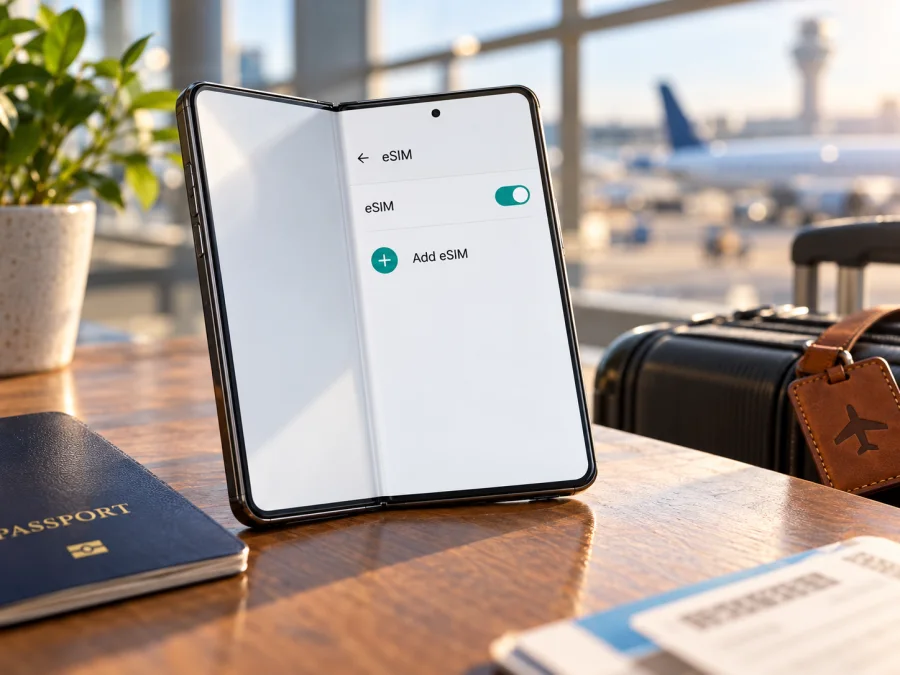
Samsung Galaxy Z Fold3 256GB eSIM: compatibility and setup
Short answer: Samsung lists the Galaxy Z Fold3 family as eSIM-capable, and an official US unlocked specification sheet marks the 256GB-capable model as eSIM capable, subject to carrier functionality. This means eligible Samsung Galaxy Z Fold3 256GB versions support eSIM, but the name and storage size do not confirm support on every individual phone. Country of origin, exact model code, carrier configuration and software matter. Check the phone for an EID or an Add eSIM option before choosing a travel plan; if neither is present, confirm the exact variant with Samsung or the seller.
| Check | What to know |
|---|---|
| Device | Samsung Galaxy Z Fold3 256GB |
| Family support | Samsung lists Galaxy Z Fold3; an unlocked US sheet marks eSIM capability subject to carrier functionality. |
| Regional qualification | Samsung says country of origin can affect eSIM availability. |
| Storage | 256GB alone does not confirm eSIM support. |
| On-device check | Look for an EID or Settings → Connections → SIM manager → Add eSIM. |
| Before purchase | Confirm support, unlock status, destination coverage and plan terms. |
Does the Samsung Galaxy Z Fold3 256GB support eSIM?
The strongest answer supported by Samsung’s public information is: the Galaxy Z Fold3 model family supports eSIM in compatible regional and carrier configurations. Samsung’s supported Galaxy eSIM list includes Z Fold3. Its US unlocked product sheet includes 256GB among the storage options and says “eSIM capable,” while qualifying that functionality depends on the carrier. Samsung’s regional support guidance separately cautions that the country of origin can affect eSIM availability.
Those statements establish that eSIM exists on eligible Galaxy Z Fold3 versions; they do not certify an unidentified individual handset. The supplied name, Samsung Galaxy Z Fold3 256GB, does not include the full model code (often shown as an SM-F926… string), the market of sale, or carrier history. It is therefore not possible to infer from “256GB” alone that your phone has an active eSIM feature. This matters especially for a used or imported device: two phones with the same model family and storage capacity may show different SIM options.
Nor should “eSIM capable” be read as a promise that a particular plan will work everywhere. There are three separate checks: the handset must expose eSIM and be unlocked; the plan must support the phone’s regional configuration; and a compatible partner network must be available at your destination. The phone’s 5G capability, where present, is not proof of eSIM support or of 5G availability on a travel plan. Network generation and eSIM provisioning are separate questions.
Samsung’s setup route for supported Galaxy phones is generally Settings → Connections → SIM manager → Add eSIM. If your software offers that control, it is useful evidence that eSIM is enabled on this device. If you cannot find it, first verify the model code and install available official software updates. Then check with Samsung support or the seller for the country version. Do not buy a plan on the assumption that another person’s Fold3, or a general model-family list, settles your handset’s compatibility.
Regional and operator versions: why they matter
A product name describes a family, not every implementation sold worldwide. Samsung says country of origin can affect eSIM availability. A carrier may also configure a phone for its network or lock it to its service. So an eSIM-capable family can include individual phones that cannot add a travel profile.
Open Settings → About phone and note the complete model code, including its suffix. Compare it with the box or purchase record if available. If the phone came from an operator, ask that operator whether it is unlocked and accepts profiles from other providers. A seller’s general statement that “Fold3 supports eSIM” is less useful than confirmation for your exact code and original market.
An operator lock and eSIM capability are separate: an unlocked phone may still be a regional version without eSIM, while an eSIM-capable phone may reject another provider’s profile if locked. Changing language or region does not add eSIM support, and a factory reset does not remove a network lock. Install official updates, restart, and recheck SIM Manager; if the option remains absent, confirm the exact variant with Samsung or the seller.
Check compatibility before you choose a plan
Use the following checklist on the actual Samsung Galaxy Z Fold3 256GB that will travel with you. If you are buying the phone second-hand, ask the seller to show the relevant settings before payment. Do not share the EID publicly; it is a device identifier, not a compatibility code to post in a forum.
- [ ] Find the model number. Open Settings → About phone and record the complete model code, including letters after the main number.
- [ ] Look for an EID. In About phone or Status information, check for an EID (embedded identity document). Menu placement varies. Its presence indicates that the device has an eSIM identity, but you should still verify that SIM Manager lets you add a profile.
- [ ] Open SIM Manager. Go to Settings → Connections → SIM manager. Look for Add eSIM, Add mobile plan, or a similarly named control. On some software versions, menus differ. A physical SIM tray by itself tells you nothing conclusive about eSIM.
- [ ] Check carrier unlock status. Contact the original operator or use its official unlock check. A SIM or eSIM lock may prevent a travel profile from activating.
- [ ] Check the software. Install official updates over a trusted internet connection, restart, then look again. Do not use unofficial firmware to add a feature.
- [ ] Confirm the travel plan’s requirements. Check eligible countries, data allowance, validity period, activation timing, tethering rules if relevant, and whether activation requires a supported network connection.
- [ ] Keep the source of the plan available. You may need Wi-Fi to download the profile. Keep the confirmation email or in-app instructions until the line is working.
Check whether your phone is compatible before you select a plan. This check is particularly important when the precise regional SKU is unknown, when the phone came from an operator, or when it was imported. A successful eSIM installation is not the same as a guarantee of coverage at every location; the destination plan and local network conditions matter too.
Find the EID or Add eSIM option
The EID is an identifier for the embedded SIM. Look under Settings → About phone → Status information or SIM Manager; placement varies. You can also try *#06# in the dialler. Some Galaxy software shows the EID there, while some does not, so check Settings as well.
For an enabled eSIM feature, look under Settings → Connections → SIM manager → Add eSIM. Menu labels may differ. The option is practical evidence that you can add a profile, but still verify unlock status and plan compatibility. If it is missing, update official software, restart, and ask Samsung or the original operator about the country-specific model code. A QR code cannot make an unavailable menu appear.
Choosing a travel eSIM plan
A travel eSIM is a digital profile for using a mobile-data plan in a destination. Match the plan’s coverage list to every country on your route, then compare allowance and validity with your expected use. Navigation, messaging and occasional browsing need less data than frequent video, large downloads or hotspot use. Read when validity begins: installation, first connection or a stated activation time can each apply.
Check whether the plan is data-only. A travel eSIM does not necessarily include a standard number, voice calls or SMS; use internet messaging apps over data when suitable. Kaspersky eSIM Store is an app and website where you can choose, arrange and activate an eSIM with a mobile-data plan for an international trip. It is not a mobile operator or network owner. For a general starting point, browse destinations and check current plans; this homepage is for checking options, not a specific country tariff.
How to install eSIM on the Samsung Galaxy Z Fold3 256GB
Connect to reliable Wi-Fi, charge the phone, and have the plan’s QR code or activation details ready. Check whether the plan says to install before departure or wait until arrival. Menu wording can vary by One UI version. See How to Install Your eSIM on Android for a Samsung-specific walkthrough; How to Install Your eSIM on iOS covers a separate iPhone workflow.
- Confirm compatibility and unlock status. Make sure Add eSIM appears and another provider’s profile is not blocked.
- Connect to Wi-Fi. Keep the QR code accessible on another screen or in printed form.
- Open SIM Manager. Go to Settings → Connections → SIM manager.
- Add the profile. Tap Add eSIM and choose the QR-code option. If the control is missing, stop and verify the regional variant.
- Scan or enter details. Use only the code or manual details provided with your plan. Do not share activation codes.
- Follow on-screen prompts. Wait for download to finish; installation may not mean the profile is already active.
- Label and enable it as instructed. A “Travel data” label can distinguish it. If validity begins on first connection, leave it off until the plan’s stated activation time when the instructions allow.
If the QR code is on the Fold3 screen, display it on another device. Use manual activation only if offered. Do not repeatedly scan a one-time code after an error; check the instructions or ask support whether it was already used.
Activate the profile and use it for mobile data
Installation downloads the profile; activation may happen when you switch it on, when it first connects, or at a time specified by the plan. Read those terms first. When ready, open Settings → Connections → SIM manager, enable the travel eSIM, and select it under Mobile data or Preferred SIMs. Keep your home SIM on only if needed and check its roaming charges. To avoid using it for data, choose the travel eSIM as the data line and adjust home-line data roaming as appropriate.
Some plans require Data roaming on the travel eSIM because it connects through a partner network. This setting is per SIM. Enable it for the travel profile when instructed; review the home SIM’s roaming settings separately. Start with automatic network selection unless the plan’s instructions say otherwise.
After connection, test a webpage with Wi-Fi briefly turned off and confirm the travel profile is the selected data line. If the plan specifies an APN, enter it exactly as shown in its own details; many profiles configure this automatically. Keep Wi-Fi on until mobile data works.
A practical travel routine
Before leaving: check the model, unlock status, destination coverage and activation terms. If advance installation is allowed, download the profile over Wi-Fi and keep its instructions available.
At arrival: enable the travel eSIM when appropriate, select it for mobile data, and turn on data roaming for that profile if instructed. Allow several minutes for registration. A terminal, underground station or remote location may have limited service.
During the trip: monitor remaining data and validity. Confirm a multi-country plan includes each stop; a plan for one country does not automatically cover its neighbors. Use Wi-Fi for large downloads when convenient.
When you return: switch mobile data back to your preferred line and review roaming settings. Do not delete a profile until you know it can be reinstalled or will not be needed again.
Common problems and checks
There is no Add eSIM option
Check the full model code and EID, install official updates, restart, then reopen SIM Manager. If Add eSIM is still missing, ask Samsung or the original operator about that country version. Storage capacity alone does not establish compatibility. A factory reset will not convert a regional variant or remove a carrier lock.
The QR code will not scan or the download fails
Use a bright, unobstructed QR display, or show it on another screen. Confirm a stable internet connection and that the code belongs to this plan and has not already been used. If it fails, save the exact error and contact the plan’s support team before repeatedly retrying or deleting a profile.
The profile is installed, but there is no service
Confirm the eSIM is enabled and selected for mobile data, the plan is active, and your location is included. Enable data roaming on the travel eSIM if required, try automatic network selection, then toggle airplane mode or restart and allow time to register. Installation can succeed even where there is no usable signal.
The phone connects, but apps do not load
Turn Wi-Fi off briefly to test mobile data. Check the selected data line, remaining allowance and validity. If an APN is required, match it to the plan’s instructions exactly; do not copy values from unrelated sources. Check data limits or saving settings, then contact support if the issue continues.
My home line or hotspot does not work as expected
In SIM Manager, check that the home line is enabled and the travel eSIM is selected for data. Calls and SMS depend on the home operator’s settings and roaming terms; a data-only plan does not add a standard number. Hotspot availability also depends on plan terms. Confirm tethering is allowed and follow any APN instructions before changing other network settings.
Data is being charged to the wrong line
Set the travel eSIM as the mobile-data line and review data-roaming settings for each SIM. Disable roaming on the home line if that matches your needs and operator terms. Check these selections again after software or profile changes.
Frequently asked questions
Does every Samsung Galaxy Z Fold3 256GB support eSIM?
No universal guarantee follows from the name or storage size. Samsung lists the Fold3 family, and an official US unlocked specification lists eSIM capability, but functionality depends on carrier and country of origin. Check the exact phone in SIM Manager and confirm its model code.
Is an EID enough to prove that a travel eSIM will work?
It is a useful sign of eSIM identity, but also look for Add eSIM and check that the phone is unlocked. Then verify the plan’s destination and activation rules; each check covers a different compatibility requirement.
Can I use a physical SIM and eSIM together?
Some Fold3 configurations support dual-SIM use, but combinations vary by region and software. Check SIM Manager on your phone, select the intended data line, and review home-line roaming terms.
Does installing the eSIM start its validity? Does it include calls?
Validity timing depends on the plan: it may begin at installation, first connection or a stated time. Check the plan terms first. Calls, SMS and a standard number are included only when the specific plan says so; internet messaging apps may use data.
What if Add eSIM is missing?
Check the model code, official software version and EID. If the option remains absent, ask Samsung or the original operator whether that market variant supports eSIM, and wait to buy until it is confirmed.
Before you travel: verify the phone, then choose the plan
For the Samsung Galaxy Z Fold3 256GB, Samsung’s public information supports eSIM on eligible Fold3 versions, but regional and carrier differences remain relevant. Confirm the EID or Add eSIM option on your own phone, check that it is unlocked, and verify the exact model code if the menu is missing. Then compare the destination, data allowance, validity and activation rules of the plan you are considering.
Once those checks are complete, browse current destinations and plan details in Kaspersky eSIM Store’s app or website to find an eSIM option for your trip. Review the specific destination terms before you choose, install the profile using the Android instructions, and set the travel eSIM as the mobile-data line when you are ready to use it. Compatibility first, plan details second, activation at the right time: that sequence helps avoid surprises on the journey.


