Travel connectivity guide
Samsung Galaxy Z Fold3 512GB eSIM Compatibility
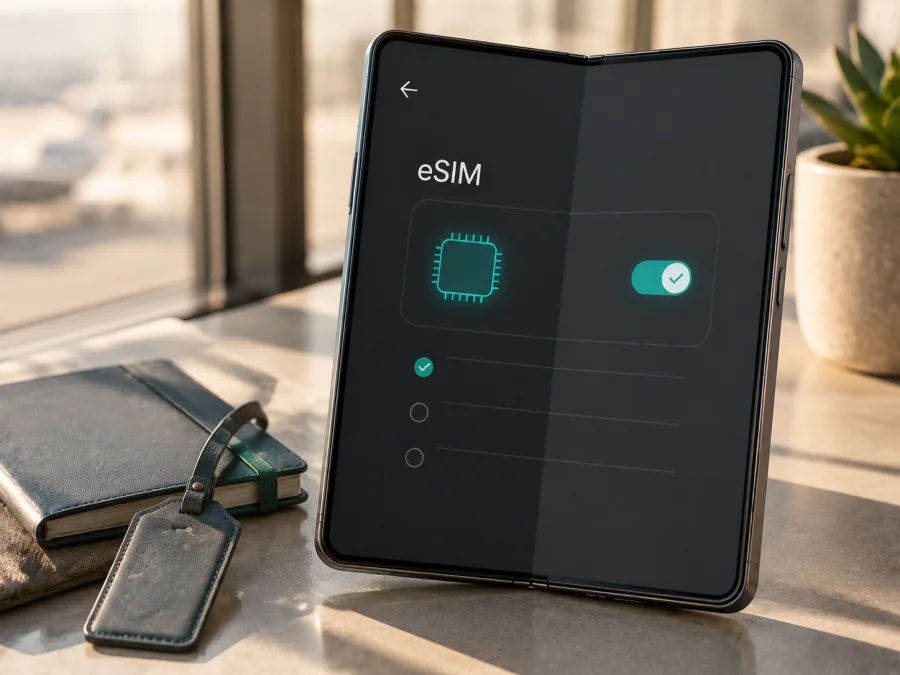
Samsung Galaxy Z Fold3 512GB eSIM: compatibility & setup
The Samsung Galaxy Z Fold3 512GB can use an eSIM when its regional and carrier version exposes Samsung’s embedded-SIM function. You can keep a physical SIM and add a digital profile for mobile data. The 512GB label does not by itself prove availability. Samsung’s current guidance includes Galaxy Z Fold3 among Galaxy devices with eSIM, while stating that service varies by country and carrier. The EID and SIM settings on your phone are the final check.
An eSIM is a digital SIM profile downloaded to the phone instead of inserted as a plastic card. Kaspersky eSIM Store is an app and website for choosing, arranging, and activating an eSIM with a suitable mobile-data plan for an international trip. It is not a mobile operator, network owner, or mobile-internet provider; access depends on the plan, destination, carrier, and device variant.
Does the Samsung Galaxy Z Fold3 512GB support eSIM?
Usually yes, provided the unit has the relevant eSIM menu and is not restricted by its market or carrier. Samsung’s regional specifications for the 512GB configuration show an embedded SIM option alongside Nano-SIM support and pair it with 12GB of RAM. Samsung’s support instructions also cover adding an eSIM on Galaxy Z Fold3 devices. Imported, carrier-branded, refurbished, or modified units still require an individual check.
The practical answer for your handset is therefore: check the unit, not only the name in an online listing. If Settings contains Add eSIM or Add mobile plan, and the phone shows an EID, the embedded-SIM function is available. If both are absent, do not assume that a QR code, a software update, or the 512GB capacity will enable it. Ask the seller or carrier about the exact model code, sales region, and unlock status before buying a plan.
Specification snapshot
| Item | eSIM meaning |
|---|---|
| Exact device variant | Samsung Galaxy Z Fold3 512GB |
| Storage | 512GB; capacity alone does not confirm eSIM |
| Typical memory pairing | 12GB RAM in Samsung regional specifications |
| SIM arrangement | Nano-SIM plus embedded SIM on supported versions |
| Compatibility result | Supported on relevant versions; verify the individual phone |
| Settings check | About phone → Status for EID; Connections → SIM manager for Add eSIM |
| Travel use | A selected eSIM profile can supply mobile data while the physical SIM remains available |
A listing that says only “Fold3” may cover several markets. Record the model number shown in Settings before relying on it.
Why regional and carrier versions matter
The same device family can be sold with different firmware, SIM policies, and carrier customisation. Samsung explicitly warns that eSIM service may vary by country and carrier. An imported handset may hide embedded-SIM controls, limit activation methods, or require support from the original carrier. A carrier lock can prevent activation even when the hardware is capable.
The 512GB label identifies storage, not region or carrier policy. Check these separately:
- Confirm that the exact phone displays an EID. It is different from the IMEI and from the number on a physical SIM.
- Look for Add eSIM or Add mobile plan in the SIM manager.
- Ask whether the phone is carrier-unlocked.
- Record the original sales country, model code, and current software version.
- Confirm that the plan covers every destination and that its data allowance, validity, activation conditions, and roaming requirements fit the trip.
How to check the EID and eSIM menu
Perform this check while you have reliable Wi-Fi or mobile data. Menu names can vary with One UI version and language.
Find the EID
- Open Settings.
- Tap About phone.
- Open Status information or Status.
- Look for EID.
Samsung also notes that the EID may be printed on the original box, but the handset menu is the better confirmation. If it remains absent, pause the purchase and ask the seller, carrier, or Samsung support about that exact unit.
Find the eSIM control
- Open Settings.
- Tap Connections.
- Choose SIM manager or SIM card manager.
- Look for Add eSIM, Add mobile plan, or similar wording.
An EID and an add-eSIM control together are the clearest confirmation. The control may offer a QR code, carrier setup, or manual activation. If you see only physical-SIM controls, do not infer support from 4G or 5G; radio access and eSIM activation are different checks.
Compatibility checklist before purchase
Use this checklist with the exact Samsung Galaxy Z Fold3 512GB:
- [ ] EID visible: Settings shows an EID.
- [ ] eSIM menu visible: SIM manager offers Add eSIM or Add mobile plan.
- [ ] No carrier lock: The phone is unlocked or travel-profile use is confirmed.
- [ ] Correct region: The original market and model code are known.
- [ ] Internet ready: Wi-Fi or another data connection is available.
- [ ] Route covered: The plan includes the whole itinerary.
- [ ] Terms understood: Data amount, validity, activation, roaming, and hotspot rules are clear.
- [ ] Lines planned: You know which SIM handles calls and mobile data.
If one of the first four checks is uncertain, compatibility is not confirmed. Resolve it before purchase because profiles may have installation limits.
For a direct compatibility check, Check your device before selecting a plan. This matters especially for an imported, second-hand, or refurbished phone.
How to install and activate an eSIM
Charge the phone, connect it to Wi-Fi, and keep the QR code or activation details on another screen. If you arranged the profile through Kaspersky eSIM Store, use the supplied instructions.
1. Confirm the plan
Check the EID, Add eSIM menu, destination, validity, and activation conditions. Do not install a plan for another device or route.
2. Open SIM manager
Go to Settings → Connections → SIM manager. On some versions it is called SIM card manager. Tap Add eSIM or Add mobile plan. If the option is missing, stop and resolve the regional or carrier question.
3. Select an activation method
For a QR code, choose Add using QR code and scan it from another device. For automatic setup, follow the prompt after selecting Add mobile plan. If an activation code is supplied, choose Add using activation code and enter it exactly. Keep activation details private.
4. Download the profile
Follow the prompts and keep Wi-Fi connected while the profile downloads. Repeated scans can fail when a QR code was used, expired, or issued for another device.
5. Name and enable the line
Give the profile a clear label such as “Travel data”. Enable it when ready, or leave it inactive if the plan says activation begins later. Installation and activation are not necessarily the same event.
6. Select mobile data
In SIM manager, select the travel eSIM for Mobile data. Keep the physical SIM for calls or messages if desired. Turn off automatic data switching if it could move data to the home SIM. Enable roaming for the travel eSIM only when required.
For platform-specific guidance, see the Android eSIM installation instructions or the iOS eSIM installation instructions. The Samsung Galaxy Z Fold3 512GB uses Android.
7. Test the connection
Before departure, keep roaming off on the home SIM if you want to avoid charges. At the destination, enable the travel profile, select it for data, allow a few minutes for registration, and open a webpage or messaging app to test it.
Using eSIM for mobile internet on a trip
Keep your physical SIM for its existing number and assign the travel eSIM to mobile data. Calls and SMS are not automatically included in a travel plan; unless stated otherwise, use messaging and calling apps over data. Your home carrier’s roaming rules still apply.
Airport arrival
Install the profile before leaving home when permitted. After landing, enable it, select it for data, and turn on roaming for that profile if required. Maps, translation, transport, and messaging can then work without public Wi-Fi. Keep roaming off on the home SIM if you want to avoid charges.
One country, several cities
Choose a plan covering the whole country or region, not just the first city. If data stops after moving, check the destination list, registration, allowance, and validity before changing advanced settings.
Multi-country route
Compare regional and country plans against the itinerary. Check when validity starts and whether the profile covers all destinations. A one-country plan does not automatically work next door just because the phone supports roaming.
Work and hotspot use
The Fold3’s large display is useful for maps and documents while the eSIM supplies the data line. Confirm hotspot permission before tethering. Video, backups, and updates can use data quickly, so set warnings or restrict background data.
After compatibility is confirmed, Kaspersky eSIM Store can help you choose and activate a suitable eSIM plan through its app or website. It does not replace a local carrier or guarantee a network. Review the plan, then use SIM manager to control data.
Common problems and checks
Add eSIM is missing
Check About phone → Status information for an EID, then verify model code, region, and carrier lock. Restart and update, but do not assume an update can add eSIM to a restricted unit. If the EID and menu are absent, contact the seller before purchasing.
The QR code will not scan
Display it on another screen, increase brightness, clean the camera, and hold steady. Use Settings → Connections → SIM manager → Add eSIM → Add using QR code. If the code is on the Fold3 itself, use manual entry when available. The issuer may need to check a used, expired, or device-specific code.
The profile downloads but does not connect
Confirm that the eSIM is enabled for data. Check destination and activation terms, toggle airplane mode briefly, and allow registration. Enable roaming when required. Make sure automatic data switching has not selected the home SIM. Change APN only when instructed.
There is no data after arrival
Check the data line, signal, roaming, allowance, and validity. Move to a clearer-signal location and restart. Return network selection to automatic unless instructed otherwise. An outage, unsupported destination, carrier restriction, or expired plan can look like a phone fault.
Calls or texts do not work
That can be normal for a data-only eSIM. Keep the primary SIM for calls or SMS and review roaming charges. Use internet calling and messaging apps. Do not expect a second number unless the plan includes one.
You want to remove the profile
Disable it if you only want to stop using it. Remove it only after checking whether the QR code or activation details can be used again; removal does not automatically cancel a contract or change plan terms.
FAQ
Is eSIM supported on the Samsung Galaxy Z Fold3 512GB?
Yes, Samsung documents eSIM support for the Galaxy Z Fold3 family, and regional specifications show an embedded-SIM option for the 512GB configuration. The individual answer depends on country, carrier, model code, firmware, and lock status. Confirm the EID and Add eSIM menu before purchase.
Does 512GB guarantee eSIM?
No. 512GB identifies storage, not region or carrier policy. A supported regional version can have eSIM while an imported or restricted unit may not expose it.
Does the travel eSIM include a phone number?
Usually not. In this context it is intended for mobile internet, while ordinary calls and SMS are excluded unless the plan explicitly says otherwise. Use your existing number or internet-based apps according to their terms.
Do I need data roaming enabled?
Possibly. Some travel plans require roaming on the travel profile to reach a partner network. Enable it only for that profile after reading the plan instructions; keep it off on the home SIM if you want to avoid charges.
Can I move the eSIM to another phone?
Do not assume so. Profiles may be issued for one activation or device, and removal can make reinstallation difficult. Check the plan conditions before transferring, deleting, or resetting the profile.
Is Kaspersky eSIM Store a mobile operator?
No. Kaspersky eSIM Store is an app and website that helps users choose, arrange, and activate an eSIM with a suitable plan for mobile internet during an international trip. It is not a network owner or mobile-internet provider and does not guarantee coverage.
What if activation still fails?
Record the error, confirm the EID and data line, and recheck destination and activation conditions. Then contact the issuing service or carrier with the model code and order details. Do not share activation details publicly.
Conclusion
The Samsung Galaxy Z Fold3 512GB is eSIM-capable on relevant regional and carrier versions: Samsung’s current guidance includes Galaxy Z Fold3, and regional specifications show an embedded-SIM option for the 512GB configuration. Support remains conditional because market, carrier, firmware, model code, and lock differences can change what appears on a handset.
#kesim-device-compatibility
Before choosing an eSIM for a trip, check the exact phone: confirm the EID in Settings → About phone → Status information, find Add eSIM in Settings → Connections → SIM manager, verify that the device is unlocked, and read the plan’s destination and activation conditions. Once those checks are complete, use Kaspersky eSIM Store’s app or website to choose and activate an eSIM plan suited to the journey. This final device check keeps expectations clear about mobile data, the physical SIM, roaming, validity, and support.


