Travel connectivity guide
Samsung Galaxy Z Fold3 5G 128GB eSIM Guide
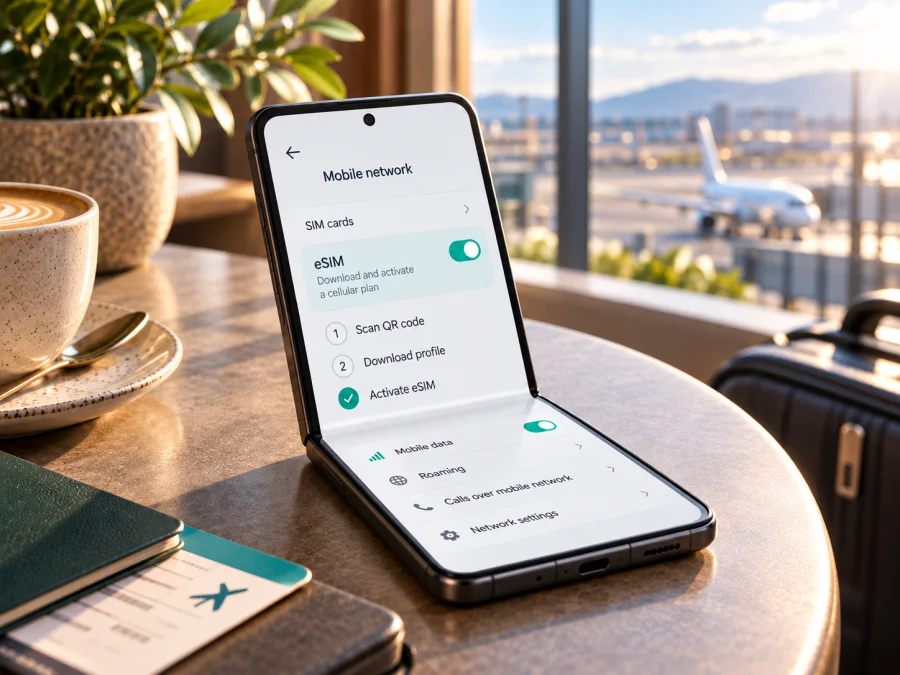
Samsung Galaxy Z Fold3 5G 128GB eSIM: compatibility and setup
Quick answer: Samsung lists the Galaxy Z Fold3 family among Galaxy devices that support eSIM, but support depends on the phone’s country of origin, software and the mobile provider. There is also a storage-label issue with this exact name: Samsung’s launch information lists the Galaxy Z Fold3 5G in 256GB and 512GB versions, while 128GB is listed for the Galaxy Z Flip3 5G. Samsung’s UK launch announcement is explicit about those configurations. So treat “Samsung Galaxy Z Fold3 5G 128GB” as the listing you need to verify, not as proof of a Samsung factory variant. Check the model number and the phone’s own eSIM menu before buying a plan.
The eSIM answer is therefore conditional but useful: a genuine, eSIM-enabled Galaxy Z Fold3 can download a digital SIM profile and use it for mobile data. The 128GB wording alone cannot establish that the handset is a Fold3, or that its regional variant has eSIM enabled. Samsung’s current Galaxy eSIM and supported network carriers page includes the Z Fold3 series and notes that availability varies by country and carrier. The specific handset’s firmware and the provider serving your destination still matter.
At a glance
| Item | What to know |
|---|---|
| Name supplied for this page | Samsung Galaxy Z Fold3 5G 128GB |
| eSIM support for the Fold3 family | Samsung lists Galaxy Z Fold3 among supported Galaxy devices; country of origin and provider can affect availability |
| Storage detail to verify | Samsung launch materials list 256GB and 512GB for Fold3; 128GB is associated with Flip3 in the launch announcement |
| Physical SIM | Nano-SIM configurations exist; exact SIM arrangement depends on the regional model |
| eSIM setup menu | Usually Settings → Connections → SIM manager → Add eSIM or Add mobile plan; wording may differ by One UI version and region |
| Travel data use | Select the travel eSIM as the mobile-data line and check its roaming setting and plan terms |
Does Samsung Galaxy Z Fold3 5G 128GB support eSIM?
Samsung’s support information names Galaxy Z Fold3 as an eSIM-capable model family. Samsung’s US business datasheet for Galaxy Z Fold3 5G also describes eSIM capability and says functionality depends on the carrier. The manufacturer’s current eSIM guidance adds an important qualification: a device may not support eSIM in every country of origin even when its model family appears on the supported-device list. That means the most accurate answer for this listing is: the Fold3 family supports eSIM in eligible regional versions, but the exact “128GB” handset must be checked on the device itself.
The “128GB” part deserves separate attention. Samsung’s official UK announcement for the 2021 launch listed the Fold3 at 256GB and 512GB, and the Flip3 at 128GB and 256GB. Samsung’s Brazil launch announcement likewise specified the Fold3 in 256GB and 512GB. Those official launch records do not verify a factory Galaxy Z Fold3 128GB configuration. A retailer may have copied the Fold3 name onto another model’s storage value, used a non-standard listing convention, or described the device inaccurately. Do not change the name on the listing in your own records; instead, verify the handset’s model number and storage shown in Settings → About phone.
Regional versions and operator market
Samsung sells phones under model codes that can differ by market. Bands, SIM configuration, firmware and operator customisation may vary, and the eSIM menu can be absent on some country-specific devices. Samsung’s support guidance separates the phone model from service availability: the handset’s country of origin matters, and individual mobile providers may or may not support eSIM activation for that model. A carrier-branded phone can also have restrictions or software that affects activation. Ask the seller whether the phone is unlocked and intended for the market where it was first sold.
Keep three questions separate when planning a trip:
- Does this handset variant contain and expose eSIM? Check model code, EID and the Add eSIM menu.
- Can the provider issue a profile to this handset? A provider can set device, account or market requirements for its eSIM activation process.
- Can that profile use a network in the destination? Coverage and available radio bands depend on the local operator market and the plan’s terms. A handset’s support for eSIM does not promise coverage in every place.
Check the exact phone before buying
Use this checklist before selecting an eSIM plan:
- [ ] Open Settings → About phone and note the model name and model number. On Galaxy devices, the code commonly begins with
SM-F926, but compare the full suffix with Samsung support or the seller’s documentation rather than relying on the prefix alone. - [ ] Check Settings → About phone → Status information for an EID. Depending on software, it may be under Settings → About phone → Status. An EID is a strong sign that the phone has an eSIM chip, though the carrier and regional software still determine whether it can be used.
- [ ] Open Settings → Connections → SIM manager. Look for Add eSIM, Add mobile plan or a similar control. If present, the handset exposes eSIM setup. If absent, update the phone using its official software update screen, restart, and check again; do not assume a reset or a random service code will enable eSIM.
- [ ] Confirm that the phone is not locked to a carrier in a way that prevents the intended eSIM from being installed. Ask the original operator or seller if the status is unclear.
- [ ] Verify that the device is the model and storage combination advertised. For this exact “128GB” description, compare About phone with the box label and invoice; Samsung’s launch information lists Fold3 storage as 256GB or 512GB.
- [ ] Confirm that your chosen provider accepts the device and that the plan includes your destination and intended dates.
For a simple device-level check, Check whether your device is compatible before choosing a travel plan. Use the actual model number and region where the phone was sold when checking, not only the product title or the size of its storage.
Prepare a travel eSIM for mobile data
An eSIM travel plan is useful when you want mobile data without swapping out your home nano-SIM. It can be installed before departure over a stable Wi-Fi connection, then selected for data when you arrive. Before choosing a plan, check the destination, any regional coverage, data allowance, validity period, activation trigger and whether tethering is allowed. A plan may start its validity when it is installed, when it first connects to a supported network, or under another rule stated by the provider. Do not assume that installation and service start are always the same event.
Kaspersky eSIM Store is an app and website where you can choose, arrange and activate an eSIM with a mobile-data plan for an overseas trip. You can review the listed destination and plan conditions before choosing. The app or site does not replace checking the Fold3’s variant compatibility, and it is not a mobile operator or a guarantee of local coverage. For ordinary calls and SMS, keep your home SIM or use internet-based messaging; travel data plans do not include a regular phone number, voice calls or SMS unless the plan explicitly says otherwise.
Before you leave
- Confirm an EID or Add eSIM menu and check that the phone is unlocked.
- Select the country or region that matches the full itinerary.
- Compare data allowance and validity with expected use, including hotspot sharing.
- Read when the plan activates and whether its QR code is single-use.
- Keep the QR code accessible on another screen or in a printout.
- Install over reliable Wi-Fi if pre-installation is allowed; label the line “Travel.”
- Check home-SIM roaming charges if you will keep that line active.
Once your Fold3’s model number and eSIM menu are confirmed, you can use Kaspersky eSIM Store to choose an eSIM data plan for the countries on your itinerary and review its data and validity conditions. Checking compatibility first helps avoid choosing a plan for a handset that cannot install it.
Install and activate eSIM on the Galaxy Z Fold3
Samsung’s current Galaxy instructions describe adding an eSIM through SIM manager with a QR code, manual activation details or, where available, a provider-assigned plan. Menu labels can change with One UI version, region and carrier, but the usual path is Settings → Connections → SIM manager. Follow the provider’s own instructions if they differ.
Install with a QR code
- Connect the Fold3 to Wi-Fi or another working internet connection. Keep the activation message or QR code available on a different screen.
- Open Settings → Connections → SIM manager and tap Add eSIM or Add mobile plan.
- Choose Scan QR code or Scan carrier QR code, then point the camera at the code supplied for your plan.
- Review the confirmation shown by the phone and follow the prompts to download the profile. Keep the screen open while the profile is being added.
- Give the line a clear name, such as “Travel data,” and confirm which SIM should be used for mobile data. You can set the travel line as the data SIM when you are ready to use it.
- Check the provider’s activation rule. The profile can be installed while service is still waiting for the destination network, or the plan may begin its validity at another specified point.
Enter details manually or use a pre-assigned plan
If the provider gives you an activation code rather than a QR image, return to SIM manager → Add eSIM and choose the manual or activation-code option if it appears. Enter the details exactly as provided, including any server address or confirmation code requested. Do not substitute an EID for an activation code: they identify different things. If the provider has assigned a plan directly to your handset, connect to the internet, open SIM manager and follow the prompt to add or download it. Some providers may ask for the EID to associate a plan with a device.
Samsung publishes separate instructions for Galaxy and iPhone setup. For this Android phone, use the Android eSIM installation instructions. The iOS eSIM installation instructions are useful when the compatible device in your travel group is an iPhone.
Turn on the travel line when appropriate
After installation, open SIM manager and make sure the travel eSIM is enabled. Set it as the Mobile data line when you want to use it. On arrival, enable data roaming for the travel eSIM only if the plan’s instructions require it. Many travel data profiles rely on roaming to connect to their partner network, but the rule depends on the plan. If your home SIM remains active, review its roaming settings separately so it does not use mobile data unintentionally.
Use the eSIM on a trip
The Fold3 can keep a physical SIM and an eSIM profile in the same phone where the regional model and software permit it. This is useful if you want to retain your usual number for incoming calls or verification texts while routing data through a travel plan. The active SIM combinations and simultaneous line limits vary by model; check the phone’s SIM manager rather than assuming every profile can be active at once.
For a multi-country itinerary, check whether the plan covers each country where you expect to connect. A network shown in one destination does not establish service in another. Coverage can also vary between cities, indoor locations and rural areas according to the local operator’s network. A 5G-capable phone may connect using 4G or another supported generation if 5G is unavailable, excluded by the plan or not enabled on the partner network. Data service and speed are not guaranteed by the device model alone.
Common problems and what to check
“Add eSIM” is missing
First check the full model code, country where the phone was sold, installed software and whether an EID is shown. Install available official updates and restart the phone. If the option remains missing, ask Samsung or the original operator whether that regional variant supports eSIM. The absence of the menu does not prove that every Fold3 lacks eSIM; it may reflect the specific version or software configuration. Avoid unofficial firmware changes, which can create security, warranty and network problems.
The EID is not shown
Check both Settings → About phone → Status information and Settings → About phone → Status, since the path varies. If there is no EID and no eSIM menu, verify the exact device identity with the seller. With a listing that says “128GB,” also confirm that About phone identifies a Fold3 and that storage corresponds to the advertised unit. If the seller cannot explain conflicting model, storage and box information, resolve that before purchasing an eSIM plan.
The QR code will not install
Confirm that the Fold3 is online, the QR code is for this plan, and it has not already been redeemed. Check for typing errors if you are entering details manually. Some activation codes are tied to one device or can be used only once. If installation reports that the code is invalid or already in use, contact the plan provider with the exact error; do not post the QR code publicly or share it with another person.
The eSIM is installed but has no data
In SIM manager, check that the travel profile is turned on and selected as the mobile-data SIM. Confirm mobile data is enabled. Check whether data roaming is required for this profile and, if so, enable it on the travel line. Verify the plan’s destination list, activation status, validity dates and remaining data. Restart the phone or briefly toggle Airplane mode, then allow it to reconnect. If the signal appears but pages do not load, confirm the plan’s APN settings with its provider rather than guessing values.
The phone connects to the wrong SIM or roaming becomes expensive
Recheck SIM manager’s call, text and mobile-data preferences. Keep the home line’s data roaming off if you do not intend to use it, and select the travel eSIM for data. A home SIM can remain available for calls or SMS without being the selected data line, though charges may still apply for particular services under the home carrier’s terms. Check that carrier’s roaming rules before departure.
The connection is slower than expected
I want to remove or move the profile
FAQ
Is Samsung Galaxy Z Fold3 5G 128GB definitely an eSIM phone?
Samsung lists the Galaxy Z Fold3 family as supporting eSIM in eligible versions, but the exact 128GB listing is not verified by Samsung’s Fold3 launch storage information. Confirm the model number, EID and Add eSIM menu on the actual handset. Regional and operator restrictions can still apply.
Why is a 128GB Fold3 listing unusual?
Samsung’s official UK launch information lists Fold3 storage at 256GB or 512GB and Flip3 storage at 128GB or 256GB. The listing could contain an error or describe a different item. Check Settings → About phone and the physical model code before buying. This page keeps the supplied name intact so you can check that precise listing.
Does 5G mean eSIM is supported?
Can I keep my physical SIM active?
Many Fold3 variants allow an eSIM alongside a nano-SIM, but available combinations depend on the model and software. SIM manager shows which lines can be enabled and selected on your handset. Check call, text and data preferences before travelling.
Will eSIM work in every country?
No. Phone eligibility, provider support, plan destinations and local network availability are separate factors. Check the specific plan’s country coverage and the local operator market for your itinerary.
Does a travel data eSIM replace my phone number?
Usually not. A mobile-data travel plan generally does not include a standard phone number, voice calling or SMS unless its conditions expressly include them. Messaging and internet calls can work through apps while you have data access.
Should I install the eSIM before the trip?
That can be convenient if the plan allows pre-installation, but first check when validity starts. Install over a stable internet connection and keep the activation instructions available. If the plan’s validity begins upon installation, wait until the appropriate time.
Final check before choosing a travel eSIM
For Samsung Galaxy Z Fold3 5G 128GB, verify the device rather than relying on a storage label: confirm the full model code, find an EID or Add eSIM in Settings, check that the phone is unlocked, and resolve the mismatch between the advertised 128GB and Samsung’s published Fold3 storage options. Then check that your intended provider accepts the regional variant and that the plan covers every destination on your itinerary. With those points confirmed, choose a data allowance and validity that fit your trip, follow the plan’s installation instructions and select the travel eSIM for mobile data when you need it. Kaspersky eSIM Store lets you choose, arrange and activate a travel eSIM plan through its app or website; review the plan conditions and device compatibility before making your selection.


