Travel connectivity guide
Samsung Galaxy Z Fold3 5G 12GB RAM eSIM Guide
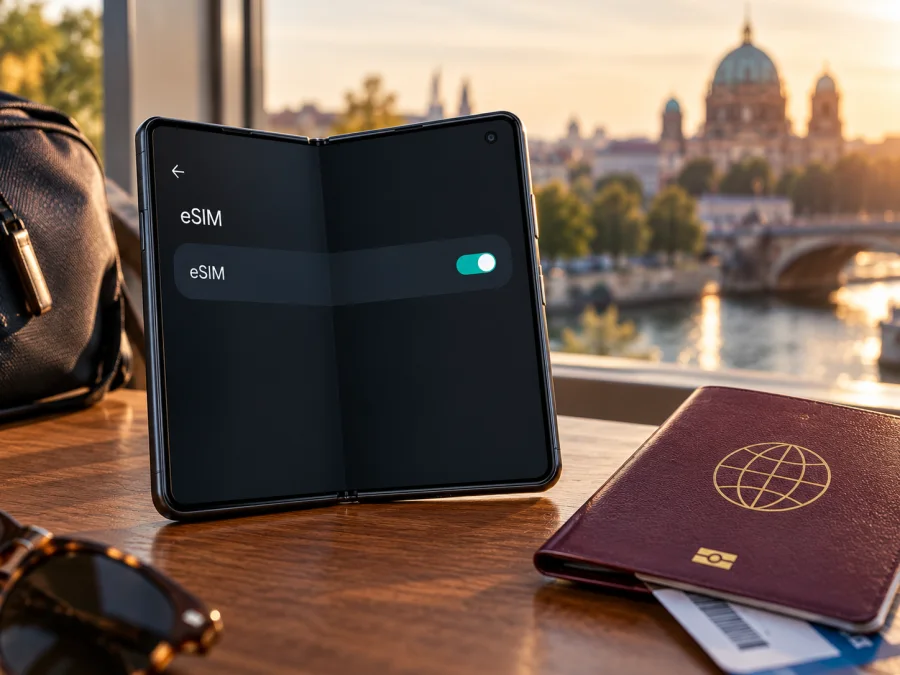
Samsung Galaxy Z Fold3 5G 12GB RAM eSIM: compatibility and setup guide
The Samsung Galaxy Z Fold3 5G 12GB RAM is listed by Samsung among Galaxy devices that support eSIM, and Samsung’s product information describes the Fold3 with one eSIM and one Nano-SIM. That is a positive model-level answer: eSIM is supported on compatible versions of this phone. It is not a guarantee for every handset carrying the Fold3 name. Samsung warns that eSIM availability can depend on the device’s country of origin, software version, region, and carrier. Check the exact phone before choosing a plan, especially if it was imported, sold by a mobile operator, or has been reset or modified.
The memory detail in the requested name identifies the 12GB RAM configuration, but it does not by itself identify the regional model code or prove that eSIM is enabled. The quickest practical confirmation is to look for an EID or an Add eSIM option in the phone’s settings. If neither appears, confirm the model code, update status, and sales market with Samsung or the seller before paying for an eSIM plan.
Samsung Galaxy Z Fold3 5G 12GB RAM eSIM at a glance
| Item | What to know |
|---|---|
| Device in this guide | Samsung Galaxy Z Fold3 5G 12GB RAM |
| eSIM model-level status | Supported on compatible versions; Samsung lists Galaxy Z Fold3 among eSIM-capable Galaxy phones |
| Physical SIM information | Samsung’s launch specification lists one eSIM and one Nano-SIM for the Fold3 configuration it describes |
| What can vary | Country of origin, regional model, software, carrier configuration, and whether the phone is network-unlocked |
| Best on-device check | Look for an EID and for Settings → Connections → SIM manager → Add eSIM |
| Travel use | A compatible travel eSIM can be used for mobile data where its plan and local network support it |
| Before you select a plan | Verify eSIM availability on this exact handset, unlock status, destination, plan validity, data allowance, and activation terms |
“12GB RAM” describes the memory configuration, not the radio or SIM configuration. Two devices with the same marketed name and memory can still differ by sales region, model code, carrier provisioning, or installed software. Treat the menu and EID on your own handset as more decisive than a listing for a similar Fold3.
Does this exact Fold3 support eSIM?
Usually, yes, when the regional and software configuration supports the feature. Samsung’s official support page currently includes Galaxy Z Fold3 in its list of eSIM-compatible Galaxy devices. Samsung’s product specifications also list one eSIM alongside one Nano-SIM, and explicitly note that eSIM availability may vary with software version, region, and carrier. This is why the sensible answer for the named 12GB RAM variant is “supported on eligible versions; verify the individual unit,” rather than an unconditional yes for every Fold3 worldwide.
The 5G label describes network capability, while eSIM is a separate SIM feature; RAM capacity does not determine either. The relevant checks are the exact model code, market, firmware, carrier configuration, and whether the phone is unlocked.
Why Fold3 versions may behave differently
Samsung releases regional variants with different model codes, bands, firmware, or carrier settings. Some markets or carriers may omit or disable eSIM, and carrier-sold devices can also be locked. An imported phone can therefore behave differently from a locally sold Fold3 even when its retail name and RAM match. Samsung cautions that country of origin can affect eSIM availability and advises checking whether the carrier plan supports the feature. The handset must expose eSIM, and the provider must support the plan and activation method; one cannot compensate for the other.
For a used or imported phone, ask for its model code (under Settings → About phone), a view of SIM Manager, and confirmation that it is unlocked. “Dual SIM” alone is not enough, since that may mean two physical SIMs on another configuration.
Check compatibility on your own phone
Run these checks before you select or pay for a travel plan. They take only a few minutes and help distinguish a supported handset from a Fold3 version where the feature is absent or unavailable.
1. Look for an EID
An EID is a long identifier associated with the embedded SIM hardware. On many Galaxy phones, open Settings → About phone → Status information and look for EID. Menu labels can vary slightly with One UI and Android versions, so use Settings search for “EID” if necessary. You can also open the dial pad and enter *#06#; if the device displays an EID in addition to its IMEI information, that is useful evidence that the eSIM component is present.
An EID alone is not a complete service check. A device may have an EID while a feature is restricted by software, market, carrier, or lock status. Record the full model code as well, and proceed to the SIM Manager check. Avoid posting your EID or IMEI in a public forum; share identifiers only with Samsung, your carrier, or a support channel when they need them to diagnose your specific phone.
2. Look for Add eSIM
On the Fold3, open Settings → Connections → SIM manager. If the phone and its current software expose eSIM, you should see a control such as Add eSIM. Depending on software version or language, wording can differ slightly. You may see options to scan a QR code or enter an activation code after selecting it.
If the option is present, that is a strong practical sign that the handset can install an eSIM profile. It still does not confirm that a particular plan will activate: check whether the phone is unlocked, whether the QR code or app-based installation is supported, and whether the plan covers your destination. If the option is missing, restart the phone, install available Samsung software updates over a trusted connection, and check again. If it remains absent, contact the seller, carrier, or Samsung with the model code and country of purchase before proceeding.
3. Confirm the phone is not locked
A carrier-locked device may reject an eSIM from another provider even when its hardware supports eSIM. In SIM Manager, check which SIMs are active and whether the phone reports a network or SIM restriction. Ask the original carrier to confirm the unlock status for this exact device; a SIM that currently works does not necessarily establish that the phone is unlocked for other providers. Resolve a lock before travel rather than troubleshooting it after landing.
4. Check the software and provider requirements
Install the official software update offered for the phone’s region, then review the instructions supplied for the eSIM you intend to use. Some eSIMs are installed by scanning a QR code, some by entering an activation code, and some through a provider’s app. Follow the method actually provided; do not scan a QR code displayed on the same Fold3 screen if the phone cannot scan its own display. Use another screen or manual entry when the provider offers it.
If you are still uncertain, check whether your device is compatible before choosing a plan. A compatibility checker is a useful starting point, but the phone’s own EID and Add eSIM menu remain important checks for a regional or carrier-specific handset.
Install and activate an eSIM
Set up the eSIM while you have stable Wi‑Fi or another working internet connection. Keep the installation details available, and read the plan’s activation rules first: some plans begin their validity period when installed, while others begin on first connection or on a selected date. Do not assume that all plans start at the same point.
Add the profile on the Galaxy Z Fold3
- Confirm compatibility. Check for an EID and Add eSIM in SIM Manager. Make sure the phone is unlocked for the provider you plan to use.
- Open SIM Manager. Go to Settings → Connections → SIM manager and tap Add eSIM.
- Choose the offered installation method. Select Scan QR code if the provider supplied one. If you received an activation code or manual details, choose the corresponding manual-entry option where available.
- Scan or enter the details. Follow the on-screen instructions and review the profile information before confirming. Keep the phone connected to Wi‑Fi while the profile downloads.
- Wait for the profile to download. Installation can take a few minutes. Leave the settings screen open if prompted, and do not repeatedly scan or enter the same activation details if the process appears slow.
- Name the line. Give the eSIM a recognizable label such as “Travel data” or the destination name. This makes it easier to distinguish it from your primary Nano-SIM later.
- Choose how to use each SIM. Keep your usual SIM selected for calls and messages if that is what you want, and select the travel eSIM for mobile data when its plan should be used. Confirm the choice in SIM Manager.
- Set travel data options. When you arrive, enable the travel eSIM and mobile data. Turn on data roaming for that eSIM only if the plan’s instructions require it. Keep roaming disabled on your primary SIM if you want to avoid unexpected charges from your regular carrier.
- Test the connection. Turn Wi‑Fi off briefly, open a simple webpage, and check that the mobile-data indicator appears. If there is no connection, work through the troubleshooting checks below before deleting the eSIM.
Samsung’s Android installation guide uses the Settings, Connections, and SIM Manager route for adding a profile. For screenshots and current menu wording, see Samsung Galaxy eSIM installation instructions for Android. The iOS guide is useful if you are helping another traveler with an iPhone: eSIM installation instructions for iOS.
Plan installation timing
Installing before departure can reduce setup after landing, but follow the plan’s timing rules. Some plans start validity at installation; others start on first connection or a chosen date. Install early only when the provider confirms it will not start the plan too soon. If instructions say to install at the destination, wait and use a trusted connection there. QR codes may be single-use, so do not delete the profile or try it on multiple devices unless the provider permits this.
Use the Fold3 for mobile data while travelling
A travel eSIM is most useful when it is configured as the data line and the plan is valid for the place you are visiting. Before departure, compare the destination coverage named in the plan with your itinerary, check how much data it includes, and note its expiry or validity period. If you cross borders, confirm that the plan covers each country rather than assuming that a nearby country is included.
At home, keep your usual Nano-SIM active for the number you use for calls or verification messages, if appropriate. In Settings → Connections → SIM manager, choose which line handles calls, texts, and mobile data. For many travel-data eSIMs, the eSIM supplies mobile data while your primary line remains available for calls and SMS. These are separate settings, and keeping the home line available can still incur charges under its carrier’s roaming rules. Review those rules before departure.
After you land, turn on the travel eSIM, select it for mobile data, and enable data roaming for that profile if the plan’s instructions require it. The phone may take a short time to register on a supported network. If the service does not connect automatically, toggle airplane mode off and on once, then restart the phone if needed. Keep Wi‑Fi available until mobile data is confirmed, and avoid removing the profile during routine troubleshooting.
Kaspersky eSIM Store is an app and website where travelers can choose, arrange, and activate an eSIM with a plan for mobile internet on an international trip. To browse current destinations and check the plan details for your route, visit the Kaspersky eSIM Store. Review the destination, data amount, validity, and installation terms shown for the plan you select. The Store does not determine whether your exact Fold3 variant has eSIM enabled; confirm that on your phone before you proceed.
Troubleshooting: eSIM missing or not connecting
Work through one check at a time. The cause may be the handset configuration, the eSIM installation, SIM selection, or local network conditions.
| Symptom | What to check |
|---|---|
| No Add eSIM option | Check the EID, exact model code, country of origin, software updates, and carrier configuration. Ask Samsung or the seller to confirm the unit’s regional capability. |
| QR code will not scan | Increase screen brightness on the device displaying the QR code, clean the Fold3 camera lens, and hold the code steady. Use manual entry only if the provider supplies that option. |
| Profile download fails | Reconnect to stable Wi‑Fi, check that the code has not already been used, and verify that installation is allowed at your current location. Ask the eSIM provider to check the activation details. |
| eSIM is installed but has no data | Confirm that the eSIM is enabled and selected for mobile data. Check destination validity, data allowance, roaming instructions, and local signal. |
| Primary SIM is still using data | Open SIM Manager and explicitly select the travel profile under mobile data. Recheck after restarting because the preferred line can be reset by a settings change. |
| Calls work but data does not | Check the mobile-data line and roaming setting for the travel profile. A data-only travel eSIM may not provide a phone number for ordinary calls or SMS. |
| Data works slowly or intermittently | Move to an area with better reception, allow the phone to select a supported network automatically, and check whether the plan has a speed or data limit. A local network’s coverage varies by location. |
| The phone rejects another provider’s eSIM | Confirm the handset is carrier-unlocked and that the provider supports the Fold3’s model and activation method. Contact the original carrier about a network lock. |
Before deleting a downloaded profile, read the provider’s reinstallation policy or contact support. Many QR codes can be used only once, so removing an eSIM can leave you unable to reinstall it without a replacement. A network reset should be a later step: it may clear saved Wi‑Fi and Bluetooth settings and will not fix a regionally disabled eSIM feature. If you try a reset, make sure you know the Wi‑Fi password and have the eSIM installation details available.
Practical examples
A short city break
Confirm EID and Add eSIM, then select a destination plan with enough data and suitable validity for maps and messaging. Install according to its timing rules; at your destination, select the travel profile for data and check the remaining allowance in the plan interface.
A longer trip while keeping your home number
Keep the Nano-SIM available if needed and select the travel profile for data. Check your regular carrier’s roaming rules for calls, SMS, voicemail, and background data; those charges are separate from the travel plan. A data eSIM may not include a phone number.
A multi-country itinerary
Check that every stop is named in the plan’s coverage and that validity spans the trip. A country-specific plan may stop working at a border. If the Fold3 is imported or has no EID, verify the exact model code before purchase.
Frequently asked questions
Does Samsung Galaxy Z Fold3 5G 12GB RAM support eSIM?
Samsung lists Galaxy Z Fold3 among eSIM-capable phones and its product specifications describe one eSIM plus one Nano-SIM. Availability can vary by region, software, and carrier, so confirm an EID and Add eSIM on your individual 12GB RAM handset.
How do I find the EID on my Fold3?
Look under Settings → About phone → Status information or search Settings for “EID.” You can also enter *#06# in the dial pad and check whether an EID is displayed. Menu behaviour can vary by software and region.
Why is Add eSIM missing?
The phone may be an eSIM-restricted regional version, may have outdated software, or may use carrier configuration that hides the option. Confirm the model code and country of origin with Samsung or the seller. If there is no EID as well, do not assume the phone can accept an eSIM profile.
Will the travel eSIM replace my usual phone number?
A travel-data eSIM may provide mobile internet only. Unless the individual plan explicitly says otherwise, do not expect an ordinary phone number, voice calls, or SMS. You can continue using internet-based messaging and calling apps over data, subject to their availability and settings.
Before you choose an eSIM for your trip
For Samsung Galaxy Z Fold3 5G 12GB RAM, the model-level answer is that eSIM is supported on eligible versions. Samsung’s own notes make regional and software variation important, so verify the individual phone: find the EID, confirm Add eSIM appears in SIM Manager, check that the handset is unlocked, and make sure the provider’s installation method is supported.
Then choose a plan for the places you will visit and compare its data allowance, validity, and activation rules with your itinerary. Kaspersky eSIM Store’s app and website let you browse, arrange, and activate eSIM plans for mobile internet on international trips. Check compatibility before selecting a plan, install according to its instructions, and keep your usual SIM settings and roaming terms in mind while travelling.


