Travel connectivity guide
Samsung Galaxy Z Fold3 5G 256GB eSIM
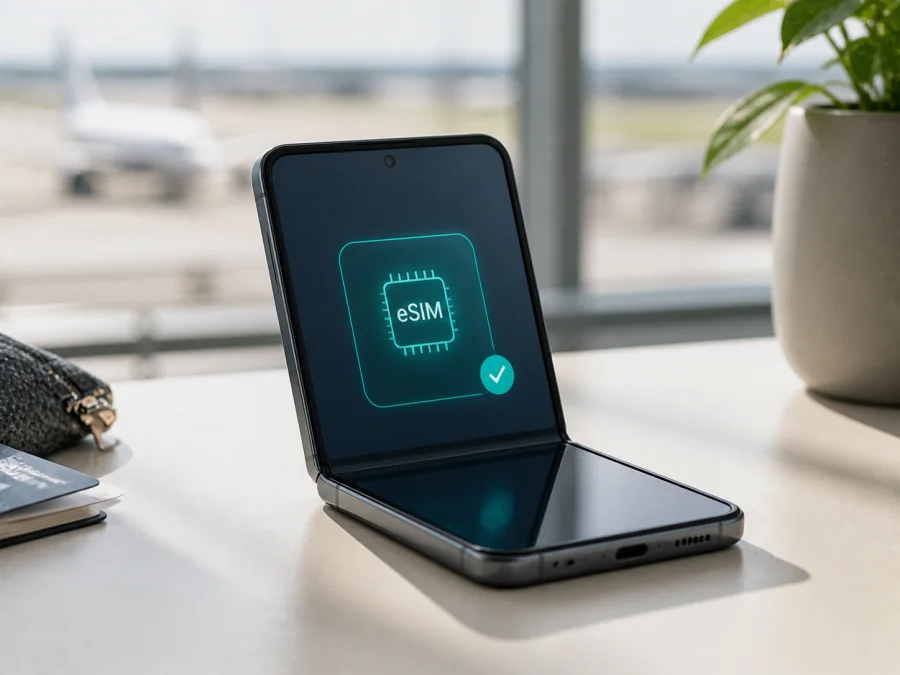
Samsung Galaxy Z Fold3 5G 256GB eSIM compatibility and installation
If you are preparing for a trip and want mobile internet without replacing your physical SIM card, the Samsung Galaxy Z Fold3 5G 256GB may suit an eSIM travel plan. eSIM availability also depends on the sales market, carrier version, software, and issuing network.
For the Samsung Galaxy Z Fold3 5G 256GB, the answer is yes: the device family supports eSIM, and Samsung’s official specifications for a 256 GB regional variant list an embedded SIM option. Confirm the feature on the actual handset before paying for a tariff. A visible EID and an “Add eSIM” option test the unit rather than just the model name.
Quick answer: does Samsung Galaxy Z Fold3 5G 256GB support eSIM?
Yes, it can support eSIM. Samsung’s current Galaxy eSIM compatibility information includes Galaxy Z Fold3 among hybrid eSIM devices. Samsung’s product specification for a 256 GB regional version describes a Nano-SIM together with an embedded SIM option. Samsung’s launch specifications also describe one eSIM and one Nano-SIM for the US version, while noting that availability may vary by market and carrier.
Every handset should still be checked because carrier branding, imported configurations, software, or a SIM lock can change the result. Check the settings and EID before purchase.
Key specifications relevant to eSIM
| Item | What is relevant for this page |
|---|---|
| Exact device variant | Samsung Galaxy Z Fold3 5G 256GB |
| Device type | Foldable Samsung Galaxy smartphone |
| Internal storage | 256 GB |
| RAM listed for the 256 GB regional specification | 12 GB |
| Mobile network generation | 5G; local network and tariff support are separate questions |
| Physical SIM | Nano-SIM on the referenced regional specification |
| Embedded SIM | eSIM is listed for the Galaxy Z Fold3 family and the referenced 256 GB variant |
| Dual-SIM pattern | Physical SIM plus eSIM may be available; active combinations depend on handset and carrier |
| Main verification | Settings > Connections > SIM manager, plus the EID screen |
Storage, RAM, and “5G” do not enable eSIM by themselves. The eSIM profile, network plan, local coverage, and device lock status remain separate checks.
Why the region and carrier version matters
Samsung sells the Galaxy Z Fold3 5G through multiple markets. Product pages can differ in how they describe SIM slots, and carriers can control services on a branded or locked phone. Samsung’s support guidance says that screens and settings can vary by provider, software version, and device model, and that some carriers may not support Galaxy eSIM capabilities.
Do not use a listing for another country as proof. The exact name Samsung Galaxy Z Fold3 5G 256GB is useful for this long-tail search, but compare the model number, country of sale, firmware, and carrier status too.
Hardware, software, and network support all matter. A phone can pass the hardware check but fail activation because a carrier does not support the service, while a plan can cover the country even though the handset is locked. Checking only the product title leaves gaps.
Check compatibility before purchase
<a id="kesim-device-compatibility"></a>
Use this process before selecting an eSIM tariff; menus may differ between versions.
Device compatibility checklist
- [ ] The exact device is Samsung Galaxy Z Fold3 5G 256GB, not another Fold generation or storage option.
- [ ] The phone opens Settings > Connections > SIM manager.
- [ ] SIM manager offers Add eSIM, Add mobile plan, or comparable wording.
- [ ] The phone shows an EID in the status or SIM information screen.
- [ ] The device is not restricted by an operator or activation lock.
- [ ] The operating system is up to date enough for the available SIM menus.
- [ ] You have Wi-Fi or mobile data for downloading the profile.
- [ ] The selected tariff covers the country, region, or route of the trip.
- [ ] Traffic, validity, activation, top-up, and refund conditions suit the itinerary.
The two strongest local signs are the EID and Add eSIM. If both are missing, pause and ask the seller or carrier to confirm the variant. “Dual SIM” or “5G” can refer to physical SIM combinations or radio support rather than active eSIM.
Keep this check tied to the actual phone. The same family label may cover units with different carrier software, so a result from another Fold3 or another country is not a substitute for the EID and menu check. If the seller cannot confirm the version, wait and ask before ordering. This pause can prevent an unusable profile and an avoidable support request.
For a quick return to this checklist, use Check your device before choosing a travel tariff. Kaspersky eSIM Store can help you choose, complete, and activate an eSIM with a suitable mobile-data tariff for a foreign trip, but the phone’s own compatibility and lock status must be confirmed first.
How to find the EID and eSIM menu
Menus can be named differently after an update or in a particular market. Use this route as a guide.
- Open Settings. Use the gear icon from the app screen or quick settings.
- Tap Connections. This is where Samsung groups mobile and wireless connection controls.
- Open SIM manager. Look for the list of physical SIMs and eSIM controls.
- Look for Add eSIM or Add mobile plan. This is the installation path exposed by the phone.
- Open About phone or Status information. The EID may be under status, SIM, or device information; the route varies.
- Record the EID only for your own verification. Do not publish it or send it to an unknown person.
You can also dial *#06# to see identifiers on many Android phones. An EID there is useful evidence, but the final check is still the Settings menu.
If the option is missing, restart and check for a system update. Confirm that the device is not in a restricted enterprise profile or carrier configuration with eSIM disabled. If it remains absent, contact the seller or carrier before buying.
Choose an eSIM tariff for a trip
Once the handset passes the device check, plan data use. Kaspersky eSIM Store is an app and website where you can select a destination, review conditions, complete an order, and activate an eSIM for travel mobile internet. It is not a mobile operator or network owner; service and coverage depend on the applicable local network and tariff conditions. Check destination, validity, traffic, hotspot, top-up, and expiry conditions.
An eSIM travel tariff normally provides mobile data, not a new ordinary phone number. Voice calls and SMS are not included unless the selected tariff expressly says otherwise. You can keep your regular SIM for calls or messages while using the travel eSIM for data, or use internet messaging and calling apps.
Install an eSIM on Samsung Galaxy Z Fold3 5G 256GB
Install the profile over stable internet, preferably before leaving home. Keep the QR code or activation details on another screen, in an email, or in the service profile. If the QR code is on the same Fold3 screen, use manual details or a second device; a phone cannot normally scan its own displayed code.
For a fuller Android walkthrough, see the Android installation instructions. The iOS installation instructions are for a different Apple device; they are not the menu path for this Samsung phone.
Step-by-step installation
- Connect to Wi-Fi. Keep the Fold3 online while it downloads the profile.
- Open Settings. Confirm that you are using the tested handset.
- Tap Connections. Enter the mobile-network settings.
- Open SIM manager. Review the existing physical SIM before adding a profile.
- Tap Add eSIM or Add mobile plan. Choose the option that downloads a mobile plan.
- Scan the QR code. Point the camera at the code supplied with the completed order.
- Use manual entry if needed. Enter the activation details exactly as provided.
- Wait for the profile to download. Keep the screen on and do not remove the physical SIM.
- Name the eSIM. Use a clear label such as “Trip data” or the destination name.
- Finish the prompts. Android may ask which line handles calls, messages, and data.
- Leave your normal line unchanged if needed. Review the selection before confirming.
Installation downloads the profile; activation and network registration occur when it is enabled under the plan’s conditions and reaches a compatible network. Activation may begin at installation, on first connection in the destination, or under another condition. Check the order details if timing matters.
Activate and select the travel eSIM for data
After installation, return to Settings > Connections > SIM manager and check that the new eSIM is enabled. Name it clearly, then set it as the preferred line for Mobile data. If you need your everyday number for calls or SMS, leave that line selected for those services. Avoid automatic data switching unless you understand how the phone will choose a network.
When you arrive:
- Open SIM manager. Make sure the travel eSIM is on.
- Select the travel eSIM for mobile data. Do not assume the newest profile became the data line.
- Open the eSIM’s network settings. Check whether data roaming is required.
- Turn off data roaming on the everyday SIM if you want to avoid unplanned charges.
- Enable mobile data. Wait several minutes for registration.
- Test a simple webpage or message. Confirm data before navigation or hotspot use.
Roaming may be required for a travel eSIM to connect to a partner network. Enabling it for the travel profile does not mean enabling it for the primary SIM. Check the correct line.
Practical travel scenarios
Airport arrival and transfer
If permitted, install at home, select the travel eSIM after landing, and test it before opening maps.
Multi-country route
Check the destination list, not only the first city. A country plan may stop at a border. For several countries, consider a regional or route option where available and confirm validity. Allow time for registration after arrival.
Troubleshooting common problems
“Add eSIM” is missing
Check the EID, install updates, and restart. Confirm the model and sales region with the seller. If carrier-branded, ask whether eSIM is enabled. A physical dual-SIM tray is not proof of eSIM support.
The QR code will not scan
Increase the brightness of the device showing the code, clean the lens, and hold the Fold3 steady. Confirm the code belongs to this order and has not been used. Try manual activation if supplied. Do not share the QR code publicly.
The profile will not download
Use reliable Wi-Fi, check date and time, and confirm the profile is not already on another device. A single-use code may require support after failed attempts. Keep the error message.
The eSIM is installed but there is no service
Confirm in SIM manager that the profile is enabled and selected for data. Check destination, expiry, and activation state. Turn roaming on for the travel eSIM if required, keep it off for the everyday line if appropriate, restart, and wait for registration.
Mobile data works but the allowance does not change
Confirm that the travel eSIM is the active data line. Another SIM or automatic switching may be in use. Test a small webpage, then check the profile or app; consumption can take time to appear.
Calls or SMS do not work
That may be expected. A travel eSIM for mobile internet generally does not add a telephone number or include calls and SMS. Use your primary line under its operator terms or internet messaging apps. If the tariff includes voice or messaging, follow its requirements.
The phone is locked
An operator lock can prevent a profile from working even with an EID and eSIM menu. Ask the original carrier about unlocking before purchase. Compatibility does not remove a lock.
If these checks fail, contact support with the device variant, profile status, and error message. Do not send your EID or QR code publicly.
FAQ
Can I move the profile to another phone?
Do not assume so. Some profiles are for one installation or cannot be transferred after activation. Review the tariff conditions before deleting a working profile.
What does Kaspersky eSIM Store do?
Kaspersky eSIM Store is an app and website that helps you choose, complete, and activate an eSIM with a mobile-data tariff for a foreign trip. The selected eSIM connects through the applicable local network and tariff conditions. Kaspersky eSIM Store is not the mobile operator, network owner, or mobile-coverage provider.
Short conclusion
The Samsung Galaxy Z Fold3 5G 256GB can support eSIM. Because market, carrier, software, and network conditions differ, verify the EID, Add eSIM, lock status, destination, and activation terms before purchase.
Final device check and eSIM for your trip
Before you leave, complete this sequence for Samsung Galaxy Z Fold3 5G 256GB:
- Verify the EID and Add eSIM option on the actual handset.
- Confirm that the phone is unlocked or that the carrier permits the required eSIM service.
- Choose a tariff for every country or region on the route.
- Review traffic, validity, activation timing, hotspot, top-up, and refund conditions.
- Use Kaspersky eSIM Store to select and complete the eSIM order for travel mobile internet.
- Install the profile over a stable connection and label it clearly.
- At the destination, select the travel eSIM for mobile data and enable roaming for it if required.
- Keep the primary SIM’s data roaming off when you want to avoid its roaming charges.
- Test a simple webpage and check the eSIM balance before relying on maps, work, or hotspot use.


