Travel connectivity guide
Samsung Galaxy Z Fold3 5G 8GB RAM eSIM Guide
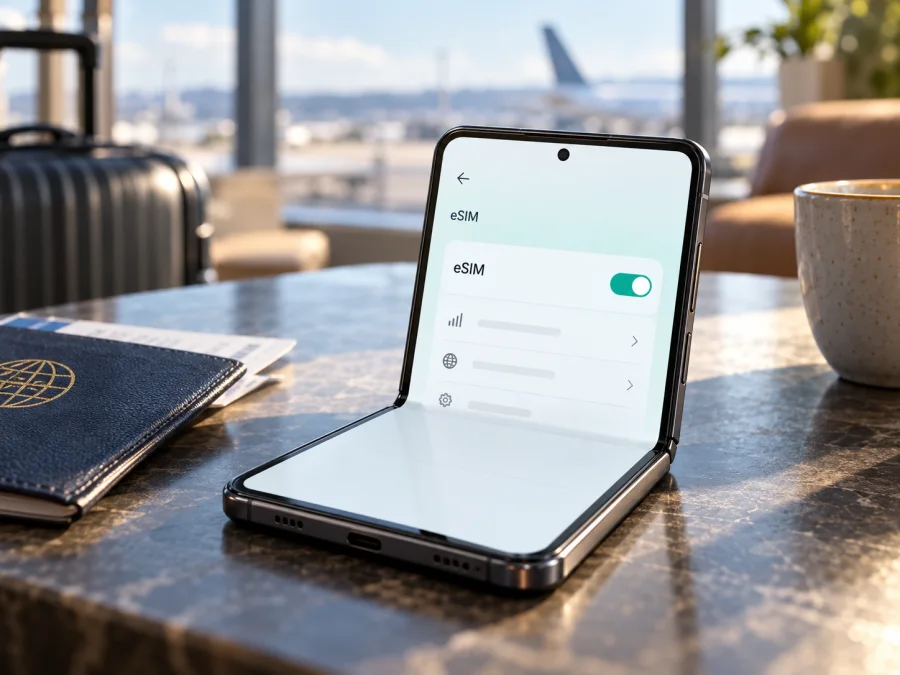
Samsung Galaxy Z Fold3 5G 8GB RAM eSIM: compatibility and setup guide
Quick answer: Samsung includes the Galaxy Z Fold3 family in its eSIM-capable device list, but support varies by country of origin and carrier. The exact “Samsung Galaxy Z Fold3 5G 8GB RAM” configuration could not be confirmed in the official Samsung specifications reviewed: Samsung’s US unlocked datasheet lists 12 GB RAM. Treat the supplied 8GB RAM variant as unverified until the individual phone shows an EID and an option to add an eSIM. RAM capacity and 5G branding do not prove eSIM support.
This guide preserves the requested device name and explains what to verify on the actual phone. A seller’s product title or another owner’s experience does not establish compatibility for your unit.
Compatibility at a glance
| Item | What is verified | What to check |
|---|---|---|
| Exact 8GB RAM listing | Not confirmed by the Samsung specifications reviewed; the US unlocked datasheet lists 12 GB RAM. | Confirm the model number on the device and ask the seller to explain the memory and regional SKU. |
| Galaxy Z Fold3 family | Listed by Samsung among Galaxy models with eSIM capability; US specification qualifies eSIM functionality as carrier-dependent. | Find the EID and an “Add eSIM” option on your phone. |
| Market and network | Samsung says eSIM may depend on country of origin; network support is separate from device support. | Check regional configuration, carrier lock and provider activation requirements. |
| Travel data | A travel profile can be used for mobile data if it installs and activates successfully. | Check destination, validity, activation time, roaming and APN instructions. |
Samsung’s “Galaxy eSIM and supported network carriers” page, updated 16 September 2026, lists Galaxy Z Fold3 and warns that availability can depend on country of origin. Samsung’s US unlocked Galaxy Z Fold3 5G datasheet says eSIM capability is carrier-dependent and lists 12 GB RAM. Samsung Austria’s product listing describes SIM 1 + SIM 2 or eSIM. These official pages show family-level and market-specific support; they do not verify the exact 8GB RAM configuration. Checked 17 October 2026.
What eSIM compatibility means here
An eSIM is a built-in component that stores a digital mobile plan. You add a profile through the phone’s SIM settings, usually by scanning a provider-issued QR code or entering activation details. A phone can contain eSIM hardware but still fail to install a plan if its regional software, carrier configuration, network lock or activation method prevents it.
The evidence is promising for some Galaxy Z Fold3 versions, but insufficient to confirm every regional unit—and especially the listed 8GB RAM version. The specification mismatch could be a reseller error, mixed product data or an undocumented regional listing; none of these possibilities proves that the exact version exists or supports eSIM. Verify the handset itself before buying a plan. If there is no EID and no eSIM setup control after checking the current software, assume the phone is not ready for eSIM until Samsung or the seller confirms the exact model.
Regional and carrier differences
Phones sold under one family name can differ in SIM tray, supported radio bands, firmware and carrier settings. Samsung explicitly cautions that the country of origin can affect eSIM availability. A carrier-sold device may also be locked to that network. Unlock status and eSIM hardware are separate: a phone can be eSIM-capable but unable to activate a profile from another provider until it is unlocked.
Before relying on this phone for a trip:
- Open Settings → About phone and note the full model number and software version. Keep the serial number private.
- Compare the model number with the box and sales record. Ask the seller to explain the 8GB RAM specification and identify the regional version.
- Confirm whether the phone is carrier-locked. Ask the original carrier if necessary.
- Check for an EID and Add eSIM, Add mobile plan or similar in SIM settings.
- Ask the intended provider whether its eSIM and activation method work with this specific phone and market.
Check for an EID and eSIM settings
Menu names vary by One UI version, country and carrier software.
1. Find the EID
Open Settings → About phone → Status information or Settings → About phone → Status and look for EID. Samsung’s “How to use an eSIM with your Galaxy phone” instructions say a carrier may request the EID and that it can appear in the phone’s status information or on its box. You can also try *#06#; some phones display EID with their IMEI values, but dialler behavior varies.
An EID is a useful sign that the phone has embedded SIM hardware, not a guarantee that every plan can be added. Do not confuse it with the IMEI. Keep both identifiers private and share them only with a trusted provider when needed.
2. Look for the setup control
Go to Settings → Connections → SIM manager and look for Add eSIM, Add mobile plan or equivalent wording. If it is missing, check for an official software update, restart, and search Settings for “eSIM” or “SIM manager.” Do not reset or install unofficial firmware just to reveal the menu. Ask Samsung or the seller to check the exact regional model.
If an EID appears but the add-eSIM option does not, the phone’s hardware and software clues disagree. A regional restriction, carrier firmware or configuration may be involved. Note the model number and software version and ask Samsung support or the seller to confirm that SKU.
3. Confirm that a profile can be added
A supported setup path should open a QR scanner or manual activation-code screen. You can inspect the menu without purchasing a plan. Do not scan a code from an unknown seller: activation codes can be private and single-use. Use a profile issued for you, and test setup over stable Wi-Fi.
Check your device before choosing a travel eSIM. This handset’s exact 8GB RAM configuration has not been verified against Samsung’s published specification.
Install and activate a travel eSIM
Install the profile over reliable Wi-Fi, preferably before departure. Have the QR code available on a second screen or printed page if the Fold3 is doing the scan. Check the plan’s rules: profile installation and the start of data validity may happen at different times.
Kaspersky eSIM Store’s Android installation guide describes the Samsung flow. Its iOS installation guide is for readers setting up a plan on an Apple device, not for this Samsung phone. Samsung’s “How to use an eSIM with your Galaxy phone” guide describes QR, automatic and manual setup paths.
Step 1: Prepare
Confirm the EID and add-eSIM control. Connect to Wi-Fi, charge the phone and open the plan instructions. Check destination, activation timing, data roaming and any APN details. Keep your usual SIM if you need its number for calls or messages.
Step 2: Open SIM Manager
Go to Settings → Connections → SIM manager → Add eSIM or Add mobile plan. Choose Scan QR code or the equivalent. If the provider issued a manual activation code, select manual entry instead.
Step 3: Add the profile
Scan the provider-issued QR code or enter the supplied details, then follow the on-screen prompts to download the profile. If the QR code is on the Fold3 itself, show it on another device or use the supported manual method. Never share a one-time code publicly.
Step 4: Label and time the profile
Give it a recognizable label, such as Travel data. If you do not need it yet, leave it off or do not select it for mobile data, according to the plan instructions. Validity may begin at purchase, installation, first network connection or a scheduled time; check the exact terms rather than assuming.
Step 5: Select the data line
When ready to use the plan, enable the travel eSIM in SIM Manager and set it as the preferred line for Mobile data. Keep calls and SMS on your home SIM if needed and allowed by your carrier. Turn off automatic data switching if available and you want to avoid unplanned use of the home line’s roaming data.
Step 6: Apply network settings
At the destination, turn on data roaming for the travel eSIM only if the plan requires it. If the provider gives you an APN, enter it exactly under Settings → Connections → Mobile networks → Access Point Names, save it and select it. Do not guess an APN or copy settings from a different plan.
Step 7: Wait and check
Allow a few minutes for network registration. Kaspersky eSIM Store’s Android guide says connection may take 5–10 minutes. Confirm the profile is enabled, selected for mobile data, and that airplane mode is off. Test a simple webpage. If service does not appear, troubleshoot before deleting the profile.
Using the Fold3 while travelling
The Fold3’s large screen can make maps, bookings and chats easier to view, but mobile-data setup works like it does on another compatible Android phone. Download offline maps, save hotel directions and keep setup instructions accessible before leaving. A travel eSIM commonly provides data only; it does not automatically give you a new phone number, standard voice calls or SMS. Messaging and internet calls can work through apps over data, subject to each app’s requirements.
On arrival, turn off airplane mode, select the travel eSIM for mobile data, enable its data roaming if directed, and wait for registration. If your home SIM remains active for calls, check that it is not selected for data. For a multi-country route, verify the plan’s territory and conditions rather than assuming a regional name includes every stop. Signal and speed vary with location, local networks, congestion and device radio compatibility; installation alone cannot guarantee service everywhere.
Kaspersky eSIM Store is an app and website where you can choose, arrange and activate an eSIM with a mobile-data plan for an international trip. It is not a mobile operator or network owner. After confirming this handset can add eSIM, you can browse the Kaspersky eSIM Store to check currently available destinations and plan details. This is a general destination finder, not a country-specific tariff page. Review data, validity, activation timing, hotspot conditions and network restrictions against your route before selecting a plan.
Common issues and checks
No EID or Add eSIM option: Check the full model number, country of origin and software version. Update using the official settings, restart and check once more. Ask Samsung or the seller to verify the exact SKU. If the seller cannot demonstrate eSIM on the actual phone, do not depend on it for an imminent trip.
QR code will not scan: Increase the brightness of the screen displaying it, clean the Fold3 camera lens and hold the code steady. Check that it belongs to you and has not already been used. Use manual entry only if the provider issued those details.
Profile download fails: Check Wi-Fi and confirm the phone is unlocked and the activation code is valid for this device. Restart and retry once. Avoid repeatedly scanning a one-use code; contact the provider if the first attempt may have consumed it.
Profile installs but there is no service: Confirm the travel profile is on and selected for data. Check the destination and validity, turn airplane mode off, wait several minutes, then follow the provider’s roaming and APN instructions. Try automatic network selection first.
Data uses the wrong SIM: Check the preferred mobile-data line and disable automatic switching if appropriate. Review the home SIM’s roaming settings and your carrier’s terms.
Phone asks for an unlock: Contact the carrier that sold it. Carrier lock is separate from eSIM hardware; get confirmation before relying on another provider’s profile.
Connection is slow or unstable: Check allowance, validity, signal strength, APN and plan conditions. Try a location with better reception. Weak signal in one place does not by itself mean the profile failed.
Instructions do not match the screen: Search Settings for “SIM manager” or “eSIM.” Samsung menu wording changes across One UI versions and localizations; follow instructions for the specific device. For support, note the model, software version and error message. Do not post a QR code, activation code, EID or IMEI publicly.
Before-you-buy compatibility checklist
- [ ] The actual phone shows an EID.
- [ ] SIM Manager has Add eSIM or another supported setup path.
- [ ] The device is unlocked for the provider you intend to use.
- [ ] Software is current and stable Wi-Fi is available for installation.
- [ ] The plan covers your destination and its activation timing fits your dates.
- [ ] You know which SIM is used for data, calls and texts.
- [ ] You have checked roaming, APN and network-selection instructions.
- [ ] You know how to access the private activation code and will not delete the profile without advice.
The supplied 8GB RAM detail remains unverified against Samsung’s official specification reviewed for this guide. Do not silently replace it with another memory version. If the phone lacks eSIM controls, choose a verified physical-SIM option or another handset confirmed for its market. If the controls are present, test the supported setup path and confirm the provider’s requirements before purchase.
FAQ
Does Samsung Galaxy Z Fold3 5G 8GB RAM support eSIM?
Some Galaxy Z Fold3 variants support eSIM, but Samsung’s specifications reviewed here do not confirm the exact 8GB RAM configuration. Its US unlocked datasheet lists 12 GB RAM and says eSIM functionality depends on the carrier. Check the individual phone’s EID, settings, region and lock status.
Is every Galaxy Z Fold3 5G eSIM-ready?
No. Samsung says country of origin can affect availability, and carrier configuration can matter. Verify the exact handset rather than relying on another owner’s experience.
Where can I find the EID?
Look in Settings → About phone → Status information or Status, or on the phone’s box. Keep the identifier private and provide it only to a trusted provider when needed.
Can I install a travel eSIM before departure?
Usually, if the device is compatible and connected to Wi-Fi. Check when validity begins. Leave the profile unused until you are ready if the plan’s instructions allow it.
Does a travel eSIM replace my number?
Not necessarily. Many travel plans are data-only and do not include a voice number or standard SMS. You may keep your regular SIM for calls while using the travel eSIM for data, subject to your carrier’s terms.
Must data roaming be on?
It depends on the plan. Some providers require roaming on the travel profile. Confirm you are changing the correct SIM’s setting; home-carrier roaming is governed by its own plan.
Can I transfer the eSIM to another phone?
Do not assume so. Some profiles or activation codes are limited to one installation. Check transfer and reinstallation rules before deleting or moving a profile.
Final check before your trip
Samsung’s support information indicates eSIM support for some Galaxy Z Fold3 models, but its official specification reviewed here does not verify the exact Samsung Galaxy Z Fold3 5G 8GB RAM configuration. Confirm EID, add-eSIM controls, regional model and carrier-unlock status on the actual handset, then check the destination plan’s setup rules. If the checks pass, install over reliable Wi-Fi and select the profile for mobile data when ready. If they fail, use a verified compatible device or a physical SIM alternative.


