Travel connectivity guide
Samsung Galaxy Z Fold3 eSIM: Compatibility & Setup
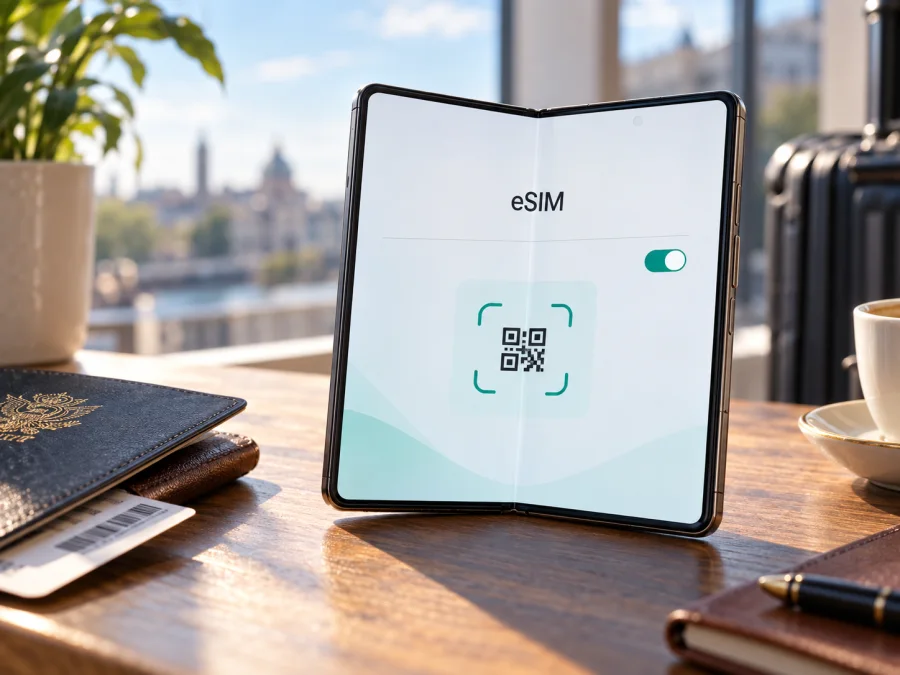
Samsung Galaxy Z Fold3 eSIM: compatibility, setup and travel use
The Samsung Galaxy Z Fold3 can use eSIM, but the model name alone is not enough to confirm that a particular handset will. Samsung includes Galaxy Z Fold3 in its supported Galaxy device family and documents eSIM setup for compatible phones. Samsung also warns that eSIM availability can depend on the phone’s country of origin and on the mobile provider. Regional hardware, sales market, carrier configuration and installed software therefore matter.
For a Fold3 with eSIM enabled, you can add a digital mobile plan alongside a physical nano-SIM, then choose which SIM handles mobile data. This is useful when travelling: keep your regular number available for calls or messages if your plan permits, and select a travel eSIM for data. Before buying any eSIM plan, check the EID and the Add eSIM option on the actual phone, confirm the handset is unlocked, and check that the plan covers your destination.
Samsung Galaxy Z Fold3 eSIM at a glance
| Item | What to know |
|---|---|
| Device | Samsung Galaxy Z Fold3 |
| eSIM support | Supported on compatible regional and carrier variants; not guaranteed on every unit |
| Setup menu | Settings → Connections → SIM manager → Add eSIM |
| EID | Settings → About phone → Status information |
| Travel use | Select an eligible travel eSIM for mobile data, subject to plan and local network conditions |
| Before purchase | Check model code, EID, Add eSIM menu, carrier lock and destination coverage |
Samsung’s product pages may call the device Galaxy Z Fold3 5G. Regional model codes and network specifications vary; neither “Fold3” nor a 5G label alone confirms eSIM support on a particular handset.
Does this exact model support eSIM?
Samsung includes Galaxy Z Fold3 in its supported Galaxy device family and documents eSIM setup on compatible phones. Its support guidance also warns that eSIM may not be available depending on the phone’s country of origin, even when the model appears in the list. Carrier support and software configuration can affect setup too.
The practical answer is yes, compatible versions of Samsung Galaxy Z Fold3 support eSIM; verify your individual phone before relying on it. A regional version may expose the eSIM feature while another market or carrier version may not. Imported and refurbished phones deserve particular care: check the full model code and settings rather than relying on a generic shop listing.
Keep three questions separate. The phone’s origin market affects whether eSIM is enabled. A carrier lock can prevent the handset from using another provider. The destination and plan determine whether the installed profile can connect there. Support for eSIM technology does not guarantee that every operator or plan will work in every country.
Check compatibility on the handset
The phone itself is the best final check. Samsung can update its list and menu labels can vary by software, region and carrier.
- Find the model code. Open Settings → About phone and note the model number. Compare it with the documentation for the country where the handset was sold; “Fold3” by itself is not enough for an imported device.
- Look for an EID. Open Settings → About phone → Status information and look for EID. Samsung says the EID may also appear on the original box. It is a useful indicator, but check the SIM manager too.
- Check the SIM manager. Open Settings → Connections → SIM manager and look for Add eSIM. The wording may differ slightly. You can inspect the menu without completing an installation.
- Check software and lock status. Install available official updates, restart and check again. Ask the original carrier whether a carrier-branded phone is unlocked for other providers.
- Confirm the plan. Ask the plan provider whether it supports the full Fold3 model code, destination and installation method. Share your EID only through a trusted setup flow when specifically requested.
Quick compatibility checklist
- [ ] You know the full model code and country of sale.
- [ ] EID appears, or Samsung/carrier support confirms eSIM for this variant.
- [ ] SIM manager offers Add eSIM.
- [ ] The phone is unlocked for the intended provider.
- [ ] The plan covers your destination and supports the setup method.
- [ ] Data allowance, validity and activation timing fit your trip.
Resolve any uncertainty before payment. An eSIM-capable phone is not automatically compatible with every plan or local network.
How to interpret the result
Treat the signs together. An EID is a device identifier associated with the eSIM function, while the SIM manager shows whether the installed software exposes the controls needed to add a profile. If both are present, you have a strong indication that the phone can accept an eSIM, but the carrier lock and plan requirements still apply. If only one appears, do not guess: software updates, market configuration or a carrier restriction may explain the difference. Confirm the variant with Samsung or the original carrier before paying for a plan. These checks concern handset compatibility; they do not confirm destination coverage or guarantee a connection at a particular location.
<a id="kesim-device-compatibility"></a> Use the Check your device checklist before selecting a plan.
Add and activate an eSIM on Galaxy Z Fold3
SIM manager may offer a carrier-assisted download, QR installation or manual entry, depending on the plan and software. Follow the provider’s instructions and use reliable Wi-Fi for profile download. A QR code may be limited to one installation, so do not scan it casually or delete the profile unless the provider says it can be restored.
- Prepare the plan. Read when validity begins: purchase, installation or first connection. Save the QR code or manual details somewhere accessible from another screen. If the code is displayed on the Fold3, use another device to show it or use manual entry if supported.
- Open SIM manager. Go to Settings → Connections → SIM manager → Add eSIM. Choose automatic download only if that is the provider’s method.
- Scan or enter details. Select Scan QR code or enter the activation information supplied with the plan. Keep it private. If an error appears, check whether the profile has already been downloaded before retrying.
- Download and label the profile. Follow the prompts, wait for completion and give the line a clear name such as “Travel data”. Installation can take a few minutes.
- Select data and activation timing. Set the travel eSIM as the line for Mobile data when needed. Keep calls and texts on your preferred SIM if appropriate. Disable automatic data switching if you want to avoid falling back to your home SIM. Enable data roaming for the travel profile only if the plan requires it.
- Test at the right time. At the destination, turn off Wi-Fi briefly, confirm the travel profile is selected and test a lightweight webpage. Check the provider account for status and data use.
For more detail, see the Android eSIM installation instructions. The iOS eSIM installation instructions apply to an iPhone, not this Fold3. Menu names can differ by One UI version. Kaspersky eSIM Store is the app and website where you can choose a destination, select a plan and activate an eSIM for mobile internet on an international trip; service follows the selected plan’s terms and network.
Use the Fold3 for data while travelling
Choose a plan that names every country or region on your itinerary, then compare its data allowance and validity with your expected use. A country plan may exclude nearby territories, while a regional plan may have its own list of included destinations. Check the plan details rather than assuming a broad region includes every stop.
A simple arrival routine helps avoid accidental roaming:
- Install before departure only if the plan permits it; note when its validity begins.
- Check roaming charges with your home operator before leaving your regular SIM active.
- In Settings → Connections → SIM manager, select the travel eSIM for mobile data. Set calls and texts separately.
- At the destination, enable data roaming on that eSIM only if its instructions require it.
- Allow the phone time to register, then test cellular data with Wi-Fi off. Follow the provider’s guidance before manually choosing a network.
- Monitor usage in the provider account. Video, backups, updates and hotspot use can consume data quickly.
The Fold3’s large inner screen is useful for maps, bookings and messages, but does not change what the plan includes. Data-only plans normally do not add a regular number, voice minutes or SMS unless their terms say otherwise. Internet calling and messaging apps can use the data connection. Check tethering rules before using a hotspot.
Signal and speed depend on local coverage, congestion, supported radio bands, roaming arrangements and settings. An eSIM profile cannot guarantee the same performance in every area.
Troubleshooting: what to check first
There is no Add eSIM option. Check the full model code and origin market, install official updates, restart and revisit SIM manager. If EID and Add eSIM are both absent, the variant may lack eSIM in its current configuration. Confirm with Samsung or the original carrier.
The QR code will not scan. Make sure it belongs to the plan, is fully visible and has enough contrast. If manual entry is supported, use the exact supplied details. Check whether the profile was already installed; many QR codes cannot be redeemed twice.
The profile installed but has no service. Confirm it is switched on and selected for mobile data, the destination is included and validity has started. Toggle airplane mode briefly, restart, and enable data roaming for that line if the plan requires it. Avoid deleting the profile until the provider confirms it can be reinstalled.
The phone shows a network but apps have no data. Turn Wi-Fi off for a proper test, confirm mobile data is enabled on the correct line and review the allowance and expiry. Change APN settings only when the provider gives exact instructions.
The home SIM is using data or the eSIM is rejected. Re-select the travel line for mobile data and turn off automatic data switching if available. An EID does not remove a carrier lock; confirm that the phone is unlocked and that the provider accepts this model code.
The connection is slow or the profile was deleted. Check signal, available networks and plan terms; test in another location. Ask the provider before reinstalling a deleted profile, since some plans limit installation. Preserve your order confirmation and account access during the trip.
Practical travel scenarios
A short city break. Confirm the destination is included, estimate map and messaging use, and match the data allowance and validity to the trip. Install over Wi-Fi if allowed; enable the line when the plan’s instructions say to.
Several countries. Verify each border crossing and territory in the plan details. If one stop is excluded, decide whether to use a second plan or your regular operator there. Do not infer regional coverage from the plan name alone.
Work travel with a home number. Check home-line roaming rules. If you need that number for calls or texts, leave it available as needed but route data through the travel eSIM. Disable automatic data switching to reduce the chance of home-line data charges.
Longer stay or frequent data use. Estimate use for video calls, work files and hotspot sharing. Review allowance, validity and top-up rules. Use Wi-Fi for large updates where practical and check what happens when the plan expires or runs out.
Frequently asked questions
Can Samsung Galaxy Z Fold3 use eSIM?
Yes, compatible versions support eSIM. Samsung lists the Fold3 among supported Galaxy devices but warns that eSIM can depend on the phone’s country of origin and provider. Check EID and Add eSIM on your handset.
Does every Fold3 have eSIM?
No. Regional and carrier versions can differ. Check the model number, EID, SIM manager and carrier-lock status before buying a plan.
Where can I find the EID?
Open Settings → About phone → Status information and look for EID. Labels may vary slightly; Samsung also notes it may be printed on the original box.
Can I use physical SIM and eSIM together?
The supported SIM combination depends on the exact variant and market. Check the profiles shown in SIM manager and your operator’s conditions.
Can I install the eSIM before travelling?
Often, but the plan decides when validity begins. Check whether it starts at purchase, installation or first connection before scanning the QR code.
Does a travel eSIM include a phone number?
Usually not when it is a data-only plan. Check its terms for voice and SMS; internet calling apps can work over mobile data.
Should I delete the profile afterward?
Only after checking the plan’s rules. Some profiles can be topped up or reused; others cannot be restored after deletion.
Before you choose an eSIM for your trip
Start with the handset, then the destination. Confirm that your exact Samsung Galaxy Z Fold3 has an EID and Add eSIM option, identify its regional model code, and make sure it is not carrier-locked. Then verify that the plan covers every stop, supports the intended installation method and has a data allowance and validity period that suit your trip.
Kaspersky eSIM Store is an app and website where you can choose a destination, select a plan and activate an eSIM for mobile internet on an international trip. Check compatibility before purchase, review the plan details and follow its activation timing so your Fold3 is ready when you arrive.


