Travel connectivity guide
Samsung Galaxy Z Fold4 128GB eSIM guide
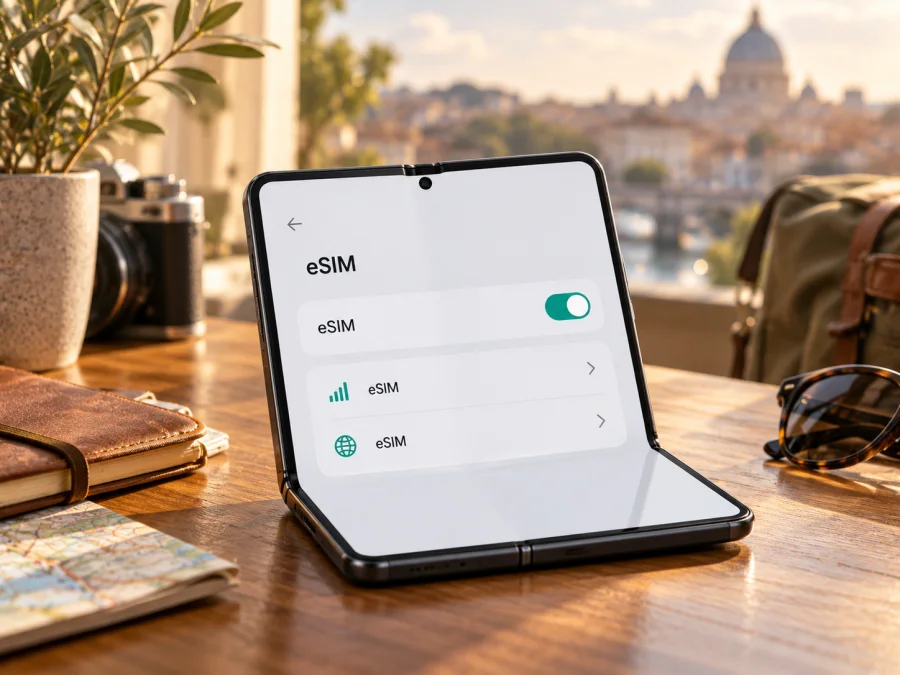
Samsung Galaxy Z Fold4 128GB eSIM: compatibility and setup guide
Planning to use a travel eSIM with a Samsung Galaxy Z Fold4 128GB? Samsung lists Galaxy Z Fold4 among its eSIM-capable Galaxy devices, and its product specification sheet names eSIM as a feature. There is an important qualification: I could not verify an official 128GB configuration. Samsung’s published storage choices for this model are 256GB, 512GB and, in selected markets, 1TB. Treat the “128GB” detail as unconfirmed until you check the exact handset and its model code.
The practical answer is therefore conditional: the Galaxy Z Fold4 family supports eSIM in supported regional versions, but a listing called “Samsung Galaxy Z Fold4 128GB” does not by itself prove that the particular phone has eSIM enabled. Check the EID and SIM Manager on the device, confirm that it is carrier-unlocked, and verify the model code before buying a travel plan.
At a glance
| Item | What to know |
|---|---|
| Supplied device name | Samsung Galaxy Z Fold4 128GB |
| eSIM on the Galaxy Z Fold4 family | Listed by Samsung; included in Samsung’s US specification sheet |
| Exact 128GB configuration | Not found in the official storage configurations reviewed; verify the phone and seller listing |
| Regional limitation | Samsung says eSIM may be unavailable in some countries of origin, even for listed devices |
| Operator limitation | Carrier rules, activation support and lock status can affect use |
| Best pre-purchase check | Look for an EID and an Add eSIM option on the exact phone |
| Travel use | A compatible, unlocked version can use an eligible travel plan for mobile data abroad |
Does Samsung Galaxy Z Fold4 128GB support eSIM?
Samsung’s current Galaxy eSIM support information includes Galaxy Z Fold4 in its compatible-device list, and Samsung’s US specification sheet names eSIM as a feature. This confirms support for many versions in the Fold4 family.
The “128GB” detail is unconfirmed. Samsung’s official specification material reviewed for this guide lists the Fold4 with 12GB RAM and 256GB, 512GB or 1TB storage. Samsung’s launch information in South Korea also names 256GB and 512GB, plus a 1TB online-exclusive configuration. I could not verify a Samsung 128GB Fold4 variant. A marketplace title or refurbished-device listing may have an incorrect capacity or seller-entered detail, so check the phone’s model code and storage shown in Settings.
Regional versions and operator restrictions
Samsung warns that eSIM may not be supported in a device’s country of origin even when its model family appears on a support list. Regional versions can have different model codes, firmware or carrier settings. Operator-sold units may also have restrictions that do not apply to unlocked phones.
Keep three locations separate:
- Device sales market: where the hardware and software were made; this can affect whether eSIM settings are available.
- Operator market: the carrier that sold or serviced the phone; it can affect unlocking and activation.
- Travel destination: where the selected plan must have a supported network. Destination coverage does not change the phone’s hardware or regional settings.
A destination plan cannot remove a regional limitation or carrier lock, and an eSIM menu does not guarantee that every plan will activate. Check the exact model code with Samsung for its sales market and ask the current or original operator about lock status. For a used or imported phone, verify the exact handset before paying.
What to check before buying a travel eSIM
Run these checks on the actual phone, preferably over Wi-Fi. A product page, box photo or general compatibility list cannot confirm the unit you will use.
- [ ] Look for an EID. Open the Phone app and enter
*#06#; look for an EID alongside the IMEI details. The display may vary. - [ ] Check SIM Manager. Open Settings → Connections → SIM manager and look for Add eSIM or a similar option.
- [ ] Confirm the model code. In Settings → About phone, note the model number. Ask Samsung about that exact code and its original market if the EID or menu is missing.
- [ ] Confirm it is unlocked. Ask the selling or original operator whether another provider’s eSIM can be installed.
- [ ] Review the plan. Check destinations, data allowance, validity, activation timing and any data-roaming requirement.
- [ ] Prepare internet access. Wi-Fi helps download the profile. Keep setup instructions available offline.
- [ ] Update before travel. Install available stable updates and restart if SIM Manager does not show the expected controls.
You can check your device compatibility before choosing a plan. For this exact “Samsung Galaxy Z Fold4 128GB” listing, treat compatibility as unconfirmed until the phone shows an EID or eSIM setup option and its model and lock status are verified.
After checking the handset, you can browse current destinations and travel plans in Kaspersky eSIM Store. The app and website let you choose, arrange and activate an eSIM plan for mobile data during an overseas trip. Review the destination, allowance, validity and activation terms for the selected plan.
How to find the EID and Add eSIM
The EID identifies the phone’s embedded SIM hardware. It is useful when an operator asks for it, but does not guarantee that a particular profile will work. Check the setup menu as well.
Check the phone dialler
- Open the Phone app.
- Enter
*#06#. On many Samsung phones, the identification screen opens automatically; you do not need to call. - Look for EID alongside any IMEI numbers.
- Keep identifiers private and share them only through an operator’s official channel when needed.
Check Settings
- Open Settings → Connections → SIM manager.
- Look for Add eSIM. Open it when ready to install a profile.
- Review listed SIMs for a status such as locked, inactive or unavailable.
Menu wording varies across One UI versions and markets. Search Settings for “SIM manager” or “eSIM.” If no result appears, verify the region and model code; a factory reset can erase data without removing a regional restriction.
How to install and activate an eSIM
Confirm compatibility and unlock status, choose a plan for your destination, and connect to stable Wi-Fi. Keep the QR code or activation details ready. Read when validity begins: downloading a profile and starting its data period may be separate events.
Install with a QR code
- Open SIM Manager: go to Settings → Connections → SIM manager.
- Add a profile: tap Add eSIM, then choose the QR-code option if available.
- Scan the code: point the camera at the code for your plan. If it is on the Fold4 itself, show it on another screen or use manual entry if offered.
- Review the details: make sure the profile is for your trip, not an old or different plan.
- Download it: follow the prompts and keep the phone online until setup finishes.
- Name the line: use a clear label such as “Travel data” if prompted.
- Choose the data line: keep your regular SIM for calls or messages if needed, and select the travel eSIM for mobile data when appropriate.
- Follow timing instructions: some plans can be installed before departure and enabled later; others start when they connect to a supported network.
For more detail, see the Android eSIM installation instructions. The iOS installation instructions cover another operating system and should not be followed on this Samsung phone.
If QR scanning is unavailable
A plan may offer an activation code or server address for manual setup. Choose manual entry in SIM Manager if available and copy details exactly. Do not invent a server address or reuse another eSIM’s information. Contact the plan provider if there is no manual route or the code does not work.
Select the eSIM for mobile data
Confirm the profile is enabled, then select it under Mobile data or Preferred SIMs. Some travel profiles require Data roaming at the destination; check their instructions first. If roaming is needed, verify that the travel eSIM is selected to avoid using your home SIM’s roaming allowance. Do not delete a profile just because it has not connected yet; first check activation timing and network registration.
Using the Fold4 for data while travelling
Choose a plan that fits your route, trip length and expected use. Video calls, photo backups and streaming can consume more data than messaging or offline maps. Download travel documents and maps over Wi-Fi before departure when practical.
A common setup is to keep the home SIM available for its usual number and select the travel eSIM for mobile data after arrival. Whether both lines can remain active depends on software, SIM configuration and carrier. Check SIM Manager and the data selector rather than assuming the second line is already handling data.
Common travel scenarios
Prepare before departure: verify the model and unlock status, install the profile over Wi-Fi if advance installation is allowed, and save activation instructions offline. If the plan says to enable it at the destination, leave it disabled or unselected until then.
Connect after arrival: enable the travel line, select it for mobile data and follow any data-roaming instructions. Allow a few minutes to register. If it does not connect, troubleshoot before removing the profile.
Visit several countries: check every destination against the plan’s list and validity terms. A regional country list does not guarantee identical reception everywhere; service depends on partner networks and local conditions.
Kaspersky eSIM Store is an app and website for choosing, arranging and activating eSIM plans for mobile data on overseas trips. It is not the mobile operator and does not own the networks used by a plan. A data eSIM may not include a regular phone number, calls or SMS; internet-based calls and messages can use data through your apps.
Troubleshooting common problems
“Add eSIM” is missing or there is no EID
Search Settings for SIM manager, check About phone and confirm the original sales market with Samsung. Restart and install available stable updates. If both the EID and Add eSIM option remain absent, ask Samsung or the selling operator to check the exact model code. The “128GB” label does not prove or disprove support.
The QR code will not scan
Increase screen brightness, clean the camera lens and hold the phone steady. If the code is shown on the Fold4 itself, display it elsewhere or use manual entry if offered. Some codes have limited uses; contact the plan provider if it appears expired or already used.
The profile installs but there is no service
Make sure the line is enabled and selected for mobile data. Check the plan’s activation window and destinations, and enable roaming for that line only if instructed. Briefly toggle Airplane mode and wait for registration. Follow the provider’s directions for network selection.
Data uses the wrong SIM or apps do not load
Check the default data line in SIM Manager and select the travel eSIM. Confirm mobile data is on and the plan has active validity and data remaining. Turn Wi-Fi off briefly for a cellular test, and check the home SIM’s roaming settings and charges. Do not change APN values unless the plan provider supplies them.
The phone refuses to add the profile
The code may have been used, intended for another device or restricted by carrier or region. Keep the error message and order confirmation, but do not post the full EID or IMEI publicly. Ask the provider whether the profile can be installed again or replaced. Avoid deleting a partly installed profile unless support advises it.
Frequently asked questions
Is Samsung Galaxy Z Fold4 128GB an official configuration?
I could not verify a Samsung 128GB configuration. The official Fold4 material reviewed lists 256GB and 512GB, with 1TB in selected markets. Check the model code and storage shown in Settings before treating “128GB” as an official variant.
Does every Galaxy Z Fold4 support eSIM?
Samsung lists the Fold4 family as eSIM-capable, but notes that support can depend on country of origin. Carrier restrictions, software and local operator support can also affect activation. Check the exact phone for an EID and Add eSIM.
Does an EID guarantee a travel plan will work?
No. You also need the setup option, an unlocked handset, a plan that supports the device and destination, and any required network settings.
Can I install a plan before travelling?
Often a profile can be downloaded over Wi-Fi in advance, but activation timing varies. Check whether validity starts at installation, a chosen time or first connection in a supported destination.
Final check: confirm the phone, then choose a plan
For “Samsung Galaxy Z Fold4 128GB,” the answer is conditional. Samsung confirms eSIM support for the Fold4 family, but the 128GB configuration itself is not confirmed in the official specifications reviewed here. Regional versions and operator locks can affect the exact handset. Check the EID, look for Add eSIM in SIM Manager, verify the model code and confirm unlocking before paying for a plan.
Then choose a travel eSIM according to your itinerary, included destinations, data allowance, validity and activation instructions. You can browse current eSIM destinations and plans in Kaspersky eSIM Store, then follow the selected plan’s setup steps. This final device-and-plan check helps you prepare mobile data for the trip without assuming every Fold4 configuration or every destination network behaves the same way.


