Travel connectivity guide
Samsung Galaxy Z Fold4 512GB eSIM
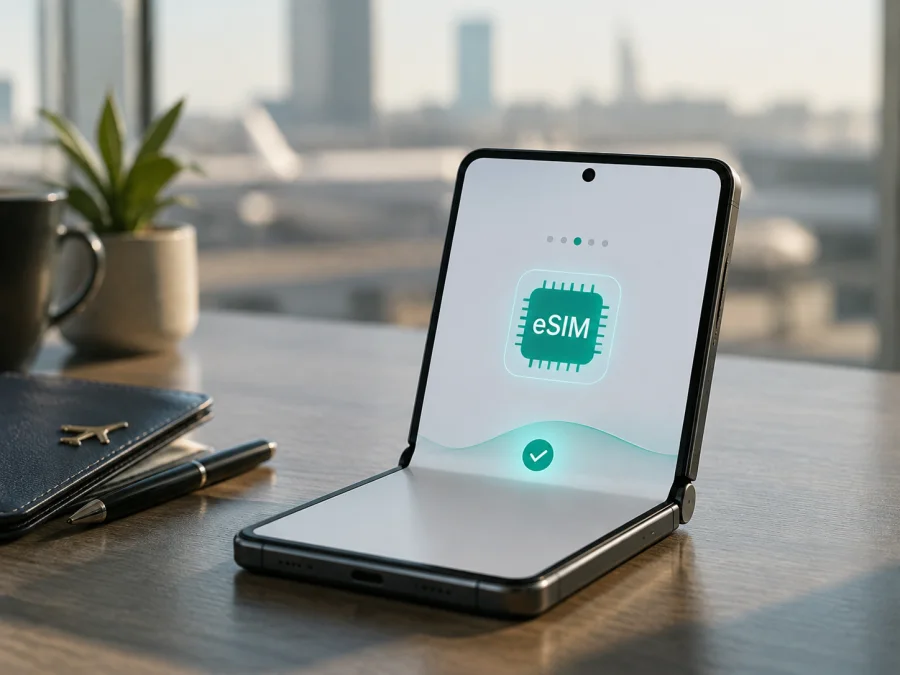
eSIM for Samsung Galaxy Z Fold4 512GB: compatibility and setup
If you are checking whether the Samsung Galaxy Z Fold4 512GB can use an eSIM for travel, the short answer is: generally yes, when your particular regional and carrier version includes the embedded-SIM function. Samsung’s official specifications for 512 GB configurations list an embedded SIM alongside a nano-SIM and describe the phone as dual-SIM capable. However, the exact feature set is not identical in every market. Samsung also notes in its current support guidance that eSIM service can vary by country, carrier, software version and device model. For that reason, the presence of the eSIM menu or an EID on the phone is the final compatibility check before you purchase a plan.
The storage size does not by itself activate or disable eSIM. Samsung commonly lists the 512 GB configuration with 12 GB of memory, but the decisive factors are the handset’s model code, market, carrier status and firmware. An imported or carrier-branded phone can show different SIM options from a similarly named retail version. This guide keeps the exact name Samsung Galaxy Z Fold4 512GB because that is the variant being checked; it is not a promise that every Fold4 sold worldwide has the same eSIM menu.
Does Samsung Galaxy Z Fold4 512GB support eSIM?
For a compatible regional version, yes. Samsung’s official product specifications for the 512 GB Galaxy Z Fold4 show “Embedded-SIM” or “e-SIM” and describe a SIM arrangement such as one nano-SIM plus an embedded SIM. That confirms that eSIM hardware and software were offered for this family and storage configuration. It does not confirm that every unit carrying the retail name Samsung Galaxy Z Fold4 512GB has eSIM enabled.
Keep three checks separate: the handset must contain and expose eSIM, the carrier or travel-plan provider must allow activation, and the plan must cover the destination. Do not rely on the product title alone. Open Settings and look for SIM manager and Add eSIM, and look for an EID, the identifier associated with the embedded SIM. If both are absent, treat the handset as incompatible until Samsung or the seller confirms otherwise. Another owner’s successful Fold4 activation is not proof for your regional edition.
What can vary between regional versions
The Galaxy Z Fold4 was sold in many markets with different model codes, network bands, carrier packages and firmware. One official Samsung page may list eSIM while another market’s page exposes a different SIM arrangement. A carrier-branded phone can also have activation rules that are not present on an unlocked retail unit. The label may be Embedded-SIM, eSIM or Add eSIM, and the menu can move after a One UI update.
Confirm the complete model code in Settings > About phone and check the phone itself. If buying used or imported, ask for a screenshot of Settings > Connections > SIM manager showing Add eSIM, or ask the seller to confirm the EID without sharing it publicly. A network lock can block a travel eSIM even when the hardware supports it; unlocking belongs to the original carrier.
Samsung Galaxy Z Fold4 512GB: key compatibility facts
| Item | What to know |
|---|---|
| Exact device checked | Samsung Galaxy Z Fold4 512GB |
| Storage | 512 GB configuration; available space is lower after system software |
| Memory | Samsung specifications commonly list 12 GB for the 512 GB configuration |
| SIM capability | Official regional specifications list nano-SIM with embedded SIM/eSIM |
| Network generation | The family supports 4G LTE and 5G bands that differ by market |
| Travel data | Possible through a compatible eSIM plan where the handset and destination support it |
| Final proof on the handset | EID and/or Settings > Connections > SIM manager > Add eSIM |
| Main uncertainty | Country, carrier lock, model code, firmware and local eSIM availability |
For an unverified import, band support, the plan’s network partner and its data terms also matter.
Check compatibility before buying a travel eSIM
Use this checklist while you have the phone in hand. It is more reliable than searching by the family name alone.
- [ ] Confirm that the device name is Samsung Galaxy Z Fold4 512GB and record its full model code under Settings > About phone.
- [ ] Open Settings > Connections > SIM manager and look for Add eSIM, Add mobile plan, or a similar option.
- [ ] Check whether an EID is displayed in phone information. Avoid publishing the complete EID in a screenshot.
- [ ] Check whether the phone is unlocked for other networks. A physical SIM working at home does not prove that a foreign eSIM can activate.
- [ ] Install pending system updates over Wi-Fi, then check SIM manager again.
- [ ] Confirm that the travel plan covers the country, region or route you will visit and that it is intended for data use.
- [ ] Read whether validity starts on installation, first network connection or another stated event.
- [ ] Keep Wi-Fi available for the download and activation step, and keep the original SIM active until the travel line is tested.
For a compact summary, check your device here before payment.
How to find the EID and eSIM menu
- Unlock the phone and open Settings > Connections > SIM manager. On some versions this is called SIM card manager.
- Look for Add eSIM, Add mobile plan, Download a SIM or a QR-code option. If it is not visible, check Settings > About phone > Status information for EID.
- Restart after updates and check again. If there is still no EID and no Add eSIM entry, contact Samsung or the seller with the full model code.
An EID suggests the component; Add eSIM confirms setup. Neither removes a carrier lock or replaces checking destination and plan.
How to install an eSIM on Samsung Galaxy Z Fold4 512GB
Before scanning, charge the phone, connect to Wi-Fi and keep the QR code or manual details on another screen.
Step-by-step installation
- Confirm compatibility. Do not scan until SIM manager shows Add eSIM or the device has an EID.
- Open Settings > Connections > SIM manager > Add eSIM. On older software, use Add mobile plan.
- Choose Scan QR code, or use manual entry for an activation code, SM-DP+ address and confirmation code. Keep the entire QR code visible and steady.
- Review the destination, download the profile over Wi-Fi and give it a clear label such as “Travel — Germany”.
- Switch the profile on. Select it as the preferred SIM for mobile data and keep automatic data switching off while testing.
- If the plan requires data roaming, enable it for the travel eSIM only. Restart if needed, then test a simple webpage with Wi-Fi off.
For a fuller Android walkthrough, use the Android eSIM installation instructions. They do not change Samsung’s requirements. The iOS eSIM installation instructions are for Apple devices; the menu names above are for Samsung Galaxy Z Fold4 512GB.
Activation is not the same as installation
Installation downloads a profile; activation enables it and lets the plan register. Validity may begin at installation, first connection or another event, so read the conditions before scanning.
Carrier discovery may download the plan after Add eSIM, but it is carrier-dependent. If the first attempt created a profile, check SIM manager before scanning a one-time QR code again.
Using the eSIM for mobile data while travelling
The most predictable travel setup keeps the home SIM available for incoming messages when your home carrier permits it, while the eSIM is selected for mobile data. On Samsung Galaxy Z Fold4 512GB, open Settings > Connections > SIM manager and set the travel profile as the preferred SIM for mobile data. If you do not need calls or SMS on the home line, disable that line temporarily. This lowers the chance of accidental roaming but also means that the home number may be unreachable until it is re-enabled.
Before departure, install only when the plan’s validity rules make that sensible. Save activation details securely and do not share the QR code. Keep the phone updated and, at arrival, turn on the travel eSIM, select it for data and enable roaming for that profile only if required.
Practical travel scenarios
Short city break. Choose enough data and validity for maps, messaging and browsing; test one page at arrival.
Work trip. Keep the home SIM active only if its roaming terms are acceptable. Set the travel eSIM as data and disable automatic switching.
Multi-country route. Check that one regional plan covers every stop; a country plan is not automatically valid in a neighbor.
Heavy data use. Video calls, backups and hotspot use can consume a package quickly; pause automatic backups and check tethering terms.
An eSIM travel plan normally concerns mobile data. It may not include a phone number, voice calls or SMS unless stated. Use internet messaging and calling apps when appropriate.
Common problems and what to check
“Add eSIM” is missing
Recheck the full model code, install available Samsung updates over Wi-Fi and look for an EID. If the EID and menu are both absent, the regional or carrier version may not expose eSIM. A factory reset is not the first remedy and can erase useful evidence; contact the seller or Samsung support with the model code instead.
The QR code will not scan
Increase screen brightness on the device showing the code, clean the camera, remove glare and hold the Fold4 at a comfortable distance. Make sure the entire code is visible and not expired. If the code is shown on the Fold4, display it on a laptop or second phone. If the provider gives manual details, use manual entry. Do not repeatedly request a new profile until you know whether the first attempt partially installed it.
The profile downloads but there is no service
Open SIM manager and confirm that the travel eSIM is switched on and selected for mobile data. Check airplane mode, signal, preferred network mode and data roaming for the travel profile. Confirm the destination, APN instructions, plan validity and local coverage. Restart once after changing the settings. If the phone is carrier-locked, contact the original carrier; changing the APN will not remove a lock.
Mobile data is coming from the wrong SIM
In SIM manager, choose the travel eSIM under Preferred SIMs > Mobile data. Turn off automatic data switching while testing. Temporarily disable Wi-Fi so the test uses cellular data, then open a simple webpage. Check your home carrier’s roaming conditions before leaving the home line active.
The eSIM works but the data stops
Check the plan balance, validity period and whether the package is limited to a particular country. Look for a data limit on the phone and confirm that the profile remains enabled. If the signal is present but data is unavailable, review APN instructions and restart. If the plan has ended or the profile cannot be reactivated, contact the plan provider’s support team rather than deleting the profile prematurely.
FAQ
Is 512GB enough to confirm eSIM support? No. Storage identifies capacity, not regional software. Your EID and Add eSIM menu are the deciding checks.
Does 5G guarantee that eSIM will work? No. 5G and eSIM are separate features; the regional handset and destination plan must both be compatible.
Can I use a physical SIM and eSIM together? A supported configuration can use both, but active combinations depend on model, firmware and carrier. Check SIM manager.
Will an imported phone work abroad? It may, but verify EID, Add eSIM, destination bands and unlock status.
Do I need to remove my physical SIM? Usually not. Keep it for your home number if appropriate, select the travel eSIM for data and review roaming settings.
Can I move the eSIM to another phone later? Do not assume so. Some profiles require a new activation code. Follow the plan’s transfer and reissue terms before deleting the original profile.
What should I do if support is needed? Record the model code, One UI version, error and destination. Contact the plan’s support for profile issues; contact Samsung or the seller for a missing EID, absent Add eSIM menu or device fault.
Conclusion: check first, then choose a travel eSIM
Samsung Galaxy Z Fold4 512GB is an eSIM-compatible configuration in relevant official Samsung specifications, and Samsung provides an Add eSIM workflow for supported Galaxy devices. The conclusion is conditional because regional, carrier and software differences matter. Before buying, verify the model code, EID or Add eSIM menu, unlock status, updates and plan destination.
Once those checks pass, Kaspersky eSIM Store can help you choose and activate an eSIM tariff for mobile internet during a foreign trip through its app or website. Compare direction, data, validity and activation conditions, then select the travel eSIM for data. Base the decision on the actual Samsung Galaxy Z Fold4 512GB in your hands.
Final device-and-trip check
- [ ] The phone is the exact Samsung Galaxy Z Fold4 512GB variant you intend to use.
- [ ] The full model code and regional version are known.
- [ ] EID or Settings > Connections > SIM manager > Add eSIM is present.
- [ ] The handset is not blocked by its original carrier.
- [ ] Samsung software is current and the phone can connect to Wi-Fi during setup.
- [ ] The selected eSIM plan covers every destination and its validity start is understood.
- [ ] The travel eSIM is selected for mobile data, while the home SIM’s roaming is controlled.
- [ ] You have tested data and know where to request support.
If every box is checked, choose an eSIM that matches your route and data use, then install it at the time allowed by the plan. If any box is uncertain, pause and verify the device or ask Samsung, the seller or plan support.


