Travel connectivity guide
Samsung Galaxy Z Fold5 5G 128GB eSIM
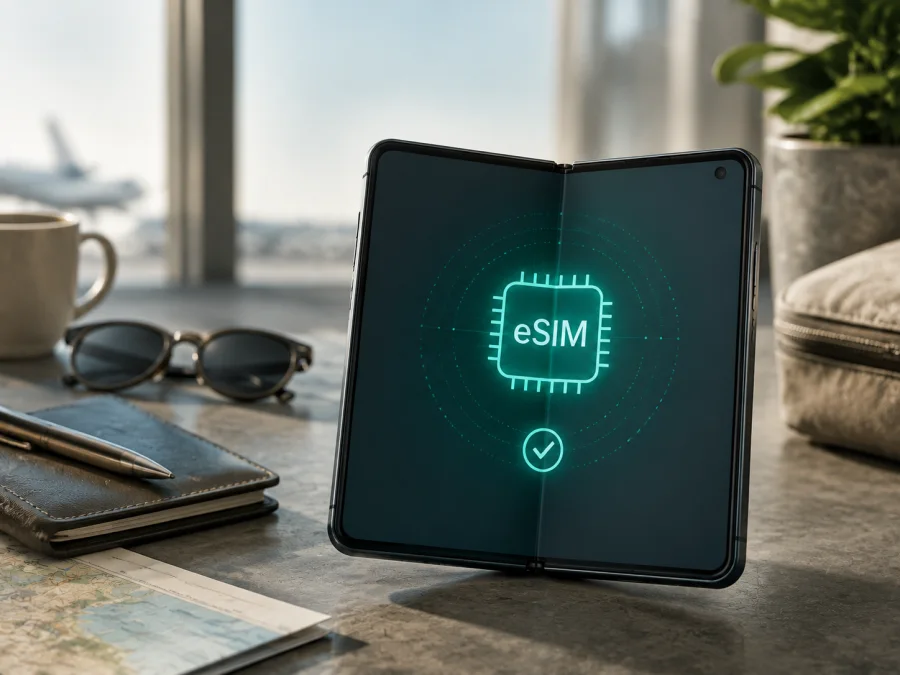
Samsung Galaxy Z Fold5 5G 128GB eSIM: compatibility, setup and travel use
Does Samsung Galaxy Z Fold5 5G 128GB support eSIM for mobile internet abroad? Yes for the Galaxy Z Fold5 family on compatible market versions, but this exact handset still needs checking. Samsung lists Galaxy Z Fold5 among eSIM-capable Galaxy devices and describes a nano-SIM plus eSIM arrangement, while warning that availability depends on software, region, country of origin and carrier.
There is an important variant detail. Samsung’s published Galaxy Z Fold5 specifications list 256 GB, 512 GB and 1 TB storage options rather than 128 GB. The 128GB label may be a marketplace or refurbished listing error. Preserve the exact name when comparing the listing, but use the model number and EID to identify the actual phone.
Quick answer: does Samsung Galaxy Z Fold5 5G 128GB support eSIM?
The Galaxy Z Fold5 platform supports eSIM on documented compatible versions. Samsung lists the model, identifies up to two nano-SIMs and one eSIM in the supported configuration, and gives the path Settings > Connections > Mobile networks or SIM manager > Add eSIM. An eligible Samsung Galaxy Z Fold5 5G 128GB can therefore use a travel eSIM for data.
That answer is not a guarantee for every phone carrying this sales title. The 5G label and advertised 128GB capacity do not identify the market version. Imported or carrier-branded phones may have different firmware, menus or locks. Before buying a plan, look for both an EID and an Add eSIM or Download a SIM option; if both are missing, ask the seller or carrier to confirm the exact model.
| Checkpoint | Samsung Galaxy Z Fold5 5G 128GB guidance |
|---|---|
| eSIM | Supported by the Galaxy Z Fold5 family on compatible regional and software versions; verify the unit |
| Physical SIM | Documented configurations use nano-SIM support; the exact combination varies by market |
| Add eSIM | Usually Settings > Connections > SIM manager, or Mobile networks > SIM manager > Add eSIM |
| EID | Check About phone, SIM status or the information shown after *#06# |
| Storage label | The supplied variant says 128GB, but Samsung’s published Fold5 capacities differ; confirm the model number |
| 5G | The family supports 5G, but local bands, carrier service and plan conditions determine the connection |
| Travel data | Select the travel eSIM as the mobile-data line and follow the plan’s roaming instructions |
In short, Samsung Galaxy Z Fold5 5G 128GB is a plausible eSIM candidate. A successful setup also requires suitable firmware, an unlocked phone and a travel plan that covers the destination.
Regional, operator and firmware differences
Samsung presents eSIM support at the family level, but availability may vary by software version, region, carrier and country of origin. Open About phone and compare the model code with the box and seller’s description. Do not publish the IMEI or EID; if versions differ, delay the purchase until the SIM arrangement is confirmed.
A carrier lock is separate from eSIM hardware. A locked phone may show Add eSIM and an EID but reject another provider’s profile, so ask whether an imported, used or carrier edition is network-unlocked. Firmware updates can change menu names but cannot add eSIM hardware. Search Settings for “eSIM”, “SIM manager”, “Mobile networks” or “Add mobile plan” if the path differs.
5G is a separate question. An eSIM can provide LTE when 5G is not available, or a phone can support 5G while the selected plan or partner network does not. Destination bands, congestion, indoor coverage and the plan’s roaming arrangement affect service. eSIM compatibility means a profile can be installed and used; it does not promise a particular speed or 5G everywhere.
Check compatibility before you buy
Use the phone itself whenever possible. “Samsung Galaxy Z Fold5 5G 128GB” may be a marketplace label rather than Samsung’s official storage naming. Do not rely on a 5G icon, a SIM tray or a QR code.
<a id="kesim-device-compatibility"></a>
Compatibility checklist
- [ ] The listing, box and About phone screen identify the handset consistently as Samsung Galaxy Z Fold5 5G 128GB or show the exact model code supplied by the seller.
- [ ] The phone is not carrier-locked, or the original carrier has confirmed that another eSIM provider can be used.
- [ ] Settings contains Connections and a SIM manager or Mobile networks section.
- [ ] SIM manager includes Add eSIM, Add mobile plan, Download a SIM or an equivalent QR-code option.
- [ ] An EID is visible in SIM status, About phone or after entering *#06#.
- [ ] The phone has reliable Wi-Fi, enough battery and current official software.
- [ ] The travel plan covers every country or region on the route.
- [ ] You understand the plan’s activation moment, validity, allowance, roaming and hotspot conditions.
- [ ] You know which line will carry data and how to prevent roaming on the home SIM.
For a quick reminder, Check your device against this list before buying a plan. If the menu appears but installation fails, investigate the carrier lock, region and plan conditions. If the EID and eSIM menu are both absent, do not try to force a QR code onto the phone; ask the seller or carrier to identify the exact version.
How to find the EID and eSIM menu
- Search Settings for “eSIM” or “SIM manager”; One UI labels vary by region and version.
- Open Settings > Connections > SIM manager, or Mobile networks first, and look for Add eSIM, Add mobile plan or Scan QR code.
- Open About phone or SIM status and look for EID. You can also enter *#06#; compatible phones commonly show an EID with IMEI information.
- Compare the model code and region with the seller’s documentation. An EID proves embedded-SIM identity, not universal carrier acceptance. Keep EID and IMEI values private.
An IMEI alone is not evidence of eSIM support. The clearest local evidence is an EID, an Add eSIM menu and an unlocked device. If the phone reports another family or model code, resolve that discrepancy before payment.
Prepare a travel eSIM
After the handset check passes, connect to Wi-Fi, charge the phone and decide how the physical home SIM and travel eSIM should work together. A travel eSIM is commonly data-only and may not provide a normal number, voice calls or SMS unless the selected plan includes them.
Kaspersky eSIM Store is an app and website where you can choose, arrange and activate an eSIM with a suitable plan for mobile internet during a foreign trip. It helps you review a destination, data allowance and validity before installation. It is not a mobile operator, network owner or direct provider of mobile internet. Actual network access depends on the selected plan and its available partner networks.
Before starting, check destination, validity, activation timing, allowance, hotspot rules and roaming requirements. Some profiles are bound to the first device that downloads them.
Install and activate eSIM on Samsung Galaxy Z Fold5 5G 128GB
For general Android guidance, see Android eSIM installation instructions. The iOS guide is available at iOS eSIM installation instructions when you are preparing another traveller’s device. The Samsung menu steps below can vary slightly by region, carrier and One UI version.
1. Open SIM manager
Open Settings > Connections > SIM manager. If the wording differs, search Settings for eSIM or open Connections > Mobile networks. Choose Add eSIM or Add mobile plan. If the option is missing, return to the compatibility checks instead of resetting the phone or deleting the physical SIM.
2. Scan or enter the details
Choose the QR-code option and display the code on another screen. Keep the code private and make sure all corners are visible. If the plan supplies an activation address or confirmation code, choose Enter activation code and type the details exactly. The ordinary camera app is not a substitute for Add eSIM.
3. Download the profile over Wi-Fi
Confirm the plan details and let the phone download the profile over Wi-Fi. Installation is not always the same as activation or service registration.
4. Name, enable and select the line
Give the profile a clear label such as Travel data or the destination name. Enable it at the time described by the plan; some plans start at installation and some at first connection. In SIM manager, select the travel eSIM for Mobile data.
Consider disabling automatic data switching. Keep the home line for calls or SMS only if needed, turn off its data roaming when appropriate and enable roaming on the travel eSIM only when required.
5. Register and test
At the intended start time, turn off Airplane mode, allow registration and open a lightweight webpage. Confirm the data indicator belongs to the travel line. If an APN is specified, enter only that value.
Use eSIM for mobile internet while travelling
Short single-country trip
Install over Wi-Fi before departure if allowed. At the destination, select the travel eSIM for data, enable roaming if instructed and test traffic. If the home SIM stays active for messages, make sure it is not selected for data; calls and SMS may have separate roaming charges.
Multi-country route
Check the entire route, not only the arrival airport. A regional plan may include several countries, but coverage depends on the partner network. After crossing a border, allow time to register. If data stops, check the active line, signal, roaming, plan scope and allowance before deleting the profile.
Work, navigation and messaging
Maps, translation, ride-hailing, banking verification and messaging apps can use travel data. A data-only eSIM is not a phone number; use internet messaging and download essential maps in advance. Check whether tethering is permitted.
Troubleshooting common problems
Add eSIM is missing
Search Settings for eSIM, inspect SIM manager and check the EID with *#06#. Compare the model code with the seller’s documentation. If both are absent, the phone may be market-restricted, different from the listing or not eSIM-enabled. Ask the seller or carrier; a reset cannot create hardware.
The QR code will not scan
Use a bright second screen, clean the camera area and open Add eSIM rather than the regular camera. Enter manual details exactly if available. An expired or device-bound code may fail; contact plan support.
The profile is installed but there is no service
Confirm the travel line is enabled and selected for data. Check Airplane mode, roaming, APN, validity, coverage and network selection; then restart or toggle Airplane mode. Do not delete the profile first.
Signal appears but data does not work
Check the data line, roaming, APN and allowance, and temporarily disable home-SIM data. If the physical SIM works while travel data does not, investigate plan scope, partner network, APN, carrier lock or activation.
5G is not available
Confirm that LTE data works; eSIM does not require 5G. Check destination, plan, local bands and network mode. Samsung states that 5G varies by market and carrier, so temporary LTE can be normal.
Frequently asked questions
Is the exact 128GB version guaranteed to support eSIM?
No storage label guarantees the SIM configuration. Samsung documents eSIM for Galaxy Z Fold5, but its published capacities are 256 GB, 512 GB and 1 TB. Because 128GB is not listed, verify model code, EID, menu, origin and unlocked status.
Can Samsung Galaxy Z Fold5 5G 128GB use a physical SIM and eSIM?
Supported Galaxy Z Fold5 configurations are documented with nano-SIM and eSIM capability. The arrangement depends on region, firmware and carrier; SIM manager shows what the phone permits.
Can several eSIM profiles be stored?
Samsung’s regional information says the Z Fold5 can store multiple profiles, while only one eSIM can be active at a time in the described setup. Stored profiles are not simultaneous connections.
Does a travel eSIM include a phone number?
Usually not when the plan is for mobile internet only. Voice and SMS are included only if stated; keep the home SIM for its number or use messaging apps over data.
Final device check and travel eSIM choice
Before payment, complete this sequence:
- Confirm that the listing, box and Settings identify the phone consistently as Samsung Galaxy Z Fold5 5G 128GB, and record the exact model code.
- Open Settings > Connections > SIM manager and look for Add eSIM or an equivalent mobile-plan option.
- Find the EID in device or SIM information, or with *#06#; an IMEI alone is not enough.
- Confirm the country of origin, firmware status and unlocked condition with the seller or carrier.
- Choose a travel eSIM plan covering the full route and review data, validity, activation timing, roaming, hotspot and support terms.
- Install over Wi-Fi, select the travel eSIM for data and protect the home line from unintended roaming.
- Test a small amount of data before relying on the connection for navigation, banking, translation or work.
If these checks are clear, Kaspersky eSIM Store can help you choose, arrange and activate an eSIM with a suitable plan for mobile internet during a foreign trip through its app or website. Review destination, validity, allowance and network access before payment. Verify Samsung Galaxy Z Fold5 5G 128GB and confirm which line will carry data.
Summary
Samsung Galaxy Z Fold5 5G 128GB is an eSIM-capable candidate because Samsung documents eSIM support for the Galaxy Z Fold5 family. The supplied 128GB label does not match Samsung’s published Fold5 capacities, so check the model code, EID, Add eSIM menu, regional firmware, unlocked status and destination plan. Then install over Wi-Fi, select the travel line and test it before the trip.


