Travel connectivity guide
Samsung Galaxy Z Fold5 5G 8GB RAM eSIM Guide
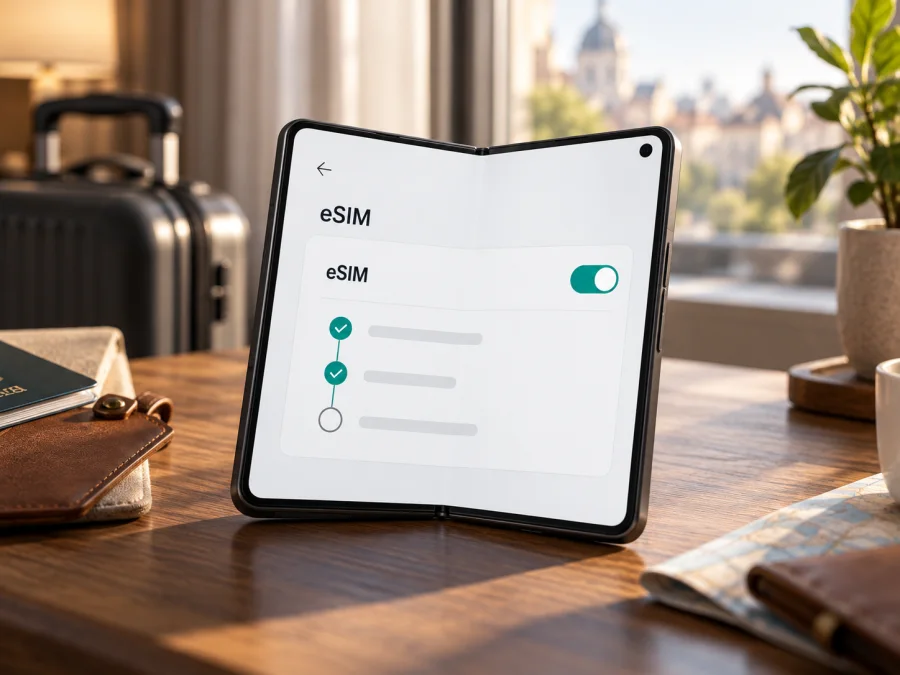
Samsung Galaxy Z Fold5 5G 8GB RAM eSIM: compatibility and setup guide
The Samsung Galaxy Z Fold5 5G 8GB RAM is the exact device name used for this guide. Samsung’s current Galaxy eSIM support information lists the Galaxy Z Fold5 as a compatible model family, so the practical answer is yes, the Galaxy Z Fold5 can support eSIM. There is an important qualification: Samsung says eSIM availability can depend on the country of origin, and the settings and supported services can vary by market and carrier. The phrase “8GB RAM” does not identify a separate Samsung eSIM edition in the current support information. Check the actual handset, its model code, software and SIM settings before relying on the feature.
This guide explains how to verify your own Fold5, add a travel eSIM, select it for mobile data and troubleshoot common setup problems. The phone’s 5G label and its RAM description do not by themselves confirm that eSIM has been enabled on a particular regional or carrier-supplied handset.
Quick compatibility answer
| Item | What to know |
|---|---|
| Exact search phrase | Samsung Galaxy Z Fold5 5G 8GB RAM |
| eSIM support | Samsung lists Galaxy Z Fold5 among eSIM-capable Galaxy models. |
| Important limitation | A device’s country of origin, regional model, software and carrier configuration can affect availability. |
| Where to verify | Settings → Connections → SIM manager; look for Add eSIM. Check the device’s EID as a second indication. |
| Travel use | A compatible, unlocked device may use a separately installed travel eSIM for mobile data where the selected plan and local network support it. |
| Before purchase | Confirm eSIM is available on this specific handset, it is not network-locked, and the travel plan covers your destination. |
“Supported model” is a useful starting point, not a guarantee for every individual handset. A unit bought in one market, imported from another country, or supplied by a carrier may have different menus or restrictions. A missing Add eSIM option needs investigation before you pay for a data plan.
What the 8GB RAM wording does and does not tell you
The “8GB RAM” wording is preserved because it is part of the requested device name, but Samsung’s eSIM support page names the Galaxy Z Fold5 family without distinguishing support by RAM amount. The RAM label alone does not identify a country or operator variant. Check Settings → About phone, note the model number and country of origin, and confirm any specification discrepancy with the seller. Independently check the eSIM menu, network lock and plan coverage.
How to check your exact Fold5
Run these checks on the handset itself; menu labels may vary by software and language.
- Find the model number. Open Settings → About phone. Record the model name and model number, as well as the country or market where the device was originally sold if known. Avoid sharing the full IMEI publicly; it is not needed for a basic compatibility check.
- Look for the eSIM controls. Open Settings → Connections → SIM manager. Look for Add eSIM. If present, tap only far enough to confirm the option is available; you do not need to start an installation to check compatibility.
- Check for an EID. In Settings → About phone → Status information (or a similarly named status page), look for an EID entry. Some software versions may show it under SIM status or another device-information screen. You can also open the phone dialler and enter
*#06#; if the handset supports eSIM, the displayed device identifiers may include an EID. Availability of that shortcut can vary. - Compare indicators. An Add eSIM option and an EID are strong practical signs that eSIM hardware and software are available. If neither appears, do not assume the phone can install a profile just because a general Fold5 page lists the model family.
- Check the lock status. Ask the original carrier or seller whether the handset is unlocked for use with another provider’s SIM profile. A carrier lock can prevent a travel profile from working even when the phone has eSIM capability.
- Check software and region. Install available official system updates, restart the phone and check SIM manager again. If the menu remains missing, ask Samsung support for the exact model number and country-of-origin guidance.
Compatibility checklist
Before buying or installing a plan, confirm each point:
- [ ] The phone’s model number and original market are known.
- [ ] Add eSIM appears in SIM manager, or the device information shows an EID.
- [ ] The phone is unlocked for the profile or provider you plan to use.
- [ ] Your Android version is current enough for the displayed setup flow.
- [ ] The selected eSIM plan includes the country or region on your itinerary.
- [ ] You have a reliable internet connection for downloading the profile.
- [ ] You know whether the plan starts on installation, activation or first connection, based on its own terms.
If a check fails, pause and resolve it with Samsung, the original carrier, the seller or the plan’s support team. Deleting and reinstalling an eSIM is not a useful first diagnostic step: some activation codes are single-use, and an installed profile may not be recoverable by scanning the same QR code again.
Regional versions, carrier versions and network compatibility
eSIM availability is not identical in every Samsung market. Samsung lists the Fold5 but cautions that support can depend on country of origin, so the box or a matching retail title cannot settle compatibility for an imported handset. Check the model number, EID and SIM manager menu.
Carrier-supplied phones can have carrier software, SIM policies or a network lock. eSIM hardware support, a carrier’s ability to issue a profile, and permission to use a travel profile are separate questions. An unlocked phone with Add eSIM still needs a plan valid for the destination. The 5G label does not confirm eSIM availability or coverage; check the destination, plan restrictions and local network conditions. Because no country of origin or travel destination was provided, this guide does not identify an operator market.
For support, provide the model number, software version, country of purchase and a description of the menu. Keep IMEI and EID private unless an official support channel requests them.
Before choosing a plan, use the eSIM compatibility checker. A model-family match alone cannot verify the handset in your hand.
Install and activate a travel eSIM
When practical, set up over stable Wi‑Fi before departure. The point when validity or data use begins depends on the plan, so check its instructions before scanning a QR code.
Option A: Install through an app or device prompt
- Make sure the phone is charged, connected to Wi‑Fi and running current software. Keep your regular SIM active until you have confirmed the travel profile is working, unless you have a reason to change it.
- Open the purchase confirmation or the travel eSIM app on the device. If an Install option is offered, follow the on-screen prompts and approve adding the mobile plan in Android.
- Open Settings → Connections → SIM manager and check that the new plan appears. Give it a clear label such as “Travel data” so it is easy to identify.
- Choose which SIM should handle mobile data. For a trip, select the travel eSIM when you want its data plan used. Keep calls and texts assigned to your regular SIM if you need that number and understand any home-carrier roaming charges.
- Follow the plan’s activation directions. Some profiles connect when enabled at the destination; others require an activation step or a data-roaming switch. Use the provider’s instructions for that plan.
Option B: Add the plan with a QR code
- On the Galaxy, open Settings → Connections → SIM manager → Add eSIM. The wording can change slightly between software releases.
- Choose Scan QR code. Display the QR code on another screen or use a printed copy, then scan it with the phone.
- If prompted, confirm that you want to download the mobile plan. Stay connected to Wi‑Fi while the profile is being added.
- When setup completes, return to SIM manager. Confirm the eSIM is listed, select it for mobile data when appropriate and follow any additional activation guidance supplied with the plan.
- If you cannot scan the QR code, check whether the provider issued a manual activation code and whether the Samsung menu offers Enter activation code. Do not reuse a code that the provider marks as already used.
Samsung’s documented Galaxy route is Settings → Connections → SIM manager → Add eSIM. Depending on the carrier, the plan can download automatically after scanning or entering an activation code. See the Android eSIM installation instructions for the app’s device-specific flow. The iOS instructions are for iPhone users and are included here as a reference for anyone helping a fellow traveller; they are not steps to follow on the Fold5.
An installed profile may not yet be active or selected for data. Keep the QR confirmation and plan details until you have verified a connection.
Use the Fold5 for mobile data while travelling
Before departure, review the plan’s destination, data allowance, validity rules and network instructions. Kaspersky eSIM Store is an app and website where you can choose, arrange and activate a travel eSIM plan for mobile data abroad; the plan terms specify where it works. Kaspersky eSIM Store is not the mobile operator or local network owner.
At your destination, open Settings → Connections → SIM manager and select the travel eSIM for mobile data. If your phone has more than one SIM, check the data selection carefully. A separate setting controls which SIM handles calls and texts. Keeping the home SIM enabled may be convenient for receiving messages, but your regular carrier can charge roaming fees for calls, messages or data according to its terms. To avoid unexpected charges, you can turn off data roaming for the home SIM or disable that SIM if you do not need it.
If the plan’s instructions require data roaming for the travel eSIM, enable it for that eSIM only. A roaming toggle allows that profile to connect through a partner network; it does not by itself mean that your home SIM is using roaming data. Confirm which profile is selected for mobile data before changing the setting. When the plan is data-only, it does not give you a conventional phone number for normal voice calls or SMS unless the specific plan says otherwise. Internet messaging and calls can work through compatible apps using data.
For a route through several countries, check whether the plan covers each stop. A single regional plan may cover multiple destinations, but that depends on the plan description. Do not assume that an eSIM works in every country or that a plan purchased for one country will automatically include a neighbouring country. If the destination is not listed in the plan details, ask support or choose a plan whose coverage explicitly matches the itinerary.
Maps and other apps may use data in the background. Download large files over Wi‑Fi, limit automatic media downloads and check Android’s data-usage screen. Its meter may not match the plan’s usage display immediately.
Practical travel scenarios
Before departure. Check the phone and plan, install over Wi‑Fi, label the profile and follow the plan’s timing instructions. Keep the confirmation available offline.
On arrival. Enable the travel profile, select it for mobile data and follow any roaming or network-selection instructions. Test a webpage before relying on navigation.
Keeping a home number. Check your carrier’s roaming terms. If the home SIM stays enabled, keep the travel eSIM selected for data and disable data roaming on the home line if desired; calls or messages may still incur charges.
Using a hotspot. Check whether the plan allows tethering, then monitor usage and protect the hotspot with a password.
Crossing a border. Check the next country’s coverage in the plan details; an installed profile may not include every stop.
Troubleshooting: check the simple things first
“Add eSIM” is missing
Restart the phone, check SIM manager again, install available Samsung updates and look for an EID in device status. If both indicators are missing, verify the model number and country of origin with Samsung or the seller before buying a plan.
The QR code does not scan or installation fails
Brighten the QR display, clean the camera lens, confirm the code is unused and intended for this device, and use stable Wi‑Fi. If offered, use the provider’s manual activation method. Save the error message and ask support before deleting a partial profile.
The profile is installed, but there is no data
Confirm the profile is enabled and selected for data, Airplane mode is off, and the plan covers your country. Follow its roaming and network-selection instructions, then restart if needed. Signal bars alone do not prove data access.
The phone uses the wrong SIM for data
In SIM manager, select the travel eSIM for mobile data. If the home SIM remains active, review its roaming-data setting to avoid accidental use.
The eSIM works at home but not abroad
Confirm the country is included, the validity has started, and the profile is enabled. Check roaming instructions and carrier lock status. Ask the provider before deleting or reinstalling a profile.
Data is slow or stops unexpectedly
Check the plan allowance and validity. Local signal, congestion and available network technology can affect performance. Try another location or restart; no setting guarantees a particular speed or coverage.
You need the original SIM again
Choose the desired line in SIM manager. Home-SIM data may incur roaming charges. Check provider guidance before removing a profile or moving it to another device.
Frequently asked questions
Does Samsung Galaxy Z Fold5 5G 8GB RAM support eSIM?
Samsung lists Galaxy Z Fold5 in its eSIM-capable device family. However, Samsung also says availability can depend on the device’s country of origin. The “8GB RAM” wording does not establish eSIM support for a specific regional model. Confirm Add eSIM or an EID on the handset itself.
Can I tell from the 5G mark on the box?
No. 5G and eSIM are different capabilities. A 5G label cannot confirm that the phone’s regional configuration includes eSIM or that it is unlocked for a travel profile.
Does every carrier version work with a travel eSIM?
No such guarantee follows from the model-family listing. A carrier lock or regional software setting can affect use. Check the handset’s lock status and verify the destination plan’s requirements before purchase.
Is an EID enough to prove the travel plan will work?
An EID indicates that the device has an eSIM identity, but does not confirm that the phone is unlocked, that the profile can be installed, or that a particular plan covers your destination. Check all of those items.
Can the travel eSIM replace my regular phone number?
A data-only travel plan is for mobile data and does not necessarily include a normal phone number, voice calls or SMS. Check the plan details. You can usually continue using internet messaging apps over data, while your home SIM may remain available subject to your carrier’s charges.
Should I turn on data roaming?
Only follow the selected plan’s instructions and make sure you are changing the toggle for the travel profile. Some plans require data roaming on that eSIM to connect. Keep the home SIM’s data roaming off if you do not want it to use your home carrier’s roaming service.
Can I install the eSIM after arriving?
That depends on whether you can get an internet connection and on the plan’s installation and activation rules. Installing before departure over reliable Wi‑Fi can reduce setup pressure, but do not activate early if the plan’s validity would begin before your trip.
What should I do if Samsung’s menus look different?
Search Settings for “SIM manager” or “eSIM,” install available updates and check the model-specific Samsung guidance for the device’s market. If Add eSIM remains unavailable, contact Samsung support or the seller with the model number.
Final check before choosing a travel plan
The Samsung Galaxy Z Fold5 family is listed by Samsung as eSIM-capable, but the country of origin and exact phone configuration matter. On your own Samsung Galaxy Z Fold5 5G 8GB RAM, confirm the model number, look for Settings → Connections → SIM manager → Add eSIM, and check for an EID. Make sure the phone is unlocked, the plan covers every destination and its validity rules match your travel dates.
Once those checks are complete, use Kaspersky eSIM Store’s app or website to review available options for your destination and choose a plan whose data amount and validity fit the trip. You can browse current travel eSIM options and review the plan conditions before arranging or activating a profile. If compatibility is still uncertain, verify it with Samsung or the original carrier before purchase. A few minutes spent checking the exact handset can prevent avoidable setup problems when you need mobile data abroad.


