Travel connectivity guide
Samsung Galaxy Z Fold5 5G eSIM: Setup Guide
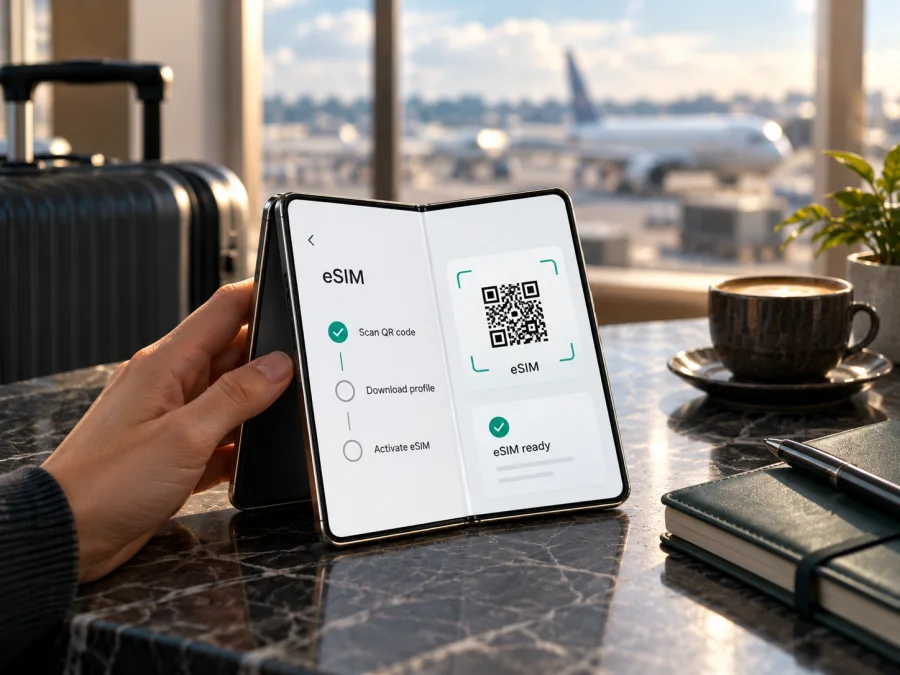
Samsung Galaxy Z Fold5 5G eSIM: compatibility and setup
The Samsung Galaxy Z Fold5 5G supports eSIM in many regional versions, and Samsung includes the Fold5 in its current list of Galaxy devices that can use eSIM. However, the model name alone is not enough to confirm that the feature is enabled on every individual phone. Samsung notes that eSIM availability can depend on the country of origin and the mobile carrier. Before choosing a travel plan, check the exact handset in Settings and confirm that it is not carrier-locked.
This guide explains what is confirmed, what can vary, how to check for an EID or the Add eSIM option, and how to install a data eSIM for a trip. Samsung's regional product specifications list an embedded SIM for some Galaxy Z Fold5 configurations, including SM-F946B versions sold in Europe and the Gulf. That verifies support for those listed variants; it does not prove that every Fold5 sold in every market has an active eSIM feature.
Does the Samsung Galaxy Z Fold5 5G support eSIM?
Generally, yes: the Galaxy Z Fold5 5G family supports eSIM, but you should confirm the exact regional and carrier version. Samsung’s current Galaxy eSIM support information names the Z Fold5, while its regional product pages show embedded-SIM capability on specific configurations. Samsung also cautions that eSIM services vary by country and carrier, and that a listed device may not support the feature in every country of origin.
| Check | What is known | What you should verify |
|---|---|---|
| Device family | Samsung lists Galaxy Z Fold5 among eSIM-capable Galaxy devices. | Whether this particular handset has eSIM enabled in its region and firmware. |
| Regional configuration | Samsung product specifications for certain SM-F946B market variants identify an embedded SIM. | Exact model code, country of origin, and whether the seller’s description matches the phone in hand. |
| Mobile network | The Fold5 family supports 5G, and Samsung lists eSIM support for the model family. | Whether the local operator and the specific plan support eSIM for this device. |
| Carrier status | eSIM can be installed only when the phone’s software and carrier configuration permit it. | That the handset is unlocked and can use a plan from a different provider while travelling. |
| Travel data | A travel eSIM may be used for mobile data if the phone and plan are compatible. | Supported destination, plan terms, activation instructions, and any required data-roaming setting. |
Why regional versions matter
Samsung sells phones under regional product codes. Galaxy Z Fold5 listings may differ by country, carrier, firmware, supported radio bands, SIM tray configuration, and eSIM availability. A retailer may use the same family name for phones intended for different markets. The exact model code is more useful than the retail name when you ask Samsung, the seller, or your carrier about compatibility.
Look for the model number in Settings → About phone → Model number. You can also compare the software’s model number with the label on the box or the purchase record. If those details do not match, ask the seller which market the handset was made for before buying a plan. Do not infer eSIM support solely from a country where the phone is currently being used: the original sales market and carrier firmware can still matter.
Check compatibility before choosing a plan
Use these checks before paying for a travel eSIM. The menu labels below match Samsung’s Galaxy interface; names can shift slightly with One UI and software updates.
- [ ] Find the model number. Open Settings → About phone and note the complete model code. Keep any regional suffix intact when asking for help.
- [ ] Look for an EID. In Settings → About phone → Status information, check whether an EID is shown. Samsung also lists the phone box as another place to find the EID. Menu availability can vary by software version, so use Settings → About phone → Status information as the primary check.
- [ ] Check for Add eSIM. Open Settings → Connections → SIM manager. Look for Add eSIM. If available, open it only far enough to confirm that the setup screen appears; you do not need to install a profile just to test the menu.
- [ ] Confirm the handset is unlocked. If the phone was bought through a mobile operator or on a payment plan, ask that operator whether it is unlocked for other providers. A device lock can prevent a travel profile from connecting even if Add eSIM is visible.
- [ ] Confirm the plan’s destination and data terms. Check the country or region covered, data allowance, validity period, activation conditions, and whether the package is for data only.
- [ ] Check the operator and phone together. If eSIM is missing or the model code is unclear, ask Samsung or the selling carrier to confirm the exact regional version. Ask the travel-plan provider whether it supports the Fold5 configuration you have.
An EID is an identifier for the phone’s embedded SIM hardware; it is not a plan, activation code, or proof that a provider has enabled service. If there is no EID and no Add eSIM menu, do not assume a software reset will add eSIM capability. Check the exact SKU with Samsung or the seller first. Because product-family tables can be broader than regional availability, confirm the SKU against current device information and the Settings menu on your own phone. If you are checking for someone else, ask them to open SIM manager rather than relying only on a box photo. Check your device before purchase if you need a separate compatibility check.
Prepare the Fold5 for a trip
A few minutes of preparation can prevent a setup problem at the airport. Use reliable Wi-Fi when downloading the profile, keep the plan’s QR code or manual activation details accessible on another screen, and review when the package becomes active. Some plans start their validity when the profile is installed; others begin when the eSIM first connects in the destination. Follow the conditions shown for the plan you select rather than assuming that installation and service activation happen at the same time.
Kaspersky eSIM Store is an app and website where you can choose, arrange, and activate an eSIM with a mobile-data plan for an international trip. It is not a mobile operator and does not own the networks used by a plan. The eSIM is intended for travel data; ordinary calls, SMS, and a standard phone number are not included unless a particular plan explicitly says otherwise. Messaging and voice apps can work over data, subject to the apps’ own requirements.
After you have confirmed compatibility, you can browse current travel eSIM plans on the Kaspersky eSIM Store homepage. Use it to check whether a destination and suitable plan are available at the time of your trip. This homepage is a general starting point for browsing; it is not a country-specific tariff page.
How to install an eSIM on Samsung Galaxy Z Fold5 5G
The Fold5 uses Samsung’s Android settings. Before starting, connect to Wi-Fi, charge the phone, and keep the QR code ready. Only scan or enter the profile details supplied for your own plan. Do not share an activation QR code publicly; it may contain information that allows someone else to install the profile.
Install by scanning a QR code
- Open Settings. On the Fold5, open the Settings app.
- Open SIM manager. Tap Connections, then SIM manager.
- Start adding a profile. Tap Add eSIM. If Samsung offers an automatic setup for your provider, follow the on-screen prompts. Otherwise, choose the QR-code option.
- Scan the code. Point the camera at the QR code supplied with the plan. If the code is displayed on the Fold5 itself, open the provider’s instructions on another device or use an available image-import option if the setup screen offers one.
- Download the profile. Confirm the plan details shown by the phone and allow it to download. Keep the internet connection active until setup finishes.
- Name the line. Give the new profile a clear label such as “Travel data” so you can distinguish it from your everyday SIM.
- Choose what the line will do. If asked, select which SIM should handle calls, texts, and mobile data. You can keep your home SIM for its number and select the travel eSIM for mobile data.
- Finish setup as instructed. Some plans activate at installation; others require a later step or connection to a supported network. Follow the plan’s activation instructions and note when validity begins.
For screenshots and a general walkthrough, see the Android eSIM installation instructions. The iOS guide is also available for someone preparing another device: iOS eSIM installation instructions. The iOS steps are not for installing an eSIM on the Fold5; use the Samsung settings path above on this Android phone.
Use the eSIM for mobile data while travelling
Once you reach the destination, open Settings → Connections → SIM manager and confirm that the travel eSIM is turned on. In the SIM manager, choose the travel profile for mobile data. The names and layout vary slightly by software version, but the goal is to keep the home line available for the uses you need while directing data through the travel plan.
Then check Settings → Connections → Mobile networks. If the plan’s instructions require data roaming, enable the setting and make sure the travel eSIM is selected for mobile data. The roaming control may apply at device level depending on the software and SIM configuration, so check your home carrier’s charges before enabling it. Charges depend on which line is used and your carrier’s terms.
A practical arrival checklist:
- Turn on the eSIM profile and select it for mobile data.
- Enable data roaming if the plan instructions require it, after checking how the setting applies to your SIM configuration.
- Select the travel eSIM for mobile data if you want to avoid accidental use of the home line’s data allowance.
- Leave automatic network selection enabled initially. If the provider gives a specific network-selection instruction, follow it.
- Turn Airplane mode on briefly and then off, or restart the phone, if it does not register after setup.
- Open a webpage or a map while Wi-Fi is off to confirm that mobile data is working.
Common problems and what to check
“Add eSIM” is missing
Check Settings → Connections → SIM manager again after installing available software updates and restarting the phone. Then look up the exact model code and ask Samsung or the carrier that sold the device whether its region and firmware support eSIM. If the menu is still absent, do not buy a plan on the assumption that the feature can be unlocked later. A missing EID or Add eSIM entry is a reason to verify, not to guess.
The QR code will not scan
Raise the screen brightness, clean the camera lens, and hold the second screen steady with the full QR code visible. Avoid cropping or photographing the code at an angle. If it is already open on the Fold5, use another device to display it. Confirm that the code is for this plan and has not already been used. If the camera reports that the code is invalid, ask the plan provider to verify the code before requesting a replacement.
The profile will not download
Check that Wi-Fi works and that the Fold5 has a stable internet connection. Make sure Airplane mode is off and that the phone’s date and time are set automatically. Close Settings, reopen SIM manager, and retry once. If the message says the code is used or the profile cannot be added, stop repeated attempts and contact the provider with the exact error text. Do not remove an existing working eSIM to make space unless the provider confirms it is necessary.
The profile is installed, but there is no signal
Confirm that the eSIM is turned on and that you are in a country covered by its plan. Check that the plan has reached its activation point and that the travel profile is selected for mobile data. If required by the plan, enable data roaming in Mobile networks and check the selected data line. Toggle Airplane mode, restart the phone, and wait a few minutes for registration. If automatic network selection does not work, use a manual network only when the provider names one to select.
The phone connects, but websites do not load
Verify that mobile data is assigned to the travel eSIM rather than the home SIM. Check the remaining data and validity in the provider’s app or account, and make sure the plan is active for your current location. Disable Wi-Fi briefly to test the cellular connection. If data roaming is required, check the Mobile networks setting and verify that the travel eSIM is selected for data. If settings appear correct, contact the plan provider with your destination, model code, and a description of the network status.
The wrong line is being used
Open SIM manager and review the defaults for calls, messages, and mobile data. Android allows you to choose different lines for different purposes. Set mobile data to the travel eSIM while keeping calls or texts on the home line if that is what you intend. After changing the data line, test with Wi-Fi disabled and check the status bar for the active network.
Frequently asked questions
Does 5G mean that eSIM will work?
No. 5G support and eSIM support are separate capabilities. The Samsung Galaxy Z Fold5 5G family is listed as eSIM-capable by Samsung, but the specific regional handset, firmware, carrier lock, plan, and destination still need to be checked.
Will the travel eSIM give me a local phone number?
Not usually when the plan is described as data-only. Kaspersky eSIM Store is intended to help you choose and activate an eSIM with a mobile-data plan for an international trip. Calls and SMS are not included unless the selected plan explicitly lists them. Internet calling and messaging apps can use the data connection.
Do I need to enable data roaming?
Sometimes. Some travel eSIMs require data roaming to connect to a partner network; others do not. Check the instructions for your plan, select the travel eSIM for mobile data, and review how the roaming control applies to your SIM configuration. Keep your home carrier’s charges in mind before enabling roaming.
Can I move the eSIM to another phone later?
Do not assume that you can. Profile transfer and reinstallation depend on the plan’s rules, the provider, and both devices. Ask before deleting the profile or changing phones, especially if the QR code has already been used.
What if I cannot find an EID?
Look in Settings → About phone → Status information and in SIM manager. Labels and locations can vary by software build. If no EID or Add eSIM option appears, check the exact model code with Samsung or the seller. The device family’s general capability does not settle the status of every regional unit.
Final check: confirm the phone, then choose the trip plan
For the Samsung Galaxy Z Fold5 5G, the verified answer is that Samsung lists the model family as eSIM-capable and publishes regional product specifications that identify an embedded SIM on specific variants. The uncertainty is whether a particular phone has that feature enabled in its country of origin, firmware, and carrier configuration. Check the model code, EID or Add eSIM menu, and unlock status on the phone itself before purchase.
Once those checks are complete, choose a data plan that covers your route and fits the length and expected use of your trip. Review the data allowance, validity, activation point, hotspot terms, and any roaming instructions shown for that plan. If you cannot verify eSIM on your handset, ask Samsung or the original carrier before paying; if this device cannot use eSIM, consider a compatible unlocked phone or another mobile-data option suitable for your destination.
Use the device compatibility check for one last review, then browse current travel plans on the Kaspersky eSIM Store homepage. It is a general destination for checking what is currently available, not a specific country tariff. Confirm that both the phone and plan fit your trip before installing the eSIM.


