Travel connectivity guide
Samsung Galaxy Z Fold6 5G 128GB eSIM
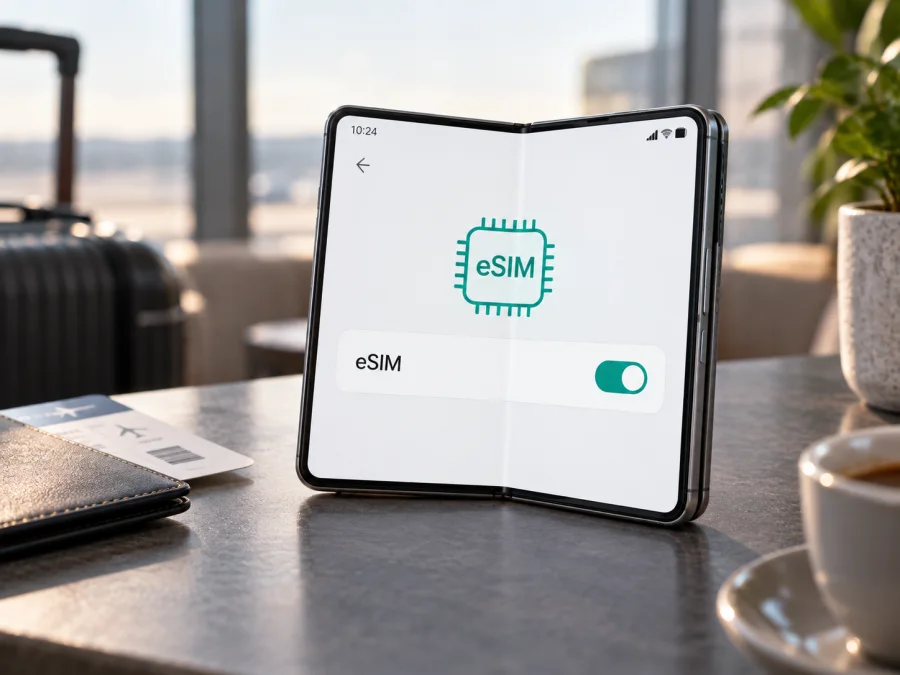
Samsung Galaxy Z Fold6 5G 128GB eSIM: compatibility and setup
The Samsung Galaxy Z Fold6 5G 128GB belongs to Samsung’s eSIM-capable Galaxy Z Fold6 family. Samsung’s current eSIM and supported-carrier guidance, updated 21 September 2026, lists the Galaxy Z Fold6 among devices that support eSIM. Samsung product specifications for Fold6 models in several markets also identify an embedded SIM alongside nano-SIM. That is a good indication that this phone can use an eSIM profile for mobile data.
There is one important qualification: “Samsung Galaxy Z Fold6 5G 128GB” does not identify the phone’s complete regional model code. The 128GB storage description does not determine whether eSIM is enabled. Availability can depend on the exact sales market, model code, carrier version, software and local carrier support. Check the phone itself before you buy a travel plan, especially if it was imported, sold by a carrier, or refurbished.
At a glance
| Item | What to know |
|---|---|
| Device variant in this guide | Samsung Galaxy Z Fold6 5G 128GB |
| eSIM family support | Samsung lists Galaxy Z Fold6 as eSIM capable |
| Does 128GB storage change eSIM support? | No; storage capacity is not the deciding feature |
| What may vary | Model code, sales region, carrier configuration, firmware and eSIM service availability |
| Best confirmation on your phone | An EID and/or an “Add eSIM” option in SIM Manager |
| Typical travel use | Keep your usual line for calls and messages and select a travel eSIM for mobile data, if your configuration allows it |
Why the exact version matters
Galaxy phones with the same family name can have different model codes and network configurations by country. A regional or unlocked Fold6 may expose eSIM controls, while carrier software or a market-specific version may restrict setup or available SIM combinations. Samsung notes that eSIM service and supported carriers vary by country and carrier.
The “5G” label describes network capability, not eSIM eligibility. “128GB” describes storage and does not confirm the modem configuration, eSIM provisioning or carrier unlock status. Fold6 storage options vary by market, so if a listing identifies a 128GB unit, verify the full model code in Settings or on the box rather than inferring support from the storage description.
For an imported, carrier-supplied or refurbished phone, ask the seller or original carrier whether it is unlocked and whether eSIM downloads are permitted. Compare its model code with Samsung information for its sales region. A network lock can block a travel profile even if the hardware supports eSIM.
<a id="kesim-device-compatibility"></a>
Check compatibility on the phone
Samsung’s current eSIM guidance includes the Galaxy Z Fold6 family. For a particular phone, use Settings to confirm that its hardware and current software expose eSIM setup:
- Open Settings → Connections → SIM manager.
- Look for Add eSIM. If it appears, the current software offers eSIM setup.
- Search Settings for “EID,” or open About phone → Status information to check for the EID. Menu names can vary with region and One UI version.
- If neither appears, install official updates, restart and check again. Then confirm the full model code with Samsung or the original carrier.
- Check that the phone is unlocked and that the intended provider supports eSIM for your destination.
An EID is an identifier for embedded SIM hardware; it is not an IMEI, phone number or plan QR code. Seeing it is a strong indication of eSIM hardware, while Add eSIM confirms that the current interface exposes setup. Neither guarantees that every plan or carrier will work.
Compatibility checklist
- [ ] Add eSIM appears in SIM Manager, or an EID is visible in phone status information.
- [ ] The model code belongs to the regional Fold6 version you own, and its software is up to date.
- [ ] The phone is unlocked for use with another provider, if you plan to use a travel eSIM.
- [ ] The eSIM plan covers every country or region on your itinerary.
- [ ] The plan’s device, installation, activation and validity rules fit your trip.
- [ ] You have reliable Wi-Fi for downloading the profile and the activation details stored somewhere accessible.
If the eSIM menu is disabled rather than absent, also check for carrier or device-management restrictions. A quick settings check before payment can prevent choosing a profile for an unavailable configuration. Use this checklist to verify your device before choosing a plan.
If this exact Samsung Galaxy Z Fold6 5G 128GB passes these checks, you can proceed with an eSIM compatible with the destination. If they do not, do not buy a plan on the assumption that all Fold6 phones behave identically. Confirm the SKU with Samsung or the carrier first.
Before you install an eSIM
Installation normally needs Wi-Fi and a QR code, activation link or manual details supplied with the plan. To scan a QR code, display it on another screen or print it. Keep activation instructions and support details accessible, and do not share the QR code.
Before setup, check destination coverage, data allowance, validity, activation trigger and rules for reinstalling or transferring the profile. Some plans start validity at installation; others start on first connection or a specified date. Do not delete an installed profile or assume it can move to another phone unless the plan terms allow it.
Install and activate on Samsung Galaxy Z Fold6 5G 128GB
Keep the phone charged and connected to stable Wi-Fi. If you want to preserve your home line, leave its SIM in place and label the new profile clearly after installation. The exact screens may vary with One UI, region and carrier settings.
- Open Settings → Connections → SIM manager.
- Tap Add eSIM.
- Choose the available setup method: automatic transfer, QR-code scanning or manual entry, according to the plan instructions.
- Scan the QR code provided for your plan, or enter its activation details manually. If prompted, confirm that you want to download the plan. Do not share the QR code; it may allow someone else to install the profile.
- Wait for the profile to download. Keep Wi-Fi connected and leave the setup screen open while the phone processes it.
- Give the eSIM a clear label, such as “Travel data,” so you can distinguish it from your personal line.
- In SIM Manager, choose the preferred SIM for calls, text messages and mobile data. For a data-only travel plan, keep your regular line for calls and messages if needed, and choose the travel eSIM for mobile data.
- Follow the plan’s activation timing. Depending on its rules, install the eSIM before leaving and switch it on at your destination, or activate it after arrival.
- Enable data roaming for the travel eSIM only if the plan instructions require it.
- After arrival, turn on the travel eSIM and wait for it to register.
- Confirm that mobile data works before relying on maps or messaging away from Wi-Fi.
For additional step-by-step help, see the Android eSIM installation instructions and the iOS eSIM installation instructions. The Fold6 runs Android, so use the Android guide for this device; the iOS page is available for people preparing a different Apple device.
Using the eSIM during a trip
Install over Wi-Fi before departure if the plan permits it, but check when its validity starts. On arrival, open Settings → Connections → SIM manager, enable the travel eSIM and select it for mobile data. Keep your usual number available for calls or messages if needed. Check roaming settings for each line separately: a travel eSIM may require data roaming, while your home SIM may charge for roaming data. Confirm each provider’s conditions.
For a multi-country route, verify coverage in every destination. Estimate data use if you rely on maps, video calls or hotspot sharing; tethering and streaming can use data quickly. Monitor usage in phone settings and in the plan account where available. Many travel eSIMs are data-only and do not provide a regular number, voice calls or SMS unless the plan explicitly includes them. Internet calling and messaging apps can use mobile data.
Three practical trip setups
City break: install if permitted, enable the profile on arrival and test a map or web page before leaving the airport.
Several countries: compare every stop with the plan’s coverage list and check how it reconnects across borders.
Work or hotspot: confirm tethering is permitted, test it before a meeting and pause automatic downloads if data is limited.
Troubleshooting: when the eSIM does not work
“Add eSIM” is missing. Search Settings for “SIM manager” and “EID,” update official software and restart. Check the full model code, region and carrier restrictions with Samsung or the original carrier. A 5G label alone does not confirm eSIM.
The QR code will not scan. Increase its brightness, clean the camera and make sure the code belongs to this plan and has not already been used. Ask the provider whether manual activation details are available.
The profile downloads but has no service. Check that it is active and covers the destination. Enable it, select it for mobile data, turn airplane mode off and allow time for registration. If the plan requires it, enable data roaming for that eSIM.
Data uses the wrong SIM. Recheck the preferred SIM for mobile data in SIM Manager and review data switching. Disable roaming data on the home SIM if you do not want it used abroad, while considering whether you still need that line for calls.
The phone rejects the plan or reports a lock. Ask the original carrier whether the device is unlocked and can download another eSIM. Confirm that the plan supports the Fold6 version and destination.
Service is slow or intermittent. Check signal, selected network mode, plan limits and destination coverage. Performance depends on local networks, location, congestion, phone bands and plan conditions.
Validity started earlier than expected. Check whether the plan begins at installation or first network connection. Contact the plan provider with your purchase details. Do not delete and reinstall the profile unless support confirms it can be reused.
Frequently asked questions
Does Samsung Galaxy Z Fold6 5G 128GB support eSIM?
Samsung lists Galaxy Z Fold6 among eSIM-capable devices, and Fold6 specifications in several regions include embedded SIM. The 128GB storage label does not determine support. Verify Add eSIM or the EID on your device because the name alone does not provide its full model code or carrier configuration.
Can I use eSIM and a physical SIM at the same time?
Samsung specifications describe physical SIM and eSIM combinations, but active SIM options can vary by model and region. Check SIM Manager; stored profiles are not necessarily all active at once.
Is an EID enough to prove that a travel plan will work?
No. It does not confirm that the phone is unlocked, setup is enabled, the plan supports the model or the destination is covered. Check all compatibility and plan conditions.
Will the eSIM provide a phone number, calls or SMS?
Only if the plan says so. Many travel eSIMs are data-only; internet calling and messaging apps can use their data connection.
Can I install it before travelling or move it later?
Pre-installation is often possible over Wi-Fi, but validity may start at installation. Transfer and reinstallation depend on plan rules. Check both before setup, and contact the provider before deleting a profile.
Prepare your Fold6 before you choose a travel eSIM
First confirm eSIM availability on the exact Samsung Galaxy Z Fold6 5G 128GB in your hands: check SIM Manager for Add eSIM, look for an EID, note the full model code and confirm that the phone is unlocked. Then compare your destination, data needs, validity period and activation timing with the terms of the plan you are considering. Compatibility should be checked before purchase, not after you arrive.
Kaspersky eSIM Store is an app and website where you can choose, arrange and activate an eSIM with a mobile-data plan for an overseas trip. Review the destination and plan conditions, then install the profile on a compatible phone using the provider’s steps. The eSIM is for mobile internet while travelling; ordinary calls, SMS, network access and coverage depend on the selected plan and the local networks it uses.
In brief
Samsung’s current information supports eSIM use on the Galaxy Z Fold6 family, and storage capacity does not change that capability. Regional and carrier configurations still matter. Confirm the EID or Add eSIM menu, check the exact model and unlock status, and verify the plan’s destination coverage and activation rules before purchase. Once ready, use SIM Manager to select the travel profile for data and troubleshoot through the provider if it does not register.


