Travel connectivity guide
Samsung Galaxy Z Fold6 5G 512GB eSIM Guide
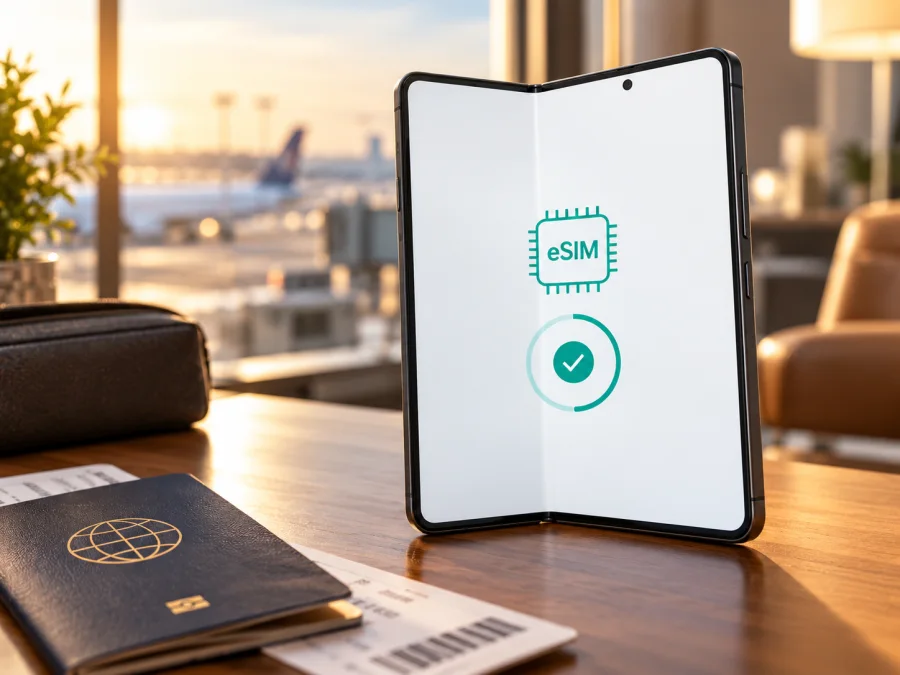
Samsung Galaxy Z Fold6 5G 512GB eSIM: compatibility and setup guide
If you are preparing a trip and want to use a travel eSIM for mobile data, the short answer is: Samsung Galaxy Z Fold6 5G 512GB supports eSIM in Samsung’s documented 512 GB regional configurations. Samsung lists the Galaxy Z Fold6 among its hybrid eSIM devices, and its regional specification pages show 512 GB Fold6 versions with an embedded SIM option. The name in a product listing, however, does not identify the precise regional model or guarantee that every carrier profile will work. Check the phone itself and the operator or travel plan before you buy.
That distinction matters when a phone is imported, sold by a carrier, refurbished, or described only by storage size. “512GB” describes storage capacity; it does not tell you the sales market, model code, software configuration, network lock status, or whether the operator you plan to use supports eSIM activation for that device. The checks below help confirm those details before you rely on an eSIM abroad.
Does Samsung Galaxy Z Fold6 5G 512GB support eSIM?
Yes, eSIM is supported on the Galaxy Z Fold6 family, including documented 512 GB variants. Samsung’s UK specification page for a 512 GB Galaxy Z Fold6 lists an embedded SIM and SIM slot combinations that include “SIM 1 + eSIM” and “Dual eSIM.” Samsung’s US support page also includes Z Fold6 in its hybrid eSIM device list. This confirms that eSIM is a real capability of the model family and is not limited to a higher storage tier.
The product name does not include the full model code, country or carrier. Samsung says eSIM service can vary by country and carrier, and a device’s country of origin can affect support. For your handset, verify the model code, EID and Add eSIM menu; if any check disagrees, confirm with Samsung or the seller before buying.
| Item | What to know |
|---|---|
| Exact device name | Samsung Galaxy Z Fold6 5G 512GB |
| Device type | Book-style foldable smartphone |
| Storage in this variant | 512 GB; storage does not determine eSIM eligibility |
| eSIM status | Supported on Samsung-documented Galaxy Z Fold6 regional configurations, including 512 GB examples |
| SIM combinations | Depending on model and market, Samsung lists physical SIM + eSIM and dual eSIM options |
| Conditions | Country of origin, model code, carrier firmware, software, network lock and the specific operator can affect use |
| Best personal check | Look for an EID and Settings → Connections → SIM manager → Add eSIM |
Keep three things separate: the phone’s sales region (check its full model code), your current country, and the operator market whose plan and activation rules you will use. A compatible phone can still be blocked or unsupported by a particular operator. Your destination does not identify the phone’s origin.
“5G” describes network capability, not eSIM activation or guaranteed 5G service. Actual connection depends on the model, destination network and plan terms. Follow the provider’s compatibility and activation instructions.
Check your exact phone before purchase
Use both a software check and a seller/operator check. Do not rely only on a box label, an online listing, a photograph of another Fold6, or the storage capacity. If you are buying second-hand or importing the phone, ask for the full model code and verify the exact unit before payment when possible.
On-device compatibility checklist
- [ ] Open Settings → About phone and record the model name and full model number. The model code is more useful than “Fold6 512GB” when checking an imported or carrier-supplied device.
- [ ] Open Settings → Connections → SIM manager. Look for Add eSIM. Menu wording can differ slightly with One UI version, carrier configuration and region.
- [ ] Check for an EID. On many Galaxy phones, open the Phone app and enter
*#06#; if the device supports eSIM, the information screen may show an EID alongside IMEI details. You can also inspect Settings → About phone → Status information where available. Do not share the EID or IMEI publicly. - [ ] Confirm the phone is not network-locked. A lock can prevent an otherwise compatible eSIM from registering with another provider. Ask the original carrier or seller how to confirm the lock status.
- [ ] Install current software updates over Wi-Fi, then restart and check the SIM manager again.
- [ ] Ask the provider of the exact travel plan whether it accepts this model and regional variant, and whether any carrier restriction applies.
An EID or Add eSIM option does not guarantee that every plan will work or that the phone is unlocked. If both are missing, confirm the full model code with Samsung or the seller before purchase; a QR code cannot add unsupported eSIM capability.
Ask the seller or carrier
If the handset is imported or carrier-supplied, ask for its full model code and country of sale, confirm it is unlocked, and ask whether that exact model code supports eSIM with the intended provider. Keep EID and IMEI details private; share them only through an official eligibility check if requested.
Check whether your device is compatible, especially if it was imported, carrier-sold, repaired or refurbished.
How to install and activate an eSIM
Use stable Wi-Fi and keep the purchase and activation details available. If the QR code is displayed on the Fold6, show it on another screen or use a printout. Do not delete a profile or assume a code can be reused unless the provider confirms it.
The menu path can vary slightly with One UI and the carrier. Samsung’s usual route is Settings → Connections → SIM manager → Add eSIM. For more screen-by-screen help, see the Android eSIM installation instructions and the iPhone installation instructions. The iPhone guide is included as the other supported instruction page; Samsung Galaxy setup follows Android steps.
Install with a QR code
- Check readiness. Confirm that the device shows an EID or Add eSIM option, is unlocked for the intended provider, and is connected to Wi-Fi. Review the plan’s supported destination and activation timing.
- Open SIM manager. On the phone, open Settings, tap Connections, then SIM manager.
- Start adding a profile. Tap Add eSIM. If Samsung offers a plan discovery option, use it only if your provider has told you that this method is supported.
- Scan the provider’s code. Choose Scan QR code and point the camera at the QR code supplied for your plan. If scanning is not offered, check whether the provider gives a manual activation code and whether your One UI version supports entering it.
- Review the prompt. Follow the on-screen steps to download and add the profile. Keep Wi-Fi connected until the phone confirms that the profile has been added.
- Name the line. Give it a clear label such as “Travel data” so you can distinguish it from your everyday SIM. Avoid labels that reveal private account details on the lock screen.
- Choose how to use it. In SIM manager, select the eSIM for mobile data when you are ready to use the travel plan. Keep your regular SIM selected for calls or texts if you still need it, and check which line is selected before using mobile data.
- Activate at the right time. Some plans begin when installed, some when they first connect to a supported network, and some according to another stated rule. Check the specific plan conditions rather than assuming installation and the start of validity are the same event.
- Connect at your destination. If the plan is intended to start abroad, leave it installed and disabled or keep mobile data assigned to your usual line until the provider’s stated activation point. When ready, select the travel eSIM for data and wait a few minutes for network registration.
If the provider supplies a manual activation code instead of a QR code, follow its current instructions. Do not enter a code copied from a message unless it matches your order and comes from the official account or support channel. Avoid removing the profile as a first troubleshooting step: a deleted eSIM may not be reusable, and a new installation may require provider assistance.
Use the eSIM for mobile data on a trip
Before departure, decide which line should handle each task. A travel eSIM is commonly used for mobile data, while the regular SIM remains available for calls or messages if the carrier and plan permit. The travel plan’s included services depend on its terms; do not assume it includes a normal phone number, voice calls or SMS. Internet-based messaging and calling apps can work over its data connection, subject to the app and network conditions.
When you arrive, open Settings → Connections → SIM manager and make the travel eSIM the line for mobile data. Check that the profile is enabled. If your plan’s instructions require data roaming, enable it for the travel eSIM, not automatically for every SIM. Samsung notes that mobile network and roaming options can vary by carrier and software. Roaming can also create charges on your regular line, so check which SIM is selected and consult that carrier’s terms before enabling its roaming setting.
For a multi-country trip, check each destination, allowance, validity, activation trigger and any stated network or tethering limits. A regional label does not guarantee that every stop is included. Check when validity begins, especially if you plan to install before a stopover.
Practical travel scenarios
One-country stay. Confirm the destination, compare the plan allowance and validity with your expected use, and install over Wi-Fi if advance installation is allowed. Set the travel eSIM as the data line when its activation conditions are met.
Multi-country route. Check every destination against the plan terms; a regional label does not guarantee that every stop is included. Keep the plan details available offline and verify when its validity begins.
Kaspersky eSIM Store is an app and website where you can choose, arrange and activate an eSIM with a suitable mobile data plan for an international trip. It is a way to prepare a travel eSIM; it is not the mobile operator or the network itself. You can browse current travel eSIM options in Kaspersky eSIM Store and review the destination, data amount, validity and conditions shown for the plan you are considering. This homepage is a general place to check available destinations, not a country-specific tariff page.
Common problems and what to check
“Add eSIM” is missing
Check the full model number, region of origin and software version. Update and restart, then inspect SIM manager again. If the EID is also missing, confirm the unit with Samsung or the seller. Storage capacity alone cannot resolve a regional difference.
The QR code will not scan or the profile will not download
Use a stable Wi-Fi connection, increase the brightness of the screen showing the code, clean the camera lens and keep the complete QR code in frame. Confirm it belongs to the intended plan and has not already been used. If the phone is displaying its own QR code, show it on another screen. For repeated download errors, check automatic date and time, try a trusted alternate Wi-Fi network, and ask the provider before retrying a code with limited attempts.
The eSIM is installed but there is no service
Make sure the profile is enabled and selected for mobile data. Check that the plan covers your current country and its activation condition has been met. Follow the provider’s instructions about data roaming, then briefly toggle Airplane mode or restart and allow the phone to register. Ask the provider whether a supported network or manual network selection is required.
Data uses the wrong SIM or charges appear
Review SIM manager’s mobile-data selection, default SIM settings and data-switching option. Check roaming settings for each line; enabling roaming on your regular SIM may cause charges under your home plan. Contact that carrier if you are unsure which settings to use.
The eSIM was deleted or its code is rejected
Do not assume a QR code can be reused. Contact the plan provider through its official account or support channel and share the order reference and error details. Avoid posting an EID or IMEI publicly. The provider can confirm whether the profile can be reissued.
FAQ
Can I use eSIM and a physical SIM at the same time?
Samsung documents physical SIM plus eSIM and, in some configurations, dual eSIM. Available combinations depend on the regional model and software; check SIM manager.
Does 512GB mean that my phone definitely supports eSIM?
No. 512GB is the storage capacity, not a regional model identifier. Samsung lists eSIM for 512 GB Galaxy Z Fold6 configurations, but confirm the full model code, EID and Add eSIM option on your actual handset.
Does eSIM support guarantee service in the country I am visiting?
No. Device compatibility and network availability are separate checks. The plan must cover your destination and its supported network must be available there; the operator or plan provider may also have device, activation or roaming requirements.
Will a travel eSIM replace my regular number?
Not necessarily. A data-focused travel eSIM usually supplies mobile data according to its plan terms; it does not automatically replace your primary number or include voice calls and SMS. Keep your existing SIM if you need its number and confirm your preferred line settings.
Should I install the eSIM before I travel?
Often this is convenient if the plan permits advance installation and you have reliable Wi-Fi. Check when validity begins. If the plan starts on installation, wait until you are ready; if it starts on first connection or another event, follow the stated rule.
Can I move the eSIM to another phone later?
Do not assume so. Transfer and reinstallation depend on the profile and provider terms. Ask the plan provider before removing the eSIM, changing phones or resetting the device.
Final check before choosing a travel eSIM
For Samsung Galaxy Z Fold6 5G 512GB, Samsung’s published specifications and support information confirm eSIM capability in documented regional versions, including 512 GB examples. Your exact unit still needs a quick check because the listing name does not identify its country of origin, model code, carrier configuration or lock status.
Before choosing a plan, verify that your Fold6 shows an EID or Add eSIM, confirm that it is unlocked for the provider you intend to use, and check that the plan covers every destination on your route. Read the plan’s allowance, validity and activation conditions, then install over Wi-Fi and select the correct SIM for mobile data. If the checks do not match, pause and confirm compatibility with the seller, Samsung or the plan provider.
When you are ready, use Kaspersky eSIM Store to review current travel eSIM options for your destination and choose a plan whose terms fit the trip. That final device-and-destination check helps you prepare with clear expectations before you leave.


