Travel connectivity guide
Samsung Galaxy Z Fold6 5G 8GB RAM eSIM
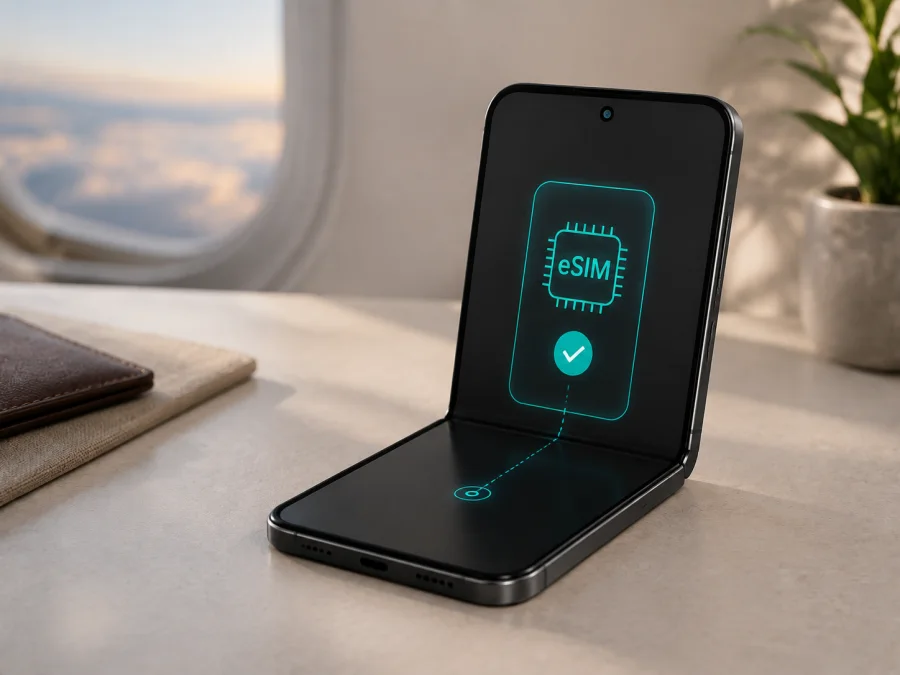
Samsung Galaxy Z Fold6 5G 8GB RAM eSIM compatibility and setup
If you are checking Samsung Galaxy Z Fold6 5G 8GB RAM for a travel eSIM, the short answer is qualified but useful. Samsung’s current official information for the Galaxy Z Fold6 family lists an embedded-SIM option and includes Z Fold6 among Galaxy phones with eSIM support. However, Samsung’s published Z Fold6 specification pages show 12 GB of memory for their listed 256 GB, 512 GB and 1 TB versions. They do not establish an official 8 GB RAM configuration.
That difference matters. Treat “8GB RAM” as part of the listing, not proof of a separate Samsung edition. Test the unit in your hand. If it shows an EID and Settings > Connections > SIM manager > Add eSIM (or Add mobile plan), it has the practical indicators for a digital SIM profile. If either is missing, verify model, region, carrier status and firmware before buying.
This guide keeps the requested device name unchanged and covers verification, installation, travel use and troubleshooting.
Quick answer about eSIM support
The Galaxy Z Fold6 family supports eSIM on supported regional and carrier versions. Samsung regional specifications describe Nano-SIM and embedded-SIM support, with combinations such as physical SIM plus eSIM or Dual eSIM, while warning that service varies by country and carrier. Consequently, the safest answer for Samsung Galaxy Z Fold6 5G 8GB RAM is:
Likely compatible if the actual unit has an EID and an active Add eSIM control; not verified from the listing name alone. The “8GB RAM” label is not one of the memory configurations shown in the official Samsung pages checked for the Z Fold6, so the listing may be inaccurate, imported, refurbished or using a seller-specific description. Do not silently substitute a standard 12 GB model when evaluating it.
Use these outcomes as a decision guide:
- EID and Add eSIM are present: the device has the main indicators. Check that it is unlocked and that the selected plan supports the destination.
- EID is present but the menu is missing: update One UI, restart and ask Samsung or the seller about the model suffix, region and carrier restrictions.
- Neither EID nor Add eSIM is present: do not approve the exact unit for eSIM. Ask for a model-specific explanation or choose a device whose compatibility can be verified.
- The menu is present but activation fails: investigate the QR code, connection, carrier lock, plan and region.
Specifications that affect compatibility
| Item | Practical meaning for eSIM |
|---|---|
| Exact requested device | Samsung Galaxy Z Fold6 5G 8GB RAM |
| Family | Galaxy Z Fold6 foldable 5G smartphone |
| Memory in the request | 8GB RAM; verify because Samsung’s published Z Fold6 variants show 12 GB |
| Storage | Depends on the physical unit |
| Physical SIM | Nano-SIM is listed for regional Z Fold6 models |
| Embedded SIM | Listed by Samsung for supported regional Z Fold6 models |
| SIM combinations | May include SIM 1 + SIM 2, SIM 1 + eSIM or Dual eSIM, depending on version |
| Final test | EID plus Add eSIM in SIM manager, followed by an unlock and plan check |
Why the region, carrier and firmware matter
Samsung’s eSIM guidance says that service may vary by country and carrier. An imported phone may expose a different SIM combination from a visually identical local model. Carrier software can hide controls, and a network lock can prevent another provider’s profile from registering. An update cannot be assumed to add missing hardware.
There are four separate checks:
- Is there embedded-SIM hardware and an EID?
- Does the installed firmware expose eSIM controls in this market?
- Is the phone unlocked for another provider’s plan?
- Does the chosen plan support this destination and activation method?
An EID does not mean every tariff will work, and a visible menu does not remove a carrier lock. A QR code can fail if the phone is offline or already used. Check the exact Samsung Galaxy Z Fold6 5G 8GB RAM unit before purchase.
What to check before buying an eSIM plan
Run this checklist while you can still question the seller or change the device.
Compatibility checklist
- [ ] Open Settings > About phone and record the full model number.
- [ ] Open About phone > Status or Status information and look for an EID.
- [ ] In Settings > Connections > SIM manager, look for Add eSIM or Add mobile plan.
- [ ] Confirm the phone’s information supports the seller’s “8GB RAM” description.
- [ ] Ask whether the phone is unlocked and whether an additional eSIM can be used with the primary SIM.
- [ ] Install available updates and restart before checking again.
- [ ] Confirm Wi‑Fi or another connection for profile download.
- [ ] Check that the plan covers every country or region on your route.
- [ ] Read data allowance, validity, activation, hotspot and refund conditions.
- [ ] Confirm that the offer is for mobile data, not a local voice number.
The wording can vary between One UI versions. Search Settings for eSIM, EID, SIM manager or mobile plan. If EID and the add-plan control are present, proceed to carrier-lock and plan checks; if neither is present, pause.
Before choosing a tariff, Check your device compatibility for the phone you will actually carry.
How to verify the EID and eSIM menu
The EID identifies the embedded SIM capability. It is not an IMEI, serial number or physical SIM number. A provider may request it during activation, but share it only through the provider’s intended secure process.
To find the EID:
- Open Settings.
- Tap About phone.
- Open Status or Status information.
- Look for EID and check that a value is displayed.
Samsung also notes that the EID can be printed on the box. Find the eSIM control at Settings > Connections > SIM manager. If EID appears but the control does not, confirm region, update and restart. If both are absent, ask Samsung or the seller whether the unit has eSIM enabled; do not publish the EID publicly.
How to install an eSIM on Samsung Galaxy Z Fold6 5G 8GB RAM
Install over stable Wi‑Fi with the QR code or activation details on another screen. The Fold6 cannot scan its own display, so use a second device or manual entry.
For a broader walkthrough, use the Android eSIM installation instructions or iOS eSIM installation instructions. The Samsung phone should follow Android steps.
1. Confirm the conditions
Check EID, Add eSIM, unlocked status and destination coverage. Charge the phone and connect to Wi‑Fi. Keep the primary SIM if needed.
2. Open SIM manager
Go to Settings > Connections > SIM manager and tap Add eSIM or Add mobile plan. If neither appears, return to compatibility verification.
3. Scan the QR code
Choose the QR-code option and scan the complete code supplied for the plan. Keep the second screen bright and free of glare. The phone downloads the profile when it reaches the activation service.
4. Enter activation details manually if needed
If offered, enter the activation code and server information exactly as supplied. Do not replace it with an IMEI or guess characters. Otherwise request an alternative from support.
5. Wait for download and activation
Leave Wi‑Fi connected while the profile downloads; this may take several minutes. Do not cancel or delete it while activating. An “already used” code needs support.
6. Name and enable the profile
Label it Travel data and keep the primary line identifiable. Follow the plan’s validity rule.
7. Select the line for mobile data
In SIM manager, choose the travel eSIM under Mobile data. Keep calls and SMS on the primary line if intended; turn off automatic data switching if needed.
8. Enable data roaming for the travel eSIM when required
Travel eSIMs may use a partner network, so enable roaming for the travel profile when required. Keep primary-line roaming off unless you deliberately want home-carrier roaming.
9. Test after registration
Turn off airplane mode, wait for registration and open a small webpage. Confirm Mobile data points to Travel data. Configure an access point name only if required.
Using the eSIM for mobile internet while travelling
A practical setup is to keep the primary SIM for calls or verification messages and use the travel eSIM for data. Label both profiles before changing the data line.
Install before departure
Home Wi‑Fi is usually simplest. Check when validity starts: some plans begin at installation, others when the eSIM connects in the destination. Follow the plan’s timing.
Activate after landing
This can suit a plan that starts on first connection, but you still need Wi‑Fi to download it. Do not remove the primary SIM while travelling.
Cross a border
Confirm whether the plan covers one country, a region or the full itinerary. A country plan may stop registering after a border crossing; a regional plan may fit a multi-country route, but its destination list still applies.
Work, maps and messaging
Navigation, translation, email, ride-hailing and messaging can use the travel data line. Save key maps offline and watch video calls, photo backup and hotspot use because they consume data quickly.
Kaspersky eSIM Store is an app and website where you can choose, order and activate an eSIM with a suitable plan for mobile internet during an overseas trip. It helps organize the process; the underlying service remains subject to the plan, local network and device compatibility. A travel data eSIM normally does not add a regular phone number or standard calls and SMS unless its conditions say otherwise.
Troubleshooting
Add eSIM is missing
Check model number, region, carrier status and software. Search for EID and eSIM, update and restart. If EID is missing too, ask the seller or Samsung support about the exact model suffix.
The QR code will not scan
Display the complete code on another bright screen without glare. Confirm it belongs to this plan and is unused. Use manual entry only when supplied; never guess a character.
The profile will not download
Connect to reliable Wi‑Fi, complete any captive-portal login and retry. Check automatic date and time. A profile may be limited to one installation or device; an “already used” message needs support, not repeated deletion.
The profile is installed but there is no signal
Confirm that the travel profile is enabled and selected for Mobile data. Toggle airplane mode, wait and check destination coverage. Enable roaming when required; use manual network selection only when instructed.
Data uses the wrong SIM
Select the travel eSIM under Mobile data, disable automatic switching and turn off primary-line roaming to avoid charges. Test with a small webpage.
Calls or SMS do not work
That may be normal for a data plan. Keep the primary line for essential messages and use internet messaging apps. Review the plan before expecting voice service.
The phone is carrier-locked
An operator lock can block a profile even when EID and Add eSIM are visible. Ask the original carrier about unlocking; a reset or new QR code cannot replace it.
The connection is slow or stops
Check validity, remaining data and destination coverage. Indoor signal, congestion and local conditions can reduce speed; a 5G phone can use 4G when the local network or plan allows.
FAQ
Is Samsung Galaxy Z Fold6 5G 8GB RAM eSIM-compatible?
The Galaxy Z Fold6 family is documented by Samsung with eSIM support, but the official configurations checked show 12 GB rather than 8 GB RAM. Verify the exact phone’s EID, Add eSIM control, region and unlock status before buying a plan.
Where is the EID?
Open Settings > About phone > Status or Status information. The EID may also be printed on the box.
Can I keep a physical SIM and use a travel eSIM?
Usually, supported regional Fold6 units can use both, but the active combination and data behavior depend on the model, carrier and software. Check SIM manager after installation.
Is Kaspersky eSIM Store a mobile operator?
No. It is an app and website that helps you choose, order and activate an eSIM with a suitable mobile-data plan for an overseas trip. It is not the network owner or provider of the underlying mobile service.
Key takeaways
Samsung documents eSIM support for the Galaxy Z Fold6 family, including embedded SIM on supported regional models. The requested Samsung Galaxy Z Fold6 5G 8GB RAM label still requires verification because Samsung’s published Z Fold6 pages show 12 GB for listed variants. Use the actual phone’s EID, SIM manager and model number as the decision point.
Final device check and travel eSIM choice
- Check the device: verify the full model number, the “8GB RAM” description, EID and Add eSIM control.
- Check the version: confirm sales region, firmware and carrier-unlock status; eSIM service can vary by country, carrier and software.
- Check the plan: choose a country or regional option covering your route, then review traffic, validity, activation timing and hotspot conditions.
- Prepare the connection: install on Wi‑Fi, label the profile and set it as the mobile-data line when needed.
- Keep a backup: retain the primary SIM for essential messages, save key information offline and contact support if activation does not finish.
After those checks pass, Kaspersky eSIM Store can help you choose, order and activate an eSIM plan for mobile internet during an overseas trip. Base the decision on the EID and settings of your exact Samsung Galaxy Z Fold6 5G 8GB RAM, its regional restrictions and the plan conditions.


