Travel connectivity guide
Samsung Galaxy Z Fold7 12GB RAM eSIM
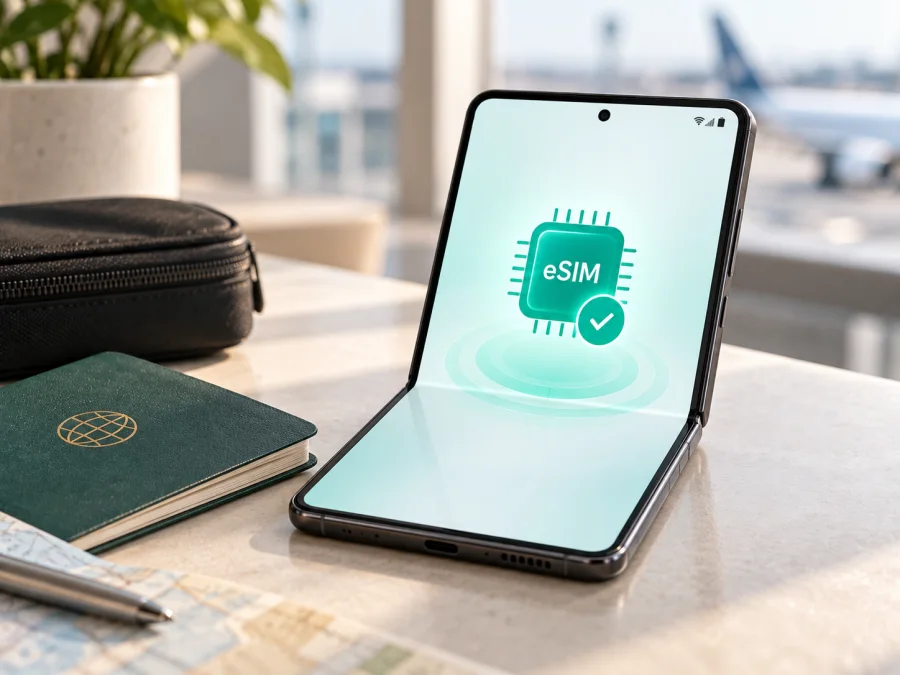
Samsung Galaxy Z Fold7 12GB RAM eSIM: compatibility, setup and travel use
If you are checking whether the Samsung Galaxy Z Fold7 12GB RAM can use an eSIM, the short answer is yes for supported regional configurations. Samsung lists the Galaxy Z Fold7 among its eSIM-capable Galaxy devices, and its official specifications for the model show a dual-SIM arrangement with SIM 1 + eSIM and, in some configurations, Dual eSIM. The memory size does not create eSIM support by itself, but the 12GB RAM version belongs to the same device family covered by those specifications.
There is an important qualification: Samsung states that eSIM availability can depend on the country where the device was sold and on the mobile operator. A Fold7 with the same retail name can therefore have different menus, firmware, or carrier restrictions. Confirm the handset by checking its EID and Add eSIM option before buying a travel plan.
Quick answer for Samsung Galaxy Z Fold7 12GB RAM
For a supported market version, Samsung Galaxy Z Fold7 12GB RAM supports eSIM. You can normally add a profile through the Samsung SIM manager, scan a QR code, and select the new profile for mobile data. The phone can also keep a physical nano-SIM active, subject to its firmware and carrier. An imported or region-limited unit may not show the same eSIM controls.
| Check | What applies to Samsung Galaxy Z Fold7 12GB RAM |
|---|---|
| Device family | Galaxy Z Fold7, foldable Android smartphone |
| Exact variant in this article | Samsung Galaxy Z Fold7 12GB RAM |
| eSIM status | Supported on eligible regional and carrier configurations |
| SIM arrangement | Samsung specifications indicate SIM 1 + eSIM or Dual eSIM, depending on configuration |
| Physical SIM | Nano-SIM tray on many versions; confirm the tray and software on your unit |
| Memory | 12GB RAM; this is a performance specification, not a separate eSIM technology |
| Network use | 4G LTE and 5G depend on the local network, plan, bands, and roaming |
| Main uncertainty | Market of origin, carrier firmware, operator lock, and current software |
| Best proof on the handset | EID plus Settings > Connections > SIM manager > Add eSIM |
Does the Galaxy Z Fold7 12GB RAM support eSIM in every country?
No. The reliable answer is “yes on supported versions, but verify the specific unit.” Samsung’s regional eSIM information includes the Z Fold7 in its compatible list and also warns that a listed device may lack eSIM service in the country where it was sold. A carrier may restrict activation, omit eSIM from its offer, or sell a locked handset even when the hardware is capable.
One regional Samsung specification lists Dual-SIM and SIM 1 + eSIM / Dual eSIM for the Galaxy Z Fold7 family. That confirms the capability is real, but it does not promise that every imported or carrier-branded Samsung Galaxy Z Fold7 12GB RAM shows the same menu. The RAM label is not the deciding factor: the model, sales region, firmware, EID, SIM manager, operator lock, and plan all matter.
#kesim-device-compatibility: check your phone before buying
Before you choose a travel eSIM, Check your device and confirm the following, especially for an imported, refurbished, or carrier-supplied phone.
- Find the EID. Open Settings and search for “EID”, or look under About phone and status or SIM information. The exact label can vary with One UI version. An EID is a strong sign that the phone has an eSIM component, although the operator still has to allow activation.
- Look for the eSIM control. Open Settings > Connections > SIM manager. A compatible configuration should show Add eSIM, Add mobile plan, or a comparable option. If the item is absent, first check that the phone is the genuine Galaxy Z Fold7 12GB RAM variant and that its software is current.
- Check the model and origin. In About phone, record the model number and compare it with the seller’s description and proof of purchase. Two devices sold as Galaxy Z Fold7 can be intended for different markets. Do not rely on the product name alone.
- Check for an operator lock. A locked handset may reject a profile even when the hardware supports eSIM. Ask the original operator or seller about the lock status. A travel eSIM is not a method for bypassing a carrier restriction.
- Check the plan’s destination. Confirm that the selected eSIM covers every country or region on your route, not just the first airport or city. Review the validity period, data allowance, activation rule, and any fair-use or hotspot conditions shown with the plan.
- Prepare internet for installation. Keep Wi-Fi or another working connection available while the profile downloads. If the QR code is displayed on the same Fold7 screen, use another screen or the manual activation details supplied with the profile.
- Check software and battery. Install pending updates, charge the phone, and back up important information. A current system reduces avoidable setup errors.
A quick decision rule
You can usually proceed when the phone shows an EID, SIM manager offers Add eSIM, the handset is unlocked, and the plan covers the trip. If any of these checks fails, verify with the seller or operator before buying. The menu is available from either Fold7 display; opening the phone does not change its eSIM capability.
Choosing an eSIM for a trip
Once the checks are complete, Kaspersky eSIM Store can help you choose, arrange, and activate an eSIM with a mobile-data plan for an overseas trip. In the app or on the site, compare destination, coverage, allowance, validity, and activation terms. It helps prepare travel data without a physical SIM card, but it does not replace Samsung compatibility checks or the plan conditions.
Choose for the journey, not for the phone’s 12GB RAM. A multi-country route needs a regional option that includes every stop; a shorter trip may need less data. Read when validity begins: some plans start on first connection abroad, others at installation. A data eSIM normally does not provide a regular number, voice calls, or SMS unless its terms say otherwise. Keep the home line only when its roaming settings are understood.
How to install an eSIM on Samsung Galaxy Z Fold7 12GB RAM
Before you start, have the activation QR code or details ready, connect to Wi-Fi, and make sure the phone is unlocked. Keep the profile email available on another device. Do not delete a working profile while troubleshooting.
1. Confirm the prerequisites
Check the EID, Add eSIM option, operator-lock status, and plan destination. If the QR code is on the Fold7, open it on another screen; the phone cannot scan its own active camera view.
2. Open the SIM manager
Open Settings > Connections > SIM manager and tap Add eSIM or Add mobile plan. Labels can differ by software version and region. If the option is missing, repeat the compatibility checks instead of changing random network settings.
3. Scan the QR code
Choose QR-code scanning and point the camera at the supplied code. Keep it fully visible and well lit. If manual activation details are supplied, enter them exactly; never invent an SM-DP+ address or code.
4. Download the profile
Confirm that the plan name matches the intended destination, approve the download, and wait. A weak Wi-Fi connection can make this take several minutes.
5. Name the line clearly
Name the new profile “Travel data” or with the destination. A clear label prevents selecting the home SIM by mistake; it does not change coverage or validity.
6. Select the data SIM
In SIM manager, select the new eSIM for mobile data when ready. Choose calls, texts, and data deliberately. Dual-SIM combinations depend on carrier and region, so follow what the phone allows.
7. Turn on data roaming for the travel eSIM if required
Many travel plans require data roaming for the eSIM to use a partner network abroad. Enable it only for that profile when the plan requires it, and keep it off on the home line if you want to avoid its roaming allowance. The switch is not a coverage guarantee.
For a concise device walkthrough, use the Android eSIM installation instructions. The iOS eSIM installation instructions are useful when a travel companion uses an iPhone, but the Samsung Galaxy Z Fold7 12GB RAM itself follows Android and One UI menus.
Activate and use the eSIM during travel
Installation and network activation are not always simultaneous. You may download at home and switch on the line after landing if the plan allows it. Check when validity starts; an installed but disabled profile normally does not use data, but offer rules still apply.
Scenario 1: Prepare before departure
At home, use Wi-Fi to install and label the profile, keep the home SIM as the data line until ready, and save the plan details. Do not remove the profile after testing unless reinstallation is explicitly allowed.
Scenario 2: Switch data after landing
After landing, disable airplane mode and wait for registration. Enable the travel eSIM, make it the data line, and turn on its roaming if required. Test a simple webpage with Wi-Fi off and confirm the selected line.
Scenario 3: Cross a border on a multi-country route
Keep the travel eSIM selected and verify that the new country is covered. A regional plan may take a few minutes to reconnect or require network selection. Check scope and validity before changing APN settings.
Scenario 4: Use navigation, messaging, and hotspot
Navigation, translation, email, maps, and messengers are typical uses. Video calls and hotspot can consume more data and may be limited by the plan. Turn off automatic backups and app updates if needed; opening the main display does not improve coverage.
Check the preferred data SIM after setting changes. A signal can belong to the home line while apps use another line for data, so monitor the selected eSIM and plan balance.
Common problems and fixes
Use this order when something goes wrong:
- No Add eSIM or EID: confirm the model and country of sale, install available updates, and ask the seller or original operator about the regional version. The 12GB RAM label is not proof of eSIM support.
- QR code will not scan: show it on another screen, raise brightness, remove glare, and use the SIM manager’s scanner. Enter manual details exactly as supplied; do not invent an SM-DP+ address.
- Profile will not download: reconnect to reliable Wi-Fi, check the activation code and captive portal, and confirm it has not already been used. Repeated scans can complicate a one-time activation.
- Profile installed but no data: in SIM manager, enable the travel profile and select it for mobile data. Turn Wi-Fi off, check the destination, signal, roaming switch, plan validity, and any APN instruction, then restart.
- Signal but apps are offline: make sure apps are using the travel eSIM rather than the home line, and check Data Saver, app limits, balance, and validity. Test a plain webpage before diagnosing a single app.
- Works at home but not abroad: confirm the country is covered, enable roaming for the travel profile when required, leave automatic network selection on initially, and allow a few minutes for registration.
- Locked phone or profile removal: contact the original operator about an unlock. Switch a profile off instead of deleting it when you may need it again; removal can prevent reinstallation and does not necessarily refund unused data.
FAQ
Is Samsung Galaxy Z Fold7 12GB RAM eSIM-compatible?
Yes, supported versions are. Samsung lists the Z Fold7 as eSIM-capable and regional specifications show SIM 1 + eSIM or Dual eSIM. Confirm the EID and Add eSIM menu because country and carrier differences apply.
Does 12GB RAM guarantee eSIM support?
No. RAM is memory capacity, not the eSIM configuration. Model, market, firmware, and operator status decide whether activation works.
Can I use a physical SIM and travel eSIM together?
Usually, on a supported Fold7, but the combination depends on the regional model and carrier. Select the data line in SIM manager and control roaming on the home line.
Do I need an EID, and can I install before a flight?
An EID plus Add eSIM is the clearest handset-level confirmation. Installation before departure is often possible over Wi-Fi, but check whether the plan starts at installation or first connection abroad.
Is an eSIM a phone number, and can I move it?
Not necessarily: a travel data eSIM normally provides data rather than a number, voice, or SMS. Do not assume transfer is possible; many profiles are bound to the first device or activation.
Does Kaspersky eSIM Store provide a network?
No. Kaspersky eSIM Store is an app and website for selecting, arranging, and activating an eSIM with a mobile-data plan for an overseas trip. It does not replace device, lock, or plan checks.
Conclusion: final device check and travel eSIM
Samsung Galaxy Z Fold7 12GB RAM is a good candidate for travel eSIM because Samsung documents eSIM support for the Z Fold7 family. The answer for your phone depends on its sales region, carrier status, firmware, EID, and SIM manager. Before paying for a plan, confirm that the handset shows an EID and Add eSIM, is not operator-locked, has a working connection for setup, and is covered in every destination on your route.
After that, choose an eSIM plan in Kaspersky eSIM Store by destination, allowance, validity, and activation terms. Install it through Connections > SIM manager, select it for data, enable roaming only for that profile when required, and test after arrival. Keep the QR details available and watch which line uses data. This check ties the trip eSIM to the exact phone in your hand, not the model name alone.


