Travel connectivity guide
Samsung Galaxy Z Fold7 256GB eSIM Guide
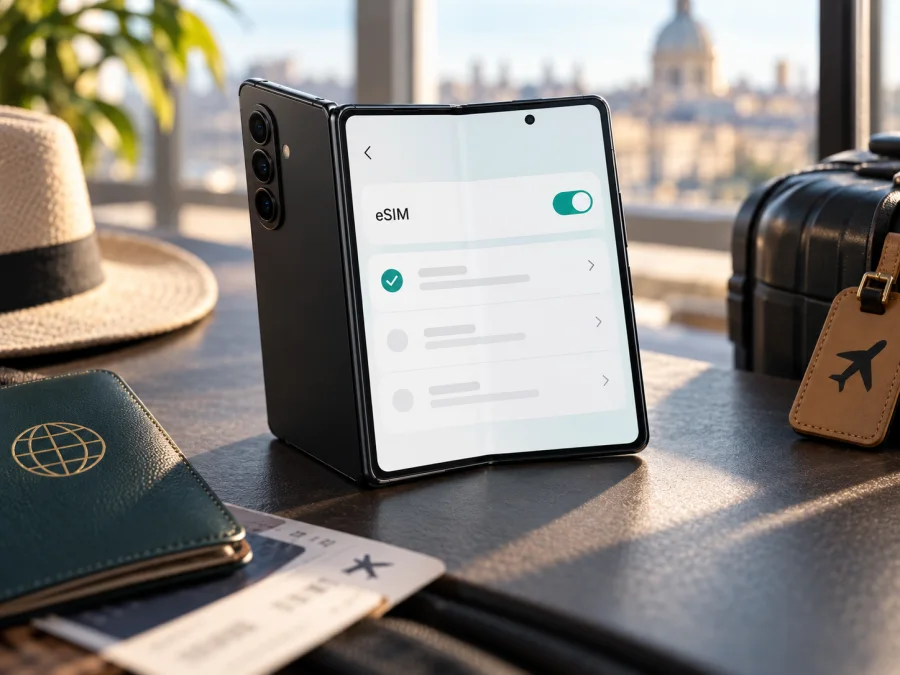
Samsung Galaxy Z Fold7 256GB eSIM: compatibility and travel setup
Does Samsung Galaxy Z Fold7 256GB support eSIM?
Yes: Samsung lists Galaxy Z Fold7 as an eSIM-capable device, and its setup guidance explains how to add an eSIM by scanning a QR code. The 256GB storage option does not, by itself, indicate a different SIM capability. However, the name “Samsung Galaxy Z Fold7 256GB” does not identify the country or exact model code of an individual phone. Samsung also cautions that eSIM availability can depend on the country of origin, local carrier support, and device configuration. So the practical answer is: the model family supports eSIM, but confirm that the particular unit in your hands exposes the feature before purchasing a plan.
For a travel data plan, check both the phone and the plan. Your Fold7 needs an active eSIM function, no carrier restriction that prevents adding another profile, and a suitable network available at your destination. A storage capacity of 256GB is useful for apps, maps, photos, and offline media, but it does not expand mobile data or guarantee eSIM access.
| Item | What to know |
|---|---|
| Exact device name | Samsung Galaxy Z Fold7 256GB |
| eSIM support | Samsung lists Galaxy Z Fold7 among eSIM-capable Galaxy devices; the exact regional unit should still be checked |
| SIM arrangement | Samsung describes the Fold7 as supporting a physical SIM together with eSIM; available combinations can vary by market and software |
| Storage variant | 256GB is the device storage label, not a separate eSIM standard |
| Setup route | Settings → Connections → SIM manager → Add eSIM, or scan the provider’s QR code when prompted |
| Before purchase | Confirm the model code, eSIM menu or EID, carrier lock status, destination, plan validity, and data allowance |
Why region and carrier matter
The product name is shared across multiple sales markets, but Samsung’s own support guidance warns that a listed Galaxy model may not offer eSIM in every country of origin. Local networks also need to support the way the eSIM is being activated. This means “Fold7 supports eSIM” is a reliable statement about the model family, not proof that every retail unit, imported device, or carrier-customized handset will accept every eSIM profile.
The word “256GB” does not tell you whether the phone is an unlocked international version, a device sold for a particular market, or a carrier-supplied handset. Check the model code in Settings → About phone and compare it with the label on the box or purchase record. If the phone was imported, refurbished, or sold with a carrier plan, ask the seller or carrier to confirm eSIM support for that specific code and whether the device is network-unlocked. A carrier lock may restrict using a travel eSIM from another provider even when the phone has eSIM hardware.
Check four things separately: the phone exposes eSIM support; the market version permits it; the carrier has not locked or managed the device in a way that blocks a new profile; and the plan serves your destination. If one point is uncertain, ask the seller for confirmation tied to the full model code or verify in Settings before buying. Use current software because menu names and carrier support can change.
Check eSIM before buying a plan
Start with the on-device settings. Samsung’s menu names can change slightly between One UI releases or regions, but on a supported Galaxy phone the SIM manager is the main place to check.
Quick settings check
- Connect the phone to Wi‑Fi and install any pending Samsung software update.
- Open Settings.
- Tap Connections, then SIM manager.
- Look for Add eSIM, Add mobile plan, or a similar option.
- Open the option only far enough to confirm it is available. You do not need to scan or install anything yet.
If the option is present, that is a useful sign that the current unit and software expose eSIM functionality. It is not a guarantee that your device is unlocked or that a specific plan will activate. Confirm those points separately.
Find the EID
An EID is an identifier associated with the device’s embedded SIM. Samsung says it can be found on the phone’s box or in Settings → About phone → Status; some software versions label the submenu Status information. Menu names can vary, so check the SIM manager as well if the EID is not shown in that location.
Look for a clearly labelled EID entry. A visible EID strongly suggests that the handset has an eSIM component, but the EID alone does not establish that the phone can install a given plan. The SIM manager option, regional eligibility, lock status, and plan conditions still matter. Avoid posting a screenshot of the EID publicly; it is a device identifier and is not needed in a product review or forum post.
If you cannot find an EID or an add-eSIM option, check the full model code, update the software, restart the phone, and ask Samsung support or the seller to confirm the specifications for that market. Do not buy a plan based only on a marketplace title or a generic Fold7 specification page. If the phone is managed by an employer, a device-management policy may also hide or restrict cellular settings.
Use this checklist before checkout:
- [ ] The device is specifically Samsung Galaxy Z Fold7 256GB, not another Fold generation or a similar-looking model.
- [ ] Add eSIM appears in SIM manager, or the phone displays an EID.
- [ ] The exact model code and country of origin have been checked.
- [ ] The phone is not locked to a carrier that blocks another provider’s eSIM.
- [ ] The chosen plan covers every country or region on the itinerary.
- [ ] The plan’s data allowance, validity period, activation timing, and supported use are clear.
- [ ] You have reliable Wi‑Fi available for installation if the profile is not already downloaded.
Check your device before choosing a travel plan. If the compatibility result is unclear, pause and verify the exact model code with the seller or Samsung support.
Choose a plan for the trip
An eSIM plan is useful when you want mobile data without changing the physical SIM in the phone. First map the route: a single-country plan may suit a stay in one destination, while a regional option may be more convenient for a multi-country itinerary. Read the destination list carefully; a region label does not necessarily include every place on your route.
Estimate your likely use: navigation, messaging, email, and browsing usually need less data than video, large uploads, cloud photo backups, or tethering. Check when validity begins—purchase, installation, first connection, or a chosen date—because the rule depends on the plan.
Kaspersky eSIM Store is an app and website where you can choose, arrange, and activate an eSIM with a mobile-data plan for an international trip. Review the selected plan’s current destination coverage, data amount, duration, price, and terms before confirming. Browse the current travel plan options. The available options and conditions can change, so rely on what is displayed for the destination and dates you choose.
Remember that a data-only eSIM is not automatically a replacement for your usual number. Calls and SMS may remain on the physical SIM; internet calling and messaging depend on the app, network, and plan. Check home-line roaming charges and disable its data roaming if you do not plan to use it.
Install and activate an eSIM on Galaxy Z Fold7
Before you begin, confirm compatibility, unlock status, and plan instructions. Keep the order confirmation or activation details accessible on another screen if the QR code must be scanned. Use a stable Wi‑Fi connection and do not delete an installed profile just to troubleshoot; some eSIM profiles cannot be downloaded again after removal.
Add the profile from a QR code
- Open Settings → Connections → SIM manager.
- Tap Add eSIM or Add mobile plan. The wording may differ by software version.
- Choose the option to scan a QR code.
- Scan the code supplied with your selected plan. If the code is on this same phone, open the provider’s manual installation instructions or use the available activation details instead of trying to scan the screen with itself.
- Follow the prompts to download the eSIM profile. Keep the phone connected to Wi‑Fi until setup finishes.
- Give the new line a clear label, such as “Travel data” or the destination name.
- Review the SIM manager and check that the profile is listed and enabled.
Some providers offer manual activation details or an in-app installation flow instead of a QR code. Follow the instructions attached to your plan; activation steps are not interchangeable across providers. Samsung also documents options such as carrier-assisted plan search or transferring an existing profile, but those options depend on the provider and are not required for every travel eSIM.
For more detail, see the Android eSIM installation guide or the iOS eSIM installation guide. The Android guide is the relevant one for the Fold7; the iOS page is included for readers comparing setup across devices.
Activate at the right time
Installation and activation are not always the same event. Installing downloads the profile onto the phone; a plan may begin its validity only when it first connects to a supported network, or it may follow another rule stated in the plan. Read the activation condition before installing, especially if you are preparing well before departure. If activation can be scheduled, confirm the chosen date and local time zone.
When you are ready to use travel data:
- Open Settings → Connections → SIM manager.
- Turn on the travel eSIM if it is disabled.
- Under preferred SIMs, select the travel eSIM for Mobile data.
- Keep your usual line selected for calls or texts if you want to continue using it and understand its roaming charges.
- If the plan’s instructions require it, enable Data roaming for the travel eSIM. Do not turn it on indiscriminately for your home SIM.
- Allow the phone a few minutes to register on an available supported network.
The exact labels can differ by One UI version, country, or carrier customization. If the phone asks you to confirm which SIM should handle data, choose the travel profile only when you intend to use it. Dual-SIM behavior can depend on the market variant; do not assume that two lines can make calls, use data, and remain active in exactly the same way at once.
Use the Fold7 for mobile data while travelling
Before departure, you can install a profile over Wi‑Fi and leave it turned off if the plan permits that. Keep the home SIM active for calls or verification messages only if your carrier’s roaming terms make that acceptable. On arrival, switch mobile data to the travel eSIM and follow the plan instructions for roaming. This keeps the choice visible in SIM manager and avoids relying on an airport Wi‑Fi network to complete setup.
For a multi-country trip, check whether one plan covers each stop. If you have several eSIM profiles stored, label them with destinations and review which one is selected for mobile data. A profile can remain installed but inactive; deleting it may make it impossible to restore. Keep the confirmation details until the plan is used and any support question is resolved.
If you use a hotspot, check plan terms first. Tethering, video calls, and large downloads can use data quickly; disable automatic updates, cloud photo sync, and video autoplay if you need to conserve the allowance.
Practical travel scenarios
A short city break: Install over Wi‑Fi if advance installation is permitted. On arrival, select the travel eSIM for data and check that a map or webpage loads. Review roaming settings for your usual SIM.
A business trip: Keep the physical SIM for calls or verification texts if needed, and set the travel eSIM as the data line. If your company manages the phone, check whether its settings restrict travel profiles or roaming.
A multi-stop holiday: Confirm every country is included in a regional plan. After crossing a border, check the selected data line and allow time for registration.
Using the phone as a hotspot: Confirm tethering is allowed and track data use in Settings and in the plan account where available.
Troubleshooting common eSIM issues
“Add eSIM” is missing
Restart the phone, update software, and confirm the model code and country of origin. Check SIM manager and About phone for EID or SIM status. If the option remains absent, ask the retailer or Samsung support to verify that exact unit.
The QR code will not scan
Increase brightness on the screen showing the code, clean the camera lens, and ensure the entire code is visible. Check the connection and that the code has not expired. If it is shown on the Fold7 itself, use the provider’s manual method or another screen. Keep the QR code private because it may allow profile installation.
The phone says the plan cannot be added
Check Wi‑Fi, date and time, and whether the profile is already installed. Confirm plan validity and installation limits; a QR code may be single-use. If the phone reports a restriction, check unlock status with the seller or carrier. Support will need the error text and model code, not your password.
The profile appears, but there is no service
Enable the travel profile and select it under Mobile data. Confirm destination coverage and validity. Toggle airplane mode briefly, then wait for registration. Enable data roaming only for this eSIM if its instructions require it; use manual network selection only when the provider directs you.
Data does not work after connection
Turn Wi‑Fi off and open a simple webpage to test mobile data. Check that the travel eSIM is selected, mobile data is enabled, and any provider APN instructions were followed. Review the remaining allowance. If you use private DNS or another network setting, temporarily check whether it affects the connection, then restore your preference.
The home SIM is using roaming data
In SIM manager, select the travel eSIM for data and review roaming settings separately for each line. Check your home carrier’s terms before leaving the physical SIM active; disabling its data roaming does not necessarily prevent charges for other roaming activity.
If the problem remains, note the exact message, location, selected data line, and profile status. Contact the plan provider through the purchase or app account. Do not remove the profile unless support confirms it can be downloaded again.
Frequently asked questions
Does the 256GB version support eSIM?
Samsung lists Galaxy Z Fold7 as an eSIM-capable model. The 256GB capacity does not identify the region or carrier version, so check EID or Add eSIM on the exact unit and confirm it is unlocked before buying a travel plan.
Can I use a physical SIM and an eSIM at the same time?
Samsung describes the Fold7 as supporting a physical SIM and eSIM combination. The available dual-SIM behavior can depend on the market variant, carrier software, and settings. Check SIM manager on your phone and avoid assuming that every line can be active in the same way simultaneously.
Does a travel eSIM give me a second phone number?
Not necessarily. A travel data plan is commonly intended for mobile internet and may not include a regular number, voice calls, or SMS. Read the individual plan terms. You can often use messaging or calling apps over data, subject to those apps and local network conditions.
Should I install the eSIM before leaving?
Often, installation over a reliable Wi‑Fi connection is convenient, but first check when the plan’s validity starts and whether advance installation is supported. Some plans begin on first network connection; others have their own activation rules. Follow the specific instructions for the plan you selected.
Is 256GB of storage relevant to eSIM support?
No. Storage capacity describes space for files and apps. eSIM availability depends on the phone’s hardware, software, regional configuration, and carrier restrictions.
Final check before your trip
For Samsung Galaxy Z Fold7 256GB, Samsung’s published guidance supports a clear starting point: the Fold7 model family supports eSIM, and the manufacturer documents QR-code activation. Your own phone still needs a final check because storage capacity does not identify its region, lock status, or software configuration. Look for EID or Add eSIM, check the exact model code, and confirm the handset is unlocked for the plan you intend to use.
Then match your route, data needs, and travel dates to the plan conditions. Kaspersky eSIM Store is an app and website that helps you choose, arrange, and activate an eSIM with a data plan for an international trip. Before checkout, verify the destination list, allowance, validity, and activation rules on the selected offer. With compatibility checked first and the travel eSIM assigned to mobile data when you need it, your Fold7 can be prepared for maps, messaging, and other online tasks abroad.


