Travel connectivity guide
Samsung Galaxy Z Fold7 8GB RAM eSIM Compatibility
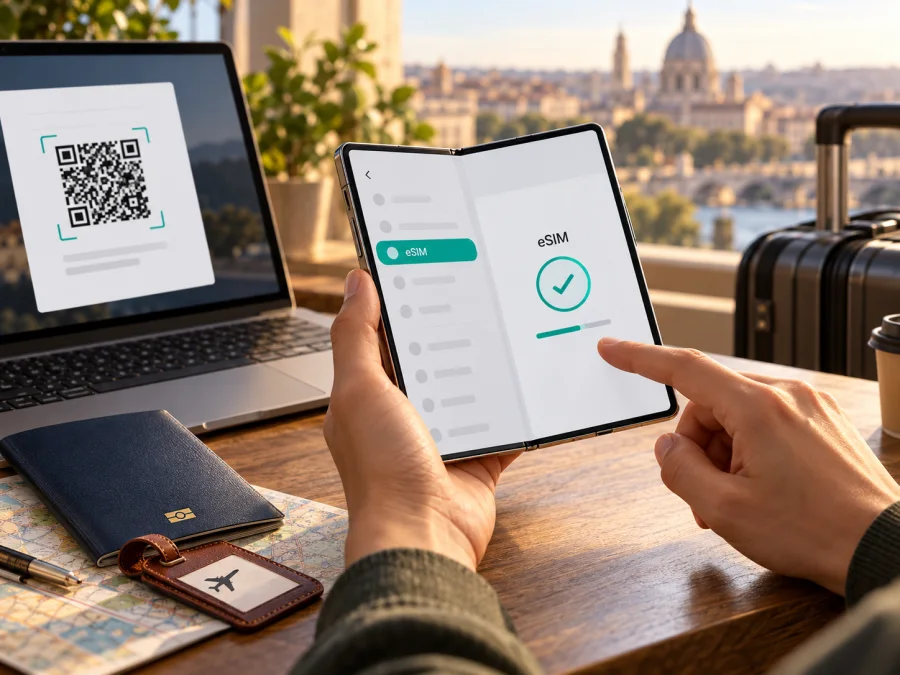
Samsung Galaxy Z Fold7 8GB RAM eSIM compatibility and setup guide
Samsung confirms eSIM support for the Galaxy Z Fold7 family, but I could not verify an official Fold7 configuration with 8GB RAM. That memory label may be a listing error or refer to a different device. Check the exact model number, EID, and Add eSIM setting on the phone before purchasing a plan.
The family-level answer is therefore conditionally yes: the Galaxy Z Fold7 supports eSIM, but the exact “8GB RAM” variant and regional handset must be verified. eSIM availability can depend on country of origin, software, and carrier. This guide covers the checks and setup steps.
Quick compatibility answer
Samsung’s “Specs & Features | Samsung Galaxy Z Fold7” page and its “Galaxy eSIM and supported network carriers” support page identify Fold7 as eSIM-capable (checked 2 November 2026). These confirm the family, not an “8GB RAM” SKU. RAM does not determine eSIM support, but the mismatch makes it important to verify the handset and seller description.
| Check | What is confirmed | What you should verify on your phone |
|---|---|---|
| Device family | Samsung identifies Galaxy Z Fold7 as eSIM-capable in its product/support materials. | Whether this exact regional handset exposes eSIM settings. |
| “8GB RAM” variant | I could not confirm an official Galaxy Z Fold7 listing with this memory configuration. | Model number, RAM/storage details, country of origin, and seller documentation. |
| eSIM identity | An EID is the device identifier associated with its embedded SIM capability. | An EID appears in About phone / Status or the device information screen. |
| Setup controls | Samsung’s usual path is Settings → Connections → SIM manager → Add eSIM. | The menu exists and offers a QR, activation-code, or carrier setup option. |
| Network access | eSIM use also depends on the plan, carrier, and local network conditions. | The device is unlocked and the intended plan supports your destination. |
Check both EID and Add eSIM. A generic “dual SIM” label may mean two physical SIMs, and 5G or a high RAM figure does not prove eSIM capability.
Check the exact handset before buying a plan
Use this checklist before placing an order or relying on the phone for a trip:
- Confirm the model code. Open Settings → About phone and record the model name and model number. Compare that number with the box, invoice, and seller listing. Similar names can hide different regional configurations.
- Check for an EID. Go to Settings → About phone → Status information (the wording may vary) and look for EID. On some software versions, the EID is shown under About phone or in the SIM status details. You can also open the phone dialler and enter
*#06#; if supported, the device information panel may show the EID alongside other identifiers. Do not share the EID publicly. - Look for eSIM controls. Open Settings → Connections → SIM manager. Check for Add eSIM. Open the option only far enough to confirm whether QR scanning, manual activation-code entry, or a supported carrier setup is available; you do not need to activate a plan during this check.
- Check software and carrier restrictions. Install available system updates over Wi‑Fi. Ask the carrier or retailer whether this specific model is unlocked and whether its region has eSIM enabled. A carrier-locked device may restrict another provider’s profile.
- Check the plan and destination. Confirm that the plan is for your country or route, is intended for data if that is what you need, and can be activated on a Samsung Android phone. Read its installation, first-use, and validity conditions before checkout.
Interpret the results
EID and Add eSIM are both present: this is a strong sign that eSIM is enabled on this handset. You still need an unlocked device and a plan that supports the model and destination.
Only one appears, or neither appears: update the phone, restart it, and check About phone and SIM manager again. If Add eSIM remains missing, ask Samsung or the seller to confirm eSIM availability for the model number and country of purchase. An EID alone does not guarantee that a profile can be installed. Do not share EID or IMEI publicly.
Regional versions and the 8GB RAM detail
Samsung cautions that eSIM availability can depend on the device’s country of origin. Regional Fold7 versions may have different model numbers, SIM configurations, firmware, and carrier customizations. The product name in a shop listing may not identify which version you have.
Samsung India Business’s Fold7 listing shows a 12GB configuration; Samsung Brazil’s memory guide lists a selected 16GB option (both checked 2 November 2026). These market-specific pages do not represent every regional SKU, but I could not verify an official “Samsung Galaxy Z Fold7 8GB RAM” configuration. Compare the model number in Settings with the box and receipt, ask the seller for the regional SKU and explanation of the RAM label, and check EID and Add eSIM. RAM and eSIM are separate properties; the discrepancy is about identifying the device.
Compatibility also depends on the service being used. A phone can have an eSIM profile installed while the chosen local network or data plan is unavailable at a particular destination. Check the selected plan’s country list and setup terms, and choose mobile data separately from calls and messages.
Where can I find the EID?
Start with Settings → About phone → Status information and look for EID. Menu labels vary. On some phones, *#06# displays device identifiers in the dialler. Treat the EID as sensitive device information and share it only through a trusted, necessary support process.
Can I use a physical SIM and an eSIM together?
Samsung describes the Fold7 as supporting physical SIM and eSIM. The active-line combination depends on the regional model and carrier; check SIM manager and select defaults for calls, messages, and data separately.
Should I enable data roaming?
Follow the selected plan’s instructions. Some travel eSIMs need data roaming enabled to connect to a local partner network. If so, enable it for the travel eSIM line and check that the home SIM is not selected for mobile data. Roaming settings do not themselves confirm that a plan covers a destination.
Check whether your device is compatible before you choose a travel eSIM. Use the model number and Settings checks rather than inferring eSIM support from “8GB RAM.”
Install an eSIM on a compatible Galaxy Z Fold7
Samsung’s documented Android path is Settings → Connections → SIM manager → Add eSIM. Menu names can shift slightly with software versions or regional firmware. Before you start, connect to reliable Wi‑Fi, have the QR code or activation details ready on another screen, and read the plan’s instructions. A QR code displayed on the Fold7 itself cannot normally be scanned by that same phone’s camera, so show it on a second device or use a supported manual-entry option.
- Prepare the profile. In Kaspersky eSIM Store, use the website or app to choose and complete an eSIM plan for the country or route of your trip. Follow the plan’s own installation and activation information. Keep the QR code and any activation code private.
- Open SIM manager. On the phone, go to Settings → Connections → SIM manager and select Add eSIM. If the menu is missing, return to the compatibility checks above; do not continue by guessing through unrelated settings.
- Choose the available installation method. Select Scan QR code and point the camera at the code shown on another screen. If your plan provides manual details and the phone offers it, choose the activation-code entry option and type the information exactly. Some carriers support a direct or pre-assigned download; use it only when the plan provider instructs you to.
- Wait for the profile to download. Keep the device online and do not close the installation screen. The phone may ask you to confirm that you want to add the plan. A profile download and the start of a plan’s validity are not always the same event; follow the plan’s terms for when usage begins.
- Name the line. Give the new eSIM a label such as “Travel data” so it is easy to distinguish from your regular SIM. The label is only for your own device and does not change the plan.
- Choose defaults carefully. If the phone asks which SIM to use for calls, messages, and mobile data, select the line that matches your intention. For a data-only travel plan, keep your usual number selected for calls and messages if you want to continue using it and your carrier permits that arrangement.
- Set the travel eSIM for mobile data. In SIM manager, choose the new eSIM under Mobile data when you are ready to use it. Check the plan instructions for whether data roaming must be enabled on that line. Roaming settings can be necessary for a travel eSIM to connect to its partner network; enable them only for the intended line and in line with the plan instructions.
- Test the connection. Turn Wi‑Fi off briefly, confirm that mobile data is assigned to the eSIM, and load a simple webpage or messaging app. If you are still at home, the plan may not connect until you reach its supported destination. Restore your preferred settings after the check.
Samsung also documents carrier QR installation, manual activation-code entry, and some carrier- or device-based setup methods. Not every option appears on every regional phone, and not every carrier supports each method. For a Samsung-specific walkthrough, see the Android eSIM installation instructions. The iOS eSIM installation instructions are for Apple devices and are included as a reference if you are helping someone travelling with an iPhone.
When to install and activate
Install over stable Wi‑Fi when you have time to follow the plan instructions. The validity period may start at installation, first connection, or another stated point; check the plan terms. You may be able to install before departure and leave the eSIM switched off until arrival. Do not delete a profile as a troubleshooting shortcut: some QR codes are single-use and recovery may require provider support.
Use the Fold7 for mobile data while travelling
The data setup is the same as on other compatible Galaxy phones. Before departure, confirm destination and validity, check that the phone is unlocked, and save essential booking details offline.
Kaspersky eSIM Store is an app and website where you can choose, complete, and activate an eSIM plan for mobile internet on an overseas trip. The available plan conditions depend on the destination and the selected offer. You can browse the Kaspersky eSIM Store to check current destinations and plans; the homepage is a general store entry point, not a country-specific tariff page. Review the data allowance, validity, destination, supported installation method, and activation timing before checkout.
At your destination, switch on the travel eSIM in Settings → Connections → SIM manager, choose it for Mobile data, and enable data roaming for that line only if the plan instructions require it. Keep your regular SIM for calls or texts only if needed, and check that it is not selected for data. Wait for network registration, then test a webpage with Wi‑Fi off. Service depends on the plan, local network, and location.
Many travel eSIM plans are data-focused and do not include a standard mobile number, voice calls, or SMS unless the specific plan says otherwise. Internet calling and messaging apps can work over data, subject to the app, destination, and network. Keep access to important accounts in mind if they depend on receiving a one-time SMS on your home number.
Three practical travel scenarios
- Data on arrival: install in advance if allowed, then enable the eSIM and select it for mobile data at the destination. Confirm when validity begins.
- Keep your usual number: if the device and carrier allow dual SIM, set the travel eSIM for data and choose call/message lines separately. Check home-network roaming conditions.
- Cross-border route: verify that every country is included. A regional label or the phone’s 5G capability does not establish plan coverage.
Troubleshooting: eSIM will not install or connect
First identify which stage is failing: the phone does not offer Add eSIM, the profile will not download, the profile is installed but inactive, or mobile data does not work after connection. This distinction prevents unnecessary deletion or repeated scanning.
| Symptom | Checks to try |
|---|---|
| No Add eSIM option | Recheck model number and region; update One UI; restart; inspect EID and SIM manager; ask Samsung or the seller whether eSIM is enabled for that SKU. |
| QR code will not scan | Increase screen brightness on the device showing the code, clean the Fold7 camera lens, hold the phone steady, and use manual entry only if the plan supplies codes and the phone offers that option. |
| Profile download fails | Confirm a stable Wi‑Fi connection, check that the code has not already been used, verify the plan is intended for this device and region, and contact the plan’s support channel before deleting anything. |
| Profile installs but shows no service | Confirm the destination is supported, switch the eSIM on, select it for mobile data, wait briefly, and check whether its instructions require data roaming. |
| Signal appears but data does not work | Confirm mobile data is assigned to the travel eSIM, check the plan’s APN instructions if any, turn Airplane mode on and off, then restart the phone. |
| Data stops after crossing a border | Recheck the plan’s country list and validity, select a supported network automatically if available, and follow any network-selection instructions from the plan provider. |
| Home SIM uses unexpected data | Return to SIM manager and confirm which line is selected for mobile data; disable data roaming on the home line if appropriate. |
| QR code reports already used | Do not repeatedly attempt installation or erase the profile. Many codes can only install once; ask the plan provider whether the profile can be reissued or transferred. |
If the problem persists, confirm the eSIM is on, mobile data is enabled, and the intended line is selected. Enter an APN only when the plan instructions provide one. Restart if prompted, check remaining data and validity in the relevant account, and test where signal is available. Samsung support can help with device menus and regional features; plan support can check activation and plan-specific network questions. When asking for help, share the model number, software version, destination, and the step that failed. Never post passwords, payment details, or an EID publicly. If a profile was deleted or reports already active, check SIM manager and ask plan support before trying the QR code again, since some codes cannot be reused.
Frequently asked questions
Does Samsung Galaxy Z Fold7 8GB RAM support eSIM?
Samsung confirms eSIM support for the Galaxy Z Fold7 family. I could not verify that the exact 8GB RAM configuration is an official Fold7 variant. If your particular phone shows an EID and Add eSIM, and is not restricted by a carrier or region, it is likely able to install an eSIM profile. Confirm the model number and intended plan before purchase.
Is 8GB RAM the same thing as eSIM support?
No. RAM is device memory; eSIM is a separate built-in SIM capability. The RAM figure does not enable or disable eSIM.
Does the travel eSIM replace my phone number?
A data-only travel plan generally provides internet access, not a conventional phone number or standard calls and SMS. Check the individual plan details. You may keep your regular number active if your phone and carrier allow it, but home-network roaming charges can still apply to calls, texts, or data.
Can I move the eSIM to another phone later?
Transfer rules depend on the profile and plan. Check before changing or resetting devices, and do not delete a working profile unless the provider explains how to restore it.
What if the settings do not match Samsung’s instructions?
Update and restart the phone, then verify its model number and country of origin. Samsung says screens and features vary by model, software, and carrier. If Add eSIM remains missing, ask Samsung or the seller to verify the device.
Final check before your trip
For the Samsung Galaxy Z Fold7 8GB RAM, the supported conclusion is conditional: Samsung documents eSIM for the Galaxy Z Fold7 family, but its public information reviewed here does not confirm an official 8GB RAM Fold7 configuration. Check the actual model code, EID, and Settings → Connections → SIM manager → Add eSIM on your phone. Then confirm that the device is unlocked and that the selected eSIM plan supports your destination and activation method.
Once compatibility is clear, choose a plan based on where you are going, how much data you expect to use, how long you need it, and when its validity begins. Kaspersky eSIM Store lets you browse, complete, and activate an eSIM plan for mobile internet on an overseas trip; check the current plan details before checkout. A few minutes spent confirming the phone and plan can help you avoid arriving with a profile that cannot be installed or used.


