Travel connectivity guide
Samsung Galaxy Z TriFold 1TB eSIM Guide
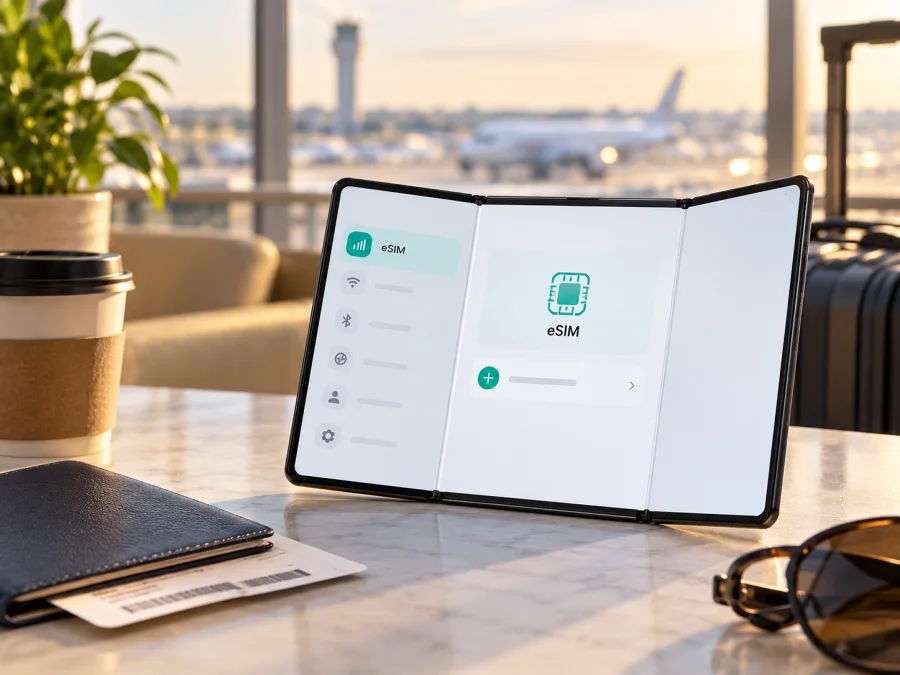
Samsung Galaxy Z TriFold 1TB eSIM: compatibility and setup
The short answer is qualified: Samsung’s current global product information lists the Galaxy Z TriFold with a 1 TB storage option and says the device supports “Multi eSIM.” Samsung also cautions that eSIM availability may depend on software version, region and carrier. That means the 1 TB label alone cannot confirm eSIM on the particular phone you are buying. Check the device’s EID and SIM settings, and confirm the exact model code with the seller before you choose a travel plan.
This guide keeps the requested name, Samsung Galaxy Z TriFold 1TB, intact. It does not assume that every product sold under that retail description is the same regional configuration. The practical test is the actual handset, its firmware and the mobile network or eSIM profile you intend to use.
Does Samsung Galaxy Z TriFold 1TB support eSIM?
Samsung’s global Galaxy Z TriFold specification page describes a SIM arrangement of up to two Nano-SIM cards and Multi eSIM. Its specification table separately lists both 1 TB and 512 GB storage configurations. Samsung’s US support page also includes Galaxy Z TriFold among the Galaxy devices with hybrid eSIM dual-SIM capability. These are good indications that eSIM is a supported feature of the product family and that a 1 TB configuration exists.
There is an important qualification. Samsung says eSIM availability can vary with software, region and carrier. A market-specific page may describe a different configuration from a global product page. A carrier-sold phone may also have restrictions that do not apply to an unlocked retail device. The evidence confirms the feature for the family and names the 1 TB capacity, but it does not establish that every 1 TB handset sold in every country has eSIM enabled. Confirm the exact unit before purchase, especially if it is imported or refurbished.
| Item | What can be confirmed | What to check on your unit |
|---|---|---|
| Product name | Samsung Galaxy Z TriFold | Match the model code and regional sales listing, not only the shortened shop title |
| Storage option | Samsung lists 1 TB and 512 GB versions globally | Verify that the listing’s 1 TB variant matches the phone’s model code |
| eSIM | Samsung lists Multi eSIM for Galaxy Z TriFold | Check for an EID and an “Add eSIM” option on the actual handset |
| Physical SIM | Samsung documents a Nano-SIM tray | Confirm the local SIM configuration and which combinations can be active together |
| Network plan | Availability can depend on region, software and carrier | Ask whether the phone is unlocked and accepts the eSIM provider or operator you plan to use |
“Multi eSIM” describes the device’s ability to work with multiple eSIM profiles under supported conditions. It does not mean every profile can necessarily be active at once, or that every carrier will provision service for every regional model. Follow the plan’s own activation instructions and the phone’s SIM manager to see which combinations are available.
The distinction between region and operator matters. Region means the intended sales market and its hardware or software configuration. Operator means the mobile network or carrier that provisions a plan, and may impose its own compatibility or activation rules. A phone can have eSIM hardware yet fail to add a particular profile because the handset is locked, its firmware or carrier configuration differs, or the provider does not support that device. Conversely, lack of a visible eSIM option on a device from one market should not be “fixed” by assuming the global specification applies to it.
What to check before buying an eSIM plan
Use this checklist before checkout:
- [ ] Ask the seller for the complete model code and the intended sales market. Keep the exact code with your receipt or order details.
- [ ] Ask the seller to confirm eSIM support on that exact model code, not just on “Galaxy Z TriFold” in general.
- [ ] If possible, inspect the phone itself. Look for an EID and for an option to add an eSIM in SIM settings.
- [ ] Confirm that the handset is unlocked and is not restricted by a carrier, an installment agreement or an enterprise management policy.
- [ ] Check that the operating system is up to date and that the phone is connected to Wi‑Fi or another working internet connection during installation.
- [ ] Confirm that the eSIM profile or plan is valid for the country or region you will visit. Read its data allowance, validity, activation timing and any device restrictions.
- [ ] Keep access to your normal number if you still need it for calls, texts or account verification. A travel data eSIM may not include an ordinary phone number, voice calls or SMS.
Find the EID or eSIM setting
An EID is an identifier associated with a device’s embedded SIM hardware. It is a useful sign that the phone can support eSIM, but it does not by itself prove that a specific carrier or travel profile can be installed. Menu names may change slightly with One UI or Android updates.
- Open Settings on the Samsung Galaxy Z TriFold 1TB.
- Tap About phone and look for Status information or SIM card status. If shown, find the EID. Depending on the software version, the EID may also appear in a status page reached from Settings → About phone.
- Return to Settings → Connections → SIM manager. Look for Add eSIM or a similarly named option.
- If the phone is in front of you, open the add-eSIM screen without scanning or installing a profile. You can check that the option exists and then back out.
- If neither an EID nor an add-eSIM option appears, update the phone’s software, restart it, and ask the seller or Samsung support to check the exact model code and market configuration.
Do not publish or send a photo of the EID unnecessarily. It is a device identifier; share it only with a provider or support team that needs it to check activation. A missing menu can be caused by a regional configuration, firmware, carrier policy or device restriction. A visible menu is encouraging, but the final compatibility check is whether the intended profile can be provisioned for that phone.
Check your device’s eSIM compatibility before choosing a plan. For this particular model, treat the compatibility result as a first check, then verify the unit’s EID, local firmware and unlock status. A generic model-family result cannot replace checking a market-specific phone in hand.
Install an eSIM on the Galaxy Z TriFold
Install the profile while you have a reliable internet connection, ideally before departure. Keep the QR code or activation details available on another screen or printed page if the phone cannot scan its own display. Use only the profile details supplied with your selected plan. Installation labels can differ slightly by software version.
- Confirm again that the phone is unlocked and that Settings → Connections → SIM manager → Add eSIM is available.
- Open the Kaspersky eSIM Store app or website, choose the country or region for your trip, and review the displayed plan conditions before placing an order. The Store is an app and website that helps you choose, arrange and activate an eSIM with a suitable mobile-data plan for travel abroad.
- Open the purchased eSIM in your account or the confirmation message and follow the provided installation method. On the phone, go to Settings → Connections → SIM manager → Add eSIM.
- Choose to scan a QR code, if that is the method supplied. If the phone offers manual entry and your instructions provide those details, enter them exactly as shown. Do not scan a QR code from an unofficial source.
- Follow the confirmation screens to download and add the eSIM profile. The phone may need a few minutes and a stable internet connection. Leave the settings open until it reports that the profile has been added.
- Give the profile a clear label such as Travel data or the destination name. This makes it easier to distinguish from your home SIM when selecting mobile data later.
- Keep the new profile switched off until you are ready to use it, if your plan’s instructions allow delayed use. Check the plan’s activation and validity rules; some plans begin their validity on purchase or installation, while others begin on first network connection.
Samsung’s menu path for Galaxy phones is generally Settings → Connections → SIM manager → Add eSIM. More detail is available in the Android eSIM installation instructions. The iOS installation instructions are included for readers setting up a separate Apple device used alongside the TriFold; they do not describe the Android menus on this Samsung phone.
Keep the QR code private and treat it as a one-time activation credential unless your provider says otherwise. Do not delete an installed eSIM simply to troubleshoot it: many activation codes can only be used once, and deleting the profile may make recovery harder. Contact the provider first if you are unsure whether a profile can be reinstalled.
Use an eSIM for mobile data while travelling
Adding a profile and using it for data are separate steps. Once the eSIM is installed, choose it as the mobile-data SIM when you reach the destination or when your plan tells you to activate it. You can usually retain a home SIM for your regular number while using the travel eSIM for data, but the available combinations depend on the handset configuration and plan.
- Open Settings → Connections → SIM manager and turn on the travel eSIM.
- In the SIM manager, select the eSIM as the preferred SIM for Mobile data. Leave calls and messages assigned to your usual number if you want to keep using that line and its service is available.
- At your destination, turn on Data roaming for the travel eSIM if the plan’s setup instructions require it. Roaming is a device setting used to connect to a partner network; whether it is needed depends on the eSIM profile.
- To avoid unexpected charges from your home carrier, review its roaming settings and disable mobile data for the home SIM or switch off data roaming on that line if you do not need it. Do not turn off the travel eSIM’s required roaming setting by mistake.
- Open a browser or map and check that pages load over mobile data. If they do not, confirm that the travel profile is selected for data, that mobile data is enabled, and that you are in an area where the plan can connect.
A travel eSIM focused on data may not provide a local phone number or ordinary voice and SMS service. Keep your regular number enabled for verification messages only if your home operator’s charges and settings are acceptable. Messaging and calls through internet apps may work over the data connection, subject to those apps’ account and regional requirements.
Troubleshooting common eSIM problems
There is no “Add eSIM” option. Check the EID and the phone’s exact model code. Restart the device, install available software updates, and ask the seller or Samsung support whether that regional unit supports eSIM. A menu from a different country’s TriFold is not proof that yours has the same configuration.
The QR code will not scan. Increase screen brightness on the device showing the code, clean the TriFold’s camera lens, and make sure the entire code is visible. If the QR code is displayed on the TriFold itself, show it on another device instead. Use manual entry only when the provider has supplied the correct details. Check whether the activation code has already been used.
The eSIM is installed but there is no service. Make sure the profile is switched on and selected for mobile data. Check that the plan is active for your current location, that the data allowance and validity have not ended, and that the device has a signal. Follow the provider’s instructions for data roaming and APN settings. An APN is the network access point setting; change it only if the plan instructions specify a value.
The home SIM is using data or roaming charges appear. Reopen SIM manager and check the mobile-data selection. Turn off data roaming for the home line and disable automatic data switching if available. Keep the travel eSIM selected for data. Review your home carrier’s own terms, because charges depend on that carrier and your account.
If the profile installs but does not connect after the provider’s stated setup period, collect the exact error, the phone’s regional model code, software version, destination and the settings you have checked. Share these with the eSIM provider or Samsung support. Do not share account passwords or payment credentials.
Frequently asked questions
Does the 1 TB version have a different eSIM feature from the 512 GB version?
Samsung’s published global information lists both storage capacities and states Multi eSIM for Galaxy Z TriFold. It does not say that eSIM depends on storage capacity. However, region, software and carrier can affect availability, so verify the specific 1 TB handset rather than inferring its configuration from a 512 GB phone or a different market.
Is every Samsung Galaxy Z TriFold 1TB eSIM-ready?
That cannot be confirmed for every regional unit. Samsung’s own caveat is that availability may vary by software version, region and carrier. Check the EID and add-eSIM menu on your unit and confirm that the phone is unlocked and compatible with the provider you intend to use.
Can I use two eSIMs at the same time?
Samsung refers to Multi eSIM, but the number of profiles stored and the number of active SIMs are not necessarily the same. The active combination can depend on the regional hardware, software and carrier. Check SIM manager for the options available on your handset and follow the network provider’s guidance.
Do I need to remove my physical SIM before adding an eSIM?
Not necessarily. Samsung describes a hybrid eSIM dual-SIM configuration for the TriFold family, but available combinations vary. You can usually leave a physical SIM installed while adding a profile, then choose which line handles mobile data. Check the SIM manager and plan instructions for your exact regional unit.
Will an eSIM plan provide calls and text messages?
A travel eSIM plan may be data-only and may not include an ordinary phone number, voice calls or SMS. Check the terms of the specific plan. Internet messaging and calling apps can use mobile data if their accounts and services are available.
Can I move the eSIM to another phone later?
Do not assume that you can transfer it. eSIM transfer and reinstallation rules depend on the profile provider. Some activation codes are single-use, and deleting the profile can prevent reinstalling it. Check the plan terms or ask support before changing devices.
Is data roaming safe to turn on for a travel eSIM?
It may be necessary for some travel eSIM profiles to connect to a partner network. Enable it only for the travel eSIM when the setup instructions say to do so, and review your home SIM’s roaming settings separately. Roaming requirements and charges depend on the profile and carrier.
Before you leave
For Samsung Galaxy Z TriFold 1TB, the best answer is eSIM is supported in Samsung’s published TriFold specifications, but the exact 1 TB handset must be checked by its model code and market. Verify the EID and Add eSIM setting, confirm the phone is unlocked, and check that the intended provider supports the device and destination. Install the profile over a stable connection, choose it for mobile data when appropriate, and follow its instructions for roaming and APN settings.
Once compatibility is confirmed, review the current destination and plan conditions on the Kaspersky eSIM Store website. It is a website and app for choosing, arranging and activating an eSIM with a mobile-data plan for travel abroad. The linked homepage is for checking available destinations and current options; it is not a country-specific tariff. Compare the plan’s coverage, data allowance, validity and activation conditions with your itinerary before you proceed. If the exact regional variant remains uncertain, get confirmation from the seller or manufacturer before buying a plan.


