Travel connectivity guide
Samsung Galaxy Z TriFold 256GB eSIM Guide
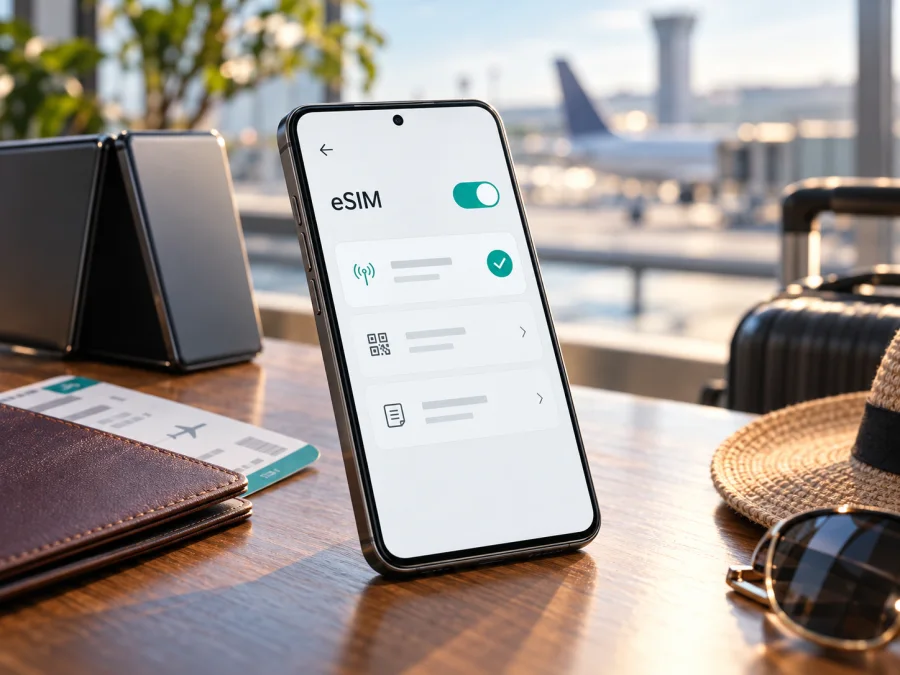
Samsung Galaxy Z TriFold 256GB eSIM: compatibility and setup guide
If you are checking whether the Samsung Galaxy Z TriFold 256GB can use an eSIM for mobile data on a trip, the careful answer is: Samsung lists Galaxy Z TriFold among eSIM-capable Galaxy devices, but I could not verify an official 256GB version of this phone. Samsung’s currently published product specifications in Korea describe a 512GB model and list SIM 1 + eSIM / Dual eSIM. Samsung’s official eSIM support list, checked on October 17, 2026, also includes Galaxy Z TriFold, while warning that eSIM availability can depend on the country of origin. That evidence supports eSIM on the listed device family and specification, but it does not establish the identity or eSIM behavior of every unit sold under the “256GB” description.
Before relying on eSIM, identify the actual model number and sales market of your phone, then check the device itself. Storage capacity does not prove whether an eSIM is present: regional hardware, carrier software, and system configuration can differ. If the seller’s 256GB listing cannot be matched to a Samsung model number or official specification for your market, treat the capacity and eSIM claims as unconfirmed until Samsung or the seller verifies them in writing.
| Item | What can be established |
|---|---|
| Name requested | Samsung Galaxy Z TriFold 256GB |
| eSIM at family level | Samsung’s current official eSIM support list names Galaxy Z TriFold |
| Official capacity found | Samsung Korea’s specification page lists a 512GB configuration; I did not find an official Samsung 256GB specification |
| SIM arrangement shown by Samsung | The Korean 512GB specification lists SIM 1 + eSIM / Dual eSIM |
| Exact 256GB unit | Not independently identified by capacity alone; confirm its model code, market and software |
| Network and travel use | Depends on the exact device variant, whether it is unlocked, and the destination plan’s supported network |
What the 256GB label does—and does not—tell you
“256GB” is a storage description, not a complete model identifier. It may be an incorrect retailer entry, an unverified listing, or a market-specific configuration that is not shown on the Samsung product pages reviewed for this guide. Do not assume it is the same hardware as an officially documented 512GB model just because both descriptions include Galaxy Z TriFold. Ask the seller for the complete model code printed in Settings and on the box, the country or region for which it was sold, and confirmation that the device is new or refurbished as advertised.
Samsung’s own regional eSIM information is a useful caution: model families may be listed as supporting eSIM, yet the function can still depend on the device’s country of origin. Carrier-sold phones can also have a network lock or different software settings. A phone that accepts a physical SIM is not automatically able to download an eSIM profile. Likewise, a seller’s generic “dual SIM” label is not enough: it can refer to two physical SIMs, one physical SIM plus eSIM, or another arrangement, depending on the market.
For this reason, the most reliable answer is specific to the handset in your hand, not only the product name in an online listing. The model code, EID, SIM manager, carrier lock status, and support offered by the operator for the destination all matter. If any of those checks conflict with the seller’s description, pause before purchasing a travel plan and ask Samsung support or the seller to identify the exact variant.
Check the actual phone before buying a plan
Use more than one check where possible. Menu labels can move after a software update, and a feature may be hidden or disabled on some regional or carrier versions.
- Find the model number. Open Settings → About phone and record the model name and model number exactly as shown. Compare it with the box label and the invoice. Do not infer the code from the words “256GB.” If the model code differs across those places, ask the seller to explain before proceeding.
- Look for an EID. In the Phone app, dial
*#06#if the dialer supports that service code. On many Samsung devices, the identifiers screen shows an EID alongside the IMEI numbers when the device has eSIM capability. You may also find it under Settings → About phone → Status information. An EID is a strong sign that the phone has an eSIM identity, but it does not prove that it is unlocked or accepted by every carrier. - Open SIM manager. Go to Settings → Connections → SIM manager and look for Add eSIM. Samsung’s standard Galaxy route is Connections → SIM manager → Add eSIM; names and availability may vary with model, software, carrier and region. Seeing the option is useful evidence. If it is absent, update the phone through the normal software update screen, restart, and check again.
- Confirm the lock and operator conditions. Ask the original carrier or seller whether the handset is network unlocked and whether eSIM installation is permitted. A profile may download successfully but fail to register if the device is locked or the plan is not supported in that market.
- Verify travel-plan compatibility. Check that the plan covers the country or countries on your itinerary and that its installation method works on the phone. Some plans are data-only, use a QR code or in-app installation, and require roaming to be enabled for that eSIM line.
A quick screen check is not a substitute for confirming the whole setup. An EID can be present while the phone remains locked to its original carrier, and an unlocked phone can still lack eSIM in a region-specific configuration. The operator or travel-plan provider also has to support the phone’s eSIM profile and the network used at your destination. Confirm those three parts—device capability, unlock status, and destination-plan support—before checkout.
Check your device before you choose or pay for a travel eSIM. If you cannot find an EID or an Add eSIM option, do not treat the family-level support listing as proof that this particular 256GB unit is ready. Contact Samsung with the complete model code, or ask the seller to demonstrate the feature on the device itself.
Install and activate a travel eSIM
Install the profile while connected to reliable Wi-Fi, ideally before departure. Keep the purchase confirmation and activation instructions available on a second screen if you plan to scan a QR code. A QR code is often single-use; do not scan it on another phone just to test whether it works. If a plan offers installation inside an app or a manual activation method instead, follow the instructions supplied with that plan exactly.
- Check the plan and destination. Confirm the supported country or region, validity period, data allowance, and when the plan starts counting time or data. Verify whether the plan is for mobile data only. A data-only eSIM generally does not provide a new phone number for ordinary calls or SMS.
- Prepare the phone. Connect to Wi-Fi, install available Samsung software updates, and make sure Airplane mode is off. Keep the phone charged. If it currently has two active lines, note their labels so you can distinguish your home SIM from the travel eSIM.
- Open the eSIM setup screen. On a supported Galaxy interface, go to Settings → Connections → SIM manager → Add eSIM. Follow the on-screen flow. Depending on the provider and software, you may be offered a QR scan, automatic discovery, or manual code entry. If Samsung’s menu is missing, return to the compatibility checks rather than trying to force an installation.
- Add the profile. Scan the QR code shown on another screen or printed copy, or enter the details supplied by the plan provider. Keep the code private. Wait for the download to finish and accept any confirmation prompts. Do not delete a newly installed profile merely because it is not connected yet; first check the plan’s activation instructions.
- Give the line a clear label. Use a name such as “Travel data” so you can recognize it in SIM manager. Keep your regular number enabled if you still need calls or texts on it, but understand the home carrier may charge roaming fees if its line uses data or makes calls abroad.
- Choose the data line. In SIM manager, select the travel eSIM for mobile data. Turn on that eSIM line. If the plan’s instructions require data roaming on the travel line, enable roaming for that line only. Roaming settings are often required for a travel eSIM to connect to a partner network; they do not mean you should enable data roaming on your home SIM.
- Connect at the destination. When you arrive, turn off Airplane mode, allow the phone a few minutes to register, and check the network name and data indicator. If the plan requires a specific activation date, manual network selection, or APN, follow the plan’s instructions. Avoid changing several settings at once, so you can tell which change resolved a problem.
For Samsung-specific Android screens, see the Android eSIM installation instructions. The iOS eSIM instructions are for iPhone users and are not steps for the Galaxy Z TriFold; they are included for readers setting up a separate Apple device. The exact wording on your phone can vary by software release and regional build.
Using the eSIM during a trip
A travel eSIM is most useful when you want mobile data for maps, transport bookings, messaging, translation, or checking travel details away from Wi-Fi. If the plan is data-only, keep your usual number available for services that rely on it, but choose carefully which line handles mobile data. Messaging and internet calls can continue through apps when they have data access; normal voice and SMS service depends on your primary operator and plan.
Before leaving home, decide whether the phone should use the travel eSIM immediately or only after arrival. Installing a profile and starting its validity period are not always the same event: timing depends on the plan’s terms. Read the activation rule before installation. If you need your main number for authentication codes, keep the primary SIM enabled and check its roaming charges with your home operator. Disable data switching between SIMs if your phone offers that control, so the Galaxy does not unexpectedly route data through the home line.
With a multi-screen phone, setup is still managed through Android settings; the extra screen area does not change whether the device has an eSIM or whether a profile is compatible. It can be convenient to keep a QR code or setup instructions visible on another device while configuring the phone. Once installed, store the provider’s instructions somewhere accessible offline. If you travel across borders, check whether the same plan covers each stop rather than assuming a regional plan includes every destination.
Kaspersky eSIM Store is an app and website where travelers can choose, arrange, and activate an eSIM with a mobile-data plan for an international trip. Once you have confirmed the exact device variant is compatible, you can browse the Kaspersky eSIM Store homepage to check current destinations and plan details. The homepage is a general place to review available options; it is not a page for a specific country tariff. Read the conditions for your chosen destination before completing setup.
If the eSIM will not install or connect
Work through the symptom rather than resetting the phone immediately. Keep a note of any error message and the step that produced it.
- There is no Add eSIM option. Recheck the model code and software version, then restart and check for official updates. Look for an EID through Settings or the identifiers screen. If both EID and the menu are missing, the handset may be a regional variant without eSIM, or the feature may not be enabled for that software build. Samsung support can confirm what the model code supports.
- The QR code will not scan. Increase screen brightness, clean the camera lens, and make sure the code is not cropped or blurred. If the code is displayed on the same phone, use the provider’s manual entry or in-app installation route where available. If the code has already been used, contact the plan provider before trying repeated scans.
- The profile downloads but shows no service. Check that the travel eSIM is turned on and selected for mobile data. Confirm that you are in a covered destination, Airplane mode is off, and the plan has reached its activation time. If instructions require roaming, switch it on for the travel line. Restart once after checking the settings.
- The phone connects but data does not load. Check the plan’s APN instructions, mobile-data selection, and any usage or expiry limit shown by the plan provider. Try automatic network selection first; if the plan’s instructions name a supported network-selection method, follow them. Disable Wi-Fi briefly to test cellular data, then restore Wi-Fi if needed.
- The home SIM incurs roaming use. Reopen SIM manager and verify which line is selected for mobile data. Turn off data switching if available and disable data roaming on the home line unless your operator has confirmed it is included. A travel eSIM’s roaming setting and your home SIM’s roaming setting are separate.
- The eSIM is rejected or marked locked. Ask the original operator whether the Galaxy is carrier-unlocked and whether the plan is allowed on this device. Do not remove a profile or reset network settings until the provider explains whether the activation code can be reused.
- The connection drops while travelling. Check whether the plan covers your current country, then toggle the eSIM line off and on or restart the phone. Signal can vary indoors, underground, or between locations. If only one destination or network fails, contact the plan provider with the model code, approximate location and error details.
Avoid sharing a full EID, IMEI, QR code or activation code in a public post. A support representative may need some device details to diagnose the problem, but send them only through the provider’s or manufacturer’s official support channel.
Common questions
Does the Samsung Galaxy Z TriFold 256GB definitely support eSIM?
The product family is listed by Samsung as eSIM-capable, and Samsung’s Korean specification for a 512GB model shows SIM 1 + eSIM / Dual eSIM. I could not verify an official Samsung 256GB configuration. So the honest answer for a device advertised with the exact name Samsung Galaxy Z TriFold 256GB is conditional: the capacity-specific variant is unconfirmed. Check the model code, EID and Add eSIM menu on the exact unit before buying a plan.
Can I assume a 256GB phone is the same as a 512GB model?
No. Storage size does not establish the region, modem configuration, firmware, carrier lock or eSIM availability. Ask for the complete Samsung model code and compare it with official information for the market where that unit was sold. The model code is more useful than a storage label alone.
Does an EID guarantee that my travel plan will work?
No. An EID indicates eSIM identity support, but the handset must also be unlocked where required, the plan must support its model and destination, and the eSIM profile must be activated correctly. Confirm all of these before purchase.
Can I keep my usual number while using travel data?
Often you can keep a physical SIM or another enabled eSIM for your regular number and select the travel eSIM for mobile data. The exact number of active lines and available combinations depend on the handset’s regional configuration and software. Check your home operator’s roaming conditions, and select the data line deliberately.
Does a data-only eSIM include calls and SMS?
Do not assume so. Many travel eSIM plans provide data without a regular mobile number, voice service or SMS. You can use internet-based messaging or calls through apps when connected, subject to the app’s setup and the plan’s data allowance. Check the selected plan’s terms.
Should I install the eSIM before departure?
If the provider allows it, installing over reliable Wi-Fi before leaving can make arrival setup easier. First check when the plan’s validity begins and whether installation itself starts the plan. Keep the activation code available until installation completes, and do not delete the profile without advice if it fails to connect.
Final check before choosing a travel eSIM
For the Samsung Galaxy Z TriFold 256GB, verify the exact model number with the seller or Samsung, then confirm that the phone displays an EID and an Add eSIM option. Ask whether it is unlocked and whether its regional software supports eSIM. The official information reviewed here confirms eSIM support for Galaxy Z TriFold at the family level and documents a 512GB configuration; it does not confirm the specific 256GB variant.
Once the handset passes those checks, compare the current travel-plan coverage, data allowance, validity and activation instructions for your route. Choose an eSIM only after checking that the destination is included and that the plan’s installation method matches your phone. This simple sequence—identify the model, verify eSIM on the device, then review destination and plan terms—helps prevent a mismatch before you travel.


