Travel connectivity guide
Samsung Galaxy Z TriFold 512GB eSIM Guide
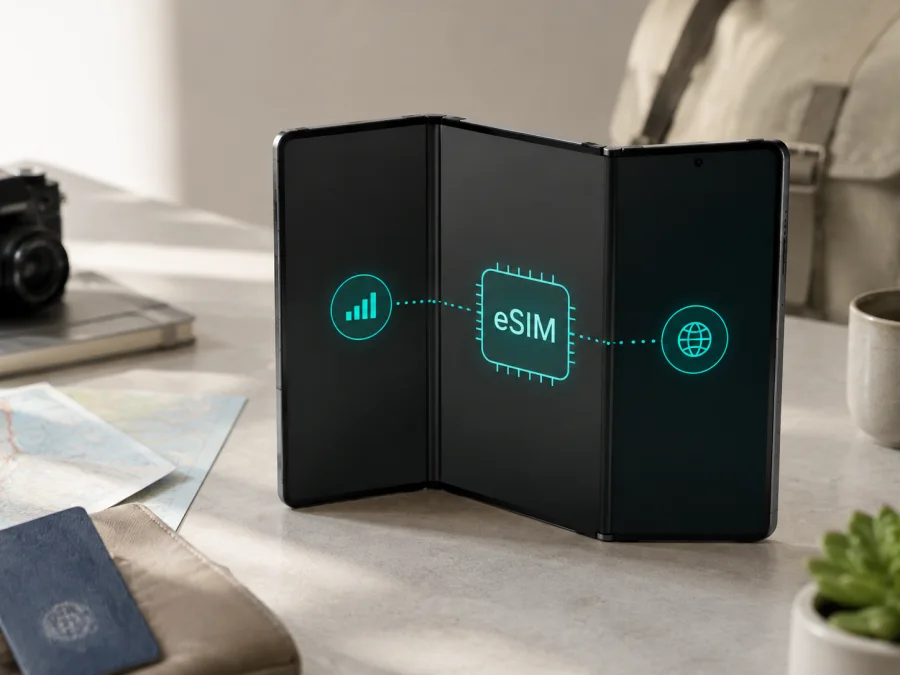
Samsung Galaxy Z TriFold 512GB eSIM: compatibility and installation
The Samsung Galaxy Z TriFold 512GB is a large foldable smartphone whose cover screen is easy to use on the move and inner display suits maps, documents, and trip planning. For mobile data abroad, the Galaxy Z TriFold platform supports eSIM, including multi-eSIM capability in Samsung’s current global information. The exact retail unit still needs checking because eSIM availability can vary by software version, region, and carrier.
In other words, the correct answer for Samsung Galaxy Z TriFold 512GB is not an unconditional yes for every market. A compatible unit can use a travel eSIM, but the EID and Add eSIM menu on your phone are the decisive checks. If they are missing, pause before buying a plan and verify the model code, sales region, firmware, and carrier status.
Does Samsung Galaxy Z TriFold 512GB support eSIM?
Yes, eSIM is supported by the Galaxy Z TriFold family according to official Samsung information. Samsung’s global specifications describe support for up to two Nano-SIM cards and multi eSIM. Samsung’s support pages also list Galaxy Z TriFold among hybrid eSIM devices, and a regional 512GB specification describes a SIM 1 + eSIM / Dual eSIM configuration.
There is an important regional qualification. Samsung’s product tables are not identical in every market: one regional 512GB listing can show SIM 1 + SIM 2, while another exposes a physical SIM plus eSIM. Carrier versions may have additional limitations. Samsung also states that eSIM availability may depend on the software version, region, and carrier. The storage label “512GB” identifies capacity; it does not identify the country, model code, CSC software region, or carrier provisioning.
Therefore: Samsung Galaxy Z TriFold 512GB is eSIM-capable in the supported platform configuration, but confirm the exact device before purchasing a travel eSIM. Look for an EID and a way to add an eSIM in SIM manager. The plan provider must also support the phone and the destination.
Key specifications for the exact variant
This guide preserves the device name exactly as supplied: Samsung Galaxy Z TriFold 512GB. Samsung lists 16GB of memory, dual-SIM capability, and 5G support for the 512GB configuration. These specifications do not override regional eSIM rules.
| Item | Practical meaning |
|---|---|
| Exact variant | Samsung Galaxy Z TriFold 512GB |
| Storage | 512GB; storage does not determine eSIM access |
| Published memory for the 512GB configuration | 16GB; separate from SIM capability |
| Network generation | 5G-capable in Samsung’s published specifications; service depends on the plan and local network |
| SIM design | Physical SIM and multi-eSIM are published for the family, with market differences |
| Main compatibility variables | Model code, country of sale, carrier lock, software, and plan support |
How to check the EID and eSIM menu
An EID identifies the embedded SIM component. It is different from an IMEI, telephone number, and activation QR code. Finding it is useful evidence, but keep the full number private.
Check for Add eSIM
- Open Settings.
- Tap Connections.
- Open SIM manager.
- Look for Add eSIM, Add mobile plan, or equivalent wording.
- Open the option only when you are ready to install a profile.
Samsung can change the label between Android versions and regions. The key result is whether SIM manager offers a digital-plan action. If it lists only physical SIM slots, note the software version and model code before contacting the seller or carrier.
Check for EID
- Open Settings.
- Tap About phone.
- Open Status information or the SIM/device status area.
- Look for EID; use settings search for “EID” if necessary.
- Compare this result with the presence of Add eSIM in SIM manager.
The exact EID location can vary. Do not mistake an IMEI for an EID. If an EID is present but the eSIM menu is missing, treat the unit as uncertain because carrier provisioning or regional software may be involved. If the menu is present but no EID is shown, confirm the device with Samsung or the plan provider before making a paid activation.
Compatibility checklist before buying a travel eSIM
Apply every item to the exact Samsung Galaxy Z TriFold 512GB in your possession:
- Identity: confirm the full model number and 512GB configuration.
- EID: find the EID and keep it private.
- eSIM menu: confirm Add eSIM or Add mobile plan in SIM manager.
- Software: install the latest stable update offered for the device’s region, then check again.
- Unlock status: verify that the phone is not tied to a carrier.
- Plan: check that the eSIM provider supports Samsung Galaxy devices and every destination on your route.
- Data and validity: choose by expected use and check when the allowance starts.
- Installation: prepare reliable Wi-Fi and check the plan’s roaming requirement.
- Home line and hotspot: decide whether to keep the physical SIM active and verify tethering conditions.
An imported dual-physical-SIM version can share the same retail name and storage with an eSIM-capable version. If the seller cannot show an EID and SIM manager, consider compatibility unconfirmed.
Before moving on to a purchase, use this device compatibility check. Repeat it after a software update or when comparing an imported device with a local version.
How to install and activate an eSIM
Use this flow for a travel eSIM QR code or manual details. Menu names can vary by Android version and market. Install over Wi-Fi, keep the QR code on another screen, and do not delete your existing SIM until the profile works.
1. Prepare the phone and plan
Charge the phone and connect it to Wi-Fi. Update the software if an update is available. In Kaspersky eSIM Store, open the order or profile and locate the QR code or manual activation details for the selected travel plan. Check its destinations, data allowance, validity, activation deadline, and support conditions. Kaspersky eSIM Store is an app and website that helps you choose, arrange, and activate an eSIM tariff for mobile internet on a compatible device; it cannot add eSIM capability to an incompatible regional handset.
2. Open the eSIM settings
Go to Settings > Connections > SIM manager > Add eSIM. If the phone says Add mobile plan, use that option. For a QR installation, choose Scan QR code or the matching action. An automatic mobile-plan flow may be available for some supported carriers.
3. Scan the QR code
Display the code from your Kaspersky eSIM Store profile on another screen. Point the Galaxy Z TriFold camera at it and wait for the phone to read the code. If it fails, increase the other screen’s brightness, enlarge the code without cropping its edges, and try manual activation only if the plan supplies those details. Do not share the QR code: it may be limited to one installation.
4. Confirm and download the plan
Check the plan name shown by the phone. Confirm only if it matches the intended travel eSIM, then allow the profile to download. Installing a profile and beginning the validity period are not always the same event, so follow the conditions of the selected plan. Do not delete a profile just because you want to use it later; it may not be transferable or reinstallable.
5. Enable the eSIM and choose data
Give the new line a clear label such as Travel. In SIM manager, enable it and choose it as the preferred line for mobile data. You can leave the physical SIM active for calls or messages if your home carrier permits it. Turn off automatic data switching if available so the phone does not silently move data traffic to the home line.
6. Configure roaming and APN
Open the travel eSIM’s mobile-network settings and confirm that Mobile data uses that profile. Many travel eSIMs connect through a partner network outside the issuing market, so Data roaming may need to be enabled on the travel eSIM. Enable it for that profile only when required. If the plan provider supplies an APN, enter it exactly; otherwise keep the automatic APN.
7. Test the connection
After arrival, turn Wi-Fi off briefly and open a simple webpage or messaging service. Allow a few minutes for network registration. Check the signal, active data line, and usage counter. A successful installation does not mean that every country on a multi-country route is included, so verify coverage before crossing a border.
For additional guidance, see the Android eSIM installation instructions and the iOS eSIM installation instructions. The Samsung Galaxy Z TriFold 512GB uses the Android flow; the iOS link can help when preparing another device or assisting a travel companion.
Using eSIM for mobile data while travelling
Install before departure over stable Wi-Fi when possible. The validity period may begin at installation, activation, or the first supported connection, depending on the plan, so read that condition carefully.
Keep the physical SIM for calls or verification messages only if your home carrier permits it, and select the travel eSIM for mobile data. Ordinary calls and SMS are not included unless the plan says so; internet messaging and calling apps can use the data connection. If delayed activation is allowed, install the profile at home and enable it after landing. Then select it for data and enable roaming on that profile if required.
For a multi-country route, confirm that every destination is included: a regional plan can cover several countries, while a country plan may stop at the border. Hotspot uses the same allowance and may be restricted, so test tethering before depending on it. 5G branding does not guarantee a particular speed or hotspot result.
Common problems and checks
QR code is not recognised
Confirm that the code belongs to the intended plan, is bright, complete, and not blurred. Try another screen or use manual details only when the plan supplies them. If the code was already used, contact support instead of repeatedly deleting the profile.
Add eSIM is missing
Recheck Settings > Connections > SIM manager after a restart and software update. Compare the model code, region, carrier status, and EID. If the EID is absent, the unit may not expose eSIM; if it is present but the menu is missing, ask Samsung or the carrier about that exact firmware. A new QR code cannot fix a regional restriction.
The profile downloads but does not connect
Enable the eSIM, select it for data, and turn on data roaming for that profile if required. Check APN, destination, network selection, and airplane mode, then restart. An included destination can still have a temporary local-network issue, so contact the plan provider if basic checks fail.
There is signal but no internet
Turn Wi-Fi off during the test and confirm that mobile data uses the travel eSIM. Check APN, data limits, and data saver, then try a lightweight webpage. Record the location, network name, time, and settings for support if data still does not pass.
Data uses the wrong SIM
In SIM manager, reselect the preferred data line and disable automatic data switching if available. Disable mobile data on the home SIM when you do not need it; the travel profile does not prevent home-carrier charges by itself.
Activation is rejected
An eSIM cannot bypass a carrier lock. Confirm that the Samsung Galaxy Z TriFold 512GB is unlocked and that the provider accepts its model, EID, and destination. Do not factory-reset the phone or erase the eSIM until support advises it.
FAQ
Is eSIM supported on Samsung Galaxy Z TriFold 512GB?
The family is officially documented with multi-eSIM support, and Samsung lists Galaxy Z TriFold among hybrid eSIM devices. Check the exact 512GB unit’s EID and Add eSIM menu because regional and carrier versions can differ.
Does 512GB storage guarantee eSIM?
No. Storage capacity is separate from eSIM provisioning; model code, region, software, carrier status, and plan still matter.
Can I use a physical SIM and travel eSIM together?
On a compatible hybrid configuration, yes, but combinations depend on software and carrier. Select the travel eSIM for mobile data and review the home line’s roaming settings.
What is Kaspersky eSIM Store?
Kaspersky eSIM Store is an app and website that helps you choose, arrange, and activate an eSIM with a mobile-data plan for an overseas trip. It is not a mobile operator, network owner, or provider of mobile coverage; the connection depends on the plan, partners, destination, and device compatibility.
Final device check and trip eSIM plan
Before paying for a travel eSIM, complete this final check for the exact Samsung Galaxy Z TriFold 512GB:
- Confirm the full model code, sales region, and unlocked status.
- Find the EID and keep it private.
- Open Settings > Connections > SIM manager and confirm Add eSIM or Add mobile plan.
- Make sure the plan includes every destination on your route.
- Read the data allowance, validity period, activation rule, roaming requirement, hotspot condition, and support process.
- Install over reliable Wi-Fi without deleting your existing line.
- At the destination, select the travel eSIM for mobile data and test a small connection before relying on it.
If the EID or eSIM menu is missing, pause the purchase and verify the regional or carrier version with Samsung or the seller. If the checks pass, choose an eSIM plan by destination, data use, and trip duration. Kaspersky eSIM Store can help you arrange and activate it while the device, network, and plan conditions remain clear.


