Travel connectivity guide
Samsung Galaxy Z TriFold 5G eSIM Guide
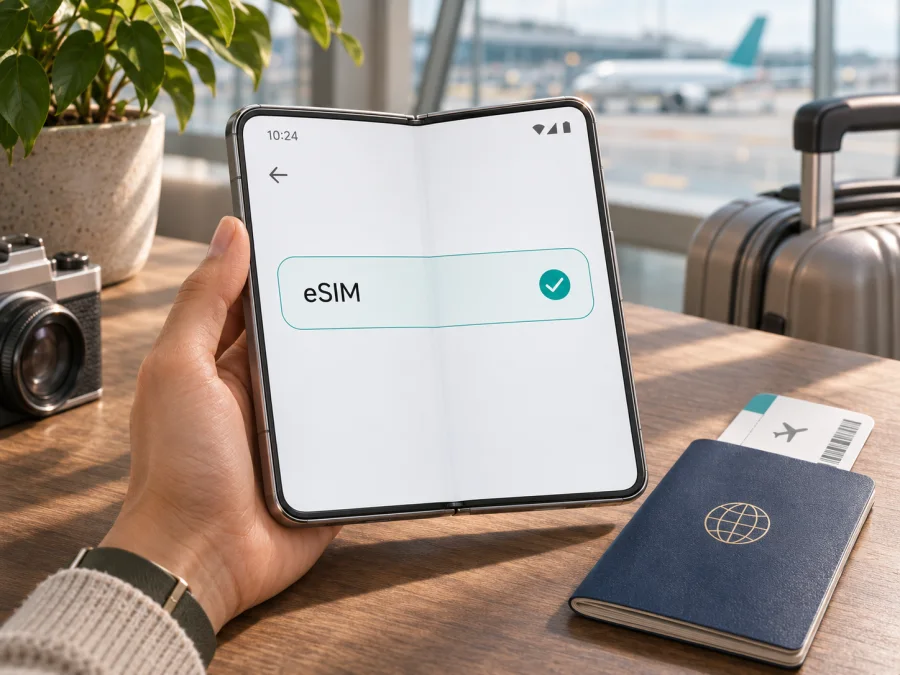
Samsung Galaxy Z TriFold 5G eSIM: compatibility and setup guide
Short answer: Samsung’s current support information includes Galaxy Z TriFold among its eSIM-capable Galaxy devices, and Samsung’s product specifications describe support for multiple eSIM profiles. However, that does not establish that every phone sold under the Galaxy Z TriFold name can add an eSIM. Samsung says eSIM availability can depend on region, software and carrier. Treat your exact unit as compatible only after you can confirm an EID or see an eSIM setup option in its settings, and verify that the operator for your destination supports the plan you intend to use.
That distinction matters if you are buying an imported device, a carrier-supplied handset or a unit with a different regional software configuration. “Samsung Galaxy Z TriFold 5G” identifies the device family in this guide; it does not identify a country-specific model code or guarantee a particular SIM tray, firmware build or operator profile. The steps below help you check the phone in your hands before you choose a travel data plan.
Does Samsung Galaxy Z TriFold 5G support eSIM?
The device family is listed by Samsung as supporting eSIM, but support on an individual retail unit is conditional. Samsung’s Galaxy device support pages list Galaxy Z TriFold in their eSIM or hybrid dual-SIM compatibility information. Samsung’s product material also notes that eSIM availability can vary by software version, region and carrier. In some configurations, dual-SIM operation combines one physical nano-SIM with an eSIM; the available combination and number of profiles depend on the unit and software. Having a SIM tray therefore does not mean eSIM is absent, and a family-level specification does not prove eSIM is enabled on your exact phone.
A phone can contain eSIM hardware and show an EID while a particular operator does not support eSIM for that model, account, plan or market. Confirm both the exact handset and the operator or travel plan for the country where you will use it.
| Item | What to know |
|---|---|
| Device named in this guide | Samsung Galaxy Z TriFold 5G |
| eSIM at family level | Samsung lists Galaxy Z TriFold among supported Galaxy devices |
| Exact-unit certainty | Depends on regional model, software configuration and carrier; check the phone itself |
| Useful indicators | An EID in About phone and an Add eSIM option in SIM manager |
| Travel-plan check | Confirm the plan supports eSIM activation on this unlocked device in the destination |
| Main limitation | No EID or eSIM menu means you should not assume an update or QR code will add missing eSIM hardware |
Before paying for a travel plan, inspect the exact unit, note its model number and confirm it is not carrier-locked. If you cannot check it in person, ask the seller to confirm eSIM support for that model code.
Regional versions, carrier software and travel use
Samsung’s regional pages show why the sales market matters. Samsung Korea’s product specification lists a Korean-market Galaxy Z TriFold configuration as “SIM 1 + eSIM / Dual eSIM”; Samsung’s US and UK support lists include the TriFold family as eSIM-capable. These localized references establish support for those listed configurations, not a complete worldwide SKU map or a guarantee for an imported or carrier-customized phone. Hardware, SIM tray arrangement, bands, firmware and carrier settings may differ. Use the model number in Settings → About phone and the original sales region; do not rely on the product name alone.
There are three different questions to resolve:
- Does this unit have eSIM hardware? Check for an EID and an eSIM option in settings.
- Does its software expose eSIM? Check that the current software is supported and that the SIM manager offers adding a plan. A menu can change after a software update, but an update should not be treated as a promise of eSIM support when the hardware or regional model does not include it.
- Will the destination operator accept it? Confirm eSIM activation for this model and plan in the country where you will use it. An operator may have its own supported-device rules, activation steps or account requirements.
An unlocked phone gives you more freedom to select another mobile plan, but “unlocked” and “eSIM-capable” are separate properties. For an imported Samsung Galaxy Z TriFold 5G, check that its cellular bands and regional network configuration suit your destination. Successful installation does not guarantee local coverage or service availability.
A data-only travel eSIM can provide mobile data for maps, messaging and booking details while your usual number stays on its existing line. The plan terms determine coverage, validity, data allowance, tethering and activation timing. It may not include a phone number, voice calls or SMS; use internet calling and messaging apps if included services are data-only.
Compare coverage, data allowance, validity, activation timing, top-up rules and tethering restrictions. For a multi-country itinerary, confirm that every stop is included; nearby countries are not automatically covered. Kaspersky eSIM Store is an app and website where you can choose and activate an eSIM with a mobile-data plan for an international trip.
Check your Samsung Galaxy Z TriFold 5G before buying a plan
Use this checklist with the handset connected to Wi-Fi. The exact wording can vary slightly by One UI version, carrier software and region.
- [ ] Open Settings → About phone → Status information (the label may be Status on some versions) and look for an EID. Samsung also lists the phone box as a possible place to find it. An EID is the identifier associated with the embedded SIM hardware. You do not need to share it publicly; avoid posting the full number in screenshots or forums.
- [ ] Open Settings → Connections → SIM manager and check whether Add eSIM or a similar option appears. Do not start installation simply to test compatibility if you do not yet have the plan details.
- [ ] Note the full model code and software version from About phone → Software information. Compare those details with the seller’s regional description and ask the carrier about this exact version.
- [ ] Check whether the phone is carrier-unlocked. Ask the seller or original carrier if the status is unclear; an eSIM menu cannot remove a network lock.
- [ ] Ask the destination operator or plan provider whether it accepts eSIM on your model and whether the plan is data-only, when its validity begins, and whether data roaming must be enabled.
- [ ] Keep a working internet connection available for downloading the profile and save the activation details somewhere accessible during setup.
Check your device before choosing a plan. If the EID is present and the SIM manager offers eSIM, those are good signs, but still confirm the destination operator’s requirements. If the EID is missing and no eSIM option appears, pause before purchasing. Restart once, install available official system updates and check again; if both indicators remain absent, ask Samsung or the seller to confirm the exact model’s regional capability. Do not rely on unofficial firmware changes or third-party apps to create eSIM hardware.
How to install an eSIM on Samsung Galaxy Z TriFold 5G
Install with stable Wi-Fi, adequate battery and the QR code or manual activation details. Review transfer and reinstall rules first: deleting a profile may make it difficult to restore.
1. Prepare the phone and plan details
Confirm that the handset passes the compatibility checks above and that you can access the QR code on another screen or in a printed copy. If the QR code is displayed on the TriFold itself, it cannot scan its own screen with its camera; use manual entry if the provider offers it, or show the code on another device. Keep your primary SIM active until you understand which line will handle calls, messages and data.
2. Open SIM manager
In Settings, tap Connections, then SIM manager. Choose Add eSIM. Some software or carrier versions may use slightly different wording. If the option is absent, return to the compatibility checks rather than proceeding with a generic QR scanner.
3. Add the profile
Choose the QR-code option and scan the activation code supplied for your plan. Follow the on-screen instructions until the phone confirms that the mobile plan has been added. If you received a manual activation code instead, use the manual entry route only if it is provided by the plan issuer. Never use a QR code from an unrelated device or another customer’s account.
4. Label the new line
Give the profile a clear label such as Travel data or the destination name. This makes it easier to distinguish from your home number in SIM manager. Keep the plan’s confirmation and support details until the trip is complete.
5. Choose when the profile should connect
Some plans can be installed before departure and activated later; others begin their validity when installed, first connected or first used. Read the specific plan terms before switching it on. If you are not ready to use the data, leave the travel profile disabled or keep your primary line selected for mobile data, following the provider’s instructions.
6. Select the data line at your destination
When you are ready to use the plan, open Settings → Connections → SIM manager and select the travel eSIM for Mobile data. If the plan requires data roaming, enable Settings → Connections → Mobile networks → Data roaming for that eSIM. Roaming is a setting that lets a profile connect to a partner network outside its home network; it does not mean that the travel plan automatically includes every country or that your home carrier’s charges are covered.
To avoid unintended charges, check which line is selected for data and whether automatic data switching is enabled. Keep your primary number active only if you need incoming calls or texts and understand its roaming terms. The eSIM plan’s own instructions take precedence if they specify a different sequence. For additional steps, see the Android eSIM installation guide and the iOS installation guide. The iOS guide is for Apple devices; the Android guide is the relevant reference for this Samsung phone.
Use eSIM for mobile data on a trip
A simple setup is to keep your usual number for calls or account verification and select the travel eSIM for mobile data after arrival. Check the selected data line after a reboot or SIM change, and review your home SIM’s roaming terms.
Install before departure only if the plan’s timing rules suit you: validity may begin at installation or first connection. Follow the activation window and avoid rescanning a code, since some profiles can be installed only once.
After arrival, allow a few minutes for registration. Confirm airplane mode is off, the travel profile is enabled and the country is included. If apps do not load, check the selected data line, roaming setting and any APN supplied by the plan provider. Do not guess APN values. Follow the provider’s network-selection instructions.
For multi-country travel, recheck coverage at each border. Local signal and service depend on network conditions. Use the phone’s data-usage screen to monitor consumption; video, cloud syncing, downloads and hotspot use can quickly use the allowance.
Troubleshooting: eSIM or mobile data is not working
There is no Add eSIM option
Check Settings → About phone for an EID, then restart the phone and install official software updates if available. Confirm the model code and sales region with Samsung or the seller. If the EID is missing and the menu remains absent, treat this unit as unverified or incompatible and do not purchase a plan until the manufacturer or seller confirms otherwise. A carrier lock is a separate issue and should be checked with the original network.
The QR code will not scan
Increase the brightness of the screen showing the QR code, clean the TriFold’s camera lens and hold the phone steady. Make sure the code is intended for your purchase and has not already been used. If the code is on the phone’s own screen, display it elsewhere. Use manual activation only when the plan provider supplied the required details. If the profile is reported as already installed, ask the provider about recovery before deleting anything.
The profile was added, but there is no service
Confirm that the eSIM is enabled and selected for mobile data, airplane mode is off, and the destination is included in the plan. Check whether the plan requires data roaming, then wait briefly or restart the phone. If the provider gives APN values or a supported network list, compare the phone’s settings with those instructions. If the phone remains unregistered, contact the plan provider with the model code, destination and error message; do not send your full EID in a public post.
The phone connects, but the internet does not load
Check the selected data SIM, mobile-data toggle, roaming requirement, APN and data allowance. Try opening a basic page with Wi-Fi turned off so the test actually uses the eSIM. If a VPN, private DNS or data-saving feature is active, temporarily review its settings as a troubleshooting step. The plan may also be pending activation, out of data or outside its validity period; check its account page or confirmation.
Data is using the wrong SIM
Open SIM manager and explicitly set the intended profile as the mobile-data SIM. Review automatic data switching and disable it if it might move data to your home line. Confirm the home SIM’s data-roaming setting and your carrier terms. When uncertain, disable mobile data on the home line until the travel profile is working.
A profile was deleted or the plan has expired
Do not assume that the same QR code can be reused. Some providers issue single-use installation codes or require a replacement profile. Check the plan’s transfer and reinstall conditions and contact its support team with your order details. If validity has ended or data is exhausted, review the available options in the account where the plan was arranged.
Frequently asked questions
Can every Samsung Galaxy Z TriFold 5G use eSIM?
Not necessarily. Samsung lists the Galaxy Z TriFold family as eSIM-capable, but says availability can vary by region, software and carrier. Confirm an EID and an Add eSIM option on your own unit, and ask the destination operator about the exact model code.
Does seeing a SIM tray mean my phone cannot use eSIM?
No. Some compatible configurations combine a physical nano-SIM with an eSIM. The tray alone does not confirm or rule out eSIM. Check the EID and SIM manager, then verify the regional specifications for your model.
Is an EID enough to guarantee that a travel eSIM will work?
No. An EID indicates that eSIM hardware is present, but the software, network lock, plan rules and destination operator also matter. Confirm the full setup before buying and check that the phone is unlocked.
Can I install the eSIM before travelling?
Often, but the right timing depends on the specific plan. Some plans start their validity when installed or first connected; others have a separate activation rule. Read those terms and keep the profile switched off until you intend to use it if the instructions allow.
Will a travel eSIM replace my regular phone number?
Usually not when the selected plan is data-only. Keep your usual SIM or supported profile for calls and texts if needed, and use internet messaging or calling apps over the travel data connection. Confirm inclusions in the plan details.
Does turning on data roaming always create a charge?
It depends on which SIM is selected and the terms of each plan. Data roaming may be required for the travel eSIM to connect to a partner network. Check that mobile data is assigned to the travel profile and review your home carrier’s roaming settings and charges.
Can I move the eSIM to another phone later?
Do not assume so. Transfer or reinstallation depends on the profile issuer and plan conditions. Check before installing, because removing a profile may not make its activation code reusable.
What if my operator says eSIM is supported but my phone has no eSIM menu?
Ask the seller or Samsung to check the phone’s complete model number, region and firmware. The operator’s general support does not confirm that every imported version has the feature. Wait for confirmation before choosing a plan.
Before you go
Samsung Galaxy Z TriFold 5G is listed by Samsung as an eSIM-capable device family, but the capability of an individual unit can depend on its model, market, software and carrier. Check for an EID and an eSIM option in SIM manager, confirm that the phone is unlocked, and ask the operator or plan provider about the exact unit and destination. If any of those checks are unclear, use a physical SIM or another confirmed compatible device until you can verify the TriFold’s support.
Once compatibility is clear, choose a plan that covers every destination on your itinerary and fits your expected data use and travel dates. Review its activation, validity, roaming and reinstall rules before scanning the QR code. Kaspersky eSIM Store is an app and website where you can choose and activate an eSIM with a mobile-data plan for an international trip. Browse Kaspersky eSIM Store to check current destination options and plan terms, then install the profile only after confirming your device and plan are compatible.


