Travel connectivity guide
Sharp AQUOS wish 2 SHG08 eSIM Compatibility
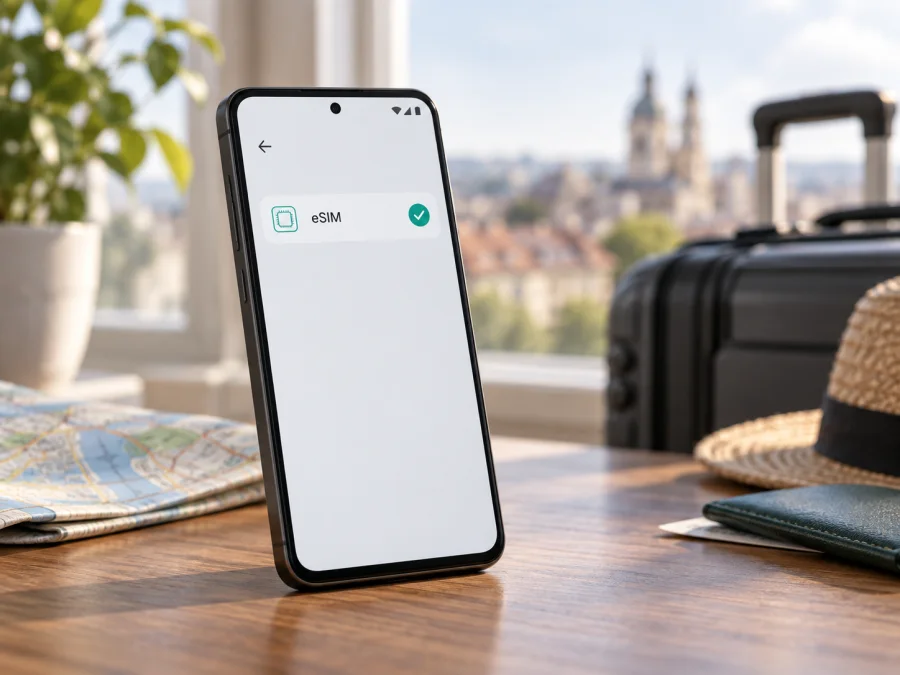
Sharp AQUOS wish 2 SHG08 eSIM compatibility and travel setup
If you have the Japanese-market Sharp AQUOS wish 2 SHG08, the short answer is yes: this specific au model supports a downloadable eSIM as well as a physical nanoSIM. The official au manual describes both SIM types, and Sharp’s support information for SHG08 documents an EID field in device information. That confirms hardware and software support for this variant; it does not mean every eSIM plan, network, or country will work automatically. Check the handset itself and the terms of the travel plan before purchase.
The SHG08 suffix identifies the au Japan version. Similarly named AQUOS wish 2 phones sold for other markets can differ in SIM provisioning, software, network bands or carrier restrictions, so this page applies only to Sharp AQUOS wish 2 SHG08.
<a id="kesim-device-compatibility"></a>
Compatibility at a glance
| Item | Sharp AQUOS wish 2 SHG08 |
|---|---|
| Device family and exact variant | Sharp AQUOS wish 2 SHG08, au Japan model |
| SIM options | nanoSIM and eSIM are supported |
| Memory configuration | 4 GB RAM and 64 GB internal storage |
| Mobile network generation | 5G model; also supports 4G LTE |
| EID | Available in device information on supported software |
| Travel eSIM use | Suitable when the handset is unlocked for the intended provider and destination |
| Main caveat | Country, network bands, software and provider activation rules still matter |
Verdict: the au Sharp AQUOS wish 2 SHG08 supports eSIM. This is a model-specific confirmation, not a blanket statement about every AQUOS wish 2. For a used, imported or refurbished phone, confirm that the model shown in Settings is SHG08 and that the actual device exposes EID or an option to add an eSIM. Also ask the eSIM provider to confirm that its profile can be installed on your exact handset and is available for your destination.
Why the model suffix and sales region matter
SHG08 is the au version of AQUOS wish 2. The au manual describes eSIM and nanoSIM use and SIM selection for data, calls and messages. Sharp’s support pages list updates for this exact model, making those materials more useful than a generic family compatibility list.
Do not generalize this confirmation to every “AQUOS wish 2.” Market builds can differ in SIM tray, firmware and eSIM provisioning, and listings may omit the suffix. Check Settings → About phone and compare the model code with the box or purchase record.
The au manual says SHG08 is not SIM-locked, but a used phone can still have account or service restrictions. Imported devices may also lack bands used by a destination network. Verify the handset’s status with the seller. eSIM support alone does not guarantee coverage, roaming, 5G or acceptance by every provider.
Settings can move between software versions. SHG08 launched with Android 12, and Sharp lists later updates including Android 14. If the menu labels below differ, search Settings or follow the current on-screen wording.
Check eSIM and EID on your own phone
Before choosing a plan, confirm the capability on the handset you will take on the trip. A model number printed in a listing or a general compatibility database is not enough if the device has been repaired, reflashed or supplied for another region.
- Open Settings and choose About phone (the label may vary slightly by software version). Confirm that the model is SHG08.
- Return to Settings and open Network & internet, then SIMs or Mobile network. Look for an option such as Download a SIM, Add eSIM or Add mobile plan. The exact phrase can change with the Android version and language.
- If you do not see that option, open About phone or Device information and look for EID. On SHG08, the EID may appear as the eSIM or SIM slot 2 identifier after the relevant software update.
- If the menu still does not match, use Settings search for “EID,” “SIM” or “eSIM,” then restart the phone and check again after installing available system updates.
- Contact the eSIM provider with the exact model code if there is no EID or add-eSIM option. Do not buy on the assumption that another AQUOS wish variant proves compatibility.
An EID identifies the embedded SIM; it is neither the QR activation code nor your phone number. Share it only through the provider’s official activation or support flow. Treat QR codes as private because they can contain profile-installation details.
Use this quick pre-purchase checklist:
- [ ] Settings reports the exact model as SHG08.
- [ ] An EID is visible, or the phone offers an eSIM/mobile-plan setup option.
- [ ] The phone is not blocked or restricted by a previous carrier, account or payment issue.
- [ ] The provider accepts Sharp AQUOS wish 2 SHG08 for its eSIM profile.
- [ ] The plan covers every country or region on your itinerary and its validity matches your dates.
- [ ] You understand the plan’s data allowance, activation timing, roaming requirement and any device-transfer limits.
For another compatibility check, use Check your device before ordering a travel plan.
Installing an eSIM on SHG08
Install over stable Wi-Fi with enough battery and the activation details ready. Check whether validity begins at purchase, installation or first network connection. If scanning with SHG08, display the QR code on another screen.
- Prepare the phone. Confirm the exact model and EID as above, update Android when practical, and connect to reliable Wi-Fi. Keep the eSIM order email or account page accessible. Do not delete an existing profile to make space unless the provider has explained that it is safe.
- Open SIM settings. On SHG08, start from Settings → Network & internet → SIMs or Mobile network. Tap the add or download SIM option. On some software versions, the setup flow can be reached through a prompt during initial phone setup.
- Add the provider’s profile. Scan the QR code supplied for your purchase, or select the manual entry option and enter the activation details exactly as provided. If the QR code is displayed on this same phone, use the provider’s manual activation method or display the code on another trusted screen.
- Wait for installation to finish. Keep the phone connected to Wi-Fi and do not close the setup screen while the profile downloads. Follow any confirmation prompts. A completed installation may show the plan under SIM settings even when the phone has not yet registered on a network.
- Name the line. Give the profile a clear label such as “Travel data” so you can distinguish it from your regular nanoSIM. A label is only for your convenience and does not change the plan.
- Choose what each SIM does. If you keep a physical SIM active, select the intended line for mobile data. Retain your usual number for calls or SMS only if you want that service and understand the charges from your home carrier. Select the travel eSIM as the data SIM when the plan is ready to use.
- Set data roaming if required. Some travel eSIMs use a partner network and require roaming to be enabled on that eSIM. Turn it on only according to the plan’s instructions. If your home SIM remains active, check its roaming setting separately to avoid unwanted charges.
- Connect at the right time. If the provider says the validity begins on first network connection, install ahead of time but wait to enable or select the eSIM until the appropriate moment. If its terms say validity begins at purchase or installation, plan accordingly.
Menu labels can differ by Android version. See the Android eSIM installation instructions or iOS eSIM installation instructions if you also travel with an Apple device.
After installation, confirm that the profile appears and is enabled in SIM settings. Installation and activation may be separate: follow the provider’s terms for when validity starts. Avoid rescanning a stalled QR code because many codes are single-use.
Using the phone for mobile data on a trip
For a short holiday, you can install the eSIM before leaving, confirm that it appears in Settings, and select it for mobile data after arriving or at the time specified by the plan. This gives you time to check the setup without relying on an airport connection. Keep Wi-Fi available during installation and save the provider’s support details where you can reach them.
If you use the SHG08 nanoSIM for your regular number, you can keep it enabled for calls and verification messages while assigning data to the travel eSIM. This dual-SIM arrangement depends on the settings and plan. Your home provider may charge for incoming calls, SMS, voicemail or roaming even if the travel eSIM handles data. Review those charges and disable the home line’s data roaming if you want to avoid accidental use. Some phones or services may not support every simultaneous combination, so check the SIM settings after both lines are active.
For a multi-country trip, verify that the plan covers every stop. Match its data allowance and validity to your expected use of maps, messaging, browsing and calls. A data-only plan normally has no regular number, voice calls or SMS unless stated; internet calling apps can use its data connection.
Kaspersky eSIM Store is an app and website where you can choose, arrange and activate an eSIM with a mobile-data plan for an international trip. Once SHG08 compatibility is confirmed, review the destination, data allowance, validity and plan conditions. Service and coverage depend on the plan’s local networks and destination.
If the eSIM does not install or connect
There is no add-eSIM option. Confirm SHG08, update Android if available, search Settings for EID and restart. If both EID and setup option are missing, contact the provider or Sharp with the model and software version.
The QR code will not scan. Raise screen brightness, check that the code is complete and unexpired, then try again. If it is displayed on SHG08, use another screen or manual details. Keep the code private.
The profile says “No service.” Check that validity has started and the destination is covered. Enable the eSIM, select it for data, and follow provider instructions for roaming. Toggle airplane mode or restart. Ask the provider about network selection or APN settings rather than guessing.
Mobile data is using the wrong line. Open SIM settings and select the travel eSIM for mobile data. Verify that mobile data is on for that line and that the home nanoSIM is not set as the data line. Recheck after rebooting because some dual-SIM settings can revert or prompt you to choose again.
The connection is slow or drops. Check signal and destination coverage, then restart. A 5G handset may use 4G depending on coverage, bands and plan; 5G support does not guarantee overseas 5G. If the issue remains, give the provider your location, time and selected network.
The provider says the device is incompatible. Securely share model SHG08, Android version and EID visibility. Ask about provider restrictions and destination bands. Do not reset the phone or delete the profile before checking whether the one-time code can be reused.
Common questions
Does Sharp AQUOS wish 2 SHG08 support eSIM?
Yes. The au version with model code SHG08 is documented as supporting both eSIM and nanoSIM. Confirm that your handset is truly SHG08 and that its EID or add-eSIM control appears, especially if it was purchased used or imported.
Is the eSIM menu guaranteed to have the same name on every SHG08?
No. Labels vary with Android version and language. Search Settings for “eSIM” or “EID” if needed.
Can I use eSIM and nanoSIM together?
SHG08 documentation describes eSIM/nanoSIM use and SIM selection for data, calls and SMS. Check the active line for each function and review home-SIM roaming charges.
Will this model connect to 5G overseas?
5G depends on destination bands, network and plan. The phone may use 4G instead, so confirm with the provider before purchase.
Does a travel data eSIM replace my normal number?
Usually not. Travel data plans may not include a number, calls or SMS. Keep your regular SIM if needed, check its roaming rates, and use internet calling over data.
Can I move the eSIM later to another phone?
It depends on provider rules and code reuse. Check before installing and contact the provider before deleting or resetting the profile.
Key points
Sharp AQUOS wish 2 SHG08 is an eSIM-compatible au model with nanoSIM support as well. Verify the exact model code, EID or add-eSIM option, software state and device restrictions on your own handset. Compatibility is only one part of setup: check the destination, local network, data allowance, validity period, activation timing and roaming instructions for the plan you intend to use.
Check your phone before choosing a trip eSIM
- Confirm SHG08 and verify EID or an eSIM setup option in Settings.
- Make sure the provider accepts the exact handset and that it is free of relevant carrier restrictions.
- Check that the plan covers your destination, fits your data needs and has suitable validity dates.
- Install over Wi-Fi, select the travel line for mobile data and follow the provider’s activation and roaming instructions.
Use Check your device before completing an order. Once compatibility is clear, Kaspersky eSIM Store can help you choose, arrange and activate an eSIM with a travel data plan through its app or website. Review the specific plan terms and keep the provider’s support details available during your trip.


