Travel connectivity guide
Sharp Simple Sumaho6 eSIM support and setup
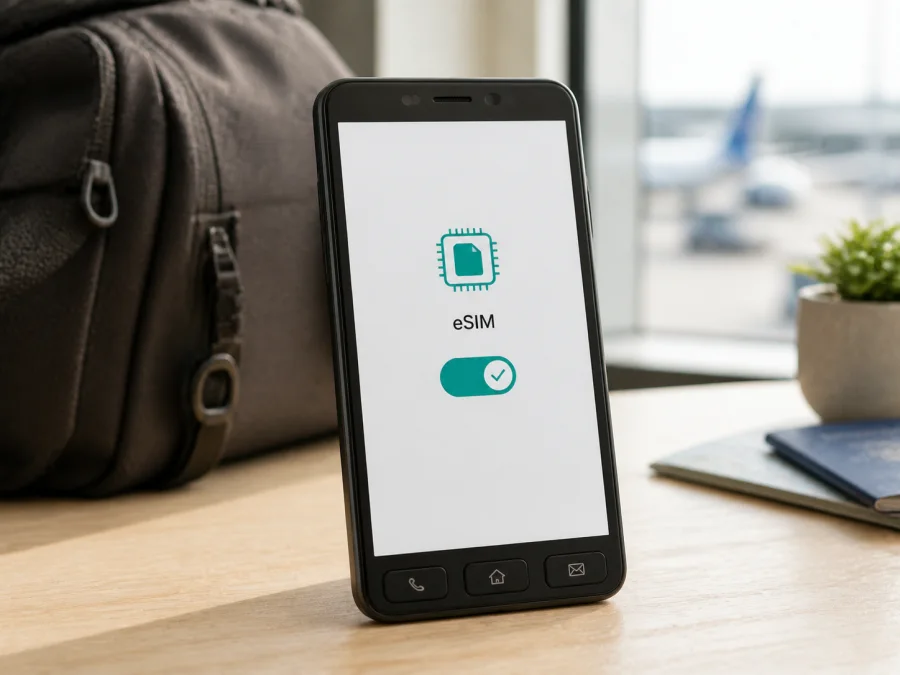
Sharp Simple Sumaho6 eSIM support and setup guide
If you are checking whether Sharp Simple Sumaho6 can use an eSIM for mobile data abroad, the answer is yes for the Japanese SoftBank version documented by Sharp. The specification lists nanoSIM/eSIM, and the official online manual includes an eSIM download procedure.
There is an important limitation. “Sharp Simple Sumaho6” is a market-specific name, and imported or carrier-customized units can have different identifiers, software, or restrictions. Confirm the actual phone's EID and eSIM menu before buying a plan.
Quick answer
The official Japanese SoftBank release supports eSIM alongside a physical nano-SIM. It can therefore be suitable for a travel eSIM used for mobile internet when the chosen plan, destination, network, and handset status are compatible.
This confirmation is not a promise that every imported unit accepts every eSIM profile. eSIM capability, carrier approval, network bands, account status, and an unlocked state are separate checks.
Sharp Simple Sumaho6 at a glance
| Item | Documented Japanese SoftBank version |
|---|---|
| Device name | Sharp Simple Sumaho6 |
| Model reference | A201SH |
| SIM | nanoSIM and eSIM |
| Mobile platform | Snapdragon 695 5G Mobile Platform |
| Operating system at launch | Android 12 |
| Storage | 64 GB |
| RAM | 4 GB |
| Travel use | Possible eSIM data line after compatibility checks |
What the official information confirms
Sharp places nanoSIM/eSIM in the SIM section of its product specification. The SoftBank manual for A201SH also shows an eSIM download step during setup. Together, these official records confirm eSIM functionality for the documented Japanese carrier configuration.
That confirms phone capability, not a particular travel plan. The profile must be accepted by the handset and register on a compatible network. Destination, allowance, validity, activation timing, and restrictions belong to the selected plan.
Why the market and carrier version matters
Simple Sumaho6 was released through a Japanese carrier channel. If you bought it abroad, second-hand, or from an importer, do not rely only on the product name; a listing may omit the model code or software build.
Open Settings → About phone and record the model number. A201SH is the model reference associated with the official Japanese SoftBank documentation. If your phone displays another code, do not transfer the eSIM conclusion automatically: another variant may have a different SIM tray, firmware configuration, or carrier policy.
An EID does not remove a network lock. A phone may show one yet reject a profile because it is locked, the profile is not allowed, or the destination network is unavailable. Check the handset, then the plan, then install with reliable internet.
Prepare before installation
Install over stable Wi-Fi with enough time to troubleshoot. Keep the QR code or activation details available on another screen. If the code is displayed on the Simple Sumaho6 itself, show it on another device or use manual entry if the plan provides that option.
You can often leave the physical SIM in place for your usual number. Travel eSIM plans commonly focus on mobile data and may not include a normal number, voice calls, or SMS. If both lines remain enabled, set the eSIM as the data line and prevent automatic switching.
Step-by-step installation
Carrier wording may differ slightly, but the sequence is similar.
1. Connect to the internet
Connect to reliable Wi-Fi, charge the phone, and keep airplane mode off while the profile is downloading. If abroad, use trusted Wi-Fi long enough to install and test the correct data settings.
2. Open the SIM manager
Go to Settings → Network & internet → SIMs. It may instead be called Mobile network, SIM, or SIM management. Choose Add SIM, Download a SIM, or Set up eSIM. If none appears, return to the compatibility check.
3. Scan or enter the details
Scan the QR code supplied for the selected plan, keeping it fully visible and steady. If scanning is not possible, use manual entry only when the activation message includes the required details. Do not assume an installed profile can be moved to another phone.
4. Download the profile
Confirm the download and wait until the new line appears. Do not turn off the phone or leave Wi-Fi during the process. If it fails, preserve the activation message and resolve the connection or carrier issue before retrying.
5. Name and select the line
Label the line “Travel data” or with the destination name. Select it as the preferred mobile-data line and turn off automatic data switching unless fallback data is intentional.
Use the Android eSIM installation instructions. For another phone, see the iOS eSIM installation instructions. Sharp Simple Sumaho6 itself uses Android.
6. Activate at the right time
Some plans start on installation; others start on first network use. Read the purchase conditions and activation message. Install close to the trip when validity starts immediately, or install at home and leave the line disabled if first-use activation is allowed.
Activation and first connection
Installation adds the profile; activation enables it and allows it to register. Open the eSIM entry, switch it on, and set it as the data line. At the destination, turn off airplane mode and wait a few minutes. A signal icon, carrier name, or mobile-data indicator may confirm registration, depending on the Android build.
If the plan requires data roaming for the travel eSIM, enable roaming for that line only. This is different from allowing the home SIM to roam. Recheck the selected data SIM, then open a small web page or messaging app. A small test confirms the line without using a large amount of data.
Kaspersky eSIM Store is an app and website where you can choose, purchase, and activate an eSIM with a mobile-data plan for an overseas trip. It is not a mobile operator, network owner, or provider of mobile internet; registration depends on the plan, destination, and handset.
Compatibility check for Sharp Simple Sumaho6
<a id="kesim-device-compatibility"></a>
Use this checklist before you buy or activate a travel-data plan. Check your device, especially if the phone was imported.
- Confirm the identity. In Settings → About phone, note the model number. A201SH is the documented Japanese reference. A marketplace title alone is not enough.
- Find the EID. Search Settings for
EID, open the SIM-status or device-status area, or try*#06#in the dialer. Many eSIM-capable Android phones show an EID there, but the display depends on the build. - Find the eSIM control. Open Settings → Network & internet → SIMs, or the closest equivalent. Look for Add SIM, Download a SIM, Add eSIM, or Set up eSIM.
- Check the lock. If the handset is carrier-locked, ask the original carrier whether another provider's eSIM can be used. An EID alone does not unlock the phone.
- Check software and power. Install available official updates, charge the phone, and use dependable Wi-Fi. Do not reset it just before travel unless you know the profile can be reissued.
- Check the plan. Confirm the destination, data allowance, validity rule, activation window, and whether the plan is intended for data only.
If both the EID and an eSIM option are visible, the handset is strongly confirmed as eSIM-capable. If only one is visible, continue cautiously because a restricted carrier build may need operator assistance. If neither is visible, ask the seller or carrier for the exact model and regional specification before purchasing.
Practical travel scenarios
Install at home before departure
This is the most controlled option. Confirm compatibility, use home Wi-Fi, install the profile, and leave the travel line disabled if first-use activation is allowed. Before boarding, confirm the data SIM and turn off primary-SIM roaming if needed.
Activate after landing
This can suit a plan whose validity begins at first connection. At the airport or hotel, use Wi-Fi if required, enable the eSIM, select it for data, and enable roaming only when the plan says to. If “Emergency calls only” appears briefly, wait or restart before changing several settings.
Keep your number and use the eSIM for data
Leave the physical SIM enabled for its usual number and designate the travel eSIM as the data line. Disable automatic switching and check roaming charges for calls or SMS. A data eSIM is not a normal phone number unless the selected plan explicitly includes one.
Troubleshooting checklist
No eSIM option
Recheck the model number and search Settings for “SIM” and “eSIM”. Restart the phone and install updates. If there is still no EID or add-eSIM control, the unit may be a different regional or carrier version. Do not buy a plan until the model is confirmed.
QR code will not scan
Raise the brightness of the screen showing the code, clean the camera lens, and keep the full code visible. Display it on another device if it is currently on the Simple Sumaho6. Use manual installation only when the plan offers it, and never use another order's QR code.
Profile will not download
Check Wi-Fi, airplane mode, date and time, and available storage. Confirm that the activation details are valid and the profile has not already been installed elsewhere. If the code is expired or already used, contact the plan's support channel rather than deleting and retrying at random.
eSIM is installed but there is no data
Confirm that the travel line is on and selected for mobile data. Enable data roaming for that line if required, and disable automatic switching. Move to an area with reliable local coverage, wait, toggle airplane mode once, and restart if needed. Also recheck the destination and device conditions in the plan.
Data uses the wrong line
Return to preferred-data settings and select the travel eSIM. Temporarily turn off primary-SIM data if needed, then run a small test.
Connection is slow or intermittent
The phone may be changing local networks or using a congested cell. Test elsewhere, leave network selection on automatic, and check battery-saving restrictions. If service remains unavailable, contact support with the model number, destination, and error message.
You want to delete the profile
Do not erase an active eSIM just to troubleshoot unless the plan provider confirms that it can be reissued. First switch the line off, restart the phone, and check data settings.
FAQ
Does Sharp Simple Sumaho6 support eSIM?
Yes, the official Japanese SoftBank configuration documented as A201SH supports eSIM alongside nanoSIM. If your device has another model code, different firmware, or an import history, verify the EID and eSIM menu on the actual phone before relying on this answer.
Is an EID enough to guarantee a travel eSIM will work?
No. An EID indicates an eSIM identity, but the phone can still be locked, the plan may not cover the destination, or the local network may not accept the profile. Check the device, lock status, plan terms, and network separately.
Can nanoSIM and eSIM be used together?
The documented device supports nanoSIM and eSIM, but dual-line behavior depends on the carrier configuration and active network combination. A common travel arrangement is the regular SIM for its number and the eSIM for data. Verify roaming and preferred-data settings first.
Does a travel eSIM replace my regular number?
Usually not. Many travel plans are data-only and do not include conventional voice, SMS, or a phone number. Check the plan and possible roaming charges.
Should I install before flying?
Often, yes, because home Wi-Fi gives you time to download and test it. Read when validity starts and leave the line disabled until arrival if permitted.
What if the phone was bought second-hand?
Confirm the model number, EID, SIM settings, carrier lock, and account status. Ask whether the phone was reset correctly, and do not buy a plan until these checks are complete.
Conclusion
Sharp Simple Sumaho6 is eSIM-compatible in the official Japanese SoftBank A201SH configuration: nanoSIM and eSIM appear together in the specification, and the carrier manual includes an eSIM download flow. This supports using a travel eSIM for mobile internet, but it is not a blanket guarantee for every import or carrier profile.
The safe sequence is to identify the exact phone, find the EID or add-eSIM control, check lock and software status, review destination and plan conditions, install over reliable internet, and select the correct data line. Do not delete a profile until you know it can be restored.
Final device check and trip eSIM choice
Before paying for a plan, confirm these points on the actual Sharp Simple Sumaho6:
- The model matches the intended version, with A201SH treated as the documented Japanese reference.
- An EID or Add eSIM / Download a SIM control is visible.
- The phone is not blocked from another provider's profile, or the original carrier has confirmed use is allowed.
- The destination and validity rules fit your itinerary.
- You know whether the plan is data-only and which line will handle data.
- You have reliable Wi-Fi for installation and a recovery plan if activation is delayed.
Once these checks pass, use the Kaspersky eSIM Store app or website to choose and complete an eSIM purchase for the country, region, or route of your overseas trip, then follow the activation instructions. Base the decision on the verified device, the selected plan's conditions, and the network options at your destination—not on the product name alone.


