Travel connectivity guide
Sony Xperia 1 V 128GB eSIM: Compatibility & Setup
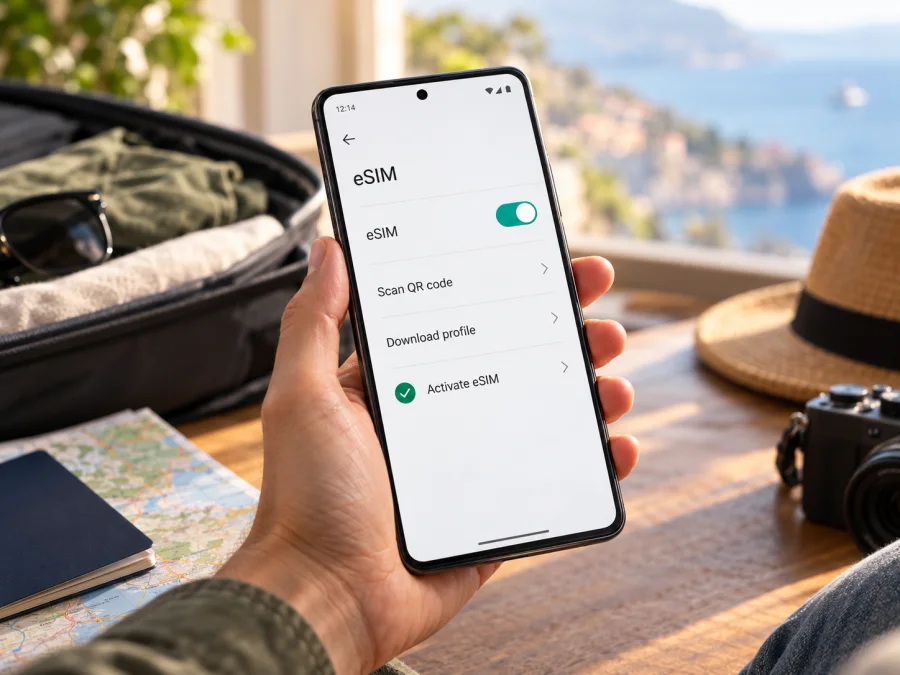
Sony Xperia 1 V 128GB eSIM: compatibility and setup
The short answer is conditional: Sony documents eSIM support for the Xperia 1 V model XQ-DQ54. The name “Sony Xperia 1 V 128GB” does not identify that model code, so storage capacity alone is not enough to confirm compatibility. Sony’s Xperia 1 V Help Guide labels its eSIM setup instructions “XQ-DQ54 only,” and Sony’s support information warns that Xperia phones with the same commercial name can have different SIM configurations in different markets. Check the model code on your own phone before choosing or activating a travel plan.
Sony Xperia 1 V 128GB eSIM at a glance
| Check | What can be confirmed |
|---|---|
| Exact name in this guide | Sony Xperia 1 V 128GB |
| Model code established by “128GB”? | No. Storage does not identify the regional SIM variant. |
| Model specifically confirmed by Sony for eSIM | XQ-DQ54 |
| Sony’s eSIM setup route | Settings → Network & internet → SIMs → Add eSIM, on the supported model |
| Other regional or carrier variants | May have different SIM configurations; confirm the code and on-device options |
| Before choosing a travel plan | Confirm eSIM support, carrier-unlock status, destination, data allowance, and validity |
Sony’s public documentation does not establish that every phone sold under the name Sony Xperia 1 V 128GB is the XQ-DQ54 variant. It would be misleading to give an unconditional “yes” based only on the product name and storage. The useful answer is: yes for XQ-DQ54; for a 128GB handset with no stated model code, verify the exact phone first.
Does Sony Xperia 1 V 128GB support eSIM?
Sony’s Xperia 1 V Help Guide covers the XQ-DQ54, XQ-DQ62, and XQ-DQ72 family, but its specific eSIM configuration section is titled “Configuring an eSIM (XQ-DQ54 only).” In that section Sony says the device supports downloaded eSIMs and describes adding one through Settings. Sony’s model-specific SIM table likewise lists eSIM for Xperia 1 V XQ-DQ54. These are direct confirmations for that code, not a blanket confirmation for every regional Xperia 1 V.
Sony also cautions that some non-EU Xperia models use a different model name or SIM configuration despite sharing a commercial product name, and some do not support eSIM. The U.S. Sony support page says Xperia phone models in the U.S. do not currently support eSIMs. This is why the country where a phone was bought, the seller’s description, and the printed storage capacity should not replace checking the model code. A device imported from another market may also have different supported features from the local model.
| Information you have | What it tells you | What it does not tell you |
|---|---|---|
| “Sony Xperia 1 V” | The commercial model family | Whether the phone has eSIM in every market |
| “128GB” | A storage-capacity listing | The device’s regional model code or eSIM capability |
| Country or retailer of purchase | A clue about the intended market | A guarantee, especially for imports or refurbished stock |
| XQ-DQ54 in About phone | The code Sony identifies for eSIM setup | Whether the carrier has removed a network lock or whether a chosen tariff works in a destination |
| EID and Add eSIM visible in settings | Strong evidence that the handset has eSIM functions available | Coverage, tariff availability, or successful activation with every provider |
The phone’s exact software version and carrier configuration can also affect what you see. If you have a model code other than XQ-DQ54, do not try to infer support from another Xperia 1 V owner’s experience. Ask the seller to confirm the full model code and eSIM status in writing, then verify directly on the handset before purchase. A carrier can restrict a device to its own service; eSIM hardware support does not remove a carrier lock.
Check the exact model, EID, and eSIM menu
Use these checks in order. Menu names may vary slightly by Android version or market, so compare the device code and the available SIM functions rather than relying on a single label.
- Find the model code. Open Settings and then About phone. Look for Model or Model number. Sony’s support instructions also point to About phone for finding the device name. Record the complete code, including letters and digits; do not use only the commercial name or storage capacity.
- Look for EID. In Settings, search for “EID” or open About phone and inspect the SIM or status details if that section is available. An EID is an identifier associated with an eSIM. Its presence is useful evidence, but it does not by itself confirm that a tariff can connect in a particular country.
- Check the SIM settings. Open Settings → Network & internet → SIMs. On an eSIM-capable Xperia 1 V XQ-DQ54, Sony documents an add icon when a SIM is inserted or an eSIM has already been downloaded. A visible option such as Add eSIM or Download a SIM instead? is another useful sign.
- Compare what you find. XQ-DQ54 plus an EID or an add-eSIM option is consistent with Sony’s documented support. A different code, no EID, or no eSIM option means you should pause and confirm the exact regional variant with Sony or the seller.
- Check for a carrier lock. If the phone was bought through a mobile operator, ask whether it is unlocked for other providers’ eSIMs. An eSIM menu does not guarantee that a locked phone will accept a profile from another provider.
Do not post your EID or IMEI publicly. You can share the model code with a seller or support team when checking compatibility, but identifiers tied to the individual handset should be kept private unless a trusted support channel needs them.
Taking a moment to verify these details now can prevent a failed installation after arrival and make plan selection more straightforward. Before buying a data plan, use this check your device compatibility link and confirm the exact model in the phone settings. If the result is unclear, resolve it with Sony or the seller first. The compatibility result is about the handset’s eSIM capability; it does not promise service in a destination or guarantee that a carrier will accept a locked phone.
What to check before a trip
Before choosing a plan, use this checklist:
- [ ] Confirm the full model code in Settings → About phone; storage capacity alone is not enough.
- [ ] Look for an EID or an Add eSIM option, and confirm that the phone is unlocked.
- [ ] Install available system updates while you have reliable Wi-Fi.
- [ ] Keep the QR code or installation details available on another screen; check whether the code is single-use.
- [ ] Review the plan’s destination list, data allowance, validity, and activation timing.
- [ ] For a multi-country route, make sure every destination is included.
- [ ] Choose which SIM will handle mobile data and check roaming charges for your usual number.
Kaspersky eSIM Store is an app and website where you can select, arrange, and activate an eSIM with a mobile-data plan for an international trip. Before choosing a plan, verify that your own Sony Xperia 1 V 128GB has an eSIM-capable model code and is unlocked. The plan is for mobile data; ordinary calls and SMS are not included unless the terms for that particular plan explicitly say otherwise.
Install an eSIM on Sony Xperia 1 V 128GB
Sony’s documented route is for XQ-DQ54. It uses the Android SIM settings and a QR code supplied for the profile. The exact prompts can differ depending on Android version and the eSIM provider, so follow the instructions shown on your phone and in your plan details.
- Prepare the phone. Connect to Wi-Fi, charge the battery, and make sure you have the plan’s QR code or manual activation details. If the code is in an email on the Xperia, open it on another screen or use the provider’s manual-entry option if offered.
- Open the SIM menu. Go to Settings → Network & internet → SIMs. If prompted, unlock the settings or choose the existing SIM first.
- Start adding a profile. Tap the Add icon or the option to download or add an eSIM. If no such option appears, recheck the model code and EID; do not assume the 128GB label guarantees eSIM support.
- Scan or enter the details. Scan the QR code supplied for your eSIM, or enter the activation information manually if the provider supports that method. Keep the code private and do not reuse it after installation unless the provider confirms it can be reused.
- Download the profile. Follow the on-screen prompts and wait for the download to finish. Keep the phone connected to Wi-Fi and do not close the setup flow while it is working.
- Enable the eSIM. When the profile finishes downloading, open its settings and switch on Use SIM. Sony specifically describes this step in its Xperia 1 V guide.
- Name the line. Give it a clear label such as “Travel data” so you can distinguish it from your usual SIM while travelling.
- Choose mobile data. In the SIM settings, select the newly installed eSIM as the mobile-data line when you are ready to use the plan. Keep your normal number selected for calls or messages if you want it to remain available and your operator’s terms allow that arrangement.
- Set data roaming only if required. Some travel eSIM profiles need data roaming enabled to connect to their partner network. Check the plan’s instructions before turning this on. If enabled, make sure the roaming switch belongs to the travel eSIM rather than your home SIM.
- Test the connection. At the destination, turn off Wi-Fi briefly, confirm the travel eSIM is selected for data, and open a simple webpage. Allow a few minutes for registration. If it does not connect, use the troubleshooting checklist below before deleting the profile.
For more general platform guidance, see the Android eSIM installation instructions or the iOS eSIM installation instructions. The iOS guide is for iPhones; the Xperia uses Android, so use the Sony-specific steps above for this phone.
Use the eSIM for mobile data while travelling
Before departure, decide which SIM handles data and which, if any, stays available for calls or messages. Dual-SIM options depend on the Xperia variant and the home operator. At your destination:
- Open Settings → Network & internet → SIMs and enable the travel profile.
- Select that eSIM for mobile data.
- Check the plan’s instructions and enable data roaming for that eSIM only if required.
- Turn on mobile data and allow time for network registration.
- Confirm the plan includes your current country and has data remaining.
For a trip across borders, check that each country is explicitly included; a single-country plan may stop working when you leave that country. For a short city break, compare the expected use for maps, messaging, bookings, and browsing with the plan’s allowance and validity. Video streaming, cloud backups, and hotspot use can consume data faster.
Keeping your regular SIM enabled does not automatically prevent roaming charges. Check with your home operator and make sure the travel eSIM remains selected for data. A data-only eSIM provides internet access; use internet calling or messaging apps if you need calls that do not require your usual phone number.
Kaspersky eSIM Store is an app and website where you can select, arrange, and activate an eSIM with a mobile-data plan for an international trip. It does not operate a mobile network or guarantee coverage. Availability and plan conditions depend on the destination and local provider.
Troubleshooting common problems
There is no Add eSIM option
Check the complete model code again in Settings → About phone. Sony documents the eSIM setup flow for XQ-DQ54 specifically; “Sony Xperia 1 V 128GB” by itself is not enough to identify that model. Search Settings for EID, install system updates, and restart the phone. If the code is different or the EID and add option remain absent, contact Sony or the seller to confirm the regional configuration. Do not buy a plan on the assumption that a menu will appear later.
The QR code will not scan
Increase the brightness of the screen showing the QR code, clean the camera lens, and hold the Xperia steady at a comfortable distance. Avoid taking a screenshot of a blurry code. If the QR code is on the same phone, display it on a computer or another device instead. Check whether the provider offers manual activation details. Make sure the code belongs to the plan in your account and has not already been used.
The profile downloads but does not connect
First confirm that the profile is enabled and that the travel eSIM is selected for mobile data. Check that mobile data is on and that the plan is valid in your current destination. If the provider’s setup instructions require data roaming, turn it on for the travel profile only. Restart the phone and wait briefly for network registration. If the profile allows network selection, return to automatic selection unless the provider has instructed you to choose a specific network.
The phone shows a network but apps have no internet
Confirm the travel eSIM is the data line, check the account for remaining data and plan validity, and temporarily turn Wi-Fi off to make sure the test is using cellular data. Review any access-point-name settings only if the plan provider gives you specific values; do not copy settings from an unrelated carrier. Check whether a data limit or data-saver setting is blocking use. Try a basic webpage after restarting the connection.
The profile cannot be added or activation fails
Check the internet connection, make sure the phone’s date and time are set automatically, and confirm the QR code or activation details match the selected plan. Install system updates if available, then retry once. If the code may have been used already or the profile is tied to another device, contact the eSIM provider before removing anything. Repeatedly scanning a one-time QR code may not solve the problem.
The device is carrier-locked
A supported eSIM menu does not remove a network lock. Ask the carrier that sold the handset whether it can be unlocked and whether third-party eSIM profiles are permitted. A profile from another provider may fail to activate or register while the lock remains in place. Resolve this before buying a travel plan.
Data use starts earlier than expected
Check the plan’s stated activation rules and the status in your account. Some plans begin when a profile is installed, while others start when it first connects or on a chosen date. Those rules are offer-specific. If the start time or remaining validity is unclear, contact the plan provider with the order details rather than deleting the eSIM.
Frequently asked questions
Does Sony Xperia 1 V 128GB support eSIM?
It depends on the exact model code. Sony confirms eSIM for Xperia 1 V XQ-DQ54. The 128GB label does not establish that code, so check Settings → About phone and the EID or Add eSIM option before buying a plan.
Is the U.S. Xperia 1 V eSIM-compatible?
Sony’s U.S. support information says Xperia phone models in the U.S. do not currently support eSIM. Check the exact code on the handset because imported models may differ from a local-market phone with the same commercial name.
Can I tell from the storage capacity whether it has eSIM?
No. “128GB” describes storage, not the model code or SIM configuration. Read the complete model number in About phone and check the eSIM settings on the device itself.
Can I keep my regular SIM active?
Possibly, depending on the exact Xperia variant, plan, and home operator. Set the intended eSIM as the data line and check roaming costs for the regular SIM. Sony lists the XQ-DQ54 with a physical SIM and eSIM arrangement, but do not assume the same configuration applies to every market variant.
Does a travel eSIM include calls and text messages?
A data-only plan is intended for mobile internet and does not automatically provide a regular phone number, voice calls, or SMS. Check the terms for the specific plan. Internet calling and messaging apps can work over mobile data.
What if I cannot confirm the model code?
Ask the seller or Sony support for the full device code and eSIM status. If you already own the phone, inspect About phone and the SIM settings. Wait to choose a plan until the handset’s compatibility is clear.
Before you choose a plan
For Sony Xperia 1 V 128GB, verify the phone rather than relying on the product title: confirm the full regional code, look for an EID or Add eSIM option, and make sure the device is unlocked. Sony specifically documents eSIM support for XQ-DQ54; the storage label alone cannot confirm that your handset is this version.
Once compatibility is established, choose a plan that lists every country on your route and fits the expected data use and trip length. Check the activation timing and setup instructions, then install the profile over a reliable internet connection. Kaspersky eSIM Store is an app and website where you can select, arrange, and activate an eSIM with a mobile-data plan for an international trip. Browse the Kaspersky eSIM Store to check current options for your destination; the available plans, prices, and terms depend on the selected route and can change.


