Travel connectivity guide
Sony Xperia 5 IV 128GB eSIM Compatibility
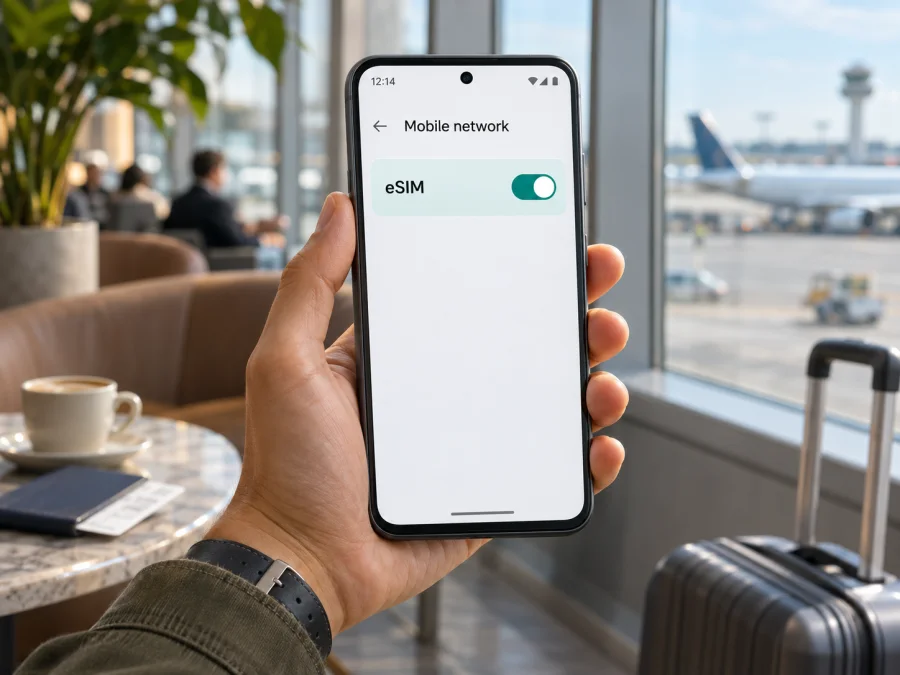
Sony Xperia 5 IV 128GB and eSIM: compatibility and setup guide
Quick answer
Sony confirms eSIM on the UK-listed Sony Xperia 5 IV 128GB and on model XQ-CQ54, but market and model code still matter. Sony’s UK specifications list the 128GB variant as nanoSIM/eSIM with dual SIM (nanoSIM + eSIM), and its support matrix names XQ-CQ54 as eSIM-capable. Sony’s US support page says Xperia phone models sold in the United States do not support eSIM. If your 128GB handset was bought in another market, check its model code and Settings before relying on eSIM; the storage label alone does not identify the SIM hardware.
Sony’s UK Xperia 5 IV 128GB specifications and regional SIM support information, along with its US eSIM guidance, were checked on November 3, 2026. The practical conclusion is specific: the UK-listed 128GB configuration and model XQ-CQ54 are confirmed eSIM-capable, while Sony’s US guidance says US Xperia phones do not support eSIM. For a handset from another market, verify the complete model code, inspect Android’s SIM settings, and check for an EID before purchasing a travel plan.
An eSIM is a digital SIM profile stored in the phone. It can be installed without inserting another physical card, but it still needs a compatible handset, an unlocked device, and a supported network plan. For a trip, a travel eSIM can be used for mobile data while you keep your usual physical SIM available for calls or messages, depending on the phone’s configuration and your home operator’s terms.
Sony Xperia 5 IV 128GB at a glance
| Check | What is known |
|---|---|
| Exact device in this guide | Sony Xperia 5 IV 128GB |
| Storage variant | 128GB; this does not identify the regional SIM variant |
| eSIM confirmation | Sony UK lists 128GB as nanoSIM/eSIM (dual SIM: nanoSIM + eSIM); support matrix names XQ-CQ54 |
| Regional caveat | Sony says US Xperia models do not support eSIM; support can differ by market and model code |
| Software family | Android; menu labels may vary with software version and carrier configuration |
| What to verify first | Settings model number, EID, and an “Add eSIM” or equivalent option |
| Travel use | Mobile data on a compatible travel eSIM, with plan and destination checks before purchase |
Does the Sony Xperia 5 IV 128GB support eSIM?
The accurate answer is yes for the UK-listed Sony Xperia 5 IV 128GB and for model XQ-CQ54; an imported or US-market unit still needs a region check. Sony’s UK specifications list the 128GB variant as nanoSIM/eSIM and dual SIM (nanoSIM + eSIM), and its support matrix identifies XQ-CQ54 as eSIM-capable. Sony’s US support article says Xperia phones in the US do not support eSIM. These regional statements show why checking the handset is useful, even when a listing gives the correct storage size.
This is a regional device distinction, not a claim that every carrier-branded handset has the same restriction. The operator that sold a phone may also affect whether it is unlocked, which network profiles it accepts, or what menu options appear. A carrier lock and eSIM hardware support are different things: unlocking a phone does not add eSIM hardware, and an eSIM-capable model may still need to be unlocked before it can use another provider’s plan.
The “128GB” wording can appear across listings for different markets. Ask for the full model code. If you have the phone, check Android’s model number and compare it with the box; if they disagree, ask Sony or the seller to identify the unit before buying a plan.
Find the model code, EID, and eSIM menu
Use more than one indicator. The model code tells you which regional configuration you have; the EID is a strong sign that the phone has an eSIM component; and the Settings menu shows whether Android currently exposes the eSIM installation option. Menu wording can vary across Android releases and carrier software, so follow the closest equivalent if labels differ.
1. Check the model number
- Open Settings on the Xperia.
- Scroll to About phone (on some software versions, the section may be called About or appear near the bottom of Settings).
- Find Model or Model number. Record the complete code, including its letters and digits.
- Confirm whether it is XQ-CQ54. Sony specifically lists that model as eSIM-capable. If the model number is different, check the exact code in Sony support information for the country where the device was sold.
- If the phone came from a mobile operator, ask whether it is network-unlocked and whether the operator applies an eSIM restriction to that particular unit.
The About phone screen is more useful than a shop title, a box sticker read from a second-hand listing, or a general compatibility page for the Xperia 5 IV family. Preserve the whole code; small suffix differences may signal a different market or SIM arrangement.
2. Look for an EID
An EID is the identifier associated with an eSIM-capable device. On Android, try Settings → About phone → Status or Settings → About phone → SIM status. The exact path depends on the software build. Some versions also show device identifiers after dialing *#06#; use this only to view the identifiers and do not share an EID or IMEI publicly. If an EID is displayed, note that this supports the conclusion that the handset contains eSIM capability, but it does not by itself prove that the phone is unlocked or that a particular plan will work.
If no EID appears, first make sure you are checking the handset itself rather than a SIM card detail screen. Restart the device, install any available official system update, and review SIM settings again. If the code is still absent, compare the model number with Sony’s documentation or contact Sony support. A missing EID is a reason to pause before purchase, especially when the model code is not XQ-CQ54; it is not a reason to guess or attempt to bypass a restriction.
3. Check for Add eSIM
Open Settings → Network & internet or Settings → Network & Internet → SIMs and look for Add eSIM, Download a SIM, Add mobile plan, or similar wording. On some Sony software builds, the path may start from Settings → Network & internet → SIMs; naming and screen layout may change. If the option appears and the phone offers to download a SIM, the device likely exposes eSIM provisioning. Stop before confirming any installation unless you are ready to add a plan.
Use this short compatibility checklist before checkout:
- [ ] The complete model code is recorded, not inferred from “Sony Xperia 5 IV 128GB.”
- [ ] The device is XQ-CQ54, or Sony has confirmed eSIM for the exact code and market.
- [ ] An EID is visible, or the eSIM option appears in the SIM settings.
- [ ] The phone is not locked to a carrier that would prevent use of the intended travel plan.
- [ ] The plan supports the destination and the type of device you will use.
- [ ] You can connect to Wi-Fi or another reliable internet connection during setup.
You can also check whether your device is compatible before selecting a travel plan. A model-family result is a useful first filter, while the model number and handset settings are the final checks for this particular phone.
Before installing an eSIM
Prepare the Xperia while you have reliable Wi-Fi and enough battery. Keep the order email or activation details available on another screen; a phone cannot scan a QR code displayed on itself unless another installation method is offered. Read when the selected plan starts: installation and activation may happen at different times, and plan rules vary.
If you want to keep your home SIM active, check its roaming terms and charges first. A travel eSIM may be data-only, so do not expect a phone number, calls, or SMS unless the plan explicitly includes them. Update the phone through its official settings if an update is available; an update may improve operation but cannot add eSIM hardware to an incompatible model.
Install and activate the eSIM on Xperia 5 IV
On an eSIM-enabled XQ-CQ54, Android installation generally involves opening the SIM settings, adding a mobile plan, and scanning the plan’s QR code or entering its activation details. The exact labels may differ by Android version, software region, or carrier. Use Sony’s instructions for the handset where available, and follow the steps supplied with the plan. Kaspersky eSIM Store’s Android installation guide provides a general walkthrough; its displayed menu labels may be Samsung-specific, so the Xperia path can look different. The iOS installation guide is for iPhone and is included for readers who need the corresponding instructions for a second device, not for installing on this Xperia.
Typical Android installation steps
- Connect to Wi-Fi. Keep the connection active until the profile has downloaded. Do not start installation while you are likely to lose access to the network.
- Open SIM settings. Go to Settings → Network & internet → SIMs or the closest available menu.
- Choose the add option. Tap Add eSIM, Download a SIM, or the equivalent. If none of these appears, stop and recheck the model code and eSIM support before proceeding.
- Scan or enter the details. Use the QR code provided after selecting a plan, or enter the manual activation information if the plan offers it. Keep the code private; it may be usable to download the profile.
- Confirm the download. Review the on-screen carrier or profile name, then allow Android to download and install the eSIM. Avoid closing Settings or switching off Wi-Fi during the process.
- Choose a label. Name the profile something recognizable, such as “Travel data” and the destination, so it is easy to distinguish from your home SIM.
- Set mobile data preferences. Select the travel eSIM for mobile data when you want to use it. Keep your usual SIM selected for calls or texts if that is your preference and the device permits both profiles to remain enabled.
- Follow the plan’s activation instructions. Some plans activate during installation; others begin when the phone connects to a supported network. Do not delete a profile just because it has not connected before you reach the destination.
- At the destination, enable the profile and data roaming if instructed. Select the travel profile for mobile data and turn on data roaming for that profile when the plan requires it. Confirm the destination network and plan instructions first.
- Test a simple connection. Turn Wi-Fi off briefly and open a basic webpage or messaging app. If mobile data does not work, follow the checks below before changing or deleting the profile.
Installation and activation are separate ideas. Installation downloads the eSIM profile onto the phone; activation makes the plan usable according to its terms. A successfully installed profile can remain inactive until a supported destination network is available or a chosen start date arrives. The status shown in Settings and the plan details should guide the next step.
Using the Xperia 5 IV 128GB for mobile data abroad
When the variant is compatible and unlocked, a travel eSIM can provide data in a destination covered by the selected plan. You can select it as the data line and keep a physical SIM for calls or messages, subject to the phone’s software and operator settings. Sony describes an XQ-CQ54 configuration using a nano-SIM and eSIM; confirm active-line options on your own handset.
Select the country or region that matches your itinerary, including every stop on a multi-country trip. Review the data allowance, validity period, activation conditions, and relevant limits. A plan for one destination may not apply in a neighboring country; check current options and terms at purchase.
A practical two-SIM setup often looks like this:
| Setting | Typical choice for a data-focused trip |
|---|---|
| Mobile data | Travel eSIM, once the plan is ready for use |
| Calls and SMS | Home SIM, if you need it and accept any home-operator charges |
| Data roaming on home SIM | Off, unless you deliberately want your home plan to roam |
| Data roaming on travel eSIM | Set according to the travel plan’s instructions |
| Automatic data switching | Review carefully; turn it off if it could silently route data through the home SIM |
| Wi-Fi | Use for setup and large downloads when practical |
The exact names of these controls vary. Read the line name displayed beside each option, because enabling data roaming on the wrong SIM may trigger charges from your home operator. If the phone allows only one SIM to be active alongside the eSIM, decide which line you need for voice calls and verify the behavior before travel. For emergency access and account verification, understand whether your home number needs to remain enabled.
Estimate your use of maps, ride-hailing, translation, messaging, video, and hotspot data. Download large files over Wi-Fi where practical and monitor Android’s data usage. A travel eSIM does not guarantee a particular speed or signal in every place.
Common issues and what to check
“Add eSIM” is missing
Verify the full model code and market. Sony identifies XQ-CQ54 as eSIM-capable, while its US support guidance says US Xperia models do not support eSIM. Restart, check for an official update, and review SIM settings again. If the EID and add option remain absent, ask Sony or the seller to confirm the exact unit before purchase.
The QR code will not scan or download
Use stable Wi-Fi, increase the code’s brightness, and display it on a second device. If the plan provides manual activation details, use those instead. Check whether the code has already been used or is eligible for reinstallation; keep it private.
The profile installs but there is no service
Confirm the travel eSIM is enabled and selected for mobile data, the destination is covered, and the plan’s validity has started. Turn roaming on for that profile if instructed, toggle airplane mode, and restart. If it still fails, contact plan support before deleting the profile.
Data uses the wrong SIM
Check which line is selected for mobile data and review automatic data switching. Disable roaming on the home SIM if you do not want to use it abroad. Then turn off Wi-Fi briefly and verify the line carrying data in SIM settings.
The phone is locked or the plan is rejected
An eSIM-capable handset can still be carrier-locked. Ask the original operator whether the device accepts another provider’s eSIM. For a rejection, note the error, confirm the destination and plan details, and contact support before resetting network settings.
Connection is slow or intermittent
Reception varies by location and network conditions. Check signal, data balance, validity, and data-line selection; move to a place with stronger reception and reconnect. Follow any manual network-selection instructions supplied with the plan. Avoid deleting and reinstalling the profile as an initial troubleshooting step.
Frequently asked questions
Is eSIM guaranteed on every Sony Xperia 5 IV 128GB?
No. Storage capacity does not identify SIM hardware. Sony lists XQ-CQ54 as eSIM-capable and says US Xperia phones do not support eSIM. Check your code and Settings.
Does an EID guarantee that a travel eSIM will work?
No. You also need an unlocked phone, a plan for your destination, and a supported network connection.
Can I keep a physical SIM and add a travel eSIM?
Sony describes XQ-CQ54 with one nano-SIM and eSIM configuration. Active-line choices depend on software and operator settings; check your own SIM menu before travel.
Will the travel eSIM replace my phone number?
Not necessarily. Many travel plans are data-focused and do not include voice or SMS. Check plan details and your home operator’s terms.
When should I install the eSIM?
Follow the plan instructions. Validity may begin at installation, at a scheduled time, or on first network connection; verify the trigger before installing.
Can I move the eSIM to another phone later?
Do not assume so. Transfer and reinstallation rules vary. Check them before deleting or moving a profile.
Does an eSIM provide calls and SMS?
Only if the plan says so. A data-only plan can support internet-based calling and messaging apps.
Before you choose a travel eSIM
Start with the handset, not the product title: find the complete model code, confirm whether it is XQ-CQ54, and look for an EID or an Add eSIM option in Settings. If you have a different code, a US-market device, or conflicting information, ask Sony or the seller to verify that exact unit before spending money. Also confirm that the phone is unlocked and that the plan covers the country or region on your route.
Once compatibility is clear, compare the currently displayed destination, data allowance, validity period, and activation conditions with your travel dates and expected use. Kaspersky eSIM Store is an app and website where you can choose, arrange, and activate an eSIM plan for mobile data on a trip abroad. Review the plan details before checkout and install the profile using a reliable connection. For this Xperia, the safest sequence is simple: verify the regional variant, check the eSIM controls, confirm the plan and destination, then install and select the travel line when you are ready to use it.


