Travel connectivity guide
TCL 60 XE NxtPaper eSIM: Compatibility & Setup
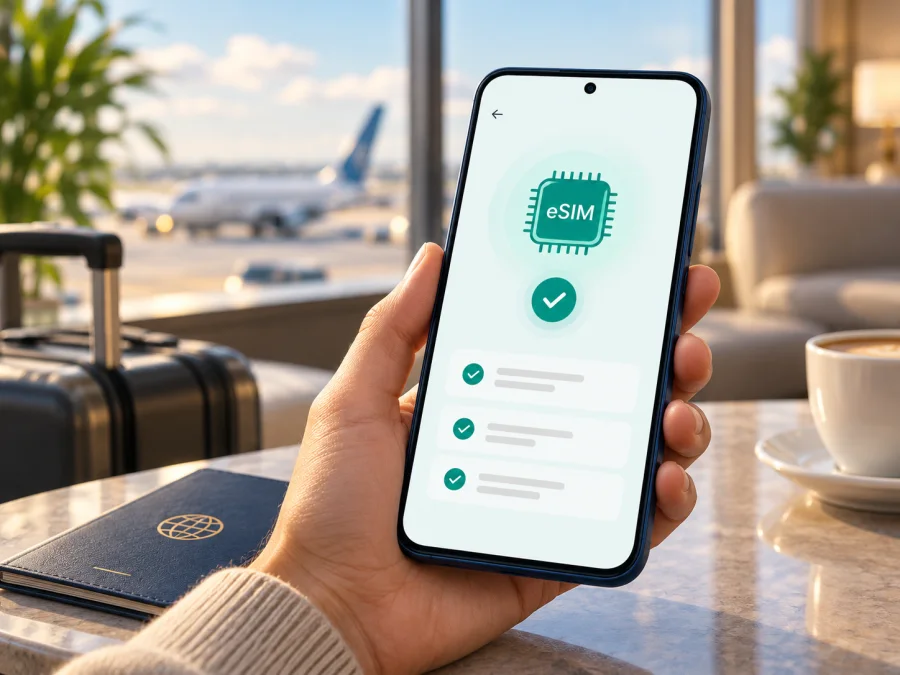
TCL 60 XE NxtPaper and eSIM: compatibility, setup, and travel use
Quick answer: The North American TCL phone sold by the manufacturer as the 60 XE NXTPAPER 5G lists eSIM support as carrier dependent. That is a conditional yes for the documented North American version, not a guarantee for every handset called TCL 60 XE NxtPaper, every SIM profile, or every mobile network. Check the model code, EID, eSIM menu, and the operator’s approval on the actual phone before choosing a travel plan.
TCL’s North American specification page identifies the 60 XE NXTPAPER 5G and lists “eSIM (carrier dependent)” alongside a Nano SIM. The page shows two memory configurations, 128 GB (T705M1) and 256 GB (T705M). This is the clearest current manufacturer evidence for this device family; TCL’s wording itself makes support conditional on the carrier. The product page is for the North American market, so it should not be applied automatically to phones sold under a similar name elsewhere. (TCL North America product specifications, checked October 17, 2026.)
The supplied name TCL 60 XE NxtPaper is retained exactly. TCL styles its North American product “60 XE NXTPAPER 5G”; the similar names do not prove that regional versions share hardware. Confirm the model sold in your market and distinguish the phone’s market version from the country where you plan to use it.
TCL 60 XE NxtPaper eSIM compatibility at a glance
| Check | What is documented | What it means for you |
|---|---|---|
| Device name used on TCL’s North American product page | 60 XE NXTPAPER 5G | The official page adds “5G” to the commercial name. This guide keeps your supplied device name unchanged. |
| Regional scope of the eSIM listing | North American product listing | Apply the eSIM note to that market’s model only unless TCL confirms another variant. |
| Listed eSIM support | “eSIM (carrier dependent)” | Hardware support is listed, but activation depends on the carrier, device configuration, and service. |
| Physical SIM | Nano SIM 4FF; one SIM card slot in the listed specification | The phone can have a physical SIM configuration; a single physical slot does not by itself prove or disprove eSIM availability. |
| Listed North American model codes | T705M1 for 128 GB; T705M for 256 GB | Check the code shown on your own handset or packaging. Memory capacity alone is not a complete compatibility check. |
| Software listed by TCL | Android 15 | Actual labels, update state, carrier provisioning, and regional firmware may affect the eSIM menus. |
| Travel-plan suitability | Depends on the specific profile and destination | Confirm the plan works with this model and that it supports mobile data in every intended destination. |
This listing does not certify every handset sold as “TCL 60 XE NxtPaper.” For an imported or regionally named version, confirm the model code with the seller or TCL for its market, then ask the intended operator whether it will activate that device. A phone can support eSIM and still be locked or excluded by a particular carrier.
What “carrier dependent” means
An eSIM is a digital profile stored on the phone and downloaded through a supported QR code, app, or Settings flow. “Carrier dependent” means hardware support does not guarantee that every operator, plan, or activation method will work. Confirm three things separately: the regional handset includes eSIM, the phone is unlocked, and the specific operator accepts its model or EID. Then check that the plan covers the destination and its data, validity, roaming, and hotspot terms suit your trip.
TCL’s listing covers the North American product; it does not establish which operators in the United States, Canada, or another market will activate it. An operator’s general eSIM support is not device-specific approval. Give the intended provider your model code and EID if requested.
How to check your own phone before buying
Use more than one signal. A printed spec sheet, a seller’s “dual SIM” label, or a menu screenshot alone may not confirm that the device can download and use a travel profile. On your TCL 60 XE NxtPaper:
- Find the exact model code. Open Settings → About phone and look for the model or model number. Menu wording may differ. You can also check the box, receipt, or regulatory label. TCL lists T705M1 and T705M for the North American 128 GB and 256 GB configurations respectively; verify the code rather than inferring it from storage alone.
- Search Settings for “EID” or “eSIM.” Use the Settings search box if available. You may find the EID under About phone, Status, or SIM status, or an option such as Add eSIM, Download a SIM, or Add mobile plan under mobile network or SIM settings. Exact paths vary by Android build, region, and carrier software.
- Look for the EID. An EID is the identifier associated with the embedded SIM. If an EID appears in the phone’s settings, that is useful evidence that the device has an eSIM component. It does not, by itself, confirm that a particular operator will activate the phone or that it is unlocked. Keep the EID private and share it only through a trusted operator’s support channel when needed.
- Check for an add-profile control. A working “Add eSIM” or equivalent flow is another positive sign. You do not need to scan a purchase QR code just to check the menu. If the option is absent, first update Settings search results by checking software updates and restarting; then confirm the model code and ask TCL or the operator. Carrier-dependent support may be hidden or disabled in some configurations.
- Confirm network unlock status. Ask the original carrier or seller whether the phone is unlocked for use with another provider. Do not rely on the fact that a physical SIM from another network fits in the tray.
- Check acceptance with the intended provider. Before purchasing, provide the exact model and ask if it supports eSIM activation for your market and plan. For a travel eSIM, verify the provider accepts the TCL model and that the profile is intended for the country or region you will visit.
Android’s general help places the EID under About phone → SIM status, though TCL menu labels may differ (Google Pixel Phone Help, checked October 17, 2026). If neither an EID nor an add-eSIM option appears, treat compatibility as unconfirmed and check with TCL or the operator.
For a quick decision, use this checklist:
- [ ] The handset’s full regional model code is known.
- [ ] TCL’s specification for that same market lists eSIM, or TCL support confirms it.
- [ ] An EID or add-eSIM option appears on the actual phone.
- [ ] The phone is unlocked for the intended eSIM provider.
- [ ] The operator or travel-plan provider accepts the exact handset and EID.
- [ ] The destination, data allowance, activation timing, and validity terms suit the trip.
If any item is uncertain, ask the retailer, TCL, or the eSIM provider before completing a purchase. Check your device compatibility before choosing a plan.
Install an eSIM on the TCL 60 XE NxtPaper
The following sequence is for a device that exposes an eSIM setup option. TCL confirms carrier-dependent support in the North American specification, but the exact setup flow can vary by software release and operator. Keep a Wi-Fi connection available and follow the activation instructions supplied with the specific profile. Android steps are also available in the Kaspersky eSIM Store Android installation guide; the iOS installation guide is useful only if you are setting up a profile on an Apple device instead.
Before you begin
- Confirm that the TCL phone is compatible and unlocked, and that your intended provider accepts it.
- Connect to Wi-Fi and read when the plan’s validity begins.
- Keep the QR code on another screen or printed page. Do not delete an installed profile unless the provider confirms it can be downloaded again.
- Decide which line you want for home calls and which for travel data.
Add the profile
- Open Settings and go to Network & internet, Mobile network, or SIMs. TCL may use different wording in a regional build. If those labels are not visible, search Settings for SIM or eSIM.
- Choose Add eSIM, Download a SIM, Add mobile plan, or the nearest equivalent. If no such item exists, stop and confirm whether your exact model and carrier configuration support eSIM before continuing.
- Select the QR-code option if the provider supplied one. Scan the code from another display or printed copy. If the provider supplies manual activation details or a carrier app, use that method only as instructed by the provider.
- Review the plan details shown by Android. Confirm the provider or plan name if presented, then select Download, Add, or Activate as prompted. Wait for the download to finish without switching off Wi-Fi or restarting the phone.
- Give the new line a clear label, such as Travel. Keep your home SIM label intact so that you can tell the profiles apart.
- When prompted to choose defaults, select the SIM for mobile data deliberately. If you want the new plan to be used only after arrival, leave your usual line selected for data until you are ready to switch.
- Follow the provider’s activation instructions. Depending on the plan, installation and first network connection may happen at different times. If the plan should start only in the destination, wait until then to enable its data roaming or select it for mobile data.
- Once you are ready to use it, turn on the eSIM line and select it for Mobile data. Enable Data roaming for that eSIM only if the plan’s instructions require it. Keep roaming on your home SIM off if you want to avoid unexpected roaming charges.
- Test a simple webpage or messaging app. Check that the travel line shows service and that mobile data is assigned to it. Wi-Fi can mask a problem, so briefly turn Wi-Fi off for the test after the profile is active.
Adding a profile, enabling its line, selecting it for data, and allowing roaming are separate controls. Follow the plan’s instructions for each. Treat QR codes, activation codes, and EIDs as private, and do not remove a downloaded profile until the provider confirms it is safe.
Use the eSIM for mobile data on a trip
Before departure, check that your destination is included and decide whether to install the profile at home or after arrival. Installing in advance can reduce setup time at the airport, but the provider’s activation rules may begin the plan clock earlier than expected. If its terms say the validity period begins on first connection, verify that before relying on that timing. Save the provider’s activation instructions offline in case you do not have data when you land.
At the destination:
- Turn on the travel eSIM line in SIM settings.
- Set it as the mobile data SIM. Keep calls and texts on your home line if that is what you need, but check your home operator’s roaming terms first.
- Turn on data roaming for the travel eSIM only when its instructions require roaming. A travel profile may connect to a partner network while roaming is enabled; the word “roaming” in settings does not automatically mean your home operator is charging you, but the line selected for data matters.
- Wait a short time for registration, then toggle airplane mode once or restart if service does not appear. Give the phone time to register before trying repeated changes.
- Open the plan details or data-usage screen and monitor the allowance. The displayed usage may not update immediately, so compare it with the provider’s account or app if available.
- Use a messaging or calling app over data if you need internet-based communication. Do not assume a data-only travel plan includes a regular phone number, cellular voice, or SMS unless the plan details expressly say so.
For a multi-country itinerary, check that one plan includes every stop; a country plan may stop working after a border crossing. Review speed, hotspot, fair-use, and validity rules. A 5G-capable phone does not promise 5G abroad: local bands, network access, and plan terms matter.
The Nano SIM may remain installed while you use an eSIM, but simultaneous active lines depend on the handset and operator configuration. Test before departure. To limit home-line data charges, select the travel eSIM for mobile data and disable roaming on the home line; check your carrier’s separate call and message charges.
Kaspersky eSIM Store is an app and website for choosing, arranging, and activating an eSIM with mobile data for an international trip. Browse the Kaspersky eSIM Store to check current destination options and plan terms. Review the listed coverage area, data, validity, and activation notes. Kaspersky eSIM Store is not a mobile operator or network provider.
Common problems and what to check
There is no “Add eSIM” option
Search Settings for EID, SIM, and eSIM; verify the regional model code and check for updates. Ask TCL or the carrier whether provisioning affects the menu. If the EID and add-profile control are both absent, do not assume an update will add support.
The QR code will not scan or the download fails
Check Wi-Fi and scan from a separate display with the full code in view. The code may be expired, used, or tied to another device. Ask the provider to check its status before retrying or deleting the profile.
The profile installs but there is no service
Check that the line and plan are active, you are in a supported destination, and airplane mode is off. Enable roaming on the travel line only if required. Toggle airplane mode once or restart, then allow registration. If there is still no service, contact the provider with the model code and error message.
The phone connects but apps have no internet
Select the travel eSIM for mobile data and turn Wi-Fi off to test. Check plan activation, remaining allowance, destination, and any provider-supplied APN instructions.
The home SIM is using data or roaming charges appear
Verify the selected data line and disable home-line roaming if you do not intend to use it. Turn off automatic data switching if you want data to stay on the travel profile. Calls, messages, and voicemail may still have separate roaming terms.
Installation is blocked or the operator rejects the device
This can happen when a device is carrier-locked, the provider does not accept its model or EID, or a regional variant differs from the listed North American configuration. Ask the original carrier about unlocking and ask the intended eSIM provider to verify the exact model code. Do not assume that a generic “unlocked” label guarantees acceptance by every operator.
Data is slow or drops between networks
Check destination and plan speed or hotspot limits, use automatic network selection, and test in a stronger-signal area. Regional radio bands and policies can differ; one weak location does not prove an eSIM fault.
Frequently asked questions
Does the TCL 60 XE NxtPaper support eSIM?
The North American TCL 60 XE NXTPAPER 5G specification lists eSIM as “carrier dependent.” That supports a conditional yes for the model documented on that regional page. It does not establish support for every regional device sold under the shorter name. Confirm the handset’s model code, EID, eSIM menu, and operator eligibility before buying a plan.
Does seeing an EID guarantee that my travel eSIM will work?
No. An EID is a useful sign of an embedded SIM component, but the exact phone must also expose a usable eSIM setup flow, be eligible with the provider, and be unlocked for the intended service. The plan must cover the destination and be active under its terms.
Will the travel plan include calls and texts?
Do not assume so. Many travel eSIM plans are for mobile data. Check the plan description for voice calls, SMS, a telephone number, and hotspot use. Internet-based calling and messaging apps can work over data, subject to their own requirements.
Should I install the eSIM before travelling?
It depends on the provider’s activation rule. Early installation can make setup easier, while some plans start their validity period at installation or at first connection. Read the instructions and terms for the particular plan before installing it.
Why does the phone show 5G but the eSIM has no data?
The 5G label describes the handset’s capability, not the plan’s coverage or account status. Check the selected data SIM, destination eligibility, roaming requirement, activation status, and provider instructions. Local radio bands and network access also affect service.
Final check before your trip
For the North American device listed by TCL, eSIM support is documented but expressly carrier dependent. The most important step is to confirm that your specific TCL 60 XE NxtPaper has the right regional model, an EID or add-eSIM setting, and acceptance from the operator or travel-plan provider you intend to use. Treat missing or conflicting information as a reason to verify with TCL or the seller before purchase.
Once compatibility is clear, compare plans for the actual countries on your route, read when validity begins, and check whether data roaming must be enabled for the travel line. Kaspersky eSIM Store can help you review current destination options and arrange an eSIM for mobile data while abroad. Check your device compatibility, then browse plans for your trip and follow the provider’s setup instructions before you leave.


