Travel connectivity guide
Tecno Camon 50 Ultra 5G eSIM Guide
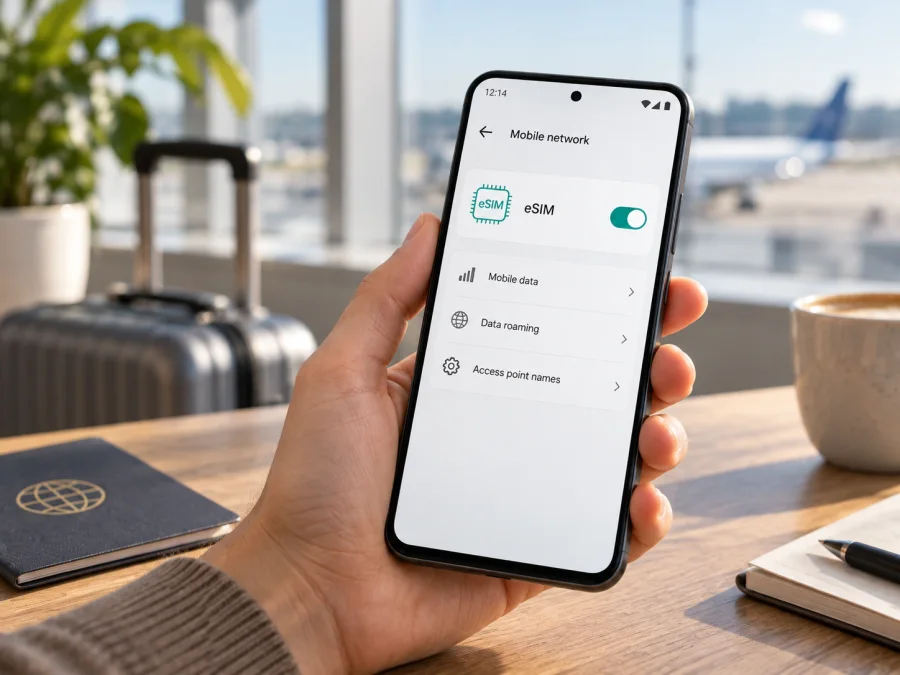
Tecno Camon 50 Ultra 5G eSIM compatibility and setup
The Tecno Camon 50 Ultra 5G is listed with eSIM on some current regional TECNO product pages. That does not establish that every handset sold under this name has an eSIM available. TECNO’s technical specification page lists 5G and other connectivity details but does not list eSIM, and TECNO notes that availability varies by country or region and depends on local carrier services. Treat support as market and software dependent: check the exact phone in your hand before choosing a travel plan.
The most useful first check is whether the phone has an EID and an eSIM setup option in its settings. If both are present, and the handset is not carrier locked, it is a strong indication that its installed eSIM hardware and software can accept a profile. If neither appears, do not assume that an update or an eSIM QR code will add the missing capability. Ask TECNO support or the seller to confirm the specific regional model and software build.
At a glance
| Item | What to know |
|---|---|
| Exact model covered | Tecno Camon 50 Ultra 5G |
| Operating system shown by TECNO | HiOS 16 |
| Mobile networks | 2G, 3G, 4G and 5G are listed in the technical specifications |
| eSIM indication | Listed on certain official regional product pages; absent from the general specification table |
| Main condition | Availability depends on market, device variant, firmware and local carrier support |
| Best pre-purchase check | Find an EID and an “Add eSIM” or equivalent option on the actual handset |
Does the Tecno Camon 50 Ultra 5G support eSIM?
The answer is yes for some market versions, but not guaranteed for every handset. TECNO regional product pages list eSIM for the CAMON 50 Ultra 5G, while its general technical specification page omits it from the connectivity list. TECNO also says feature availability varies by country or region and depends on local carrier services. Treat eSIM as a regional feature, not a promise attached to the model name alone.
The same marketing name can cover different internal configurations, regulatory approvals, SIM tray choices or firmware. “5G” does not prove eSIM: 5G is a network generation, while eSIM is a digital way to store a mobile subscription. A device may support one without the other.
Before buying, ask for confirmation for the exact regional model or SKU, specifically whether it has an EID and can download an eSIM profile. If you own the phone, check its EID and settings, then provide the full model number and HiOS version to TECNO or the seller if anything is unclear. An update may change a menu or correct a bug, but should not be assumed to add eSIM hardware to an unsupported unit.
Why regional and carrier versions can differ
Features can vary with local certification, hardware configuration, firmware and carrier requirements. Even if an eSIM chip is present, a carrier lock or market-specific software may restrict adding profiles. Keep these questions separate:
- Does the phone have an eSIM identity? Look for an EID.
- Does its software expose eSIM management? Look for Add eSIM or a similar option.
- Can the intended plan connect? Check the device is unlocked and the plan covers the destination and supported networks.
An EID is a strong device-level signal, a visible add-profile option is a practical setup signal, and successful network registration also depends on plan and network conditions.
Check compatibility on the phone before buying
Use this checklist while holding the handset, not only while reading a product page:
- [ ] Open Settings and search for “EID”, “SIM”, “eSIM” or “Mobile network”. HiOS labels can vary by region and software release.
- [ ] Open the phone information or SIM status page and look for an EID (Embedded Identity Document). It is a long identifier, often shown as a sequence of digits.
- [ ] In Settings → SIM cards & mobile networks or the closest equivalent, look for Add eSIM, Download SIM, Add mobile plan or Manage eSIMs.
- [ ] If available, open the add-profile flow far enough to see that it can scan a QR code or enter activation details; cancel before installing if you are only checking.
- [ ] Confirm the phone is not locked to a carrier that blocks other profiles. Ask the original carrier or seller if the status is unclear.
- [ ] Check the exact model number, country of sale, HiOS version and installed updates. Do not substitute information for another CAMON model or a different storage/RAM package.
- [ ] Confirm that the travel eSIM plan covers your destination and that its terms support your device and intended use.
The menu route can differ slightly between HiOS releases. Try the Settings search field first. You can also check Settings → About phone → Status or SIM status, but not every build shows an EID in the same place. If you find an EID but cannot find an add option, restart the phone, install available official system updates over Wi‑Fi and search again. Then ask TECNO support or the retailer to confirm whether eSIM provisioning is enabled for your specific unit.
If the phone displays no EID and no eSIM option, treat it as not verified for eSIM. Do not buy a plan on the assumption that the QR code will work. A QR code contains profile setup information; it does not turn a physical-SIM-only phone into an eSIM device. You can check your device compatibility before proceeding.
What to prepare before installation
Before leaving home, prepare a stable Wi‑Fi connection, the plan’s QR code or manual activation details, and your data-line choices. Read the destination coverage, data allowance, validity period, activation timing, supported networks and any fair-use terms. Plans may start at installation or at first connection; follow the plan’s own instructions.
Decide whether to keep your regular number available for calls or verification texts, and check its roaming charges. Keep activation credentials private. If a QR code is displayed on the same phone, use another screen or ask whether manual entry is supported. Do not delete a downloaded profile to troubleshoot unless the provider confirms it can be reinstalled; some QR codes are single-use.
Install and activate an eSIM
Keep the phone on Wi‑Fi and follow the instructions supplied with your plan. General references: Android eSIM installation instructions. The iOS eSIM installation instructions are for Apple devices, for example if you are helping a companion; the Tecno Camon 50 Ultra 5G uses Android-based HiOS.
- Open mobile network settings. Go to Settings → SIM cards & mobile networks or search Settings for “eSIM”. Choose Add or Download eSIM.
- Scan the QR code. If scanning is unavailable, enter the SM-DP+ address and activation code supplied with the plan. Do not share these credentials publicly.
- Review and download. Confirm that the displayed plan is the travel profile, then wait for installation to finish over Wi‑Fi.
- Label the line. Use a clear name such as “Travel” or the destination so you can identify it later.
- Choose when to enable it. Check when validity starts. Install in advance only if the plan terms allow it; some plans start on installation, others on first connection.
- Select the data line. In SIM settings, choose the travel eSIM for mobile data when appropriate. Keep your usual line for calls or texts if needed and if charges are understood.
- Set roaming as instructed. Many travel profiles require data roaming on that eSIM. This does not necessarily require roaming on your home SIM; check each line separately.
- Register after arrival. Turn off airplane mode, enable the profile and allow a few minutes to connect. Then test a web page with Wi‑Fi off.
Downloading a profile and starting service are not always the same event. A successful QR scan does not prove that the phone has registered on a network or that mobile data is assigned to the right line.
Use the Tecno Camon 50 Ultra 5G for data while travelling
For a single-country trip, keep your home SIM available for your usual number if needed, and set the travel eSIM as the data line. Disable data roaming on the home SIM if you want to avoid roaming data charges. Check the selected line in settings instead of relying only on the status bar.
For a multi-country route, confirm every destination and stopover is covered. A single-country profile may stop working after a border crossing even if the phone still shows signal. Regional plans can have specific partner networks; use automatic network selection unless the plan says to select a network manually.
At a transit stop, wait until mobile service is permitted, switch off airplane mode, enable the travel line and check the data SIM selection. Maps, ride-hailing and messaging apps use that data line. Download offline maps and travel documents before departure.
Travel eSIM plans commonly provide data rather than a regular phone number, voice calls or SMS. Internet calling and messaging apps may work over data; ordinary calls and texts continue to depend on your other line or a separately supported service. Check the plan terms.
Kaspersky eSIM Store is an app and website where you can choose, arrange and activate an eSIM with a mobile-data plan for an international trip. First confirm that your exact phone has an EID and eSIM settings, then compare the destination, data allowance and validity conditions shown for the plan. Network service depends on the plan’s supported local networks.
Troubleshooting: common eSIM problems
“Add eSIM” is missing
Search Settings for “eSIM” and “EID”, restart, and check for an official HiOS update. Confirm the exact model and sales region with TECNO or the seller. If there is no EID, stop before buying a plan. A menu can also be affected by firmware or carrier restrictions.
The QR code will not scan
Increase the brightness of the display showing the code, clean the camera lens and hold the phone steady. Check that the QR code is for a mobile plan and has not already been used. If the code is on the Tecno, show it on another device. Enter details manually only when the plan instructions provide them.
The profile installs but there is no signal
Check that the profile is enabled, airplane mode is off and you are in a covered destination. Select the travel eSIM for mobile data and enable its data roaming if required. Restart once and allow the network to register. Follow the plan’s network-selection instructions if automatic selection fails.
Signal appears but data does not work
Make sure mobile data is enabled for the travel profile and Wi‑Fi is off during the test. Check the plan’s remaining data and validity, plus any device data limit. If an APN is required, use only the values supplied with the plan.
The home line is using roaming data
Recheck the default data SIM and disable data roaming on your home line if it is not needed. Leave roaming on for the travel profile only if its instructions require it. Voice, text and data can be assigned to different lines.
The phone says the plan is already in use
Do not delete the profile immediately. Some activation codes work once, and removal may prevent reinstallation. Contact the plan provider through its support channel and share the activation reference privately, never in a public post.
Data stops after crossing a border
Check that the new country is included, the profile remains enabled and the correct data line is selected. Toggle airplane mode once and allow registration. If manual selection is required, choose only a network named in the plan instructions.
FAQ
If TECNO lists eSIM, why should I still check?
TECNO shows eSIM on regional pages, omits it from the general specification table and says availability depends on region and local carrier services. Check the exact handset.
Can an update make every version eSIM compatible?
Do not rely on that. Updates can affect menus or software behavior on supported versions, but they are not proof that a variant has the required hardware or carrier configuration. Confirm the model and software build with TECNO.
Can I install before departure?
Usually, if the plan allows it. Check whether validity begins at purchase, installation or first connection. Keep the QR code and activation details private.
Can I transfer the profile to another phone?
Do not assume so. Transfer and reinstall rules vary; some QR codes are single-use. Check the plan terms before removing the eSIM or changing devices.
Does a travel eSIM include voice and SMS?
Not necessarily. Many are data-only. Use internet calling or messaging over data where appropriate, and check your home carrier’s terms for calls and texts.
Final device check and trip eSIM
Before choosing a plan for a trip, check the exact Tecno Camon 50 Ultra 5G in person: confirm that Settings shows an EID and an option to add an eSIM, note the regional model and HiOS version, and verify that the phone is carrier unlocked. If the EID or menu is missing, pause and ask TECNO or the seller to confirm the exact variant instead of buying on a guess.
After compatibility is confirmed, choose an eSIM plan that covers your destination and fits the amount of data and length of your trip. Review when validity starts, whether data roaming is required, which local networks are supported and whether the plan is data-only. Install over Wi‑Fi, label the travel profile, and select it for mobile data when you arrive. A short check before purchase can prevent a failed activation and help the Tecno Camon 50 Ultra 5G stay ready for the parts of the journey when you need mobile data.


