Travel connectivity guide
Utrecht eSIM: Mobile Internet for Your Trip
Utrecht eSIM: Mobile Connection and Internet for Your City Trip
Utrecht is compact enough to explore on foot, yet a working mobile connection makes the details of a visit much easier: finding the right station exit, checking a tram or bus journey, locating a hotel entrance on a narrow street, or coordinating a meeting beside the canal. An eSIM can provide mobile data during a trip without swapping the physical SIM in your phone. It is useful to prepare the setup before departure, then use the connection for maps, messages, bookings and travel updates once you arrive.
Utrecht sits in the centre of the Netherlands and is a major rail junction. Visitors commonly arrive through Schiphol Airport and continue by train to Utrecht Centraal. From there, the old centre, the Jaarbeurs conference complex and local buses and trams are close at hand. Your data needs will depend less on the city’s size than on how you plan to use your phone: occasional route checks require less than frequent video calls, cloud uploads or hotspot use.
Before you travel: prepare the phone, not just the itinerary
A little preparation avoids troubleshooting while carrying luggage. Check whether your exact phone model and regional variant support eSIM and are unlocked before choosing a plan. Check whether your device is compatible.
Decide which line should handle data in the Netherlands. Many phones allow a travel eSIM and primary SIM together, but settings vary by model. Review your home carrier’s roaming terms and confirm which line handles calls, messages and data.
A practical pre-trip checklist:
- Confirm eSIM support for the exact device and regional variant, and check that the phone is unlocked.
- Review the selected plan’s data allowance, validity period, supported destination and activation conditions.
- Install the eSIM while connected to reliable Wi-Fi, following the instructions provided with the plan.
- Decide whether the eSIM should be selected for data immediately or only after reaching the Netherlands, according to the plan’s instructions.
Do not delete an installed profile while troubleshooting unless the instructions confirm it can be installed again. If the activation screen differs from the guide, check the device-specific steps before trying again.
Arriving in Utrecht from Schiphol
Schiphol’s train station is beneath the airport terminal area, and Utrecht has direct rail service to the airport. NS lists a journey between Schiphol Airport and Utrecht as taking around 33 minutes on a direct train under the listed timetable; actual departures and journey times can change with the date, works or disruptions. Check the live journey planner and station displays when you travel. At Utrecht Centraal, confirm whether your hotel or appointment is best reached from the city-centre side or the Jaarbeurs side before leaving the station.
Mobile data is useful for checking the platform, reading a hotel arrival message, opening a walking route and updating someone if your arrival changes. An offline map is a backup; live information still needs a connection.
If your onward journey is by local transport, check the route from the correct station entrance. Utrecht Centraal is a large transport hub, with train platforms connected to buses, trams, taxis and cycle facilities. The station area is also undergoing continuing development, so temporary walking routes and access points can change. Follow current wayfinding signs and avoid relying on a saved screenshot as your only route guide.
For an airport-to-hotel transfer, check the stop name and confirm the final walking segment after leaving the train. If meeting someone, agree on a station exit or nearby landmark rather than saying only “the station”.
Choose a data plan around the way you will use Utrecht
The right allowance depends on your habits, not a generic estimate for every visitor. Navigation, messaging and checking opening information use a different amount of data from video streaming, frequent photo backups or video calls. Consider how many days you will be in the city, whether you will travel elsewhere in the Netherlands, and whether your hotel or conference venue offers Wi-Fi you expect to use.
| Travel pattern | What may use data | A sensible planning question |
|---|---|---|
| Weekend city break | Maps, messages, attraction details, occasional bookings | Will you use offline maps and connect to Wi-Fi when available? |
| Conference or business visit | Email, messaging, calendars, document access, video meetings | Are video calls expected, and can large files wait for Wi-Fi? |
| Longer Netherlands trip | Navigation between cities, transport updates, photos and routine browsing | Does the plan’s validity cover the full itinerary, not only Utrecht? |
| Shared connection | A laptop or tablet connected through a phone hotspot | Does the plan permit hotspot use, and how much data will other devices consume? |
These are planning prompts, not fixed consumption figures. Automatic photo backup, system updates and high video quality can increase usage, so consider postponing large uploads and saving tickets for offline access. If you plan to use a hotspot, review the plan conditions first.
A travel eSIM is generally intended for mobile data. It does not automatically replace your usual phone number or include standard calls and SMS; those depend on your primary SIM and plan terms. Review possible roaming charges on your home line.
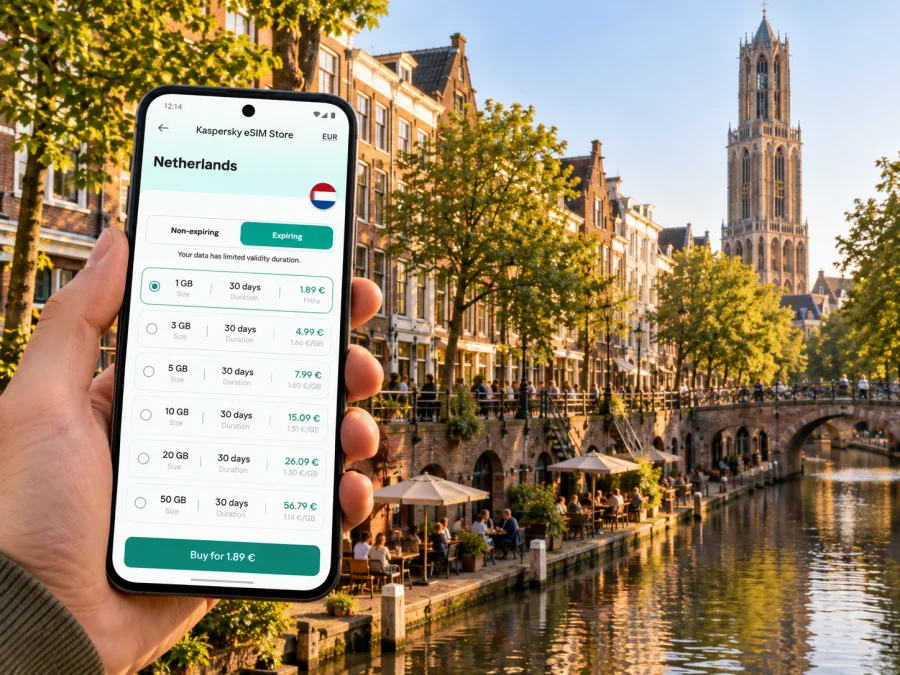
Utrecht is a city in the Netherlands, so select the Netherlands destination when preparing this trip. The underlying operator and network access depend on the specific plan; check its network and coverage details rather than assuming every plan uses the same Dutch network. Kaspersky eSIM Store is an app and website where you can choose, arrange and activate an eSIM with a suitable plan for mobile internet during an international trip. Review the destination, validity and data allowance against your itinerary. To choose a mobile data plan for a trip to the Netherlands, consider whether you need a modest amount for maps and messages or more headroom for work and media.
Getting around: the centre, stations and neighbourhoods
Utrecht’s historic centre is organised around the Dom Tower, the canal ring and Utrecht Centraal. The Oudegracht is distinctive for its lower quays and wharf cellars beside the water. These levels and narrow streets are part of the city’s character, but they can make a route less obvious than a simple straight line on a map. Check whether a destination is at street level or down by the canal, and allow time to find the correct entrance.
Walking works well for many central visits, while buses and trams connect the station and the wider city. Utrecht is also a cycling city: bicycles are a normal part of everyday movement, and the municipality describes cycling and public transport as important ways to get around. If you rent a bike, keep navigation checks brief and stop somewhere safe before looking at your phone. Follow local signs and park in a rack or designated bicycle facility rather than leaving a bike across a pavement.
Different parts of the city call for different route planning:
- Domplein and the old centre: Use a map to orient yourself around the Dom Tower and nearby lanes. The historic core is walkable, but pedestrian streets, canal crossings and one-way routes can make the return path differ from the outward walk.
- Oudegracht and Nieuwegracht: Confirm the side and level of the canal for a restaurant, hotel or meeting point. A pin on the map may sit close to the water while the entrance is above or below the quay.
- Lombok: This district is within walking distance of Utrecht Centraal and is known for Kanaalstraat and its varied shops and food businesses. Save the exact street or venue name, since “near the station” can still mean several minutes in a different direction.
- Jaarbeurs and the station area: Conference halls and event entrances can be on the Jaarbeurs side of the station. Check the venue’s arrival instructions and leave enough time to cross the station complex.
- Utrecht Science Park: This destination lies beyond the historic centre. Check the current public transport route or cycling directions before departure, and verify the final stop or building entrance rather than assuming the university area is a single point.
- Leidsche Rijn: For a visit to the newer western part of Utrecht, plan the train, bus or tram connection from your actual starting point. A route that begins at the central station may not be the most convenient if you are staying elsewhere.
Use a live map with local cues such as bridge names, canal names and stop signs. If the location marker jumps under a station roof, step into an open area before choosing a direction. Save the full accommodation address as well as its map pin.
Work, hotel and event-day scenarios
For a business trip, mobile data keeps calendars, messages and route changes available between the hotel, Utrecht Centraal and a meeting venue. Check the venue’s Wi-Fi arrangements before a call, and remember video meetings use more data than basic messaging.
For a canal-side stay or guesthouse, message the host while your train is underway. Ask for the best drop-off point and walking entrance; a map pin may not identify a courtyard gate or wharf-level room.
On a conference day, save the venue, hall, registration details and QR ticket before leaving. Jaarbeurs has multiple entrances, so use event directions with the map and check for updates. Keep essential files available offline between appointments.
For a short stopover, identify your return train and choose one compact walk in the centre. Schedules and disruptions can change, so leave a buffer for the airport journey.
Installing and activating an eSIM
If you have not installed the profile yet, use a stable Wi-Fi connection and follow the plan’s setup guidance. The exact labels differ between phone operating systems and versions. For step-by-step help, see the Android eSIM installation instructions or the iOS eSIM installation instructions.
A simple setup sequence is:
- Check that the phone is connected to Wi-Fi and that you have the installation details available.
- Open the device’s mobile or cellular settings and choose the option to add an eSIM or mobile plan.
- Follow the on-screen method provided for your plan, such as scanning a QR code or entering details manually.
- Give the line a clear label, such as “Netherlands data”, so it is easy to identify beside your home SIM.
- Select which line should handle mobile data according to the plan instructions and your home carrier’s roaming terms.
- Once you arrive, enable the travel line as directed. If the connection does not appear, check the selected data line and the plan’s activation steps before changing other settings.
Installation and activation are not always the same event. A profile may be installed before departure while its validity begins according to the plan’s stated activation rule. Read the exact terms for the selected plan rather than assuming that scanning the code starts or pauses its validity. Keep the original SIM settings available, and avoid removing either line until you understand how calls and data are routed.
If mobile data does not connect
Start with the least disruptive checks. Confirm that the eSIM profile appears in settings, that the travel line is enabled, and that the phone has selected it for mobile data. Review the plan’s instructions for any roaming setting or network selection step. Then move to an open area, wait briefly and retry a basic webpage or map. A weak indoor signal, a station’s underground spaces or a temporary network issue can affect the experience.
If service still does not work, check the plan’s destination and validity details, restart the phone only if the instructions recommend it, and contact the relevant support channel with the device model and a clear description of what you see. Do not share a QR code or full activation details publicly. If you need immediate directions, use station signs, ask staff or connect to a trusted Wi-Fi network while resolving the mobile data issue.
Keep these points in mind:
- Coverage and performance depend on the underlying network, location, device and local conditions.
- A data plan may have restrictions on tethering, speed, validity or supported networks; read its terms.
- A supported device can still need an unlocked status and the correct settings.
- Network service inside a building or station can differ from service outdoors.
- Temporary maintenance or travel disruption can change the best route even when your phone is online.
Frequently asked questions
Is Utrecht easy to explore without mobile data?
You can walk through central areas with an offline map, but live route changes, messages and bookings may require data. Save key details as a backup.
Is Schiphol Airport directly connected to Utrecht by train?
Yes. NS lists a direct Schiphol Airport–Utrecht route. The published journey time is around 33 minutes for the service shown, but check the current timetable and disruption notices for your date.
Does an eSIM give me a Dutch phone number?
Not necessarily. Travel eSIM plans are commonly for data, and a phone number, standard calls or SMS are not automatic features. Check the selected plan’s terms and keep your primary SIM if you need its number.
Can I use an eSIM and my usual SIM at the same time?
Many eSIM phones support more than one line, but configuration depends on the model and regional version. Check whether your device is compatible and select the correct data line.
How much data should I choose for Utrecht?
Estimate from your own use of maps, email, video, photo backup and hotspot. Compare it with the plan allowance and validity; manage automatic uploads if needed.
What should I do if the map places me on the wrong side of a canal?
Check the street name, bridge and canal side, then compare the pin with the venue’s entrance instructions. Utrecht’s wharf-level spaces can sit below street level, so a nearby pin may not show the right doorway or level.
Can I rely on mobile data inside Utrecht Centraal?
Indoor conditions vary. Use station signs and departure boards too, and save train details in case you need them offline.
Get ready for your Utrecht trip
Before departure, confirm device compatibility, choose a plan whose data allowance and validity fit your itinerary, and install the eSIM by following its instructions. In Utrecht, use mobile data for route planning, messages and travel updates while keeping addresses, tickets and key details available offline as a backup. Kaspersky eSIM Store helps you choose, arrange and activate an eSIM for a suitable plan for mobile internet on an international trip. Explore eSIM plan options for the Netherlands and prepare the connection you want to use in Utrecht.


