Travel connectivity guide
Valletta eSIM: Mobile Internet for Your Trip
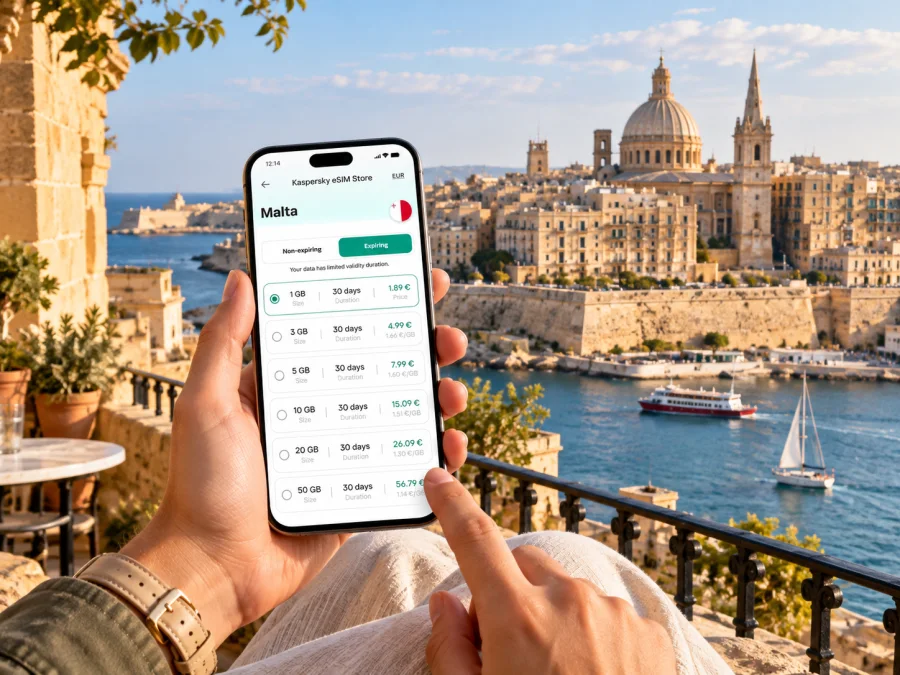
Valletta eSIM: Mobile Connection and Internet for Your City Trip
Valletta is compact enough to explore on foot, yet a mobile connection makes the city easier to navigate from the first moments of a visit. Maps can guide you to a hotel tucked into a side street, help check the next leg of a journey, or make it easier to coordinate a meeting. An eSIM can be a practical way to prepare mobile internet for Malta while keeping your physical SIM in your phone.
The capital sits on a narrow peninsula between two natural harbours. Its steep streets, stairways and waterfront approaches create a different rhythm from a large grid-planned city: a short route on the map may involve steps or a change in elevation. Keep your destination available on your phone, and allow time to check signs and current transport information as plans change.
Why mobile internet is useful in Valletta
Visitors often move between the City Gate and central streets, the bus terminus, Upper and Lower Barrakka Gardens, the waterfront and ferry connections across the harbour. A phone helps connect these points to practical details: find an entrance, view a booking, message your accommodation, or share a location when meeting someone in a busy square.
Valletta also works as a base for day trips around Malta. Mobile data can help organise separate legs, but save essential details and check current transport information; reception is not guaranteed in every building.
A connection is especially useful on arrival, when finding a hotel entrance, locating a ferry landing, meeting someone at a precise point, or checking a workday change. At the City Gate, for example, open your route before walking uphill into the centre with luggage.
Getting from your arrival point to Valletta
Malta International Airport is outside the capital. The best onward option depends on your arrival time, luggage, accommodation address and current transport arrangements. Check the route to your exact destination instead of assuming the city centre is the final stop. Some places to stay are near the main gate; others involve a different street, waterfront approach or staircase.
For public transport, check current routes and stop information; services can change, and the last walk may be sloping. For a taxi or transfer, keep the full address and a map pin ready, especially if the entrance is on a small lane.
A simple arrival sequence keeps the first steps manageable:
- Before landing, save your hotel or apartment address, booking details and host contact information.
- Once connected, check the route from the airport to the exact address and compare available options.
- Confirm where the journey ends and whether the last section involves stairs, an incline or a walk with luggage.
- Send an arrival update if your timing changes, then follow the route one step at a time.
With luggage, a gentler route may be worth a small detour. For a late arrival, confirm the entrance and access instructions; a map pin may not show a gate or courtyard.
Finding your way around the peninsula
Republic Street, the main gate and the grid of side streets help orient you, but short blocks, steps and changing viewpoints make a phone map useful. Check the street name at turns. Walking suits the historic centre; wear comfortable shoes and allow for hills. The return from the waterfront may take more effort. Verify the location and current schedule of any lift, ferry or bus you plan to use.
Treat a route app as a guide: check for stairs if you have luggage or limited mobility. If your battery is low, screenshot the route and note the destination street.
| Area or point | Typical visitor need | Useful phone task |
|---|---|---|
| City Gate and central streets | First orientation, check-in, sightseeing | Open a saved address and check the walk |
| Republic Street and nearby lanes | Shops, cafés, cultural stops, appointments | Pin a meeting point and share an arrival time |
| Upper Barrakka Gardens | Harbour views and a pause between walks | Check the next stop and route from the centre |
| Lower Barrakka and waterfront approaches | Harbour-side walk and connections | Check the return route uphill or to a ferry point |
| Valletta bus terminus | Journeys to other parts of Malta | Confirm the right stop, direction and departure |
| Ferry landing areas | Cross-harbour journeys | Find the boarding point and onward walk |
This is a planning aid, not a live transport guide. Access points, departure arrangements and service hours can vary. Check current information locally, particularly for an early or late journey or a tight connection.
Choosing where to stay
The exact location matters more than a listing’s use of the word “central.” Check the street, the practical entrance and the walk from your arrival point. A stay near the bus terminus may suit travellers planning island trips; a quieter lane may be preferable for a slower visit to the old city. Accommodation near the edge of the peninsula can mean a different approach to the centre or waterfront.
For a work trip, consider the walk between your accommodation and meeting location; a short route can include steps. Save the address, organiser’s number, access instructions and essential documents offline.
For a group, save the accommodation and meeting point separately. Share an exact street or entrance rather than saying only “near the gardens.”
Select a data plan for your itinerary
The right data allowance depends on how you use your phone. Someone who mainly checks maps and sends messages may need less than a traveller who uploads video, joins work calls or streams media. Consider the full itinerary: a Valletta stay may include day trips across Malta, so estimate use for the entire trip rather than only time in the capital.
Compare the displayed data allowance, validity period, destination coverage and price. Check when validity begins—purchase, installation or first connection—according to the terms for that plan. If you expect to navigate often, download maps for offline use where possible and reserve mobile data for live updates, messages and searches.
Kaspersky eSIM Store is an app and website that helps you choose, arrange and activate an eSIM with a suitable plan for mobile internet on an international trip. You can review eSIM plan options for Malta and compare the conditions shown for your travel dates. Available options and terms can change, so use the details displayed for the plan you select.
Use these as rough planning categories, not fixed data guarantees:
- Light use: messages, brief map checks and occasional searches; download maps over Wi-Fi.
- Regular use: navigation, bookings and frequent messaging; allow for route changes.
- Higher use: remote work, hotspot use, frequent photo sharing or streaming; check the allowance carefully.
Video and automatic backups can use far more data than maps or messages. Review data settings and monitor usage during the trip.
Prepare and activate your eSIM
Set up the eSIM on a stable internet connection with a few uninterrupted minutes. Keep the plan’s installation details available, and do not delete an installed eSIM unless you understand the reinstallation rules. Installation and activation can be separate steps: follow the plan instructions and check when its validity begins.
Before choosing a plan, check whether your device supports eSIM. Make sure the phone is not restricted by a carrier lock that would prevent another eSIM from working. Menus vary by model and software version.
A general preparation sequence:
- On reliable Wi-Fi, open the selected plan’s installation details and add the eSIM using the method for your device.
- Label the line “Malta travel” or similar, then check which line is selected for mobile data.
- Follow the plan’s instructions on data roaming and when to activate. Keep your home line set as intended for calls and texts, noting any roaming charges.
- Confirm the travel eSIM is active and selected for data, then test a basic page or message.
For device-specific steps, follow the Android eSIM installation instructions or the iOS eSIM installation instructions. Screens differ across devices and operating system versions. If a step does not match your phone, pause and check the current instructions before changing or removing a profile.
A data eSIM does not automatically include a local number, calls or SMS unless the plan says otherwise. Keep another way to receive important verification codes if they go to your usual number.
Transport, crossings and day trips
Valletta’s bus terminus is a key starting point for journeys around Malta. Verify the destination, stop and direction with current transport information. Avoid relying on an old timetable screenshot when a connection is tight. If you have a meeting, ferry or reservation after the ride, leave a buffer for the walk from the stop and possible changes to the journey.
Ferries connect Valletta with nearby areas across the water and can be a useful alternative to travelling around the harbour by road. Check current landing points and service times before setting out. The closest dock to your destination may differ from the place where you want to continue on foot. A map is especially helpful when a journey combines walking, a crossing and another bus.
For Mdina or another destination, check the full route, final walk and return option. For Gozo, verify how to reach the ferry terminal and onward connections. Save key addresses in case timings change.
Before a day trip, save the departure point and return route, check current service information, and bring a charger if you rely on your phone for tickets. Allow extra time for the walk between central Valletta and the waterfront.
Short stopover: keep the plan manageable
With only a few hours, choose a small area instead of trying to cover the capital and several places beyond it. Check the route to your first stop, note the return journey and leave a buffer for the airport or onward connection. Have the address, transport plan and booking details ready before arrival.
One approach is to walk from the main gate into the centre, choose a single visit or viewpoint, pause for a meal and return using a route checked in advance. Confirm current opening and access details for any attraction.
Use mobile data for focused checks: Is this the right entrance? Has the meeting point changed? Which stop serves the return? Keep the booking and route saved offline.
Business travel and remote work
Ask your hotel or meeting host about connectivity and access details, and keep essential files available offline. Mobile data can help with messages, authentication prompts, maps and schedule changes when Wi-Fi is unavailable.
For a video call or hotspot session, check that the plan allowance is suitable and identify a backup connection. Join from a settled place rather than while walking.
If you use a company-managed device, follow your organisation’s rules for installing profiles and changing data settings. Keep work and personal lines clearly labelled so you can select the intended data line and still receive calls or texts on your usual number.
If the eSIM does not connect
If a newly installed eSIM does not connect, check the basics before repeating installation:
- Confirm the eSIM profile is enabled and selected for mobile data.
- Check the plan’s activation, validity and remaining data.
- Review its instructions for roaming or network-selection settings; restart only if recommended.
- If it still does not connect, contact support with your account details, device model and a description of the issue.
Follow the current plan guidance and avoid deleting the eSIM as a first response; some profiles cannot be reinstalled.
Frequently asked questions
Can I use an eSIM only in Valletta?
A travel eSIM follows the destination or region stated in its coverage details. Check them if your itinerary goes beyond Valletta.
Do I need mobile data all the time?
No. Download maps, confirmations and addresses over Wi-Fi; use mobile data for live updates and searches.
Will the eSIM replace my usual phone number?
A data-only eSIM does not automatically include calls or SMS. Check the plan details and keep your home line configured for important calls or verification messages.
Should I install the eSIM before travelling?
You can prepare it before departure on Wi-Fi and activate it as instructed. Check when validity begins and whether reinstallation is possible.
What should I check before buying?
Confirm device compatibility, any carrier lock, destination coverage, data allowance, validity period, price and activation terms. Consider how much navigation, messaging, work or media use your trip involves. The details shown for the selected plan apply to that purchase.
A simple Valletta connectivity plan
Save your accommodation address, first route and key documents before travelling. Choose data for your Malta itinerary; in Valletta, use it for navigation, messages and transport updates.
When you are ready, choose an eSIM plan for your Malta trip through Kaspersky eSIM Store. Review its allowance, validity and activation conditions before confirming.


