Travel connectivity guide
Vivo V29 Lite 256GB eSIM: Compatibility & Setup
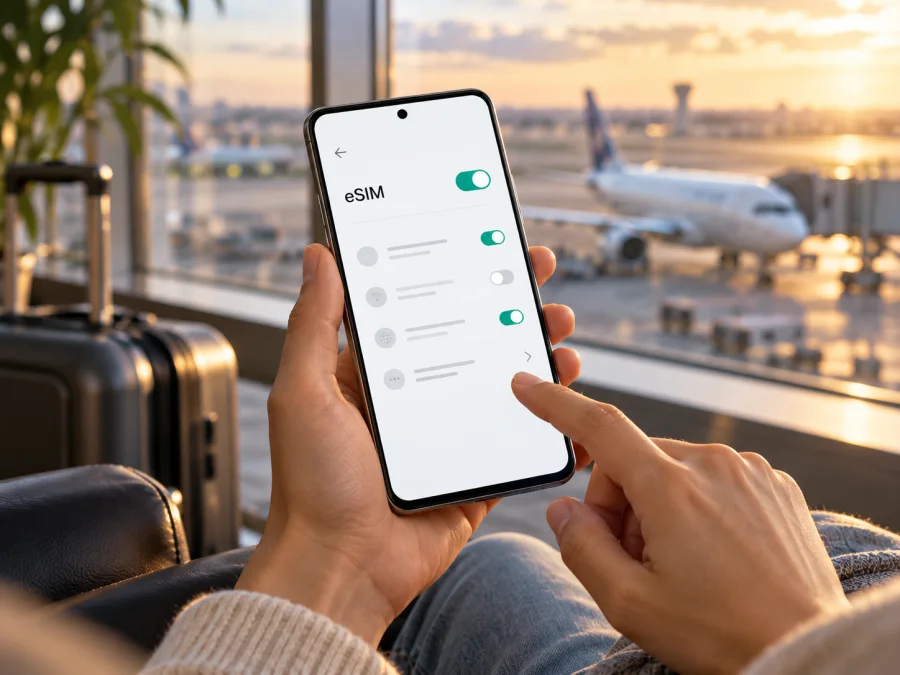
Vivo V29 Lite 256GB and eSIM: compatibility, setup, and travel use
If you are checking whether the Vivo V29 Lite 256GB can use an eSIM, the practical answer depends on the regional version of the phone. vivo’s official European material confirms eSIM for the V29 Lite 5G family, and vivo Serbia’s official product page presents a 12 GB + 256 GB configuration alongside eSIM. However, the name on a shop listing alone does not identify the market, model code, firmware, or carrier status of your handset. Check the phone itself before you buy a travel plan.
“256GB” describes storage, not eSIM hardware. Variants with the same retail name can differ by market. Verify your unit’s settings and unlock status before installing a profile.
Does Vivo V29 Lite 256GB support eSIM?
The official evidence supports a qualified yes: vivo advertises eSIM on its European V29 Lite 5G product material, and vivo’s Serbian regional product page lists eSIM in the same product presentation that includes 12 GB + 256 GB storage. The product family therefore has eSIM-capable regional configurations. This does not establish that every Vivo V29 Lite 256GB sold worldwide has eSIM, nor does storage capacity by itself prove that a specific handset contains an enabled eSIM profile system.
Treat your device as compatible only when its own settings expose an EID or an option to add/download an eSIM, and when the seller or vivo support confirms that the exact model code and market version support it. If you cannot find either indicator, do not assume an update or a travel plan will add eSIM hardware that is absent from the phone.
| Item | What can be established | What you should verify on your phone |
|---|---|---|
| Device | Vivo V29 Lite 256GB | Model number and sales region |
| Official family | vivo V29 Lite 5G | Whether your unit is that regional version |
| eSIM status | Confirmed for European family and shown on vivo Serbia page | EID or “Add eSIM”; confirm model code |
| Storage | 256 GB shown by vivo Serbia | Storage does not determine SIM capability |
| Physical SIM | Regional specs can differ | Check tray and SIM manager |
| Network service | Depends on plan and local network | Destination, unlock, and plan conditions |
Regional listings describe their own markets. vivo’s Spanish specification page, for example, lists a different memory configuration while marking eSIM as supported. Do not combine regional specification rows into a universal spec. For imported or carrier-supplied phones, check the model code and on-device menu.
Why regional and carrier versions matter
The same family name can cover market-specific hardware, SIM trays, radio bands, and software. A retailer may shorten the name to “Vivo V29 Lite 256GB,” omitting “5G,” a regional suffix, or model code. That identifies storage but may not identify the eSIM configuration.
Regional software can use different menu wording or enable features differently. An operator-branded handset may also be network-locked. An unlocked phone is not automatically eSIM-capable, and eSIM hardware does not guarantee that every carrier or plan will work: verify the exact variant, unlock status, and destination plan separately.
Ask the seller for the full model number and original sales region, and whether eSIM is available in the installed firmware. If imported, confirm the country version with vivo support. Keep IMEI and EID private; share identifiers only through official support when necessary. The 256GB label describes storage, not SIM hardware, and advertised RAM expansion does not prove eSIM support.
How to check eSIM support on your own Vivo V29 Lite 256GB
Menu names vary by Funtouch OS release and region, so look for the function rather than one exact phrase.
- Check the model number. Open Settings → About phone (the label may be About device) and note the model number, software version, and region if shown. Keep the information private.
- Look for an EID. In Settings → About phone → Status or the SIM/mobile network information, look for EID. An EID is an identifier associated with an eSIM-capable device. Its presence is a strong indicator, but still check that the feature is enabled and the phone is unlocked.
- Open the SIM settings. Go to Settings → Mobile network, SIM card & mobile network, or a similarly named section. Look for Add eSIM, Add mobile plan, Download SIM, or Manage eSIM. Exact wording depends on software and region.
- Inspect the available SIM actions. A physical SIM tray or two physical SIM slots do not prove eSIM support. Conversely, the eSIM option may appear only after you open the mobile network settings rather than the general About screen.
- Confirm the variant. Give the model number and country of purchase to the retailer or vivo support and ask whether that exact variant supports eSIM in its current software.
- Check the network lock. Ask the original carrier or seller to confirm the device is unlocked for use with another provider. A phone can show eSIM settings and still reject a profile because of a carrier restriction.
Before relying on a menu label, make sure it belongs to the device itself and not an inserted adapter or accessory. A software update can change the wording or expose a previously hidden menu, but it cannot add missing eSIM hardware. The most reliable check combines the EID or add-eSIM control with the full model code and the country where the phone was sold. If the seller cannot confirm those details, treat the result as uncertain and delay purchase until vivo or the seller verifies the variant.
If an EID or eSIM option appears, continue with a plan-specific compatibility check. If neither appears, restart and check again after any official regional update. Do not install unofficial firmware to reveal the menu. If it is still absent, treat eSIM as unverified and contact vivo or the seller with the model code. You can also check your device compatibility before choosing a travel plan. A service checker is an additional screen: confirm that its result covers your exact regional variant.
What to check before choosing a travel eSIM
Before purchase, confirm:
- The eSIM menu or EID is present. Do not rely only on the retailer title or a generic list of compatible phones.
- The phone is unlocked. Check with the carrier that supplied it, especially if it was purchased on a contract or brought from another country.
- Your destination is covered by the selected plan. If your itinerary crosses borders, check every country or region listed in the plan conditions. A regional plan and a single-country plan are not interchangeable by assumption.
- The data allowance and validity fit your trip. Estimate maps, messaging, browsing, video, and tethering separately. Check whether the selected option expires after a fixed time or remains available until used, where such choices are offered.
- You can connect to Wi-Fi during installation. You may need an internet connection to download the eSIM profile before departure.
- You understand the service type. Travel eSIM plans in Kaspersky eSIM Store are for mobile data. Unless a particular plan says otherwise, do not expect a regular phone number, cellular voice calls, or SMS from the travel eSIM. You can keep your usual SIM active for calls or verification, subject to your home operator’s charges and settings.
- You know when activation and data use begin. Installation of a profile and the start of a plan’s validity or data use are different events. Read the selected plan’s terms and follow its activation instructions.
Kaspersky eSIM Store is an app and website where you can choose, arrange, and activate an eSIM with a mobile-data plan for an international trip. The available plan terms, destination, data allowance, and validity are shown for the option you select. The selected service is supplied through local telecommunications providers; availability and performance depend on the plan and networks in the destination.
Installing and activating an eSIM
Install over stable Wi-Fi. Display the QR code on another device or print it; the phone cannot scan its own screen. Avoid deleting the profile during troubleshooting because an activation code may be single-use.
Add the profile on the Vivo phone
Menu names may differ from the exact wording below. Use the phone’s eSIM settings and follow the plan’s installation instructions.
- Prepare the phone. Connect to reliable Wi-Fi, charge the battery, and install official software updates available for your region. Confirm again that the eSIM option is present and the phone is unlocked.
- Open mobile network settings. In Settings, select Mobile network or the closest equivalent, then choose Add eSIM, Add mobile plan, or Download SIM.
- Choose how to install. If the phone offers QR scanning, scan the QR code provided after you select a plan. If the service provides an in-app install flow or manual activation details, use only the method shown in your account and on-screen instructions.
- Wait for the profile to download. Keep the phone online and do not close the setup screen while it is processing. A profile may take a few minutes to appear.
- Name the line. Give it a clear label such as Travel data so it is easy to distinguish from your primary SIM.
- Keep your usual line for calls if needed. If the phone allows two lines to remain enabled, choose your regular SIM for calls and messages and the travel eSIM for mobile data. The precise dual-SIM combinations depend on the regional phone version.
- Set the data line. In SIM or mobile network settings, select the travel eSIM as the line for mobile data when you want to use the travel plan. Turn off automatic data switching if you do not want the phone to fall back to your primary SIM.
- Wait to enable the plan if appropriate. You can install before departure, then enable the line or data roaming when the plan instructions say to start using it. Check the plan’s validity and activation rules first.
The Android eSIM installation guide describes the general QR flow but notes that menus vary and its illustrated steps are specific to Samsung. Use it alongside the Vivo menu. The iOS guide is for iPhone users, not Vivo.
Activate mobile data after arrival
Once you reach the destination, switch on the travel eSIM line if it is not already active. Select it as the preferred mobile-data SIM. Enable data roaming for that eSIM if the plan instructions require it; this setting can be needed for a travel profile to register on a partner network. Data roaming on the travel profile is distinct from allowing your home SIM to roam, so check the selected line before enabling it. Keep data roaming disabled on your primary SIM if you want to avoid unintended charges from your home carrier.
If the phone shows a network name but no data connection, check the plan’s APN instructions. Some profiles configure the access point automatically; others require a value supplied in the account or installation instructions. Enter only the APN value provided for your plan, then save and select it. Do not copy APN settings from an unrelated carrier or another destination.
The profile may take several minutes to register. If it does not connect, toggle airplane mode once and check again. Use manual network selection only if the plan instructions allow it. Do not repeatedly delete and reinstall a profile that may use a one-time code.
Using the eSIM during a trip
A travel data eSIM can get you online after landing without replacing your home SIM. Use it for maps, transport, email, browsing, and internet messaging. App calls may work over data, but the plan is not a normal phone line unless its terms expressly include voice or SMS.
Estimate data for navigation, photos, streaming, and hotspot use. On a multi-country trip, confirm every destination is listed. If you keep the home SIM enabled for calls or bank messages, check its roaming rates and choose the Vivo’s data line carefully. Install while you have reliable Wi-Fi, label each line, and enable the travel data line when ready.
Monitor usage in the plan account; the phone’s data counter may differ. At borders, confirm the destination is included and allow time for network registration before troubleshooting.
Common problems and checks
| What you see | What to check |
|---|---|
| No “Add eSIM” option | Verify the exact model code and region; check for an EID; install official updates; confirm the device variant with vivo or the seller. Do not assume the 256GB label means eSIM is enabled. |
| QR code will not scan | Increase screen brightness on the device displaying the code, clean the camera lens, use a second screen, and confirm the code belongs to the selected plan. If a manual install option is offered, follow its instructions. |
| Profile download fails | Confirm stable Wi-Fi, correct date and time, and that the code has not already been used. Check for a carrier lock or device management restriction. |
| eSIM is installed but shows no service | Confirm you are in a supported destination, the line is enabled, airplane mode is off, and the phone is unlocked. Restart once and allow a few minutes to register. |
| Signal bars appear but the internet does not work | Select the eSIM for mobile data, enable its data roaming if required, check the plan’s APN, and confirm the plan is active and covers the country. |
| Data is being used on the wrong SIM | Set the travel eSIM as the default data line and disable automatic data switching. Check that data roaming is off for the home SIM if you do not intend to use it. |
| Connection stops after crossing a border | Check the destination list and plan validity, then allow the phone to register on a supported network. Manual network selection may help if the plan’s instructions allow it. |
| You cannot use the same profile on another phone | Many eSIM activation codes are one-time and profiles may be tied to the first device. Check the plan terms and ask support before removing the original profile. |
If you contact support, provide the model code, software version, destination, and error description; do not post your EID, QR code, or activation details publicly. If eSIM settings are absent, verify the variant with vivo or the retailer. For a failed profile, contact Kaspersky eSIM Store support with your order details.
Frequently asked questions
Is every Vivo V29 Lite 256GB eSIM compatible?
No universal claim is safe from the product name alone. vivo confirms eSIM for European V29 Lite 5G material and shows a 256GB configuration with eSIM on its Serbian regional page. Confirm that your own model code, market version, firmware, and carrier status match an eSIM-capable variant.
Does 256GB of storage mean the phone has eSIM?
No. Storage describes capacity for apps and files. It does not identify the SIM hardware, firmware features, or regional configuration.
Can I use a travel eSIM and my usual SIM together?
Possibly, if your regional Vivo version supports the required dual-SIM arrangement. You can often keep the home line available for calls while routing mobile data through the travel eSIM, but available combinations vary. Confirm in SIM settings and check your home carrier’s roaming charges.
Will the travel eSIM give me a phone number?
A data-only plan provides internet, not a regular number, voice minutes, or SMS unless its terms say otherwise. Messaging and app calls can use data.
Should I switch on data roaming?
For some travel eSIMs, roaming must be enabled on the travel line for the profile to connect. Follow the selected plan’s instructions and verify that the travel eSIM—not your home line—is selected. Your home operator may charge for roaming on its line.
Can I install the eSIM before travelling?
Usually you can download a profile before departure when the phone has internet access, but installation, line activation, plan validity, and the start of data use can be separate events. Read the plan’s instructions so you know when to enable it and when its validity begins.
What if an EID is shown but the profile will not install?
Check Wi-Fi, the activation code, the phone’s unlock status, software updates, and any instructions for your plan. If the code may already have been used, do not delete the profile or keep retrying; ask the seller or support team to check the activation status.
Can I transfer an installed eSIM to another phone?
Do not assume so. Some travel profiles cannot be moved after activation or can only be installed once. Review the plan terms and request help before resetting the phone or removing the profile.
Final check before your trip
For the Vivo V29 Lite 256GB, compatibility is conditional: vivo confirms eSIM for European V29 Lite 5G configurations and shows it alongside a Serbian 256GB version, but the retail name alone does not verify every regional handset. Check EID or the add-eSIM option, model region, unlock status, and destination coverage.
Once those checks are complete, choose a travel data plan by destination, allowance, and validity. Kaspersky eSIM Store is the app and website for choosing, arranging, and activating an eSIM with a mobile-data plan for an international trip. Browse current travel eSIM options and review the terms for your route before purchase. Install over Wi-Fi, select the correct data line, and enable roaming only as required for that eSIM. A few checks before departure can make it much easier to get online when you arrive.


