Travel connectivity guide
Vivo V29 Lite 5G 128GB eSIM Compatibility
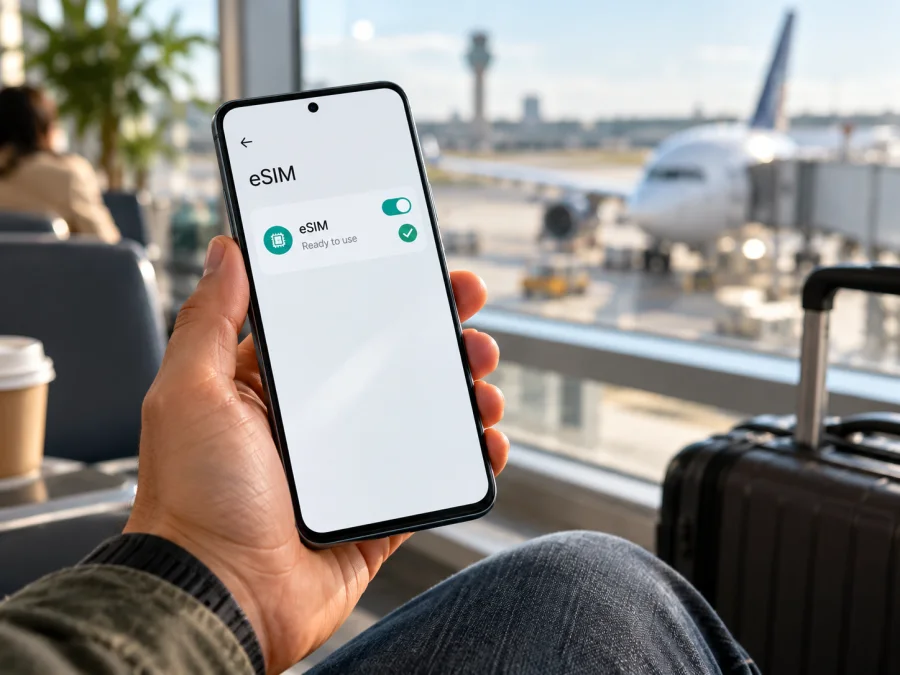
Vivo V29 Lite 5G 128GB eSIM: compatibility and setup
Short answer: Vivo V29 Lite 5G 128GB supports eSIM when it is the European-market version documented by vivo Spain. The manufacturer’s Spain specification sheet lists 128 GB of storage and marks eSIM as supported; vivo Europe also announced eSIM capability for the V29 Lite 5G. This is useful evidence for that regional configuration, but it should not be generalized to every phone sold under a similar name. Confirm the individual handset in Settings and with its seller or carrier before choosing a travel plan.
The storage label “128GB” does not identify the sales region, model code, firmware, or carrier status. In particular, it does not by itself prove that an imported or operator-customized V29 Lite 5G has the same eSIM hardware and software. The checks below help establish what your own phone can do before you rely on it abroad.
Vivo V29 Lite 5G 128GB eSIM compatibility at a glance
| Item | What can be confirmed |
|---|---|
| Device named in this guide | Vivo V29 Lite 5G 128GB |
| eSIM support | Confirmed on the European-market V29 Lite 5G; the official Spain page lists the 128 GB configuration and eSIM as supported |
| Physical SIM information | The Spain specification page lists two Nano-SIM slots and dual SIM dual standby; eSIM availability is also listed separately |
| Regional scope | Do not assume every country or carrier version has the same eSIM capability |
| Best check on your own handset | Look for an EID and an “Add eSIM” option, then confirm the model code and regional specification with the seller or carrier |
| Travel use | A compatible, unlocked phone can use a travel data eSIM where the selected plan applies |
Vivo’s European announcement describes eSIM capability as part of the V29 Lite launch, and the manufacturer’s Spain specification lists eSIM, 128 GB storage, Android-based Funtouch OS, and two Nano-SIM slots. These are separate details: having two physical SIM positions does not rule out eSIM, and seeing a SIM tray does not prove that a particular imported unit includes eSIM support. Product names may be reused across markets while specifications or software menus differ.
What the 128GB name does and does not tell you
“128GB” describes the storage capacity in the requested product name. It is not a regional code. A shop listing may omit the full model number, while an operator may sell a customized device or apply a network lock. Availability can therefore depend on the exact hardware variant, country of sale, installed software, and carrier restrictions. The available official information confirms the European configuration, but does not establish that every regional or operator-market version with “128GB” in its listing is eSIM-capable.
If you bought the phone in Europe, compare its model number with local documentation. For an import, ask the seller to confirm eSIM support for that model code and whether it is unlocked; the product name alone cannot answer either question.
How to verify your specific phone
Run these checks before purchasing a travel eSIM. Settings names can differ slightly by Funtouch OS version, country, and carrier software, so search Settings for “eSIM” or “SIM” if the labels below do not match.
- Find the model number. Open Settings → About phone and note the model number, software version, and region information shown there. Keep the box label or purchase listing for comparison.
- Check for an EID. Open Settings → About phone → Status or search Settings for EID. If an EID is shown, that is a strong sign that the phone has eSIM hardware. An IMEI by itself is not the same as an EID.
- Look for eSIM controls. Open Settings → Mobile network or SIM card & mobile network. Check for Add eSIM, Add mobile plan, or a way to manage an eSIM profile. The wording may vary.
- Confirm with the seller or carrier. Give them the full model number and ask whether eSIM is enabled for that handset in the market where it was sold. Ask separately whether the phone is network-unlocked.
- Check the intended plan. A plan must cover your destination and be compatible with the handset. Confirm data allowance, validity, supported network access, and when the validity period or data use begins.
A visible EID and an Add eSIM control are practical checks, but no single label should replace confirmation when the phone has been imported, refurbished, or provisioned by a carrier. If neither appears, update the phone’s software and check again; then contact vivo support or the seller with the model number. Do not buy a plan on the assumption that a software update will add eSIM to hardware that does not support it.
Compatibility checklist
Before checkout, make sure each statement below is true:
- [ ] Your exact Vivo V29 Lite 5G 128GB unit shows an EID or an eSIM installation option.
- [ ] The model number and country-of-sale documentation identify an eSIM-capable version.
- [ ] The phone is not restricted to one carrier, or the carrier confirms that another eSIM can be used.
- [ ] The handset has a current, stable software version and can connect to Wi-Fi during setup.
- [ ] The travel plan includes the country or region on your itinerary and meets your data needs.
- [ ] You understand whether the plan is data-only, how long it remains valid, and what event starts usage.
You can also check your device before proceeding. This compatibility link is a useful starting point, while the phone’s own EID and the exact regional model remain important checks.
Before installing a travel eSIM
An eSIM is a digital mobile subscription profile stored on compatible hardware. Installing the profile and using it for data are related but distinct steps. You can often download the profile before departure while leaving it switched off until you reach the destination. Follow the terms shown for the specific plan: activation timing and validity rules are plan-specific, so do not assume that every package starts in the same way.
Kaspersky eSIM Store is an app and website where you can choose, arrange, and activate an eSIM with a suitable mobile-data plan for an international trip. Plan coverage and service depend on the selected offer and the local networks it uses. The eSIM plans described for travel are intended for mobile data; they do not normally provide a separate phone number, standard voice calls, or SMS unless a particular plan explicitly says otherwise. Your existing SIM can remain available for calls and texts if your device and settings allow it.
When you are ready to compare destinations, data allowances, and validity periods, browse the current eSIM plans. This is the general English-language store homepage, not a country-specific plan; select your destination there and review the offer details before checkout.
How to install and activate an eSIM on Vivo V29 Lite 5G 128GB
Menu labels vary by Funtouch OS version and carrier software. Keep Wi-Fi available during setup. Do not delete an installed eSIM as a troubleshooting shortcut: some activation codes are single-use or cannot be transferred.
Step-by-step installation
- Confirm compatibility and unlock status. Check the EID and Add eSIM control, and confirm that the phone can accept another provider’s profile.
- Choose a destination and plan. Review the covered countries, data allowance, validity, restrictions, and activation conditions for your route.
- Open your installation details. Find the QR code or alternative method in your order account or confirmation. If needed, display the code on another device.
- Open SIM settings. On Vivo, go to Settings → Mobile network or the similarly named SIM settings, then choose Add eSIM or Add mobile plan. Search Settings for “eSIM” if needed.
- Add the profile. Scan the QR code or follow the supplied alternative. Keep the code private.
- Wait for installation. Keep the phone online and allow a few minutes for the profile to download.
- Choose the data line. Label the profile, enable it when appropriate, and select it for mobile data. Follow the plan’s instructions on when to turn it on and whether data roaming is required.
- Test the connection. At the destination, turn Wi-Fi off briefly and open a basic webpage. Check that the travel eSIM is selected and that the plan account shows the expected data balance.
For additional platform guidance, see the Android eSIM installation instructions and iOS eSIM installation instructions. The Android guide notes that menus vary by device; follow the options shown on your Vivo.
Keep home-line charges under control
If your home SIM stays enabled, select the travel eSIM for mobile data and review roaming settings for both lines. Some travel eSIMs require data roaming on that profile. Check your home operator’s terms and disable automatic data switching if available; selecting a data line does not disable calls, voicemail, or other possible charges on the home line.
Using the eSIM on a trip
A travel eSIM is useful for maps, bookings, messaging, transport updates, and other online tasks without changing a physical SIM. It usually does not replace your usual number. Check whether the selected plan is data-only and keep your messaging accounts connected to their existing numbers.
Estimate your usage before choosing a package. Navigation and messaging use less data than video, cloud backups, hotspot use, or frequent uploads. For a multi-country route, confirm that every destination is included; a regional label alone is not enough. Review validity and activation timing, install over reliable Wi-Fi if the plan allows, and keep instructions available offline.
At your destination, select the travel eSIM for data, enable it, and allow time to register on a supported local network. A phone’s 5G capability does not guarantee 5G access in every place. If using a hotspot, check plan terms and watch for automatic updates on connected devices.
Common problems and what to check
There is no “Add eSIM” option
Check the model number, software version, and country of sale. Search Settings for “EID” and “eSIM,” then ask vivo support or the seller whether your exact unit is the eSIM-capable regional version. A similar product name or storage size cannot confirm support.
The QR code will not scan or the profile will not download
Use a bright, uncropped code on a second screen, check the camera lens and internet connection, and confirm you are using the code for the correct order. If the code may be single-use, avoid repeated attempts. Restart on a stable Wi-Fi connection and contact the plan’s support team if the code reports that it has already been used.
The eSIM is installed but has no service
Make sure the profile is enabled and selected for mobile data, that your location is covered, and airplane mode is off. Allow time to register. If the plan instructs you to, enable data roaming for the travel eSIM. Check any APN or network-selection details provided with the plan.
Data does not work or the phone appears locked
Verify that the travel eSIM is assigned to mobile data, Wi-Fi is off for your test, the plan is active, and data remains. A carrier lock can prevent another provider’s profile from working even when the phone has eSIM hardware; ask the original carrier about unlock status. Contact support with the model number and error details if needed.
Frequently asked questions
Does Vivo V29 Lite 5G 128GB support eSIM?
Yes, the European-market 128 GB specification published by vivo Spain lists eSIM support, and vivo Europe announced eSIM capability for the V29 Lite 5G. This does not confirm every regional or carrier-customized unit. Check your phone’s EID, settings, model number, and unlock status.
Does the 128GB storage variant have different eSIM support?
128GB identifies storage, not the country or carrier configuration. The Spanish specification confirms eSIM for that market’s 128 GB listing, but not all versions sold elsewhere.
Can I keep my physical SIM and use eSIM?
The Spain specifications list two Nano-SIM slots as well as eSIM. The active-line combination can depend on software and carrier configuration, so check the SIM manager on your own phone.
Will a travel eSIM include a phone number?
Usually it is for mobile data and does not include a number, voice service, or SMS unless the plan says otherwise. Messaging apps can work over data.
Should I install the eSIM before travelling?
You may install it in advance if the plan instructions allow. Installation and the start of data validity can be separate events; check activation terms and use Wi-Fi during setup.
What if I cannot find an EID?
Search Settings → About phone and the SIM settings for EID or Add eSIM. If neither appears, verify the exact model with vivo or the seller. Do not infer support from 5G, the product name, or storage capacity alone.
Final check before choosing a travel plan
For Vivo V29 Lite 5G 128GB, the clearest verified case is the European-market version: vivo Spain lists eSIM support on its 128 GB specification page, and vivo Europe’s product announcement also identifies eSIM capability. The manufacturer information does not establish support for every regional, imported, or operator-specific handset carrying the same retail name. Confirm the EID and Add eSIM option on your own phone, match its model number to the market documentation, and verify that it is unlocked.
Once compatibility is clear, choose an eSIM plan for the destination or route, compare data and validity terms, and follow the instructions for installation and activation. Kaspersky eSIM Store’s English-language homepage is a general place to browse current travel plans; it is not a claim about a specific country’s tariff. Reviewing compatibility first helps you make a practical choice before checkout and gives you time to prepare the phone while you still have a reliable internet connection.


