Travel connectivity guide
Vivo V29 Lite eSIM: Compatibility & Setup
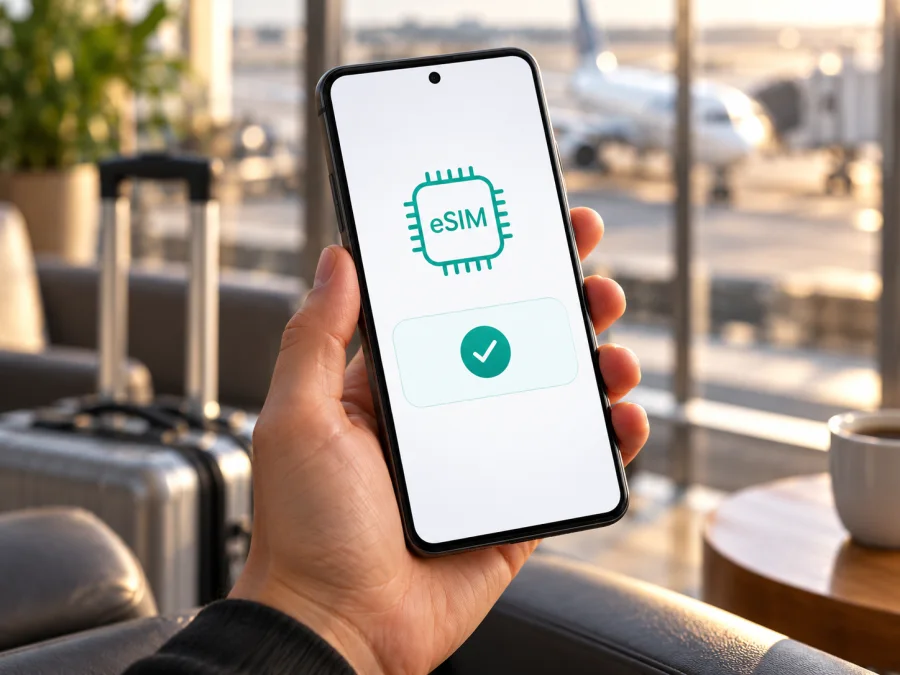
Vivo V29 Lite eSIM: compatibility, setup and travel guide
Quick answer
Does the Vivo V29 Lite support eSIM? The answer depends on the market version. vivo’s official specifications for the V29 Lite 5G say that eSIM is supported only in Europe; the vivo Europe specification page lists eSIM as supported. The global specifications also list two nano-SIM slots, so the name alone does not prove that every phone sold as Vivo V29 Lite can add a digital SIM. If your phone was sold outside Europe, or if the seller’s listing does not identify its region, treat support as unconfirmed until you check the phone itself.
vivo’s public product pages identify this family as V29 Lite 5G. This guide retains your exact target name, Vivo V29 Lite, and refers to the official page only to explain its regional eSIM information.
| Check | What the official information or the phone can tell you |
|---|---|
| Exact target name | Vivo V29 Lite |
| Name used on vivo product pages | V29 Lite 5G |
| eSIM status | Listed as supported on vivo’s Europe specifications; the global specifications qualify support as Europe-only |
| Physical SIM description | Official specifications also list two nano-SIM slots; that does not establish eSIM support for every market version |
| Most useful confirmation | EID in the phone’s settings or a visible option to add/download an eSIM, followed by confirmation from vivo for the full model/region code |
| Before buying a travel plan | Check eSIM support, carrier lock status, destination coverage and the plan’s activation conditions |
An EID is an identifier associated with an embedded SIM; its presence is strong evidence of eSIM capability. If it or the eSIM menu is absent, confirm the regional model with vivo or the seller before buying a plan.
Does the Vivo V29 Lite support eSIM?
For the European version documented by vivo, the answer is yes: vivo’s Europe product specifications explicitly mark eSIM as supported. The global specification page makes the limitation clearer by stating “Supported only in Europe.” This is the best available official distinction for the V29 Lite family: it is not safe to generalize European eSIM support to all regions.
“Europe” describes the sales version, not the phone’s current location. A European handset can use eSIM abroad if the profile and destination are supported; using a non-European handset in Europe does not add eSIM capability.
Regional variants and firmware can differ, and vivo does not publish a complete country-by-country matrix. For an imported or used phone, verify the full model code and original sales region rather than relying on a short listing title or 5G branding.
How to check the phone before purchase
Use these checks on the actual handset if possible:
- Find the full model and market information. Open Settings and look under About phone (the label may differ slightly in Funtouch OS). Record the model number, software version and any region/build identifier shown. Compare these with the seller’s invoice, box label and the specifications for the sales market. Do not post your IMEI or EID publicly.
- Look for an EID. In Settings, search for “EID” or “SIM status.” On Android, the path can vary; common places include About phone, Status, or a SIM/mobile network information screen. If search finds an EID, note that this strongly indicates embedded-SIM hardware is available. You can also dial
*#06#in the phone app; supported software may display the EID with the IMEI. A code that does not display an EID is not, by itself, a definitive diagnosis. - Check the SIM settings for an add option. Open Settings → Mobile network or SIM card & mobile network and look for Add eSIM, Download a SIM, Add mobile plan, or a similar action. Some software versions show this only after opening SIM management or the preferred SIM page. Do not select a reset or delete action while exploring.
- Ask vivo or the seller to confirm the exact code. Give them the full model number and the country where the phone was originally sold. Ask whether that specific variant supports eSIM and whether the current firmware exposes the feature. A reply about “V29 Lite” without a region or model code may refer to a different variant.
- Check that the phone is not carrier-locked. A device can have eSIM hardware yet reject a profile from another provider while locked to its original carrier. Ask the original carrier or seller for an unlock confirmation, especially for a second-hand or contract handset.
If the model is still unclear, check whether your device is compatible before choosing or activating a plan. This check should use your own device’s EID/menu and its full regional model identifier, not just a product listing title.
An EID and an Add eSIM option together are strong confirmation, but neither guarantees that every plan will work. If only one appears, or neither appears, update the phone and ask vivo to confirm the model code and firmware before purchase. A failed QR scan can also result from network, code, lock or plan issues rather than unsupported hardware.
What to check before buying an eSIM plan
Before purchase, confirm four things: the phone supports eSIM in its regional variant, it is not restricted by a carrier lock, the plan covers the destination, and you can complete installation with a reliable internet connection. Check these while you still have time to contact the seller or support.
- Compatibility: Find the EID and eSIM menu, then confirm the model code and sales region if anything is uncertain.
- Unlock status: A phone locked by its original operator may refuse another provider’s eSIM even when the device itself supports eSIM.
- Destination and route: If you visit more than one country, check that the plan includes every destination rather than assuming a country plan works across a region.
- Plan terms: Review data allowance, validity period, supported destinations, when validity starts, and whether the plan can be installed before departure. The activation rule is plan-specific; downloading a profile and starting its validity are not always the same event.
- Setup and profile limits: Use reliable Wi-Fi to download the profile. Check whether installation starts validity and whether the profile can be transferred or reinstalled; do not delete it until you know the provider’s rule.
- Other SIM and roaming: If keeping your usual SIM active, review its roaming charges and set the travel eSIM as the data line. Enable data roaming only for the travel profile if its instructions require it.
An eSIM plan for travel is generally intended for mobile data. Do not assume it includes a regular phone number, standard voice calls or SMS; check the plan’s terms. Internet calling and messaging apps can work over data, subject to their own availability and the network connection.
How to install and activate an eSIM on Vivo V29 Lite
The exact wording can vary with the Funtouch OS version and market. Keep the phone connected to Wi-Fi, have the QR code or manual activation details ready, and follow the provider’s instructions. The Android walkthrough is available in Kaspersky eSIM Store’s Android installation guide; the iOS installation guide is useful only if you are setting up a different Apple device.
QR-code installation
- Confirm compatibility and unlock status. Check the EID or Add eSIM option and verify the regional model if anything is unclear.
- Connect to stable Wi-Fi. Keep a reliable connection for the profile download.
- Open SIM management. In Settings, choose Mobile network or SIM card & mobile network, then Add eSIM or Download a SIM. If the action is missing, confirm the region variant instead of scanning repeatedly.
- Scan the provider’s QR code. Use the built-in eSIM flow. If the QR is on this phone, display it elsewhere or use manual entry if provided.
- Download and label the profile. Keep Wi-Fi on until the profile appears. Give it a clear name such as “Travel” if the phone allows this.
- Set it up for the trip. Select the eSIM for mobile data when appropriate. Follow the plan’s activation rule and enable data roaming for that profile if required. Keep your home line’s roaming costs in mind.
- Test at the destination. With Wi-Fi off, confirm the travel eSIM is the data line and load a webpage.
Keep the profile installed while troubleshooting: its QR code may be single-use or non-transferable. If it appears installed but inactive, check the plan’s activation rule before changing settings.
Manual installation
If the provider supplies manual activation details, choose Enter manually in the Add eSIM flow and copy each value exactly. If it supplies QR-only details, contact support rather than guessing the fields.
Dual SIM and mobile data
Although vivo lists two nano-SIM slots and eSIM support for Europe, the SIM manager controls which profiles can be active together. Set the travel eSIM as the data line and check the home SIM’s roaming terms if it remains on.
Using the Vivo V29 Lite eSIM on a trip
Before departure
Check compatibility, route coverage and activation terms before departure. If pre-installation is allowed, download the profile over Wi-Fi at the time recommended by the plan. Before boarding, confirm the data SIM and review roaming settings and costs for your home line.
On arrival
Enable the travel profile, choose it as the mobile-data line, and enable data roaming for that profile if the plan requires it. Wait briefly for network registration, then test a webpage with Wi-Fi off. A successful connection depends on the destination being included, a supported partner network being available, and the device’s regional and radio configuration working with that network. 5G branding alone does not guarantee 5G access in another country; 4G may be the expected or available connection.
During the trip
Track data use in Settings; video, backups and updates can consume it quickly. At a border, confirm the new country is included and let the phone register automatically unless the plan’s instructions say otherwise.
Estimate your needs from the trip: maps and messages use less data than video calls or frequent uploads. Coverage and speed vary with location, network conditions, device software and plan terms.
Kaspersky eSIM Store is an app and website where you can choose, arrange and activate an eSIM with a plan for mobile data on an international trip. To review the currently listed destinations and plan terms, browse the Kaspersky eSIM Store. Check the destination, data amount, validity and activation conditions shown for the specific plan before proceeding; availability and terms can change.
Common problems and checks
There is no EID or Add eSIM option
Check the full model number and the phone’s original sales region. The official global vivo specifications identify the eSIM capability as Europe-only, so a version sold elsewhere may not expose the feature. Install official software updates, restart the phone, and search Settings for “EID,” “eSIM” and “SIM.” If the option is still absent, contact vivo or the seller with the model code and build information. Avoid unofficial firmware changes; they are not a reliable way to add unsupported hardware or certification.
The QR code will not scan
Increase screen brightness on the device showing the QR code, clean the Vivo camera lens, and hold the code steady within the scanner frame. Make sure the code is for your own plan and has not already been used. If it is displayed on the same phone, scan from another screen or use manual entry when provided. If the scanner reports an invalid or expired code, contact the plan provider for confirmation; repeated attempts do not fix a code that has already been redeemed.
The profile does not download
Confirm Wi-Fi works by opening a webpage, turn off any VPN or captive portal that blocks the download if applicable, and try again on a stable connection. Check that the phone has current software and enough free storage. If the profile partially appears, do not delete it until support confirms whether it can be reissued. Save any exact error message for the provider or vivo.
The eSIM is installed but there is no service
First verify that the plan covers the country you are in and that its validity has started. Confirm the eSIM is enabled, chosen for mobile data and allowed to use data roaming if required. Turn airplane mode on briefly and then off, or restart the phone once. If automatic network selection fails, follow the plan’s instructions before trying manual selection. Check whether the phone is carrier-locked and whether a supported local network is available where you are. Signal can be weak indoors or in remote areas even when a destination is covered generally.
The phone connects but data does not work
Make sure mobile data is assigned to the travel profile rather than the home SIM, check data roaming for the correct profile, and verify that the plan still has data and time remaining. Review any APN instructions supplied with the plan and enter them exactly only if required. Disable Wi-Fi briefly for a clean test. A phone can show network bars without an active data session, so confirm using a webpage or app that needs a connection.
The home SIM still has roaming charges or you need to move the eSIM
Check the data-SIM selection and home carrier’s roaming rules; the travel profile does not change the other line’s terms. Treat an installed travel profile as device-bound unless its terms allow transfer. Ask the provider before deleting it or moving to another phone.
Frequently asked questions
Does every Vivo V29 Lite have eSIM?
No universal claim is justified. vivo’s official documentation lists support for the European V29 Lite 5G variant and says support is Europe-only on its global specification page. Verify the actual phone’s EID, eSIM menu and regional model code.
Can I use a physical SIM and an eSIM together?
The official specs list two nano-SIM slots and eSIM support in the European market. Which combination can be active at once depends on the regional device and its software. Check the SIM manager on your phone and set the correct line for data before travel.
Can I use it outside Europe?
The Europe-only note concerns which V29 Lite regional variant supports eSIM. A European handset may be used abroad, but the plan must cover the destination and connect to a compatible local network. The device’s location does not change the capability of a non-European hardware variant.
Final checklist: confirm the phone, then choose the trip plan
Before you leave, use this short checklist:
- Confirm the exact model code and the handset’s original sales market.
- Find the EID or Add eSIM setting on your Vivo V29 Lite; ask vivo or the seller if the result is unclear.
- Confirm the phone is not locked to its original carrier.
- Check that your destination or full route is covered by the plan you are considering.
- Read the data allowance, validity period and activation rule before installation.
- Install over reliable Wi-Fi when appropriate, then select the intended profile for mobile data.
- Enable data roaming only for the travel eSIM if its instructions require it, and review roaming settings on your home SIM.
- Keep the profile installed unless the provider confirms it can safely be removed or transferred.
The practical answer is therefore regional: the European V29 Lite 5G version is officially listed with eSIM support, while the global vivo page limits that support to Europe. Your own EID, SIM settings and regional model code settle whether the specific Vivo V29 Lite in your hand is ready. Once compatibility is confirmed, compare the current destination plan’s data and validity terms and set up the eSIM at the time its activation rules recommend.


