Travel connectivity guide
Vivo V40 eSIM: Compatibility and Setup
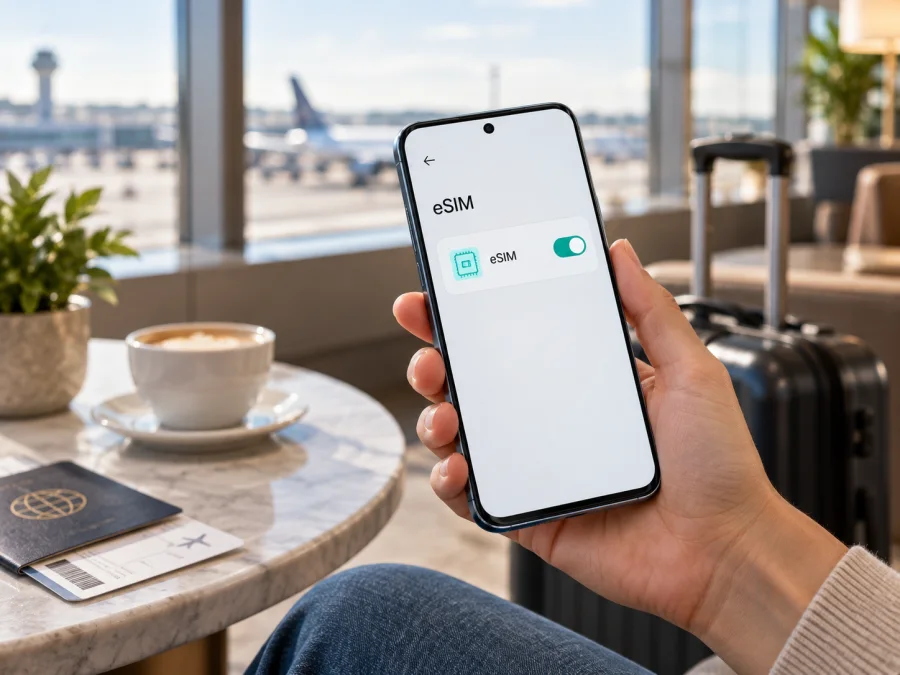
Vivo V40 eSIM: compatibility, setup and travel use
The Vivo V40 can support eSIM, but the answer depends on where the phone was made for sale. Vivo’s official specifications list eSIM support for selected regional versions, including models sold in parts of Europe and a Claro version for Mexico and Colombia. Other official Vivo regional specifications, including India and Russia, list two physical nano-SIMs and do not list eSIM. So “Vivo V40” by itself is not enough to guarantee that the feature is present on your handset.
If your Vivo V40 has an EID and an option to add a mobile plan in Settings, it is provisioned for eSIM; you still need an unlocked phone and a plan that works with its network bands and software. If those controls are absent, do not assume that a software update or a travel eSIM app can add eSIM hardware support. Check the precise model code and sales region with Vivo or the seller before buying a plan.
Quick answer
| Item | What to know |
|---|---|
| Device in this guide | Vivo V40 |
| eSIM verdict | Supported on some regional versions; not a universal feature of every Vivo V40 |
| Official regional examples | Vivo lists support on selected European specifications and on the Claro Mexico/Colombia version; India and Russia specifications list physical nano-SIM only |
| How to confirm your handset | Look for an EID and an “Add eSIM” or “Add mobile plan” control in Settings; verify the model code with Vivo if uncertain |
| Main travel use | Keep your regular SIM for calls or messages and use a compatible travel eSIM for mobile data, when both profiles can be active as required |
| Before purchase | Confirm eSIM capability, carrier unlock status, destination coverage and the plan’s data/validity conditions |
The verdict is conditional, not a blanket yes. Vivo sells different configurations under the V40 name. India and Russia product pages list two physical nano-SIMs without eSIM, while selected European pages and a Claro Mexico/Colombia configuration list eSIM. Retailer stock, carrier provisioning and firmware may add variation. Use the model code on your phone and packaging, then ask Vivo or the seller to confirm that exact code for its original market.
What eSIM support means on this phone
An eSIM is a SIM profile stored digitally in the phone rather than on a removable plastic card. On a supported Vivo V40, the phone can download a profile supplied by a mobile service and use it to register on a compatible network. This capability is separate from 5G: a phone can support 5G without having eSIM, and eSIM availability does not promise 5G on every network or in every destination.
The phone may support two physical nano-SIMs in one market and a nano-SIM plus eSIM in another. The supported combination and standby behavior can depend on its hardware and software. Do not assume two eSIMs can be active at once just because an eSIM menu appears. If you need your home number while travelling, check the available dual-SIM mode and choose which line uses mobile data.
Vivo’s regional specifications are a useful starting point, but they cannot identify an imported or second-hand handset by name alone. Check the model number on the device and ask Vivo support to confirm that code. A carrier-locked phone may also reject another provider’s profile even when it has eSIM hardware.
Check your Vivo V40 before buying a plan
Use these checks in order; menu names can vary by Funtouch OS version.
- Find the model code. Open Settings → About phone and note the model number and software version. Compare it with the box or invoice.
- Look for an EID. Check Settings → About phone → Status or SIM status. On some devices,
*#06#in the dialler shows the EID beside the IMEI. That code is not universal, so its absence there alone is not conclusive. - Check SIM settings. Under Settings → Mobile network or SIM cards & mobile networks, look for Add eSIM, Download a SIM or Add mobile plan. Do not scan an unfamiliar profile just to test the menu.
- Compare the evidence. An EID and an eSIM setup control strongly indicate support. If either is missing, confirm the exact model code with Vivo or the original carrier before buying.
- Confirm the phone is unlocked. Ask the seller or carrier whether another provider’s eSIM is allowed.
Avoid sharing your IMEI or EID publicly.
Compatibility checklist
Before choosing an eSIM, confirm each item:
- [ ] Your exact Vivo V40 model code and region have eSIM capability.
- [ ] The phone has an EID and a control to add a profile.
- [ ] It is unlocked, or the carrier allows a second provider’s eSIM.
- [ ] The plan covers every destination and its network bands suit the trip; 5G is not guaranteed.
- [ ] You know the data allowance, validity start and activation deadline.
- [ ] You have Wi-Fi for setup and can keep the QR code private.
For a quick checklist, check your device’s eSIM compatibility. This confirms the phone itself, not every destination network or plan.
Install and activate an eSIM
Install only a profile from your chosen provider and follow the plan’s activation window. Many travellers install over Wi-Fi before departure, then select the travel line for data after arrival. Validity can start at installation or first connection, so check the plan terms first.
Before installation
- Connect to stable Wi-Fi and charge the phone.
- Confirm the device is unlocked and supports eSIM.
- Keep the provider’s QR code or manual activation details private; do not scan the code on multiple devices.
- Check destination, data, validity, deadline, network and roaming requirements.
- Keep the home SIM if you need it for calls or verification, while checking its roaming charges.
Add the profile on Vivo V40
- Open Settings and choose Mobile network, SIM cards & mobile networks or the similarly named SIM section.
- Tap Add eSIM, Download a SIM or Add mobile plan. If no such choice appears, stop and recheck your device’s compatibility rather than searching for a workaround.
- Choose the option to scan a QR code, then scan the code shown by your provider on another screen. If the provider gave manual details, select the manual entry option and enter them exactly as issued.
- Approve the download and wait for the profile to install. Keep Wi-Fi connected and do not close the process midway. The phone may show the new line under SIM management after a short delay.
- Give the line a clear label such as “Travel data” so it is easy to distinguish from your home SIM. Follow any provider prompt about the default data SIM or roaming.
- If you are still at home, leave the travel eSIM switched off if the provider recommends waiting until arrival. Do not delete it simply because it has not connected yet.
For device-specific menu illustrations, use the Android eSIM installation instructions and, when comparing setup on another device, the iOS eSIM installation instructions. Vivo V40 runs Android-based Funtouch OS, so follow the Android path while allowing for menu names that vary by software version.
Activate for data after arrival
At your destination, switch on the travel profile if needed, select it for Mobile data, and enable data roaming on that line only if the plan requires it. Keep roaming off for your home SIM if you want to avoid charges. Turn Wi-Fi off briefly to test. You may keep calls or SMS on your regular line, but behavior depends on the V40 variant and carrier. Data-only plans usually have no regular phone number, calls or SMS unless stated; messaging apps can use the internet.
Using Vivo V40 eSIM on a trip
City break: Install over Wi-Fi if advance installation is allowed; on arrival, use the eSIM for maps and messages while keeping your home line for important calls if dual-SIM mode permits.
Several countries: Check that every stop is covered. A regional plan’s partner networks and available technology can vary. Allow time for automatic network registration after crossing a border.
Work trip or longer stay: Save data for navigation, email and authentication, use Wi-Fi for large downloads, and monitor usage and validity. Confirm how work SMS verification will reach you; a data-only plan does not carry your home number.
Kaspersky eSIM Store is an app and website where travellers can choose, arrange and activate an eSIM with a mobile data plan for an overseas trip. Before choosing a destination plan there, make sure the Vivo V40’s exact regional version can add an eSIM and review the plan’s coverage, data amount, validity and activation conditions. An eSIM can reduce reliance on public Wi-Fi and may be an alternative to standard roaming, but it is not always cheaper than every roaming or local SIM option.
Troubleshooting: when an eSIM does not work
There is no “Add eSIM” option. Recheck the model code and regional specifications, then contact Vivo. If the EID is also missing, your configuration may be physical-SIM-only. A reset cannot add missing eSIM hardware.
The QR code will not install. Use another screen if it is displayed on the same phone, ensure Wi-Fi is connected, and check whether the code was already used or has expired. If provided, use manual details exactly as issued.
The profile installs but has no service. Confirm destination coverage and plan status, switch on the line, select it for mobile data and enable roaming only if required. Try automatic network selection, then airplane mode or a restart. Check data balance, validity and any provider-specified APN.
Data fails or works only in one country. Confirm the travel eSIM is selected for data, mobile data is enabled, and the plan covers the current destination. Check network and APN instructions with the provider; bands, outages and local availability also affect service.
The phone says locked or unsupported. Ask the original carrier about the network lock and the provider to confirm device requirements. Share model details through private support, never a full QR code publicly. Do not delete a profile or reset the phone before asking the provider: single-use QR codes may not be reusable.
Frequently asked questions
Does every Vivo V40 support eSIM?
No. Vivo’s specifications vary: selected European and Claro Mexico/Colombia versions list eSIM, while India and Russia pages list physical nano-SIMs only. Confirm the exact model code, EID and settings menu.
Does 5G support mean eSIM support?
No. They are separate capabilities. Some regional V40 specifications list 5G while omitting eSIM. Verify the EID and add-eSIM setting.
Can I keep my usual SIM active?
Possibly, on configurations that support the needed dual-SIM mode. Keep the home SIM for calls or messages and use the travel eSIM for data only if your phone and carrier allow it. Check roaming costs.
Should I install before travelling?
Often, if the plan allows it. Check whether validity starts at installation or first connection and follow any activation deadline.
Can I move or reuse the eSIM?
Do not assume so. QR codes may be single-use and transfer rules depend on the provider. Ask before deleting the profile or changing phones.
Does a data eSIM replace my phone number?
Usually not. A data-only plan provides internet, not a regular number or SMS, unless its terms explicitly say otherwise.
Before you go: verify the phone, then choose the trip plan
First, check that your Vivo V40 is the regional version with eSIM support: confirm its model code, find its EID, and make sure Settings offers a way to add an eSIM. If the evidence is missing or conflicts with the seller’s claim, ask Vivo or the original carrier before purchasing. Then check the phone is unlocked and compare the plan’s destinations, data allowance, validity start and activation rules with your itinerary.
Once those checks match, choose a suitable travel eSIM plan through Kaspersky eSIM Store’s app or website, install it according to the provider’s instructions, and select it for mobile data when you are ready to connect. Keep your QR details secure, retain your home SIM settings if needed, and save the plan support information offline. This small check before departure helps avoid discovering at the airport that the handset variant cannot add the profile.
<a id="kesim-device-compatibility"></a>


