Travel connectivity guide
Vivo V40 SE eSIM Compatibility and Setup
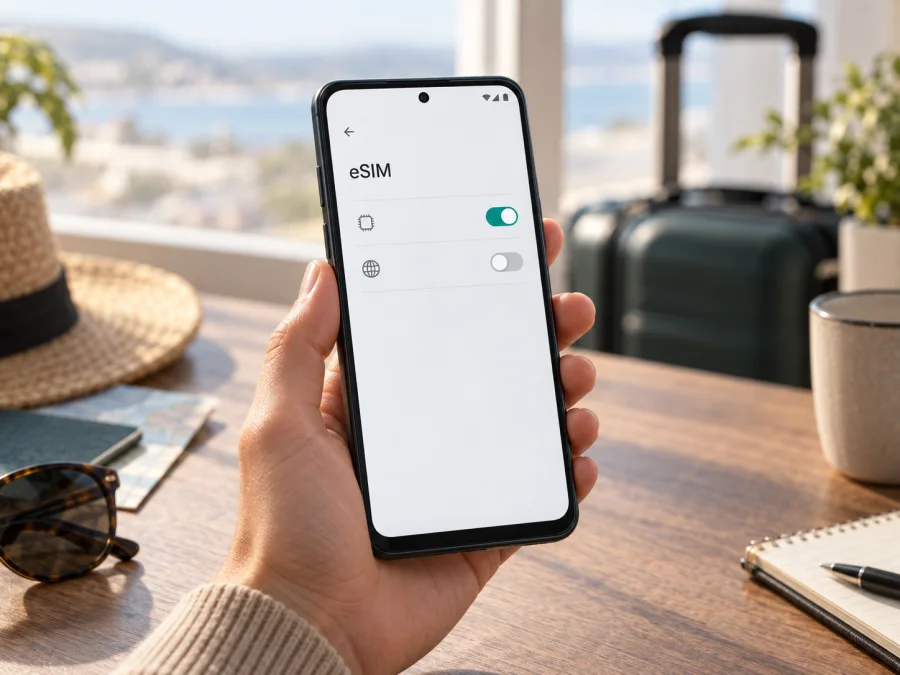
Vivo V40 SE eSIM compatibility: what to check before your trip
If you are preparing for a trip and want to use a travel eSIM, check the exact version of the Vivo V40 SE before choosing a data plan. The name alone does not confirm that a phone has an eSIM profile: Vivo sells similarly named V40 SE editions with different network specifications. Vivo’s official European specifications identify the plain V40 SE as the V40 SE 4G, with a physical nano-SIM plus a second nano-SIM/microSD slot. They do not list an eSIM function. On that documented version, do not count on installing a travel eSIM unless the phone’s own settings and Vivo support for your exact model code confirm it.
eSIM is not confirmed for the standard Vivo V40 SE 4G. Treat it as unsupported until the exact phone shows eSIM identifiers and setup options or Vivo confirms its model code. A related V40 SE 5G or another edition is not automatically the same device; a QR code cannot add eSIM capability.
This distinction matters for travel. A phone can connect to 4G or 5G using a physical SIM and still have no eSIM. Cellular network generation and eSIM capability are separate features. The checks below help you identify your handset, find the relevant settings, and decide whether a travel eSIM is a realistic option before you buy.
Vivo V40 SE at a glance
| Item | What to know |
|---|---|
| Device covered here | Vivo V40 SE, commonly listed by Vivo Europe as Vivo V40 SE 4G |
| Published network generation | 4G LTE for the documented European V40 SE 4G |
| SIM arrangement in Vivo’s European specification | 1 nano-SIM + 1 nano-SIM or microSD |
| eSIM status | Not listed for this standard 4G specification; confirm the exact model code and phone settings |
| Related names | V40 SE 5G and V40 SE 80W are distinct editions and must be checked separately |
| Best pre-purchase evidence | EID shown in Settings or by dialing *#06#, plus an “Add eSIM” control in mobile network settings |
| Travel use | A supported, unlocked eSIM phone can use a suitable data plan abroad; this model’s support must be confirmed first |
Retail listings may omit a suffix or model code. Compare the box and Settings with Vivo’s support page for the phone’s sales region; the model number is more useful than a shortened listing title.
Is eSIM supported on the Vivo V40 SE?
For the standard Vivo V40 SE 4G shown on Vivo’s European product and parameter pages, eSIM is not specified. Vivo lists Android 14/Funtouch OS 14, a Snapdragon 685 platform, 4G LTE bands, and a card tray described as one nano-SIM plus one nano-SIM/microSD. The 5G field is not populated on that product specification. That is materially different from an eSIM-ready specification: a dual-SIM tray describes physical cards and does not establish that the phone contains an embedded SIM.
Vivo’s support material separately names “V40 SE 5G (V2337)” and “V40 SE (V2418)” in eSIM carrier FAQs. Vivo Spain also explicitly lists eSIM support for the separate Vivo V40 SE 80W edition. These entries do not establish that the plain V40 SE 4G supports eSIM: regional hardware and firmware differ, and a shortened seller title is not enough to identify the applicable model.
If your phone is labelled V40 SE 5G or Vivo V40 SE 80W, or shows V2337 or V2418, check that edition’s Vivo support page and settings; the V40 SE 80W specification does list eSIM. Do not transfer that support to the plain Vivo V40 SE. For the standard 4G edition, the official specification does not confirm eSIM; ask Vivo or the seller about the complete model code and market if uncertain.
Carrier locking is separate from eSIM hardware support. Confirm both eSIM capability and unlock status before purchasing a plan.
Check your exact model before you buy
Open Settings → About phone and note the full model name, model number, software version, and sales region if known. Compare the model number with the box and Vivo support materials. A short seller title, color, or memory size may not distinguish 4G and 5G editions.
Next, check whether the handset exposes an eSIM identity. On many Android phones, dialing *#06# opens the device identifiers screen. Look for an EID, usually a long identifier labelled “EID.” You can also inspect Settings → Network & internet, Mobile network, SIM management, or a similar menu for Add eSIM, Download a SIM, or Add mobile plan. Menu labels vary by region and software release, so use Settings search for “SIM” or “eSIM” if needed.
Use both checks where possible: an EID indicates an eSIM identity, and “Add eSIM” shows that the software exposes setup. Neither guarantees that every carrier or plan will work; the phone must also be unlocked. If both are absent, restart, install official updates, and verify the model code with Vivo. If they remain absent, treat the handset as incompatible. A QR code cannot add a missing eSIM function.
Compatibility checklist
- [ ] The full model code matches a Vivo edition whose official documentation confirms eSIM.
- [ ] An EID appears on the phone or in its identifier screen.
- [ ] The mobile network settings include an option to add or download an eSIM.
- [ ] The phone is not locked to a carrier that blocks another provider’s profile.
- [ ] The eSIM plan supports your destination and the dates of your trip.
- [ ] You have reliable Wi-Fi or another internet connection available for installation.
Check your device compatibility before you choose a travel plan. If you cannot confirm the exact version, contact Vivo with the model code and ask specifically whether that regional unit supports installing a third-party eSIM profile. Ask the carrier or seller about any network lock as a separate question.
How to install and activate an eSIM on a compatible Vivo phone
Use these steps only after confirming eSIM support for your exact edition. Keep the QR code on another screen or printed page, connect to Wi-Fi, and read the plan instructions first. Some activation codes are single-use, and some profiles cannot be transferred.
- Check the plan details. Confirm the destination, data allowance, validity period, activation conditions, and whether the plan starts on installation or on first connection to a supported network.
- Connect to Wi-Fi. Keep a working internet connection available while the phone downloads the eSIM profile.
- Open SIM settings. Go to Settings → Network & internet / Mobile network / SIM management. The wording depends on the Funtouch OS release and market.
- Choose the eSIM option. Tap Add eSIM, Download a SIM, or the closest equivalent. If the choice is missing, stop and recheck compatibility rather than continuing with a QR code.
- Scan or enter the activation details. Scan the provider’s QR code from a second device, or enter the manual activation details if the provider supplies them.
- Confirm the download. Follow the on-screen prompts and wait while the profile is added. Leave Wi-Fi on and do not close the setup screen if it is still processing.
- Name the profile. Use a clear label such as “Travel” so you can distinguish it from a home SIM.
- Choose what each SIM does. Keep your regular number selected for calls or SMS if you want to continue using it, and choose the travel profile for mobile data when the trip plan is ready.
- Set activation timing. Follow the plan’s instructions. If it should start at the destination, install it in advance only if the provider allows that and leave the line off until the right time.
- Enable data roaming only when instructed. Some travel eSIM profiles need roaming enabled to connect to partner networks. Check the specific plan instructions and enable roaming for the travel line only if required.
- Confirm service. Once activation is expected, turn off airplane mode, select the travel eSIM for mobile data, and wait a few minutes for network registration. A restart may help if the profile is installed but the network does not appear.
For general setup details, read the Android eSIM installation instructions. The iOS eSIM installation instructions are for iPhone and iPad and are included as a separate reference; they do not describe the Vivo menus. Kaspersky eSIM Store is an app and website where you can choose, arrange, and activate an eSIM with a suitable mobile data plan for an international trip. The plan’s terms determine its coverage, network access, validity, and data allowance.
Using a travel eSIM on a trip
If your exact Vivo edition supports eSIM, a travel data plan can be prepared before departure and selected when you need mobile data abroad. For example, you might keep your home physical SIM available for calls or verification messages while setting the travel eSIM as the data line. Whether both lines can remain active in the way you expect depends on the phone’s dual-SIM behavior, local network availability, and the plan terms. Review your home carrier’s roaming settings to avoid unexpected charges.
For a short city break, estimate data for maps, messaging, email, and ride-hailing. For a longer trip with video calls or uploads, check the allowance, top-up rules, and validity. On multi-country routes, confirm every destination and transit stop; regional plans may have exclusions or fair-use limits.
A travel data eSIM is not necessarily a replacement for your home number. Unless plan details say otherwise, assume it provides data rather than standard calls or SMS. Internet calls and messaging apps can use data, but account verification may still depend on your home SIM.
Kaspersky eSIM Store is an app and website for choosing, arranging, and activating an eSIM with a travel data plan. Check its destination, allowance, validity, and activation notes against your itinerary. Network service and signal depend on the selected plan and local conditions.
Common issues and what to check
There is no “Add eSIM” item. Search Settings for “eSIM” and “SIM,” restart the phone, and check for official software updates. Then confirm the model code. If the EID is also missing, the phone likely does not expose eSIM support. On a documented V40 SE 4G, do not assume an update or QR code will add it; ask Vivo to verify the exact regional model.
A QR code will not scan. Increase the display brightness, use a second device, and check whether manual activation details are available. If the code may be one-time-use, contact the provider before trying again.
The profile downloads but shows no signal. Confirm that the plan is active in your country, the line is enabled, and it is selected for data. Follow the provider’s roaming guidance, toggle airplane mode, and restart. If it still will not register, ask whether the network is available or an APN is required.
Mobile data does not work. Ensure mobile data is on for the travel profile and it is selected as the data line. Check plan expiry, data limits, and APN instructions. Avoid deleting the profile: it may not be reusable without a new activation.
The phone says the eSIM is locked or cannot be added. A carrier lock, unsupported model code, software limitation, or provider restriction may be involved. Ask the original carrier to confirm unlock status and ask Vivo whether your exact regional model supports third-party eSIM profiles. A device with two physical SIM slots is not automatically eSIM capable.
The connection is slow or intermittent. Signal varies indoors, in transit, or outside a partner network. Move to a clearer location, check supported networks, and toggle airplane mode. 5G depends on the phone variant, local bands, plan, and network; it does not prove eSIM support.
You cannot use the profile on another phone. Some profiles are bound to the first device. Check the transfer policy before deleting it or resetting the phone; contact the provider about a replacement.
FAQ
Can I install a travel eSIM on every Vivo V40 SE?
No. “Vivo V40 SE” is not enough to identify every regional edition. The official European specification for the plain V40 SE 4G lists a physical SIM tray and does not specify eSIM. Other V40 SE-labeled versions are listed separately by Vivo. Verify your full model code, EID, and settings before buying.
Does 4G or 5G mean that eSIM will work?
No. 4G and 5G describe cellular network generations. eSIM is a separate SIM capability. A phone can support 5G and still use only physical SIM cards, or support eSIM independently of whether it has 5G.
What is the fastest way to check for eSIM?
Look for an EID using the device identifier screen, then search mobile network settings for Add eSIM. Compare the model code with Vivo’s official regional documentation. If any evidence is unclear, ask Vivo or the seller for confirmation before you purchase a plan.
Before you travel: verify first, then choose
Before choosing a travel eSIM for a Vivo V40 SE, confirm the full model code and the sales region, look for the EID, and check for an add-eSIM option in mobile network settings. For the standard V40 SE 4G documented by Vivo Europe, eSIM is not listed, so treat compatibility as unconfirmed and do not rely on a travel profile until Vivo verifies your exact unit. A related V40 SE 5G or other edition needs its own check.
If the phone is confirmed compatible and unlocked, compare eSIM plans for your destination or route, including data allowance, validity, activation timing, and roaming requirements. Kaspersky eSIM Store is an app and website that helps you choose, arrange, and activate an eSIM with a mobile data plan for an international trip. Check the device and plan before purchase, install while you have a reliable connection, and keep the setup details available during your journey.


